To turn off safe search on Safari, you need to change a setting in Apple's Screen Time, not in Safari itself. This is because Safari's content filtering is managed system-wide through Screen Time, affecting all browsers on your device.
Where is the turn off safe search on Safari setting?
The setting to turn off safe search on Safari is not located in Safari's own preferences menu. Instead, it is part of Apple's Screen Time feature, which applies content restrictions across your entire iPhone, iPad, or Mac. This system-wide filter controls what web content can be accessed in Safari and other browsers. If you were hoping to find settings in Safari directly, you would not succeed, the control is in Screen Time. Similarly, if you use Safari on Android, those devices have their own separate controls and do not use Apple's Screen Time.
Turn off safe search on iPhone and iPad
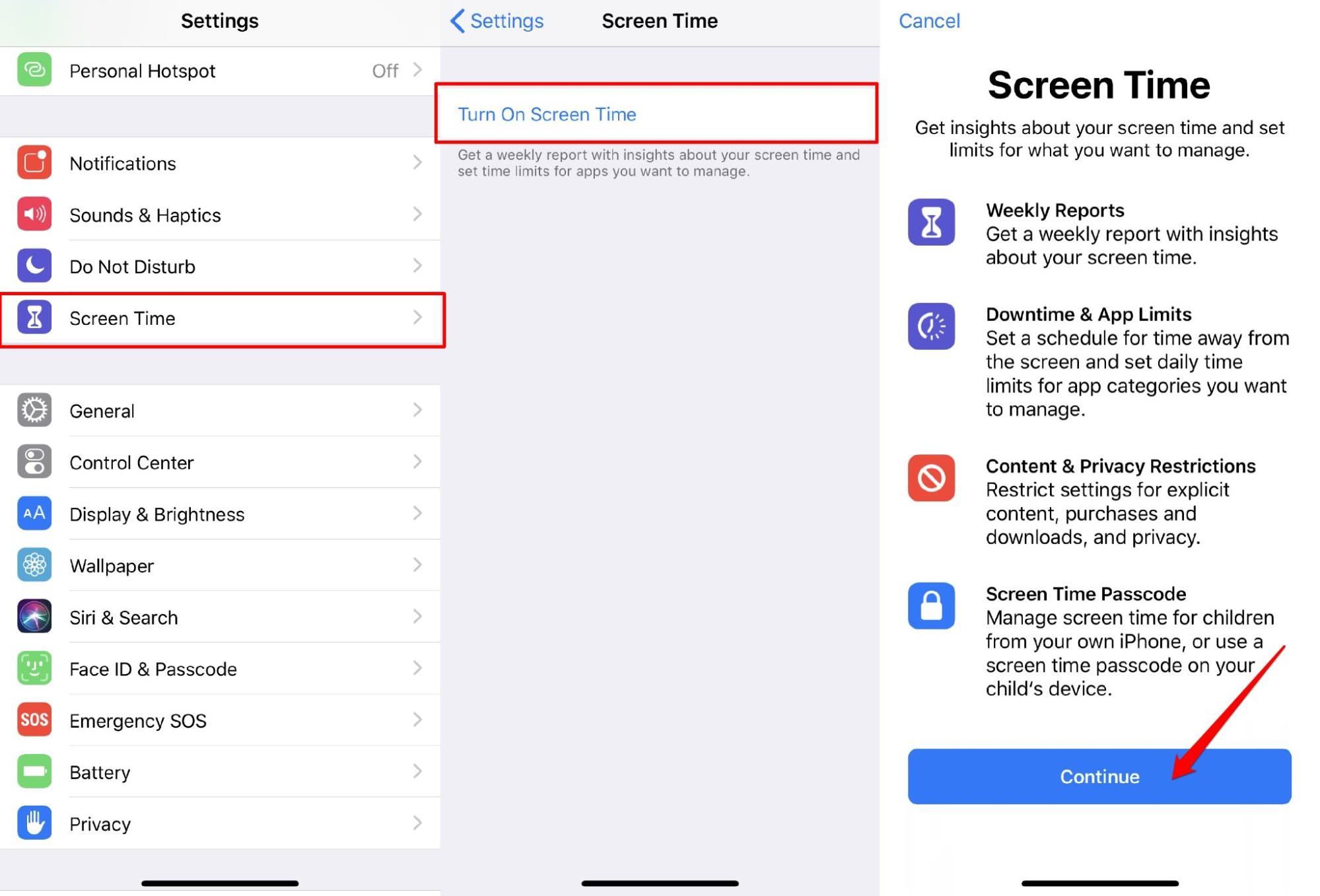
- Open the Settings app.
- Scroll down and tap Screen Time.
- Tap Content & Privacy Restrictions.
- If prompted, enter your Screen Time passcode.
- Tap App Store, Media, Web & Games (or Content Restrictions on older iOS versions).
- Tap Web Content.
- Choose Unrestricted Access to turn off all web content filtering.
After selecting Unrestricted Access, Safari will no longer filter search results or block websites. The change takes effect immediately.
Turn off safe search on Mac
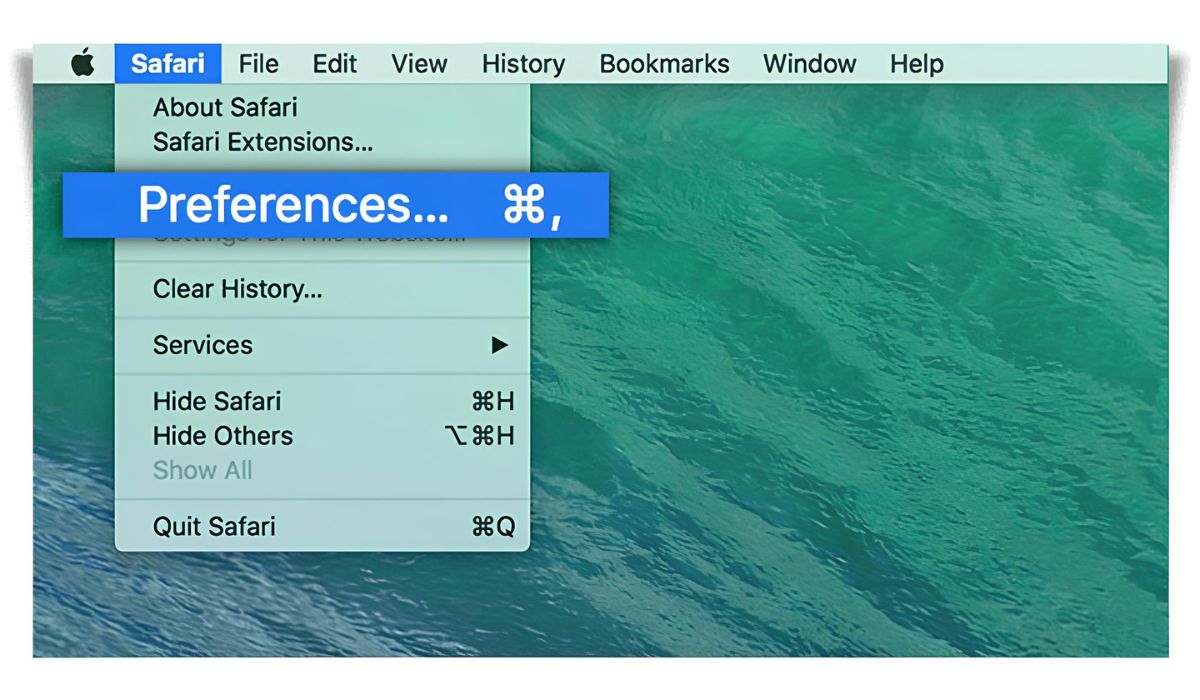
- Open System Settings.
- Click Screen Time.
- Select Content & Privacy.
- Click Content Restrictions.
- Next to Access to Web Content, choose Unrestricted Access.
This disables the safe search filter in Safari on your Mac. No restart is required; the setting applies as soon as you close the window.
What if it's a child's device?
If the device belongs to a child in your Family Sharing group, you must adjust the settings under their account. In Screen Time, tap your child's name under Family before proceeding. You will likely need to enter the Screen Time passcode to make changes. This ensures that only a parent or guardian can disable content filtering on a child's device.
Other web content options explained
Instead of Unrestricted Access, you can choose Limit Adult Websites, which automatically blocks explicit content while allowing most other sites. Alternatively, Allowed Websites Only restricts access to a pre-approved list of sites, blocking everything else. These options are useful if you want some filtering but not a complete block, and you can turn safe search on in Safari later if you need to restore those restrictions. Selecting Unrestricted Access is the only way to fully turn off safe search on Safari.