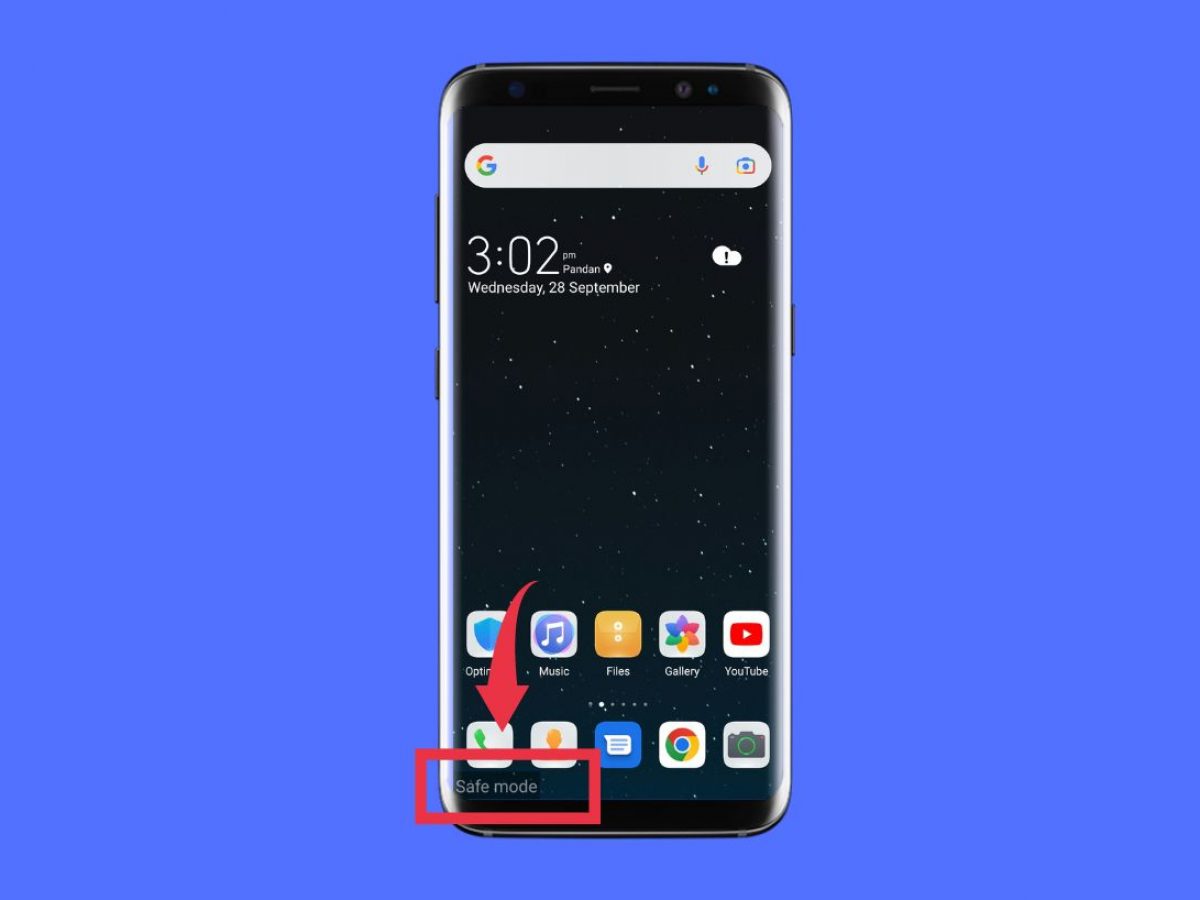
If your Redmi phone is stuck in Safe Mode, you’re likely missing your apps and full functionality, here’s how to exit safe mode on your Redmi device quickly, using either the notification panel or a standard restart. Safe Mode is a diagnostic state that disables third-party apps, but getting out of it only takes a few seconds once you know the two primary methods.
How to exit safe mode on your redmi device: A quick-answer summary
Safe Mode on your Redmi runs only essential system apps, which is useful for troubleshooting but leaves your usual apps greyed out and unusable. Both methods take under a minute and restore full functionality without any data loss.
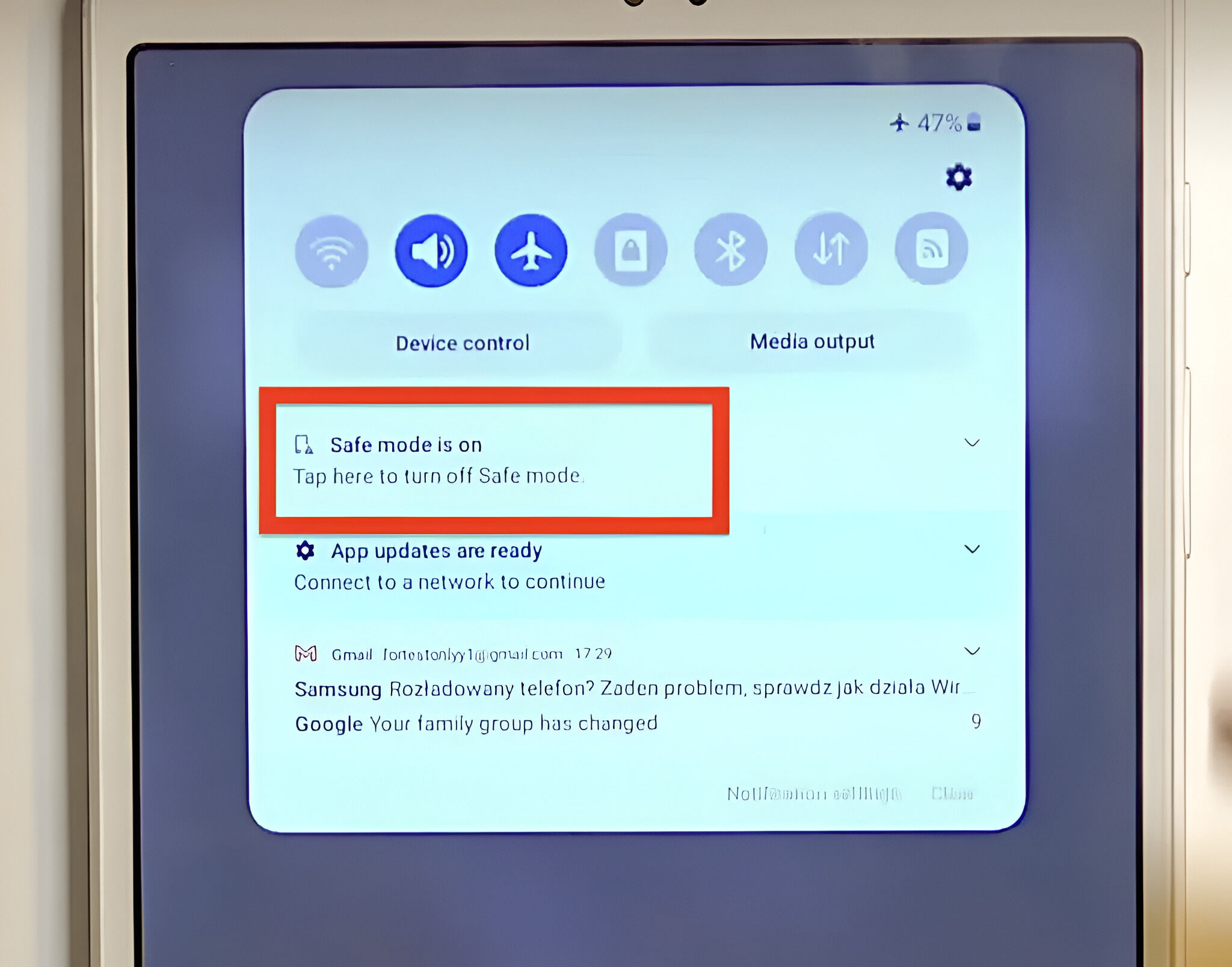
Method 1: Use the 'Safe mode is on' notification
This is the fastest way to exit safe mode on your Redmi device because it doesn’t require holding any buttons. The phone places a permanent notification in your shade specifically for this purpose, so you can leave Safe Mode with one tap.
- Swipe down from the top of your screen to open the notification panel, use two fingers if you want to see the quick settings fully.
- Tap that notification, it will expand to show a single action button labeled “Restart” or “Exit” (depending on your MIUI or HyperOS version).
- Tap that button, and your Redmi will automatically reboot.
This method works in nearly every case because the notification is designed to be the one-tap escape hatch. If you don’t see it, make sure you’re pulling down the notification shade fully and not just the quick settings toggle row.
Method 2: Restart your device normally
If the notification method isn’t available or you prefer the classic approach, a standard restart will always do the job. This is the fallback that works on every Redmi, regardless of software version or whether the notification appears.
- Press and hold the power button on the side of your Redmi until the power menu slides up on the screen.
- Tap “Restart” from the options (not “Power off” unless you plan to turn it back on manually).
If you tapped “Power off” instead, simply press the power button again to turn the phone on, and it will boot into normal mode automatically. A restart is effective because Safe Mode is only a temporary boot state, it doesn’t persist across reboots unless a physical button is stuck.
Method 3: Check for a stuck volume button
Sometimes a restart doesn’t fix Safe Mode, and the reason is almost always a stuck volume key. Redmi phones enter Safe Mode when you hold the volume down button during boot, so if that button is physically jammed or dirty, the phone will keep re-entering Safe Mode no matter how many times you restart. This troubleshooting step is your best friend when the standard methods fail.
- Inspect the volume rocker on the right side of your Redmi. Press it a few times firmly to see if it feels stuck or makes a different sound than usual.
- If it feels sticky or unresponsive, clean around the button with a dry, soft-bristled toothbrush or a can of compressed air, do not use liquids.
- Now perform a normal restart using the power button. If the phone boots into normal mode, the issue is resolved.
- If it still enters Safe Mode, repeat the restart while pressing and holding the volume up button instead, this forces a normal boot on some MIUI versions.
If cleaning and pressing the button doesn’t help, the volume switch may be physically damaged and need service. But in most cases, a quick clean and a firm press are all it takes to break the stuck-button loop.
What is safe mode on a redmi phone?
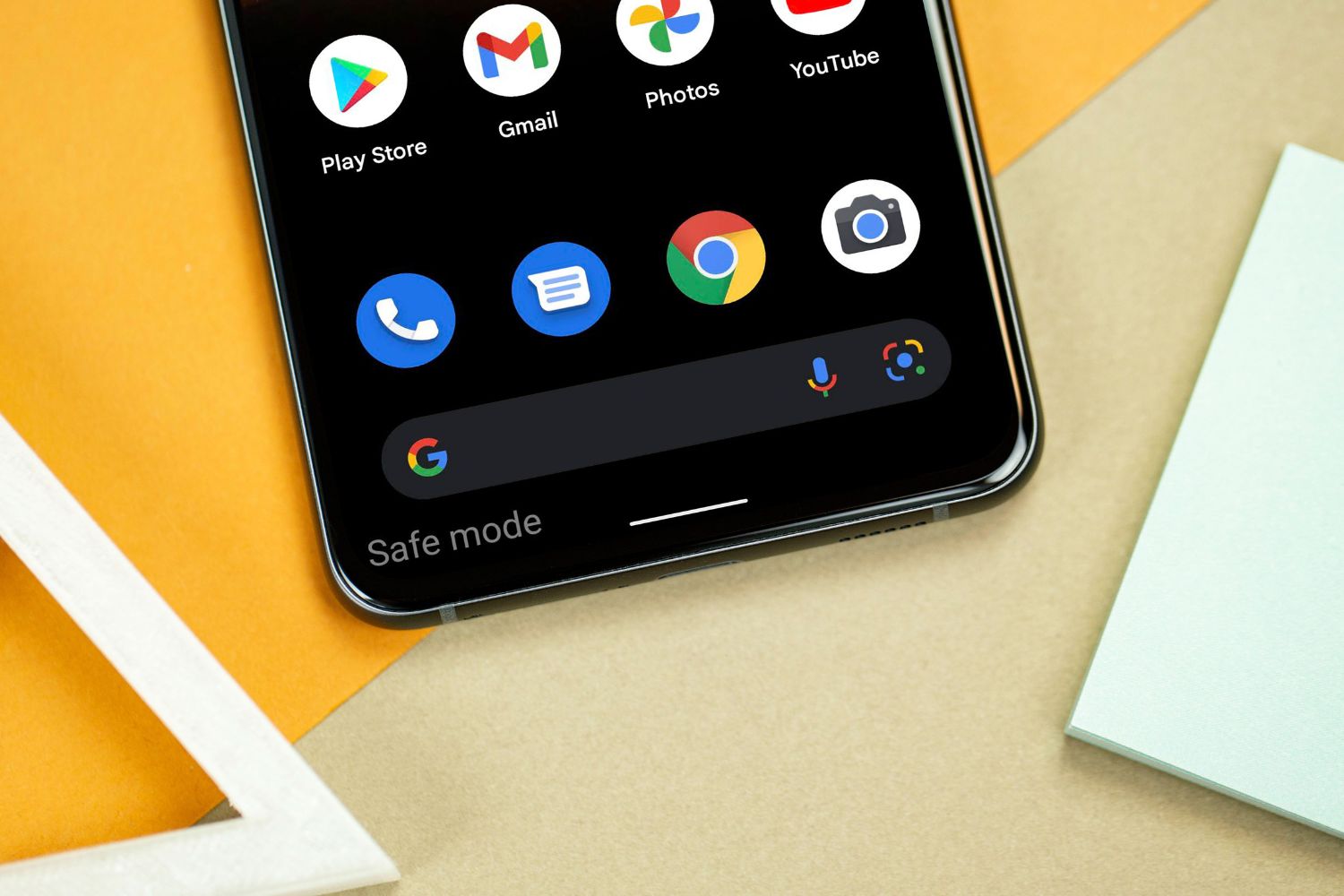
Safe Mode is a diagnostic mode that allows the device to run with only essential system apps and services, temporarily disabling all third-party applications. Its purpose is to help troubleshoot issues like crashes, freezes, performance problems, or abnormal behavior caused by a recently installed or updated app. When you’re in Safe Mode, downloaded third-party app icons may appear greyed out or hidden and cannot be used, which makes it obvious you’re in this state. The moment you exit Safe Mode, all your apps and settings return exactly as they were, so there’s no downside to using it for diagnostics, just remember to exit once you’re done testing.
\nRelated reading: How Do I Get My Tablet Out Of Fastboot Mode, How To Remove Adware That Came With A Repacked Game, and How To Get My Tablet Off Safe Mode.