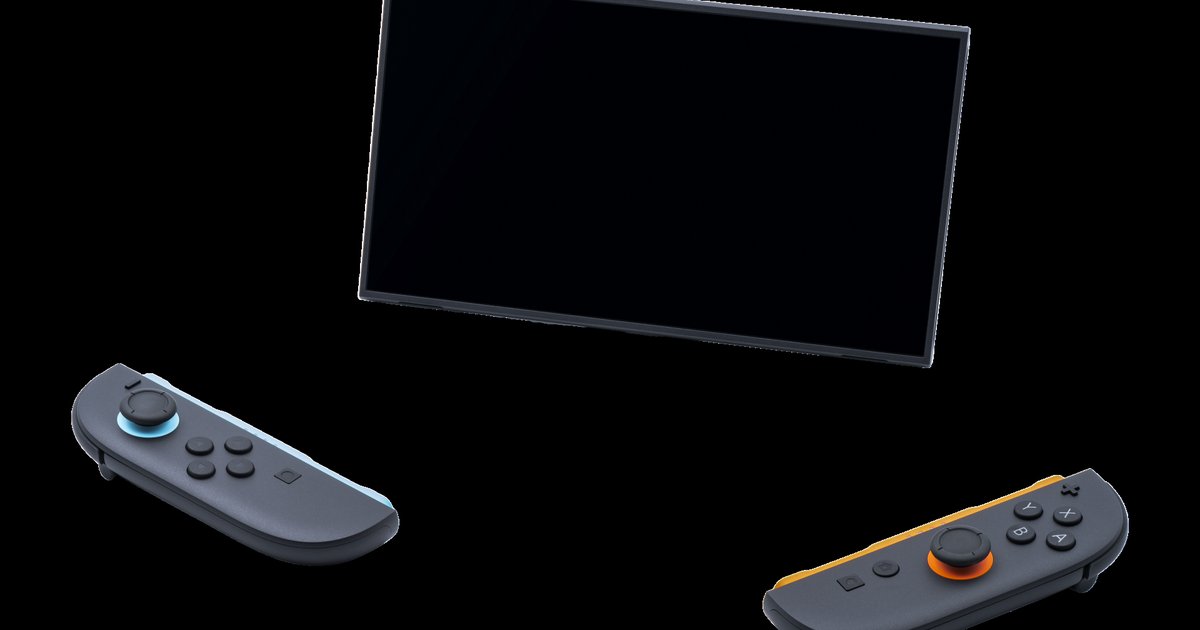
Most popular Switch titles run well, but compatibility varies wildly. Always check the official Ryujinx GitHub compatibility list before downloading, not random YouTube videos showing cherry-picked gameplay.
Where to find the real Ryujinx compatibility list
The only reliable source is the official Ryujinx GitHub repository. Look specifically for compatibility information in the official Ryujinx GitHub repository. Third-party lists or outdated forum posts will mislead you. They often mix results from different emulator versions, different firmware builds, or cherry-picked test cases. YouTube videos showing flawless 60fps gameplay of Zelda: Tears of the Kingdom may have been recorded with custom shader caches and specific GPU overrides. Those overrides don't apply to your setup. The GitHub list is updated by the Ryujinx development team and community testers using a standardized testing methodology. Every entry includes the exact firmware version, GPU driver, and Ryujinx build used. Ignore Reddit threads or random wikis that claim "everything works." They rarely tell you the firmware or key files required, and missing them is a common reason you might need to fix ryujinx crashing on startup. The compatibility list itself is separate from download guides.
What the status labels actually mean
The GitHub list uses four main status labels. They are Playable, Ingame, Menus, and Nothing. "Playable" means the game runs from start to finish with no major graphical or audio glitches. You can expect to complete it. "Ingame" means you can get past the title screen and into actual gameplay. However, you may encounter crashes, missing textures, or broken audio after a few minutes. "Menus" indicates the game loads only its main menu or configuration screens. Pressing "New Game" likely freezes or returns to the menu. "Nothing" means the ROM fails to load at all. You see a black screen, immediate crash, or error message. "Boots" indicates the emulator starts the game's executable but nothing renders beyond that. You see a black screen with audio or no output. Never assume a "Playable" game runs perfectly on your hardware. The label only confirms the testers' specific configuration worked. That software uses different compatibility models than Ryujinx.
Why a 'playable' game might still fail for you
Even a game marked "Playable" can crash on your system due to three common failure cases. First, outdated firmware is a problem. Ryujinx requires the latest Nintendo Switch firmware for modern games. If you dumped your firmware from an older Switch or used a mismatched prod.keys file, the emulator may reject the game or produce graphical corruption. Second, bad ROM dumps cause issues. A game that tests perfectly on GitHub might have been dumped from a cartridge with read errors or compressed incorrectly, which is why you need a hacked Switch to dump games for Ryujinx to ensure a clean, verifiable copy. Always verify your ROM's SHA-256 hash against known good dumps listed in the compatibility entry. Third, specific GPU settings matter. Ryujinx relies on Vulkan or OpenGL backends. Some "Playable" titles require the "GPU Accuracy" slider set to "High" in Settings > Graphics. They may also need a specific shader cache file. Performance for games like Super Mario Odyssey can vary depending on your specific system and settings. Some titles may require specific GPU accuracy settings or backends to avoid graphical issues. Ryujinx's compatibility is uniquely sensitive to firmware versions and GPU driver updates. To learn the proper method to download games on Ryujinx, consult the broader guide on How To Download Games On Ryujinx. Always check the "Issues" tab on the GitHub page for the specific game before downloading. Other users often report workarounds for exact problems like "black screen after cutscene" or "audio stutter on AMD cards."