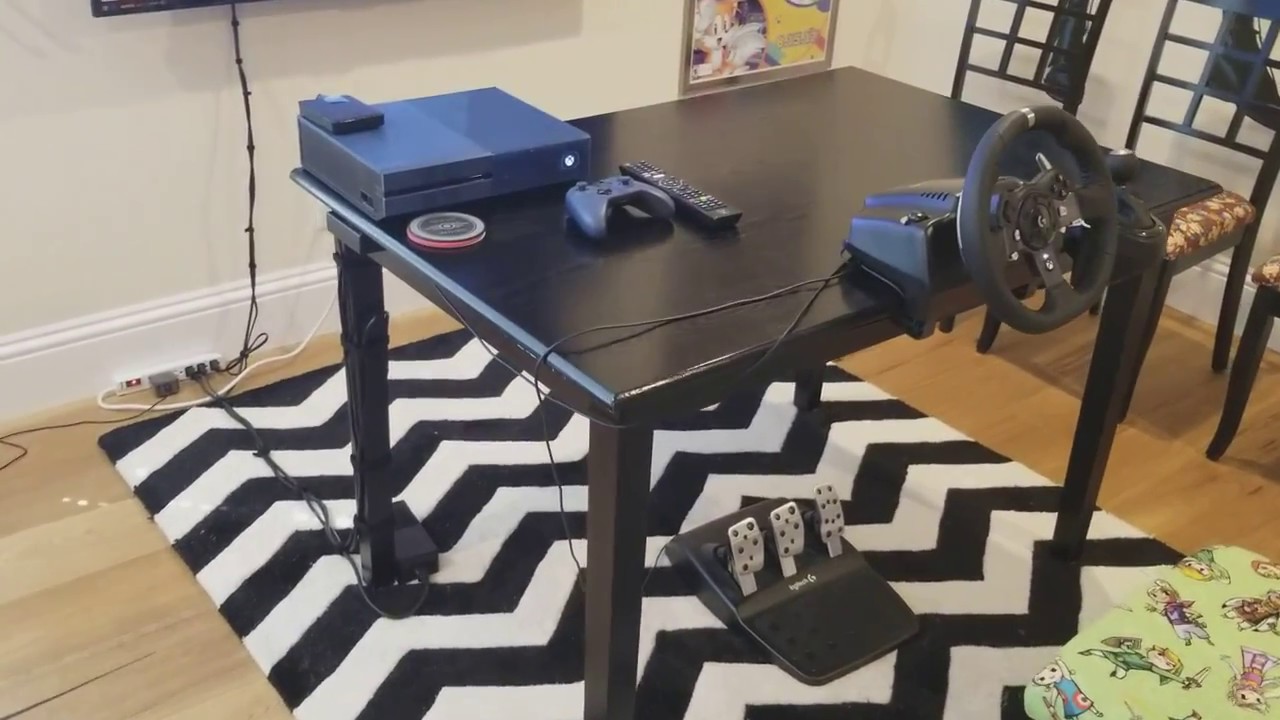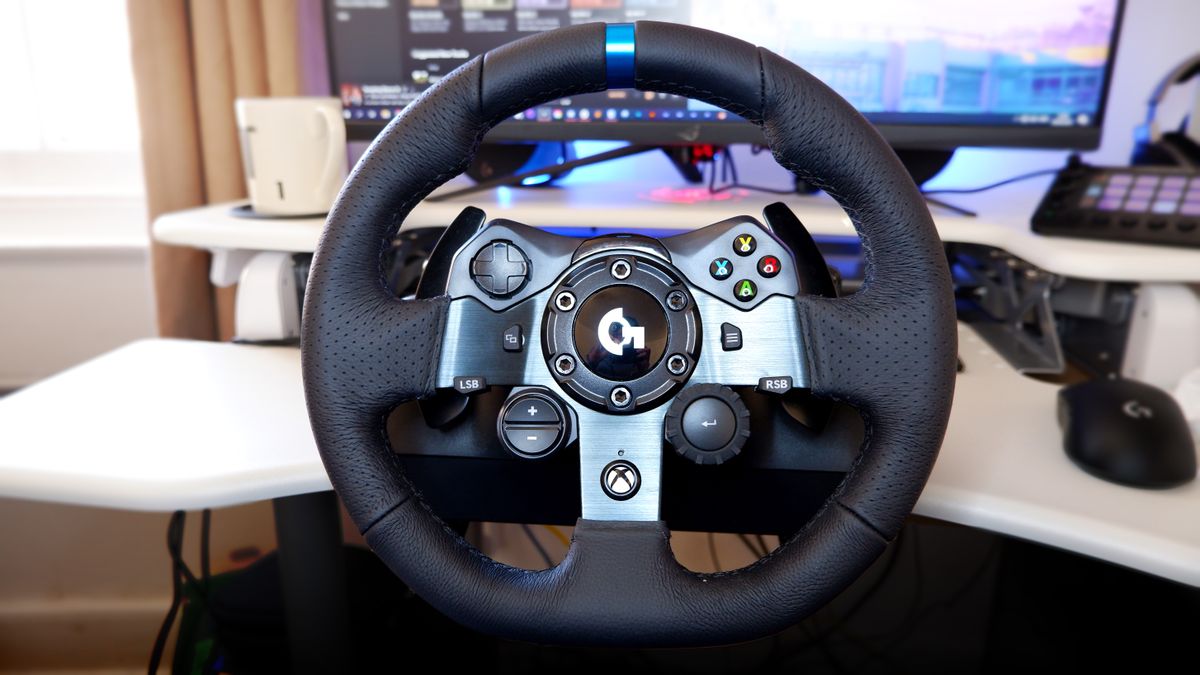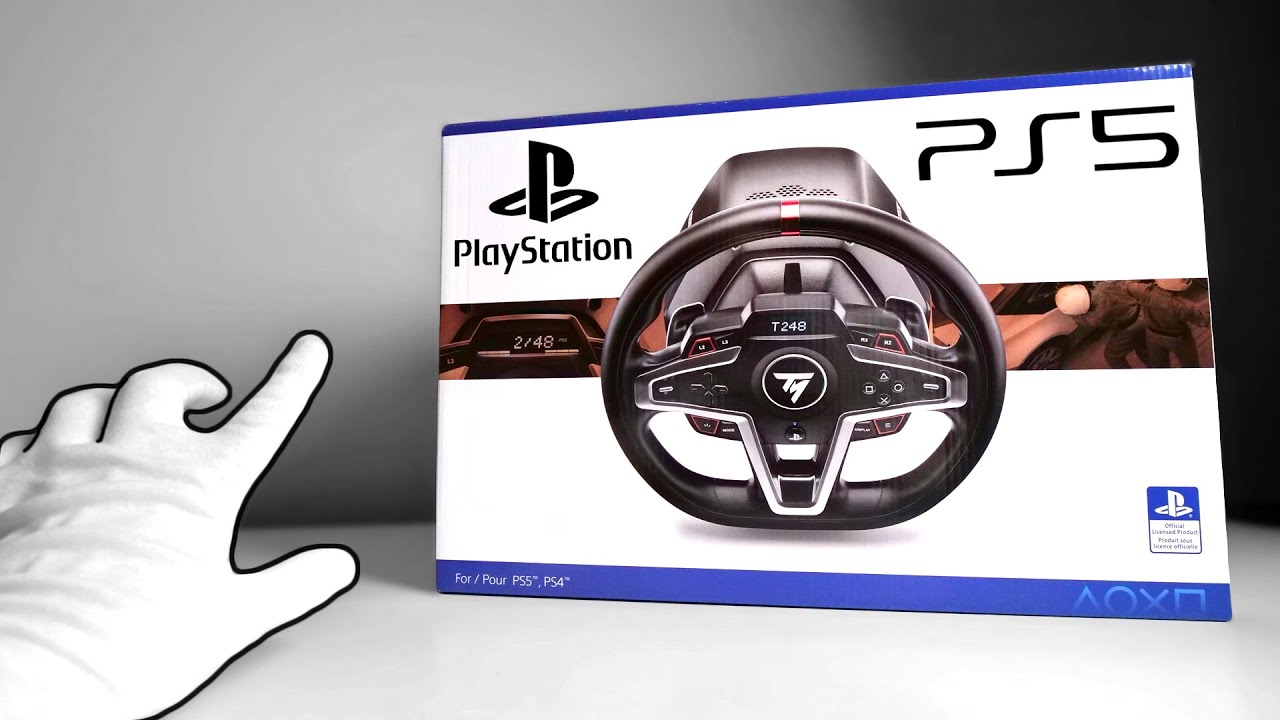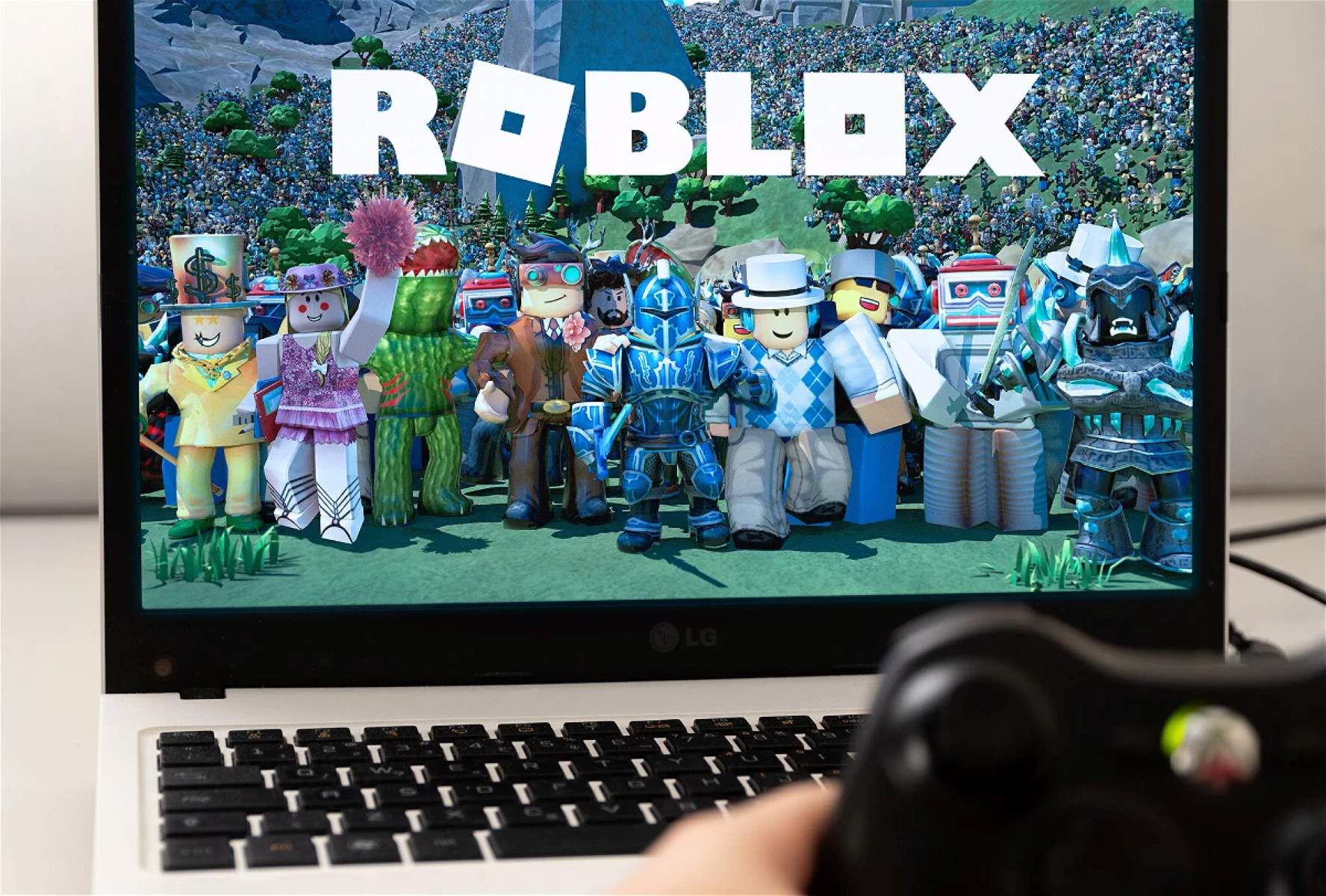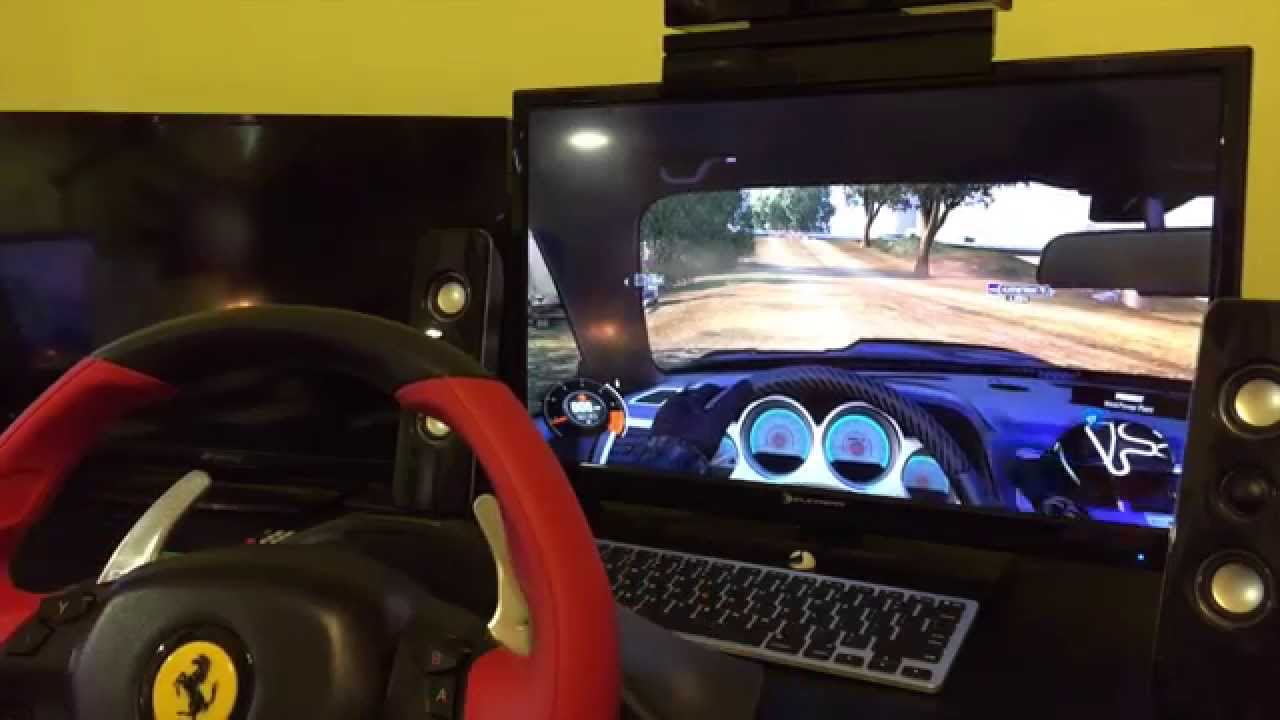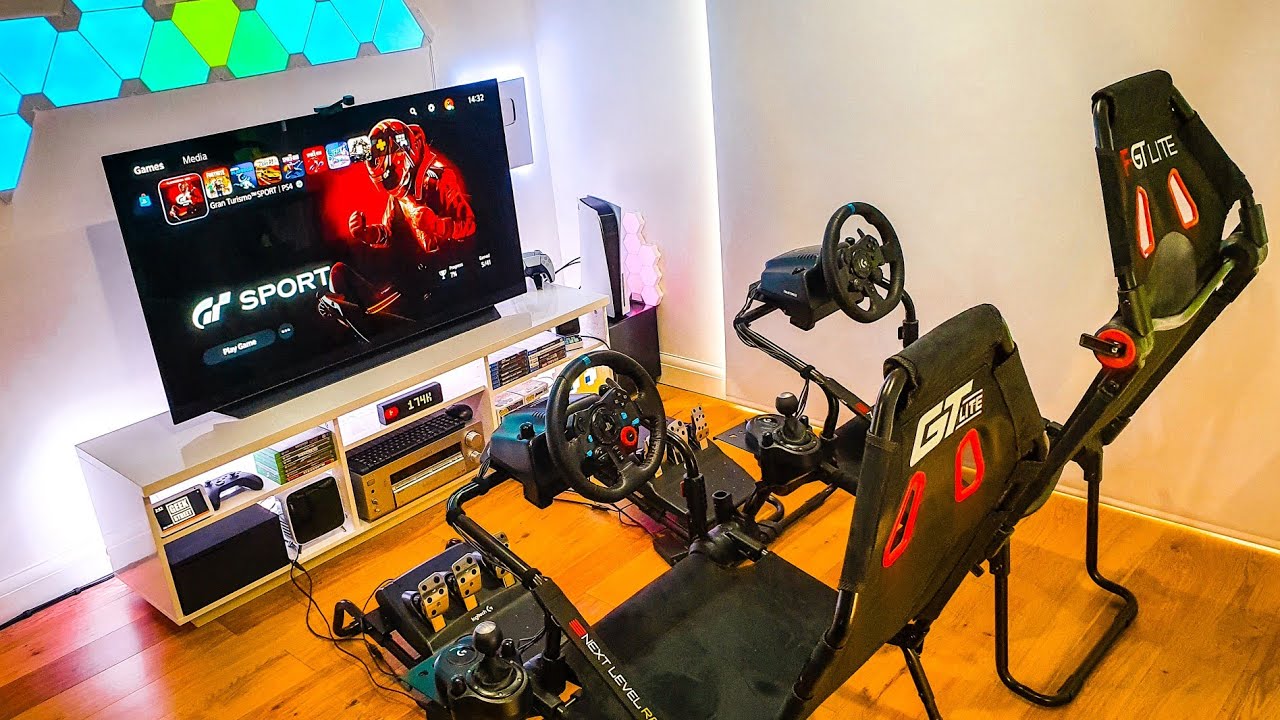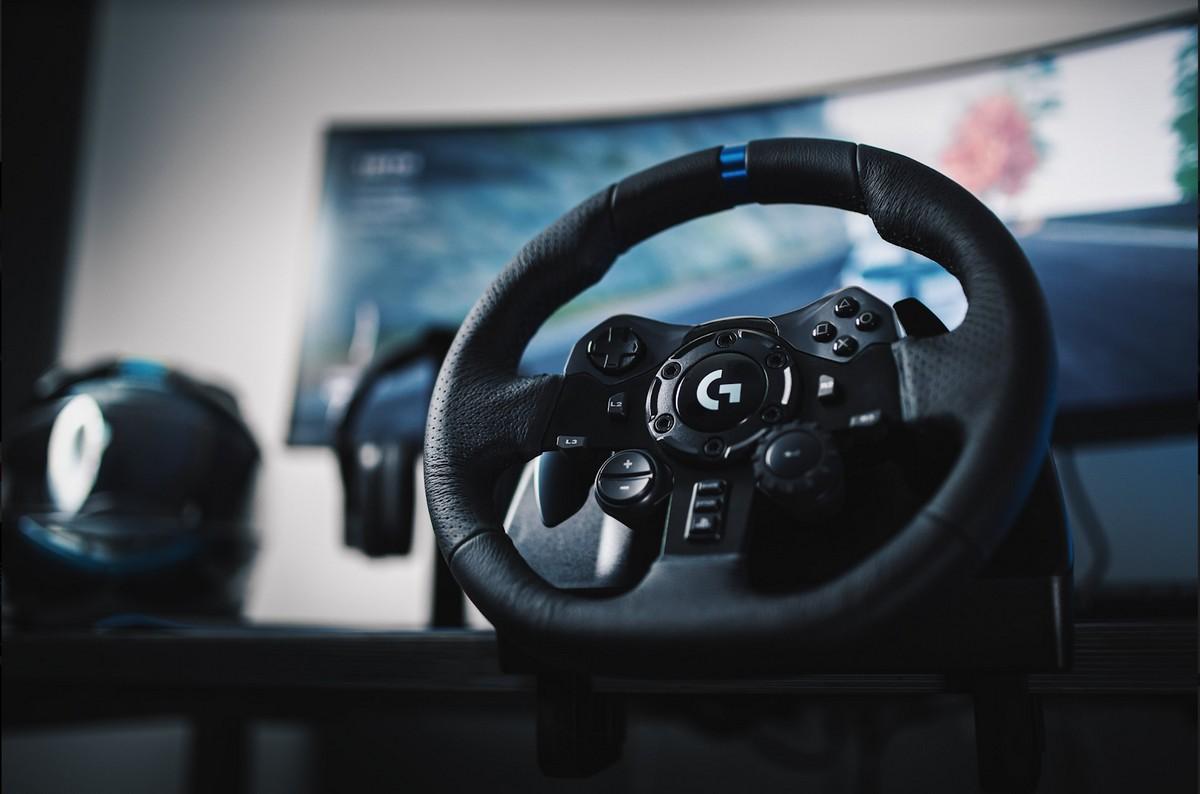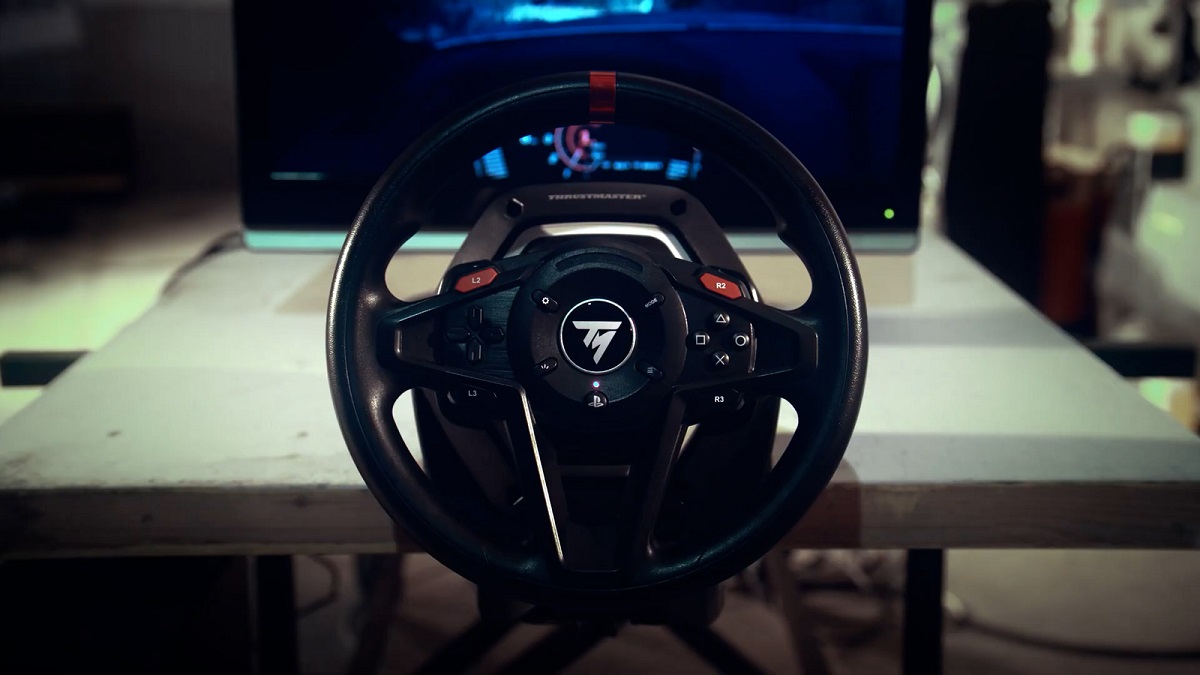
To use a racing wheel with Roblox, you need to connect a compatible USB wheel to your PC, install its official drivers, and use a third-party key-mapping application to translate the wheel's analog inputs into keyboard presses that Roblox can understand. This is a technical workaround because Roblox does not natively support racing wheels, but with the right software, you can achieve realistic steering and pedal control in any Roblox driving game.
What you need to use a racing wheel with Roblox
Before you begin, gather these essentials: a Windows PC, a USB racing wheel with its pedals, the manufacturer's official software (such as Logitech G Hub), and a key-mapping application like JoyToKey or reWASD. Understand that this process is a technical workaround, Roblox was not built for direct wheel support, so you will be tricking the game into reading your wheel as keyboard inputs.
Connect the wheel and install drivers
- Plug your racing wheel into a USB port on your PC. Windows should detect it automatically.
- Download and install the official software from the wheel manufacturer (for example, Logitech G Hub for Logitech wheels).
- Follow the on-screen prompts to complete the driver installation. For general guidance, refer to the "racing wheel setup" hub to ensure your wheel is correctly connected and recognized.
Calibrate the wheel in its own software
Open the manufacturer's control panel or software (e.g., Logitech G Hub). Test the wheel and pedals to confirm they respond correctly. This calibration ensures the wheel sends clean raw input before you map it to keyboard keys.
Install and set up a key-mapper for Roblox
Download JoyToKey or reWASD, then run it as administrator. Create a new profile specifically for Roblox. This step is crucial: the key-mapper will translate your wheel's axis movements and button presses into keyboard commands that Roblox can recognize. If you also want to "configure racing wheel on Steam" (How To Configure Racing Wheel On Steam) for other games, note that Roblox is not a Steam game, so you must use a standalone mapper here.
Map your wheel and pedals to keyboard controls
- In the key-mapper, assign the steering axis to the A and D keys (left and right).
- Map the accelerator pedal to the W key.
- Map the brake pedal to the S key.
- Assign optional paddle shifters or buttons to other in-game actions like reset, boost, or handbrake, using keys such as R, Shift, or Space.
- Save the profile as "Roblox" so you can load it each time you play.
Test and fine-tune your setup in a Roblox game
Launch a Roblox driving experience (e.g., Vehicle Simulator or Driving Empire). Test the steering responsiveness: if the wheel feels too sensitive or too sluggish, return to the key-mapper and adjust the sensitivity curve or dead zone for the steering axis. Fine-tune the pedal response until acceleration and braking feel natural. Once everything works smoothly, save your final profile. If you ever need to "use a game controller on Roblox" (How To Use A Game Controller On Roblox), remember that a racing wheel requires this extra mapping step because Roblox does not treat wheels as standard controllers.