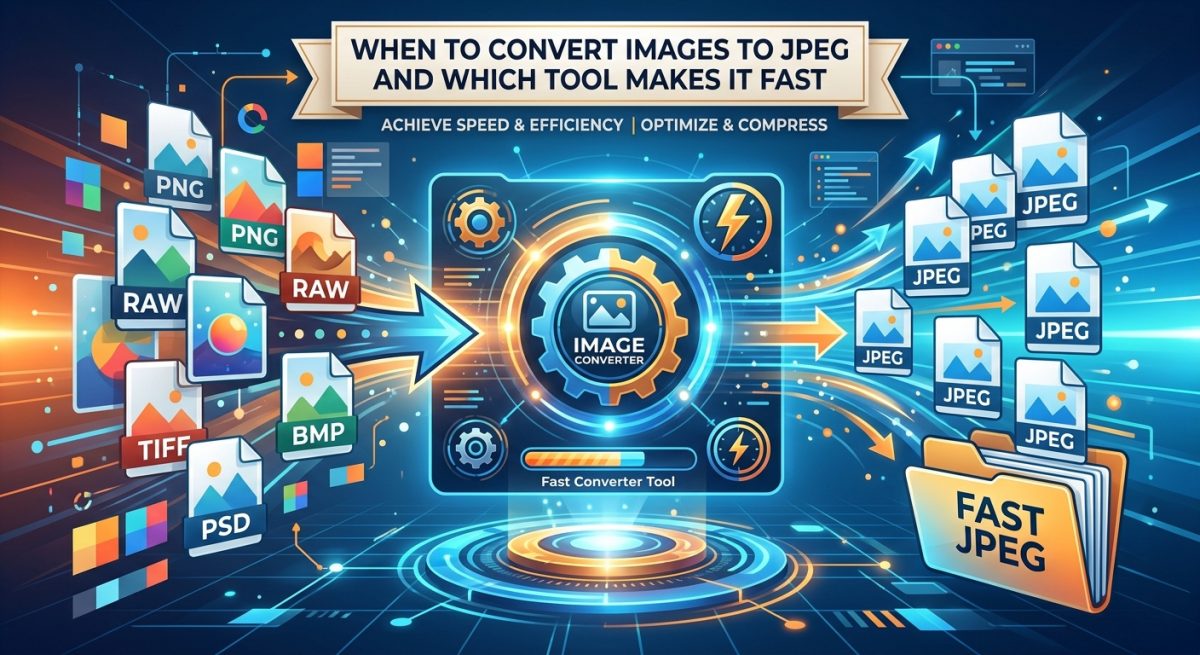
Formats matter more than most people realize. You might have a perfectly good image sitting on your desktop, but if it’s in the wrong format for where you need to send it, it becomes a problem. JPEG has been the workhorse of digital photography and web publishing for decades, and for good reason. It handles photographs beautifully, compresses efficiently, and works everywhere. But not every image starts life as a JPEG. That’s where knowing when and how to convert becomes genuinely useful.
Key Takeaway:
– JPEG is ideal for photographs, email attachments, and social media uploads where transparency isn’t needed
– PNG and WebP serve different purposes, but JPEG still wins on compatibility and file size for photos
– Storage-constrained devices and older platforms almost always prefer JPEG
– You can convert any image to JPEG in a browser without installing any software
– Choosing the right format upfront saves time, storage, and upload headaches later
Why JPEG Still Holds Its Ground
There’s a persistent idea in tech circles that newer formats automatically make older ones obsolete. WebP arrived with promises of smaller file sizes. PNG became the go-to for graphics designers who needed crisp edges. AVIF entered the conversation more recently. And yet JPEG hasn’t gone anywhere. It’s still the dominant format for photographs across the web, in email clients, on social platforms, and in camera memory cards worldwide.
The reason is a combination of compatibility, compression, and practical context. JPEG was designed specifically for photographic images, where millions of subtle color gradations exist in a single frame. Its lossy compression algorithm reads those gradations intelligently, discarding data that the human eye is unlikely to notice. The result is a file that might be ten times smaller than an uncompressed version, with visual quality that holds up remarkably well at moderate compression levels.
According to the history of the format’s development, JPEG compression was standardized by the Joint Photographic Experts Group in 1992, making it one of the longest-standing image standards still in active daily use. That longevity reflects how well it solved a real problem.
When JPEG Is Clearly the Right Choice
The debate between formats gets complicated fast, so it helps to think in terms of specific situations rather than abstract comparisons.
Photographs are the clearest case. If your image is a photo taken by a camera or phone, a real-world scene with continuous tones and natural light, JPEG is almost certainly the right format. PNG preserves every pixel exactly, which is great for flat graphics, logos, and screenshots. For a photograph, that precision doesn’t help much and the file size penalty is significant. A raw PNG of a beach photograph can be five to eight times larger than its JPEG equivalent at comparable visual quality.
Email attachments benefit enormously from JPEG. Many email clients and servers impose size limits on attachments, typically somewhere between 10MB and 25MB. A batch of photos from a family gathering, a product shoot, or a real estate listing can easily exceed those limits if the files are in PNG or TIFF format. Converting to JPEG before attaching makes the difference between sending successfully and watching the upload fail.
Storage-constrained devices reward the format. Older smartphones, tablets, and embedded devices often have limited internal storage. Cameras in budget devices default to JPEG for exactly this reason. If you’re managing images on a device that doesn’t have much room, converting PNG screenshots or WebP downloads to JPEG can free up meaningful space without any visible quality loss for most content.
Social media platforms handle JPEG predictably. Instagram, Facebook, X (formerly Twitter), and most other platforms compress images automatically on upload. If you upload a PNG, the platform’s own compression algorithm converts it anyway, sometimes introducing artifacts that wouldn’t appear in a well-optimized JPEG. Starting with a JPEG gives you more control over how the final image looks once the platform applies its own processing.
Older systems and legacy software expect JPEG. Not everything runs the latest version of a browser or operating system. Some business tools, older CMS platforms, and legacy printers specifically request or require JPEG input. Formats like WebP, while well-supported in modern browsers, still hit compatibility walls in certain contexts.
When JPEG Is the Wrong Call
Knowing when not to use a format is just as important. JPEG uses lossy compression, which means some image data is permanently discarded each time the file is saved. If you’re working with a graphic that has sharp edges, solid blocks of color, or text layered over an image, JPEG will soften those edges and introduce compression artifacts around high-contrast boundaries. PNG handles those cases better.
JPEG also doesn’t support transparency. If your image has a transparent background, maybe a logo or a product photo meant to sit over a colored background on a webpage, saving it as JPEG fills that transparency with white or another solid color. That’s a problem you can’t fix after the fact. For anything involving transparency, PNG or WebP is the correct choice.
What Happens When You Have the Wrong Format
The scenario comes up constantly. Someone sends you a WebP file from a browser download and your editing software doesn’t support it. You receive a TIFF from a photographer but your platform only accepts JPEG. You have a PNG that’s too large to email. The format you have doesn’t match the format you need.
The instinctive response for many people is to open a full image editor, which works but takes time and demands that you already have software installed. A browser-based JPG converter solves this without any of that friction. You load the page, drop in your image, and get a JPEG back. No installation required, no account to create, and it works on any device with a browser, including a phone or a borrowed computer.
That kind of low-barrier tool is particularly useful for one-off conversions. If you’re regularly doing batch work with image formats, dedicated software makes more sense. But for the situation where you just need this one file in a different format right now, a browser tool removes every obstacle between you and the output you need.
How Compression Level Affects the Result
JPEG isn’t a single fixed thing. The format allows for a spectrum of compression levels, typically expressed as a quality percentage. Higher quality means less compression, larger files, and more faithful reproduction of the original. Lower quality means more aggressive compression, smaller files, and more visible artifacts, particularly in areas of fine detail or sharp contrast.
For most photographs intended for web use, quality settings between 75 and 85 percent represent a useful middle ground. The file stays relatively compact while the image remains visually clean. For print or archival purposes, higher quality settings preserve more detail. For thumbnails or preview images where the file needs to load fast on a slow connection, lower settings work fine.
When using a browser-based conversion tool, many handle this automatically by applying sensible defaults. If the tool offers a quality slider, starting around 80 and adjusting based on your use case is a practical approach.
Reading the Format Before Deciding
A useful habit before converting any image is checking what format it’s actually in and why it might be in that format. File extensions aren’t always reliable indicators. A file named something.jpg might technically be a PNG that was renamed. Most operating systems let you check the actual file type through properties or info dialogs, and image editors will show the true format when you open a file.
Understanding why an image is in its current format also matters. A designer sent you a PNG because the original had a transparent background. If you convert that to JPEG and remove the transparency, you’re not just changing the format, you’re changing what the image can do. Making that change deliberately, with full awareness, is fine. Making it accidentally creates a problem.
The Format Decision in Practice
The practical reality is that most everyday image handling doesn’t require deep technical knowledge. The useful rule of thumb is straightforward. Photos go to JPEG. Graphics with transparency or sharp edges stay in PNG. When a format doesn’t match what you need and you just need the conversion done fast without software, a browser tool handles it without ceremony.
Choosing the Right Format Is Just Good Workflow
The JPEG versus PNG versus WebP debate sounds more complex than it needs to be. For photographic content, email, social sharing, and compatibility with older systems, JPEG earns its place on the short list every time. The format isn’t aging out. It’s still doing exactly what it was designed to do, just as reliably as it did in the early days of the web.
When you hit the common situation of having the wrong format for the task in front of you, a browser-based converter closes that gap without interrupting your workflow. No installs, no accounts, no waiting. You get the file you need and move on. That combination of knowing when JPEG is right and knowing how to get there fast is what keeps this decades-old format relevant to people working with images today.
\nRelated reading: Opening iPhone Photos on Windows and Android Requires This Step and Android Apps on Windows 11: What to Expect.