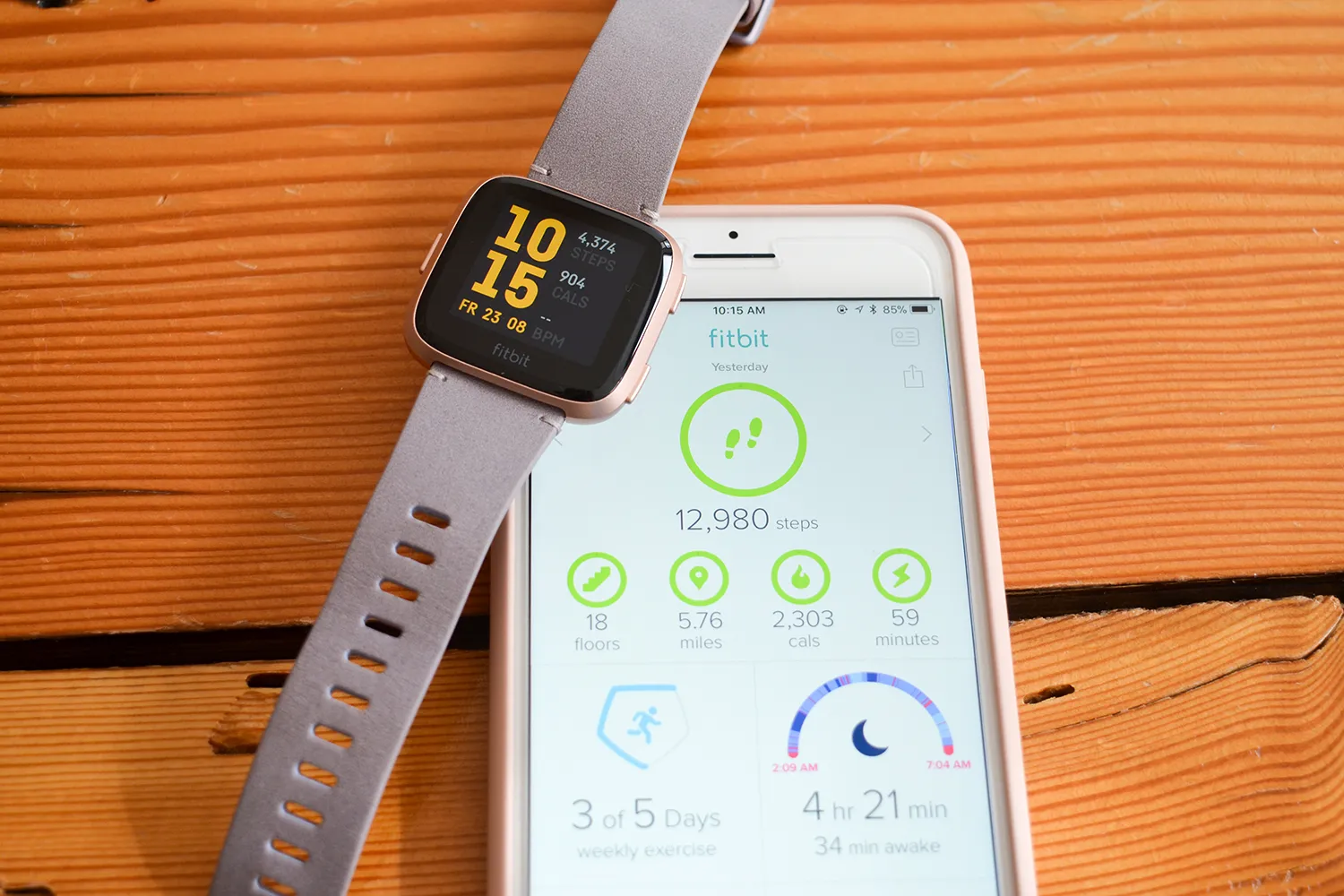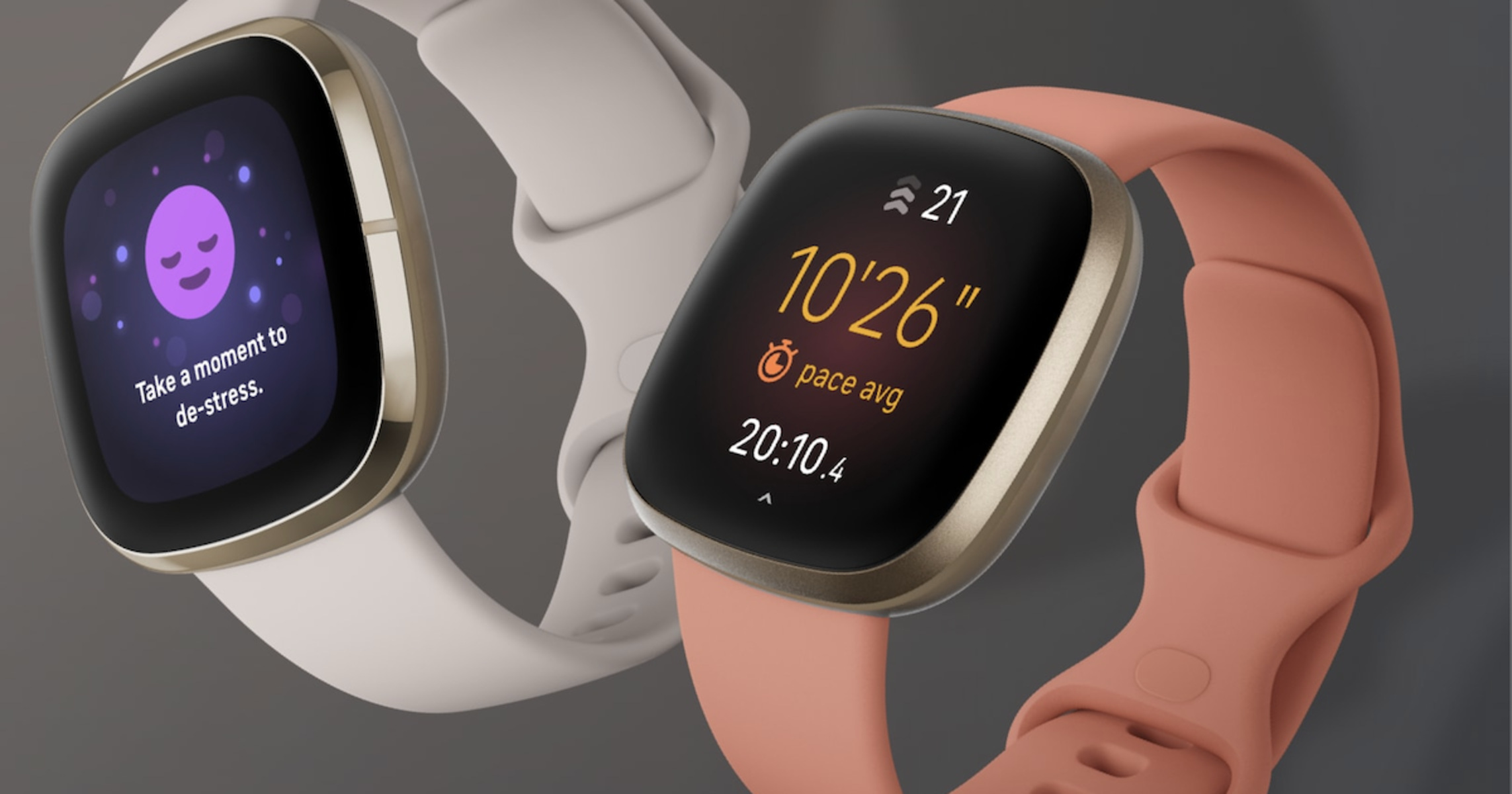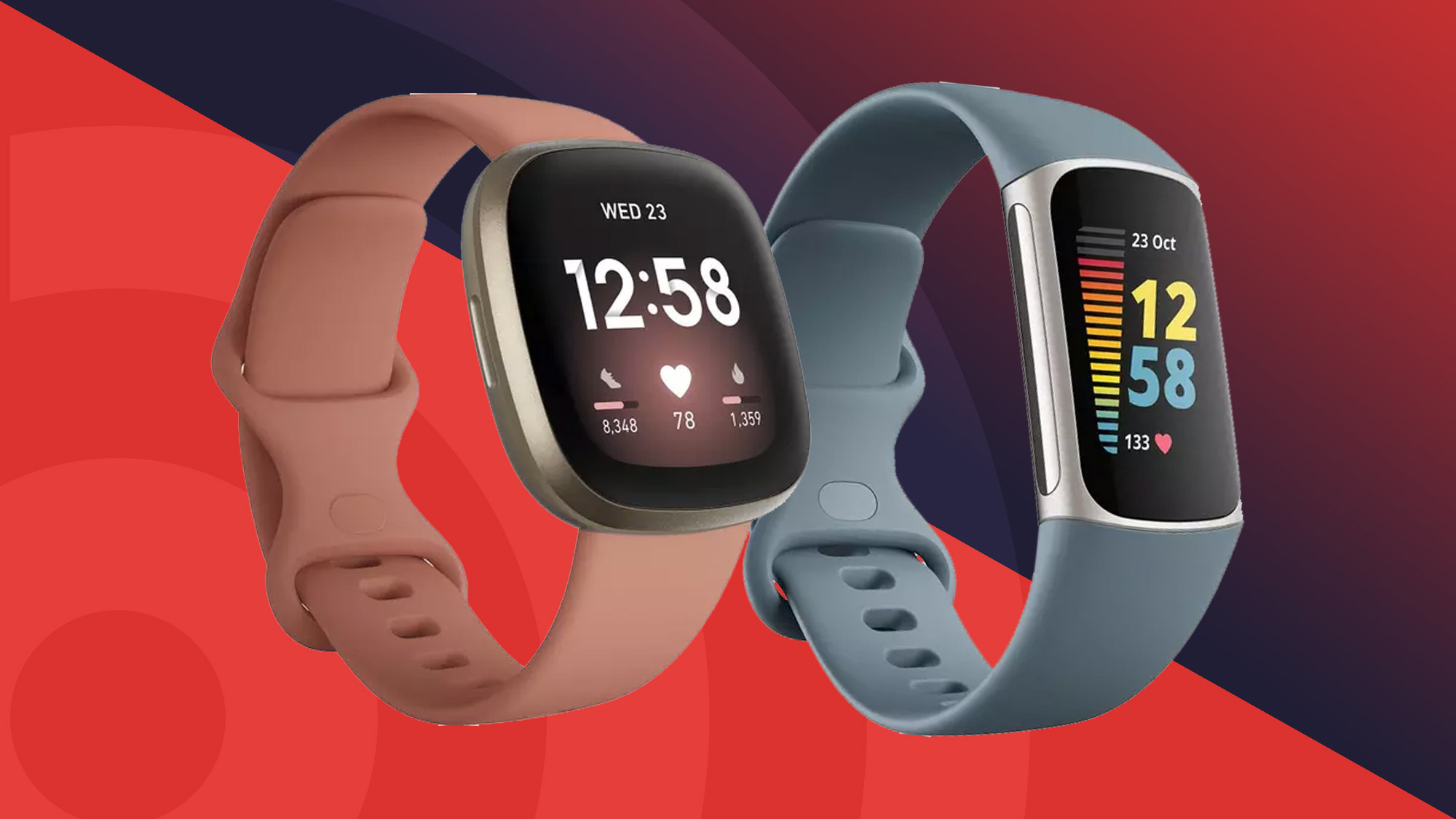
This Fitbit beginner guide covers everything you need to know to set up your new device and start tracking your health metrics. From unboxing and charging to pairing your Fitbit with the Google Health app and understanding your daily stats, you'll find clear, step-by-step instructions to get you moving.
Fitbit beginner guide: Getting started with your device
Begin by unboxing your Fitbit and identifying your specific model. Look at the device itself, some models have a touchscreen, while others use physical buttons. Familiarize yourself with the overall design, noting any buttons on the side or the touchscreen interface. This initial overview helps you understand how to interact with your device right from the start.
How to charge your Fitbit for the first time
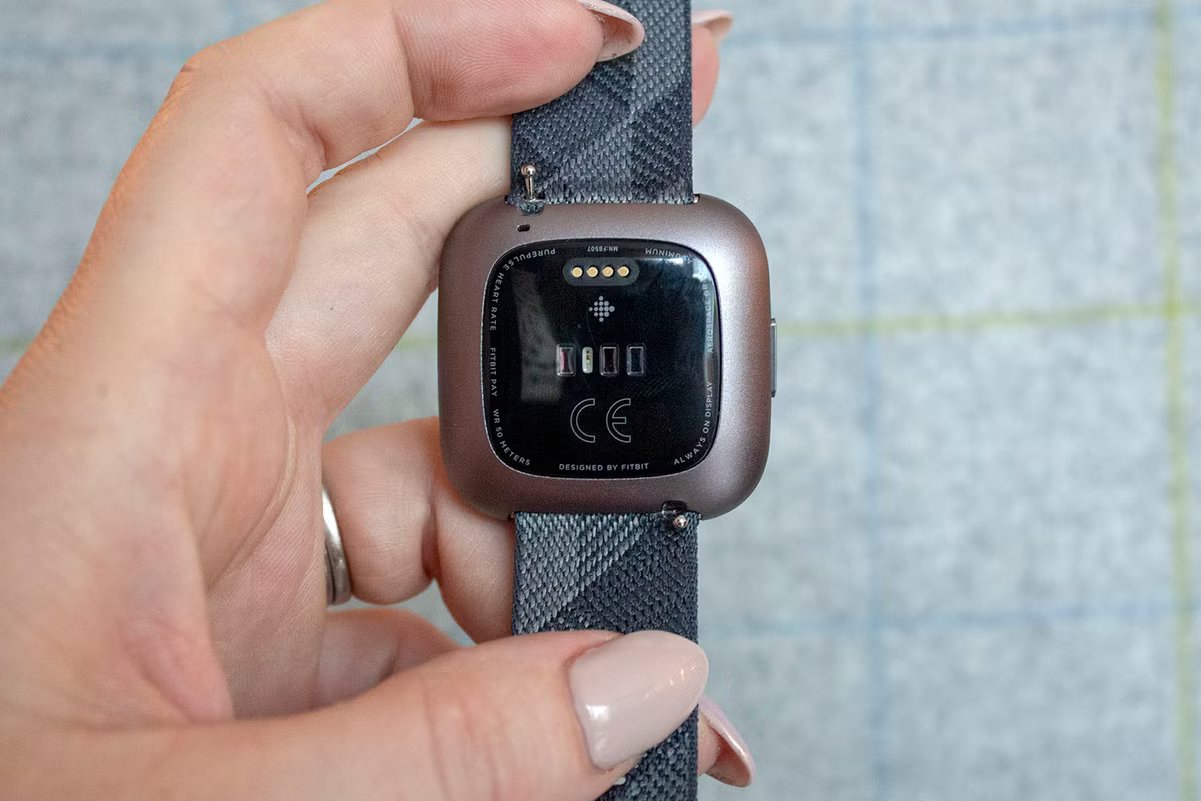
To charge your Fitbit, plug the charging cable into a USB port on a computer, a UL-certified USB wall charger, or another low-energy charging device. Connect the charging cable to your Fitbit by holding it near the port on the back of the tracker until it attaches magnetically, ensuring the pins align. For some models, you may clip the cable to the back. A full charge typically takes about 1-2 hours. You can check the battery level while charging by double-tapping the screen (for touchscreen models) or pressing a button (for models with buttons); a solid battery icon indicates a full charge.
Downloading the Google Health app and creating an account
To begin, download the official Google Health app from the Apple App Store for iPhones or the Google Play Store for Android phones. If you are a new user, open the app and tap "Join Fitbit" or "Sign in with Google," then follow the on-screen instructions to create an account, providing basic profile details like birthdate, height, weight, and sex. This account becomes your dashboard for viewing stats and setting goals.
Pairing your Fitbit with your smartphone
- Ensure Bluetooth is enabled on your phone.
- In the Google Health app, tap your profile picture (or "Connections" at the top left).
- Select "Set Up a Device" (or "Add device").
- Choose your Fitbit model from the list.
- Follow the on-screen pairing instructions, which may include entering a PIN displayed on your Fitbit.
This connection enables real-time data synchronization and allows you to access a wealth of features. Handling Fitbit setup and syncing is straightforward when you follow these steps.
Wearing your Fitbit correctly for accurate tracking
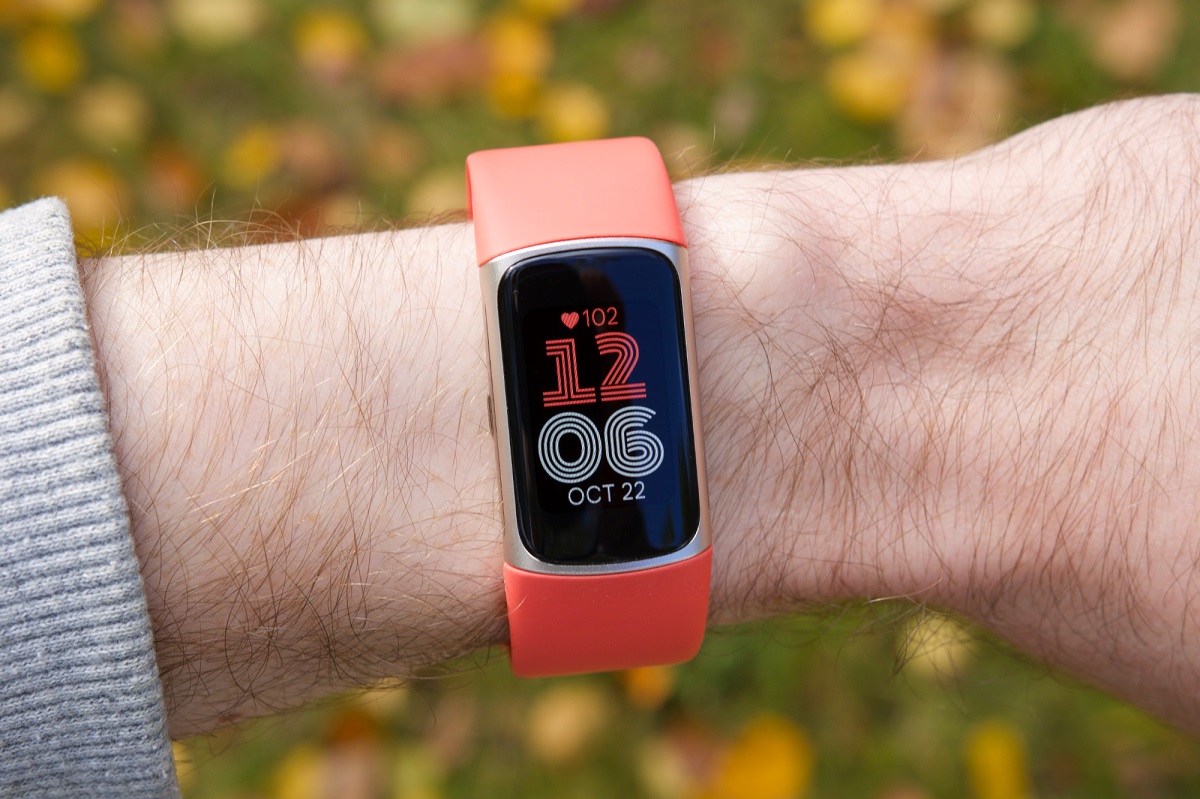
Wear your Fitbit on top of your wrist, about one finger-width above your wrist bone, ensuring the back of the device maintains contact with your skin. The band should fit snugly but comfortably, allowing it to move slightly on your wrist; you should be able to slide your pinky finger between your wrist and the band. Tighten the band slightly during exercise and loosen it afterward. For accurate tracking, specify whether you wear your Fitbit on your dominant or non-dominant hand within the Google Health app (Profile Picture > Device Tile > Wrist > Dominant/Non-Dominant).
Understanding the Fitbit display and basic navigation
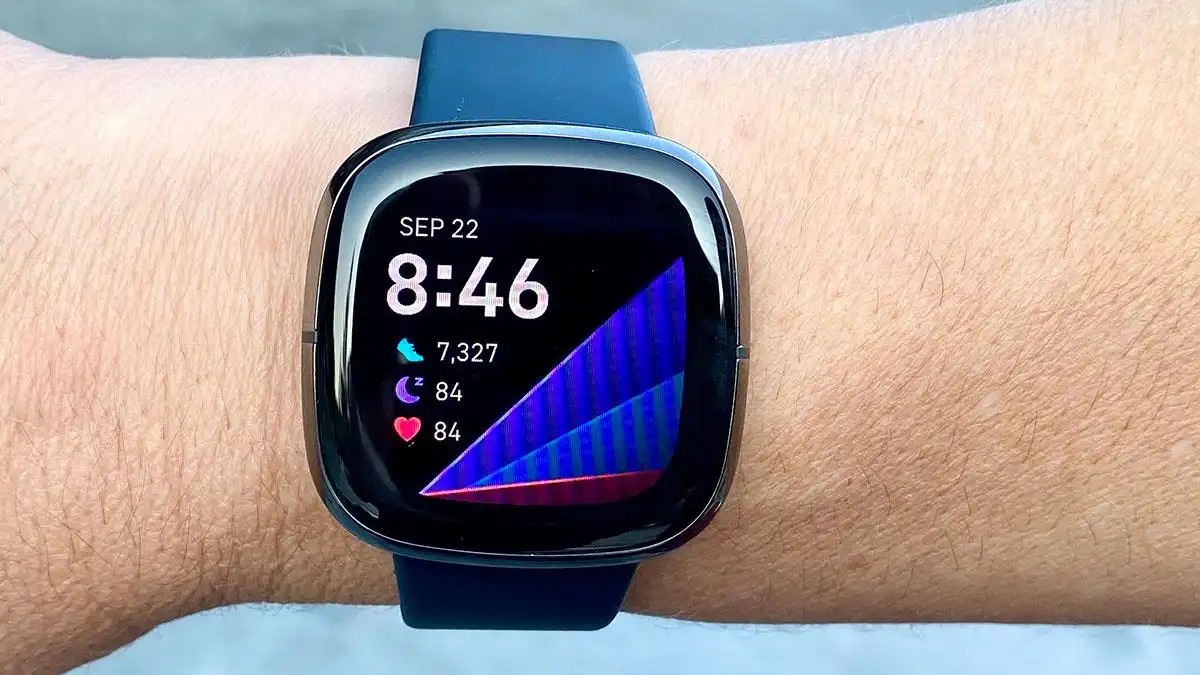
For touchscreen devices, navigate by tapping the screen and swiping side to side and up and down; the clock is the home screen. Swipe up to view daily stats and left/right to access apps. Double-tap the screen or swipe right to return to the clock face. For devices with a button and touchscreen, navigate by tapping the screen, swiping up and down, or pressing the button. Swipe down to scroll through apps and tap to open them. Press and hold the button for quick settings.
How to track your activity and exercise automatically
Your Fitbit automatically counts steps, distance, and calories throughout the day, so you don't need to start a session for basic tracking. For specific workouts, use the exercise modes on your device to log activities like running, cycling, or yoga. This feature also tracks Active Zone Minutes, which measure time spent in personalized heart rate zones during activities, giving you a clearer picture of your exercise intensity.
Monitoring your heart rate and sleep patterns
Your Fitbit uses continuous heart rate tracking to capture data at regular intervals, even during rest. You can check your resting heart rate in the app, which is a key indicator of cardiovascular fitness. The device automatically detects sleep and analyzes sleep stages, light, deep, and REM, to generate a Sleep Score. This score helps you understand your sleep quality and make adjustments for better rest.
Syncing your data and keeping your Fitbit clean
Your Fitbit automatically syncs data to the Google Health app throughout the day when your device is near your phone and Bluetooth is enabled. To manually sync, open the Google Health app, then on the Today tab, tap and hold on the screen and pull down, or tap "Connections" at the top left and then "Sync". Regularly clean your Fitbit band and wrist with a soap-free cleanser and fresh water, especially after workouts or sweating. Clean the charging contacts on the device with a toothbrush and fresh water, and the charging cable pins with a cotton swab and rubbing alcohol. Avoid using harsh soaps, shampoos, conditioners, antiseptic wipes, chlorine, or abrasive cleaners on your Fitbit device, as these can cause skin irritation or damage the product. If you experience any discomfort or skin irritation, loosen the band or remove the device for a break.