This tag collects 74 practical guides for anyone who owns a Samsung Smart TV and wants to get more out of it without digging through confusing menus or searching the web for answers. The articles are written for everyday users, people who may not be tech-savvy but need a clear, step-by-step solution to a specific problem, whether that involves streaming apps, connecting other devices, or fixing a frustrating display issue.
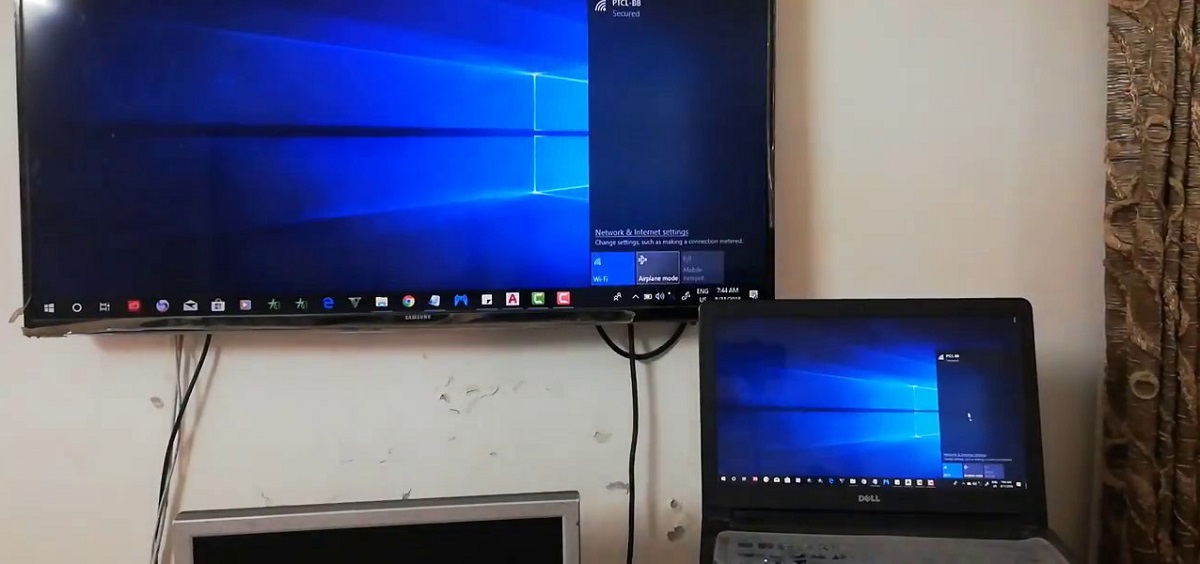
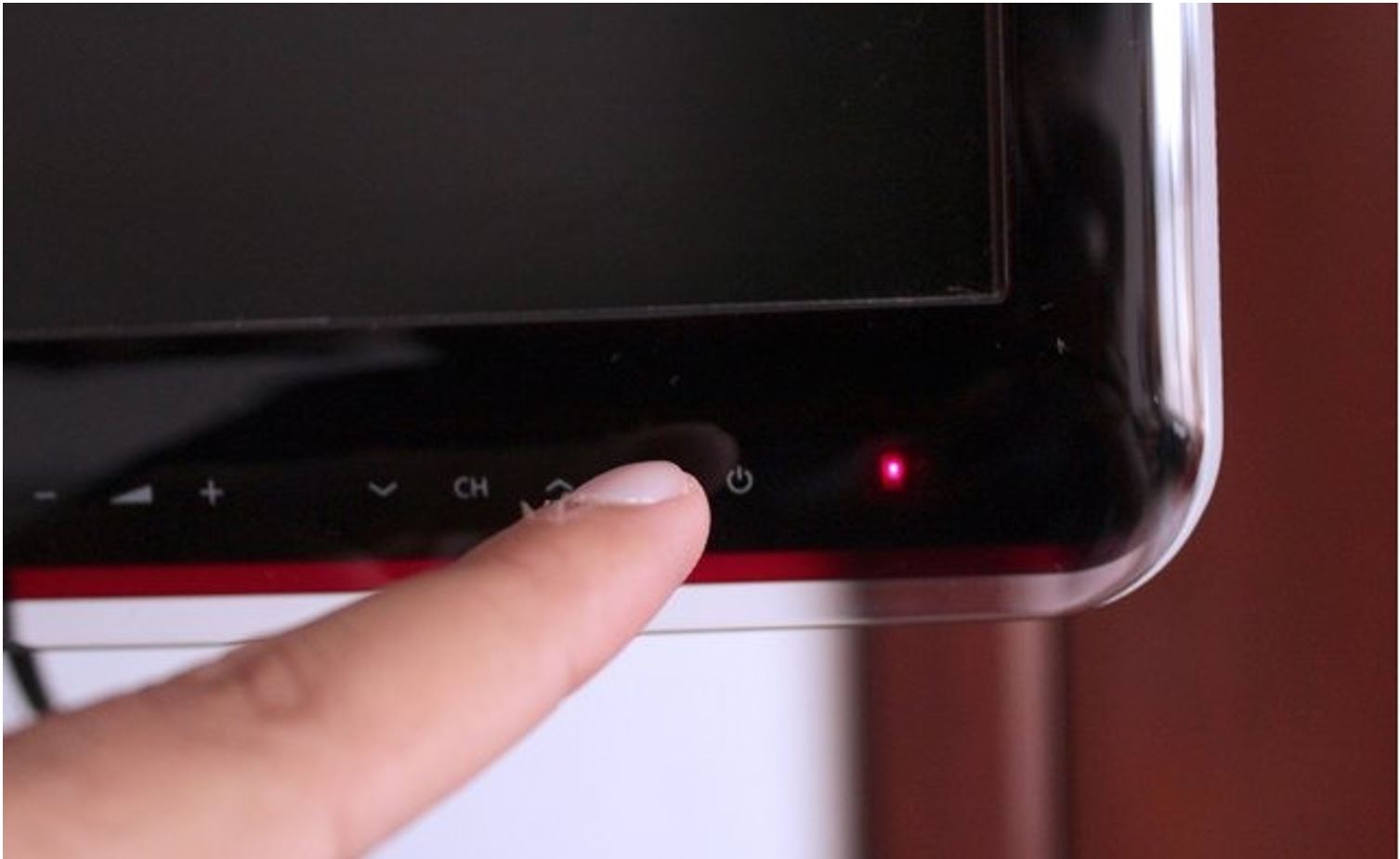
The most common theme is app installation and streaming. You’ll find straightforward help for adding services like HBO Max, Paramount Plus, Starz, and the Xfinity Stream app, as well as troubleshooting guides for apps that disappear or keep buffering. A second theme focuses on setup and control: articles explain how to turn on the TV without a remote, set up Wi‑Fi, connect a computer wirelessly, and even switch between cable and antenna inputs. A third group tackles display and picture problems, such as why the screen is too dark or how to enable picture‑in‑picture mode, plus a few security‑minded pieces that show how to browse the internet safely or install apps only from legitimate sources like the Google Play Store.
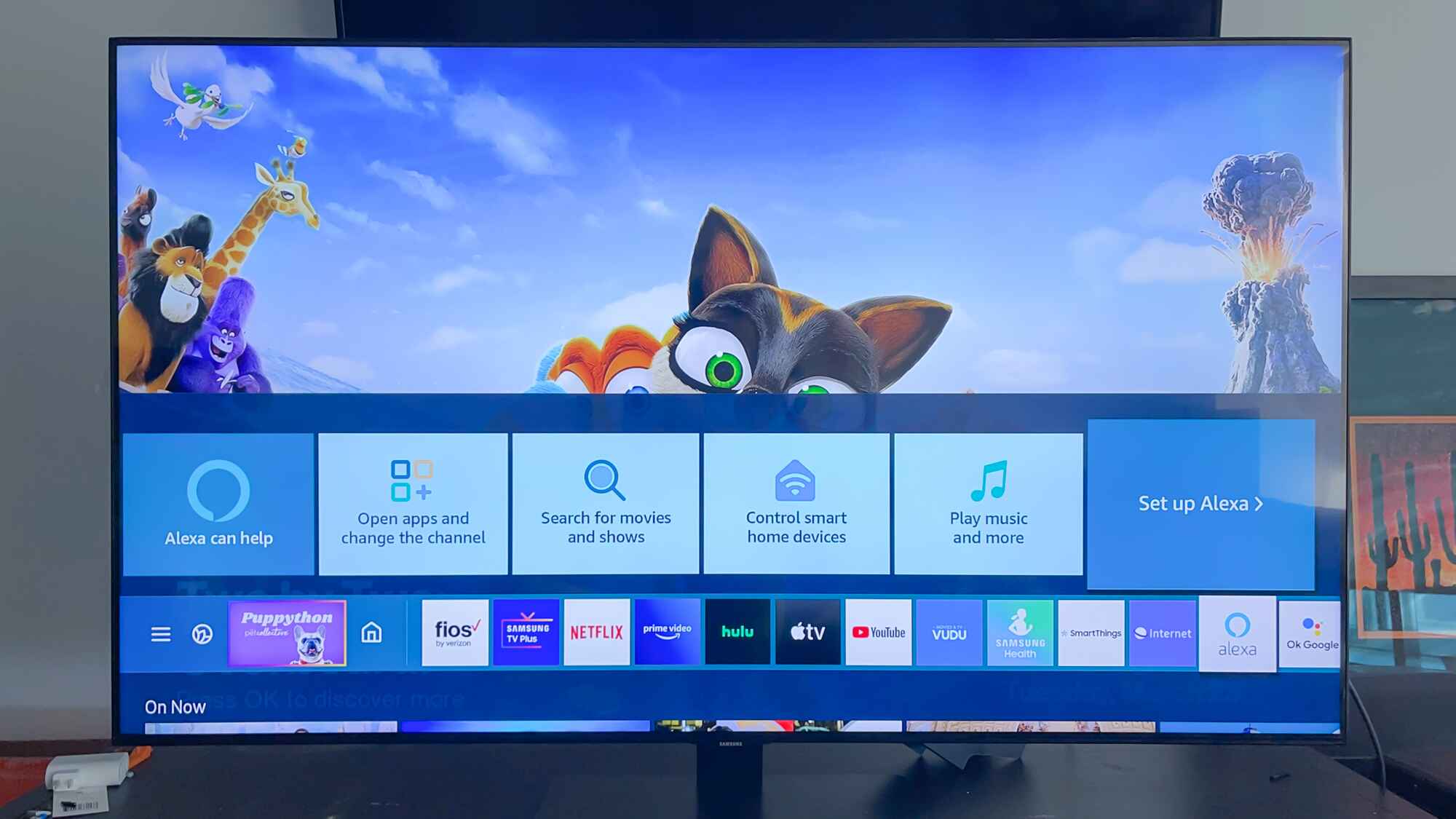
Several topics stand out for their practical, everyday value. For example, you can learn how to view a Blink camera feed on the TV, connect the set to Alexa for voice control, or change the startup screen. There are also guides for older models, like getting new apps on an old Samsung Smart TV or reinstalling YouTube TV after a glitch. The emphasis throughout is on safe, legal, and supported methods, nothing here encourages bypassing protections or using unofficial workarounds. Instead, each article helps you use the features your TV already has, or add new ones through proper channels.