Practical guides for anyone building, upgrading, or troubleshooting their own desktop PC. Whether you are a first-time builder or a seasoned enthusiast swapping components, these articles focus on the physical and configuration decisions that come up when working with the central circuit board. The content is aimed at hands-on users who want clear, step-by-step answers without marketing fluff.
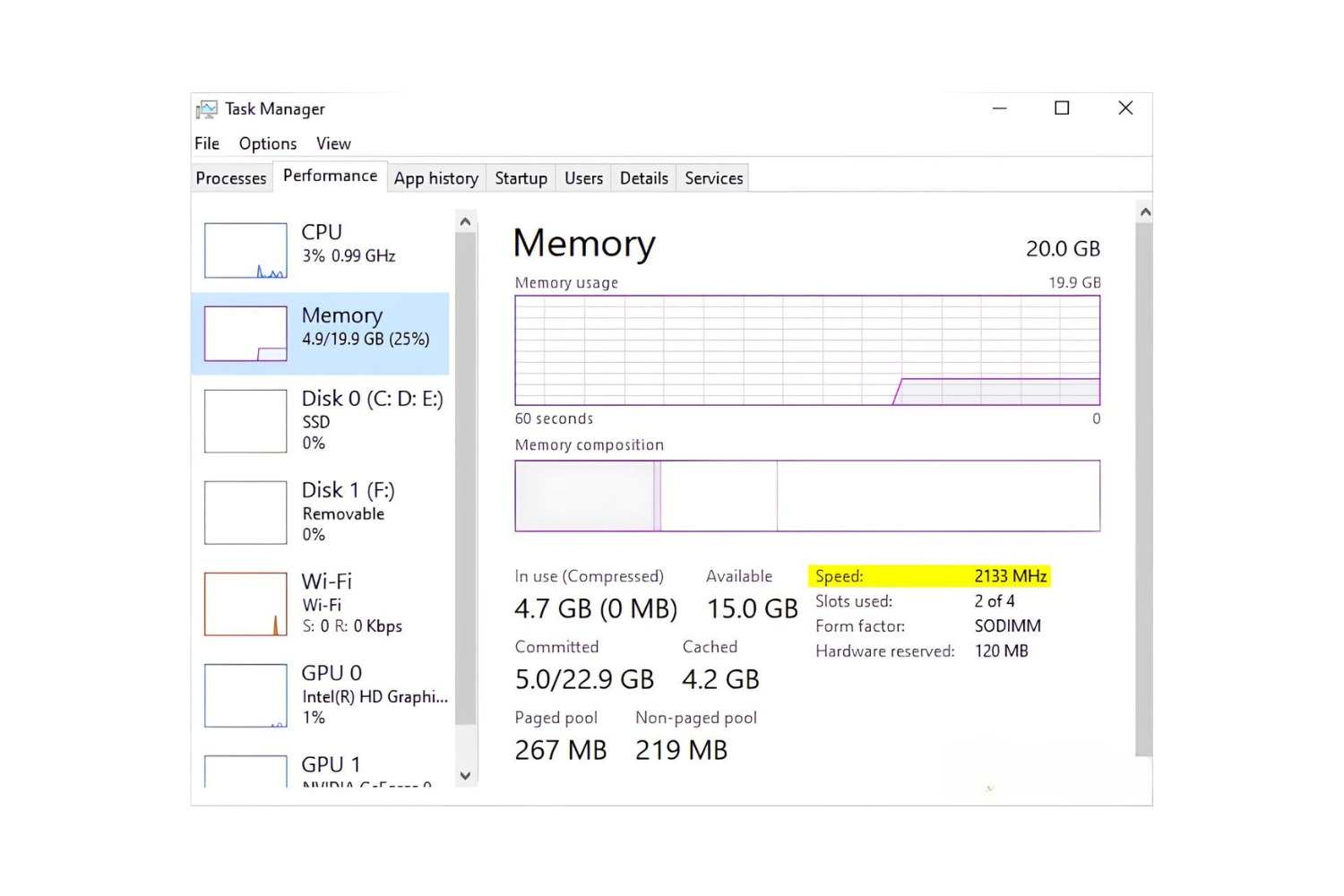
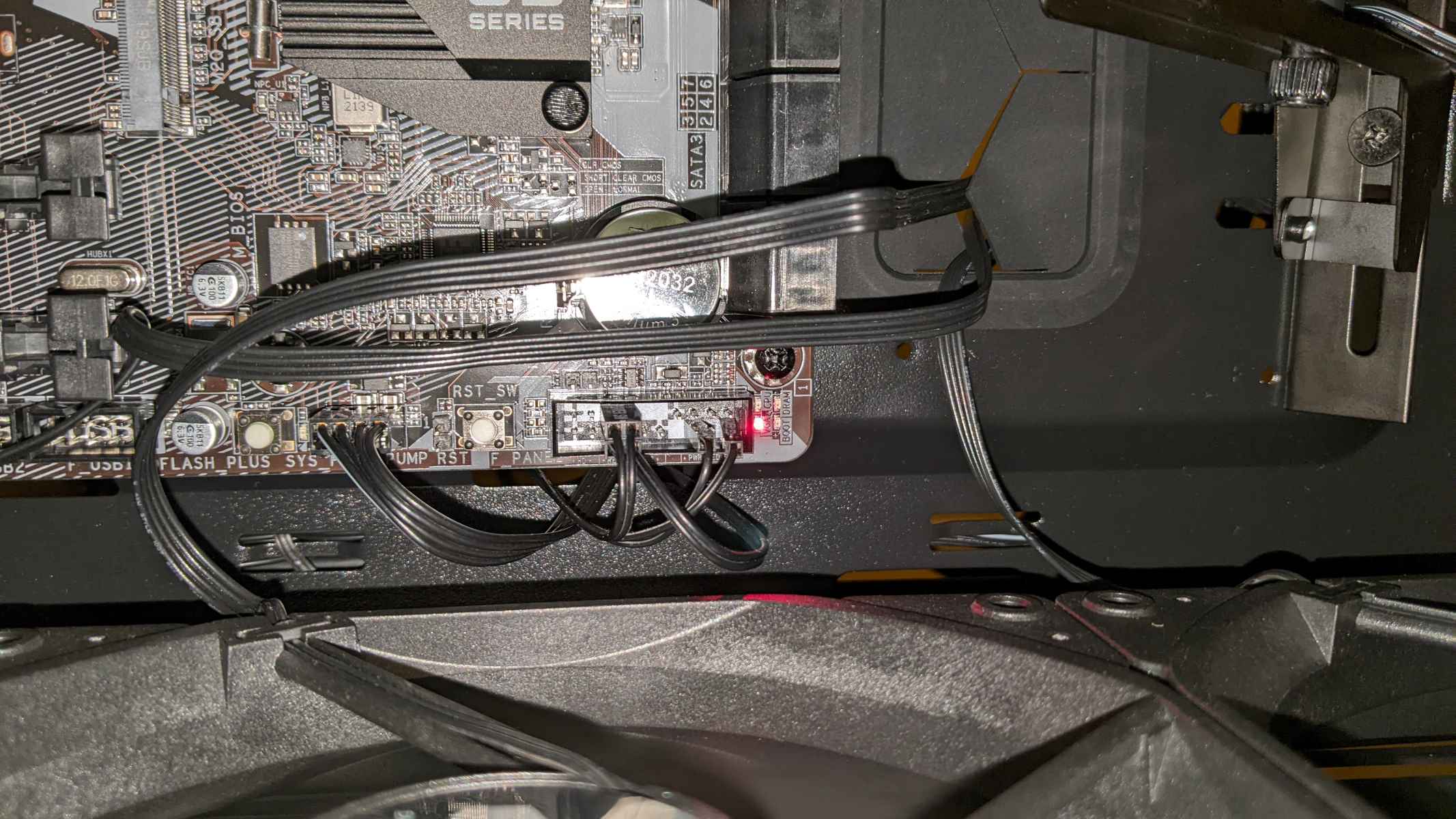
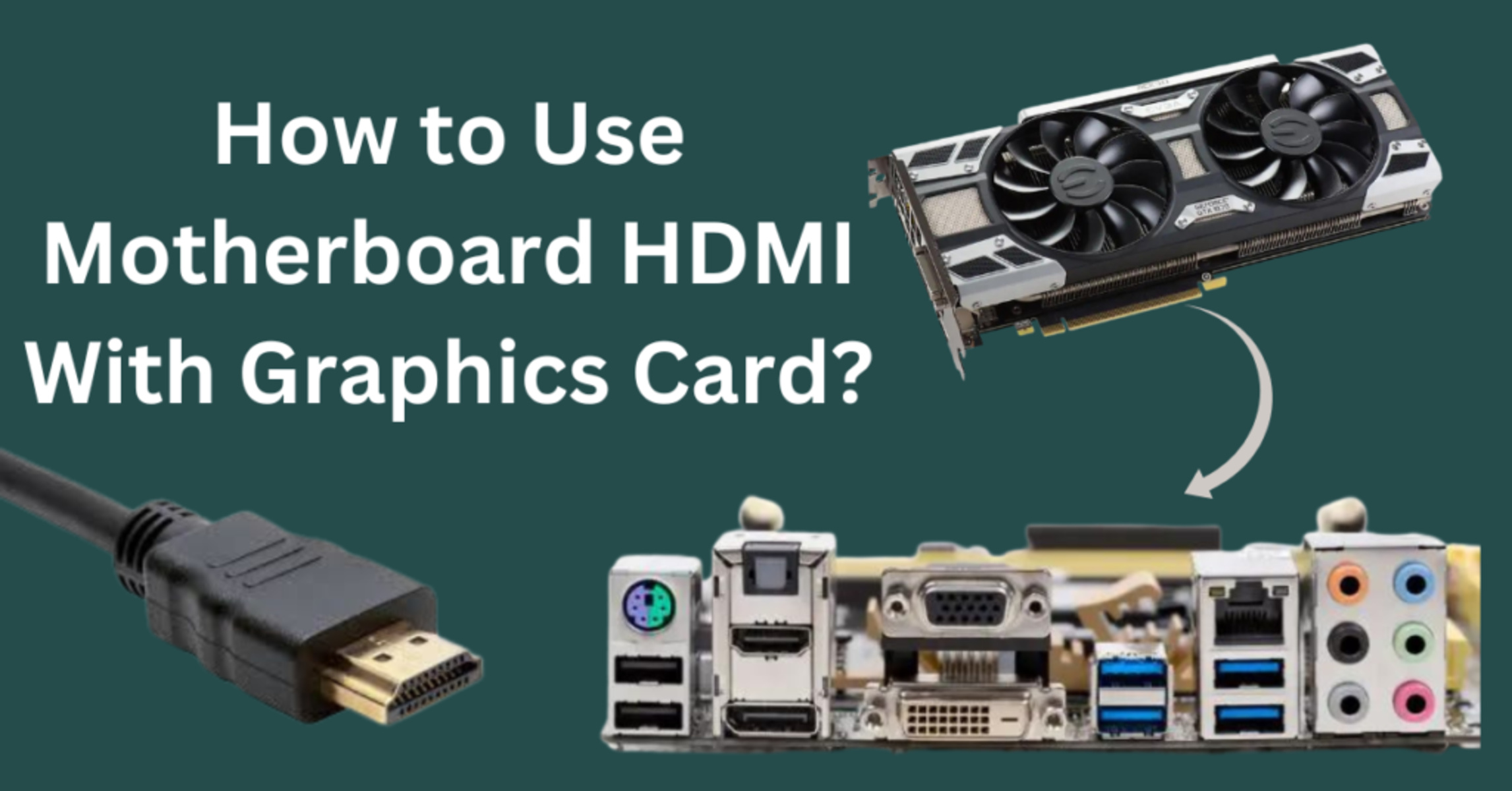
The articles cluster around two main themes. First, memory installation and tuning: several pieces explain how to correctly seat RAM, what the numbers on a stick mean, and why your memory might run at a lower speed than advertised, such as 2133 MHz instead of 3200 MHz. They also cover practical questions about mixing different brands or speeds of RAM, and how to safely reset the CMOS after a failed overclock attempt. Second, the tag addresses expansion and boot options: you’ll find guidance on using the HDMI port on the motherboard versus a dedicated graphics card, and how to determine whether your board supports NVMe boot over M.2 or only SATA over that slot.
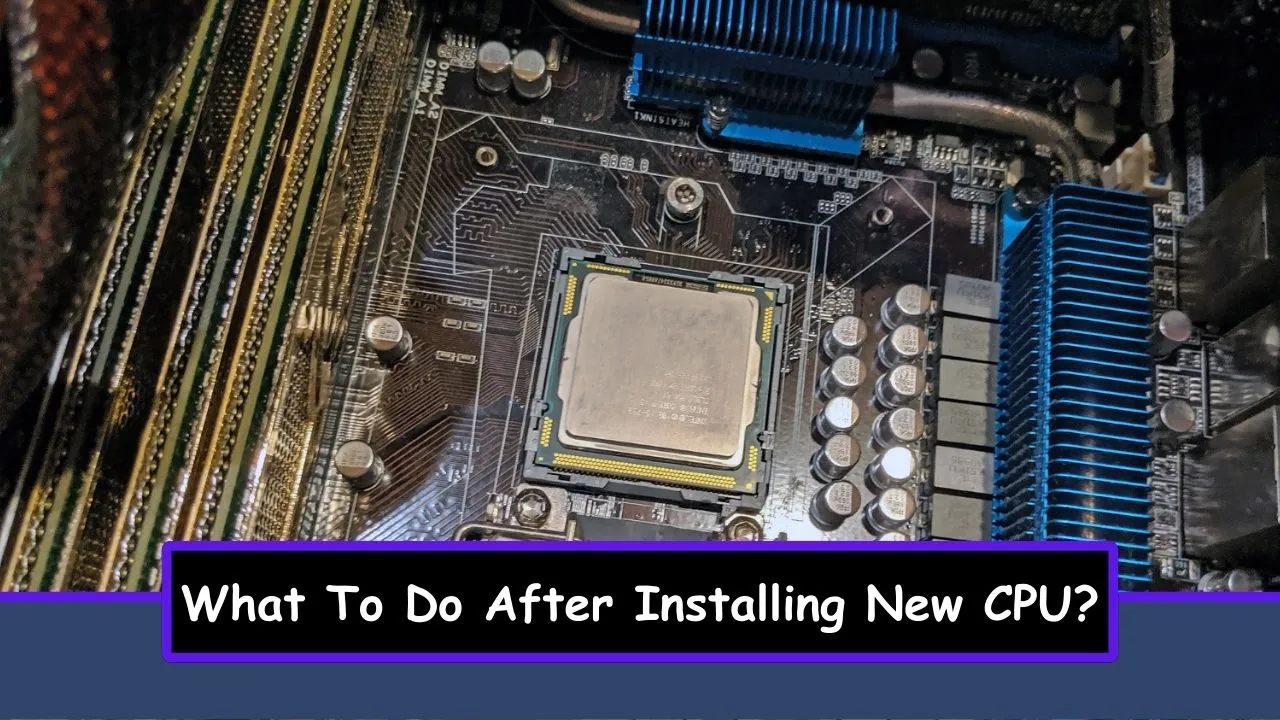
Beyond these how-to steps, some articles take a descriptive or diagnostic angle. For example, one explains what happens if you boot a PC without RAM, and another walks through the immediate steps to take after installing a new CPU. There is also a piece that covers the basics of making a motherboard, presented as an educational overview rather than a build guide. Together, these articles help you understand what your motherboard does, how to interact with it safely, and how to avoid common pitfalls during assembly and configuration.