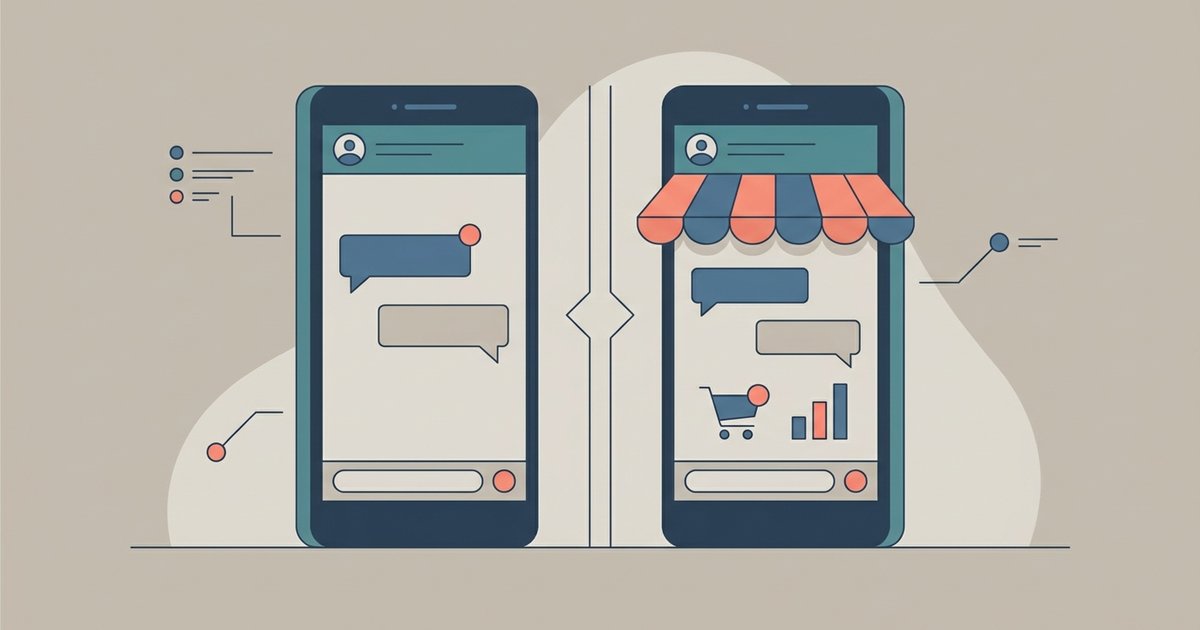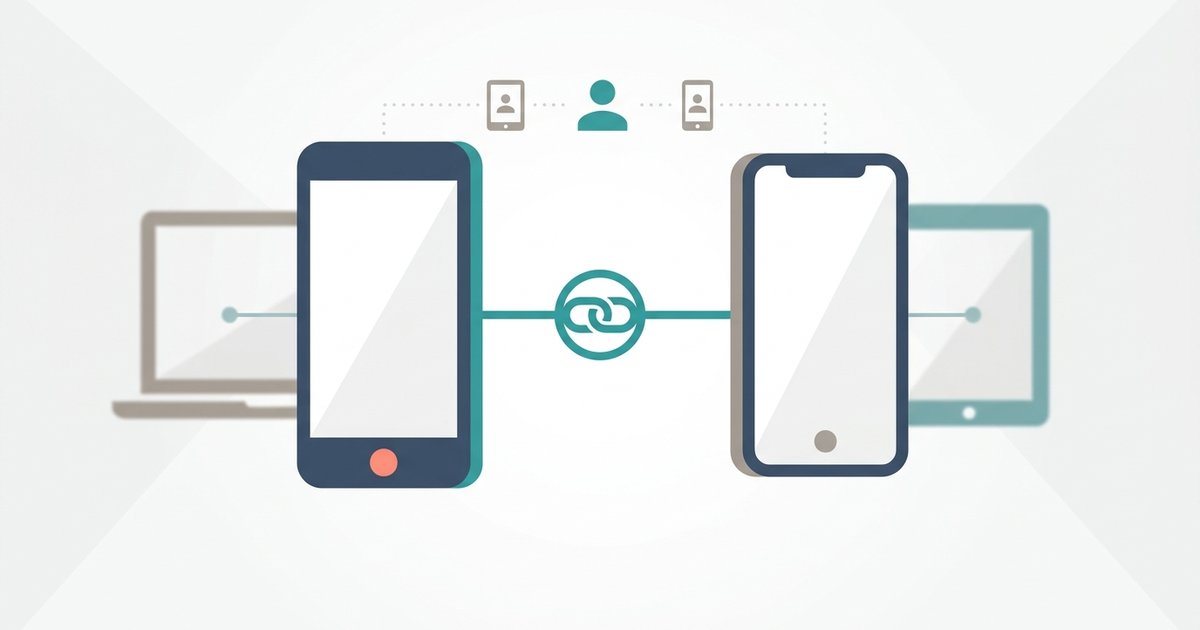
You can use one WhatsApp account on two phones at the same time. The second phone joins as a companion device, linked to your main phone in the same way a laptop or a browser is, so both handsets show the same chats and you never have to sign out of either one. WhatsApp allows up to four linked devices on an account, and a phone can be one of them.
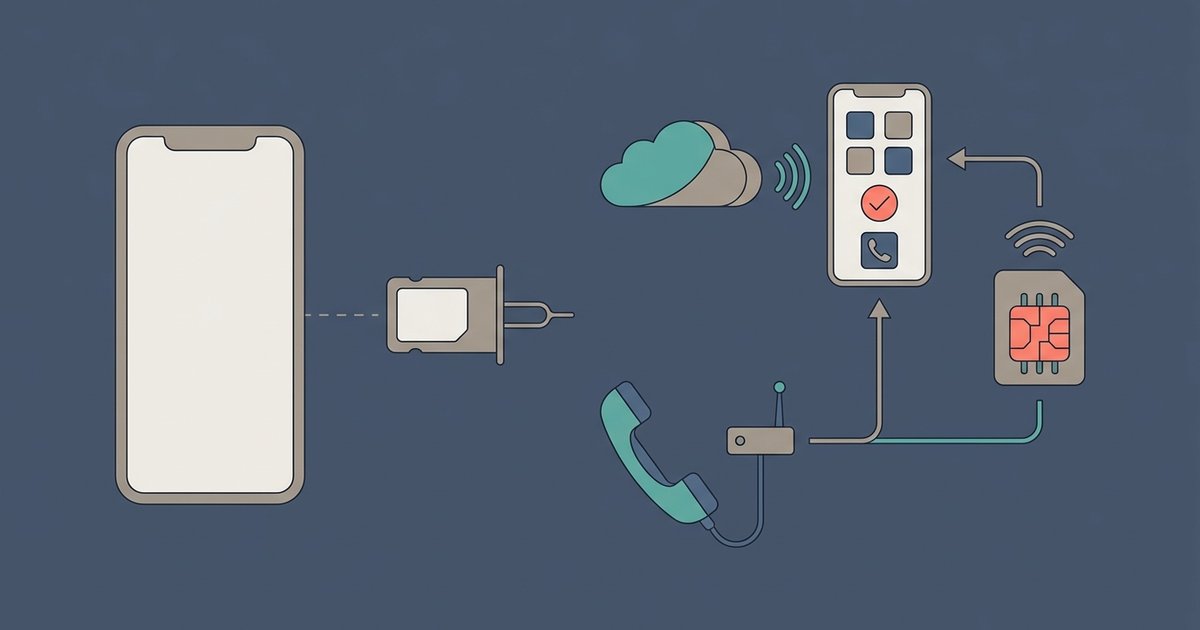
What you cannot do is register the same number twice. There is still exactly one primary phone: it owns the account, it is what you use to link anything new, and the whole arrangement depends on you opening WhatsApp on it now and then.
What counts as a linked device
WhatsApp's supported linked devices are Windows, Mac, the web client, Android tablets, iPad, Wear OS watches, companion phones, Meta AI glasses and VR headsets. All of them connect to WhatsApp independently and all of them keep end-to-end encryption. Only your primary phone can register the account or link something new.
Two limits matter before you set anything up. Linked devices keep working when your phone is off, but they are logged out if you do not use WhatsApp on the primary phone for more than 14 days. Separately, WhatsApp automatically disconnects a linked device after a period of inactivity on that device.
Link an Android phone as a companion device
This is the path WhatsApp documents, and it starts on the phone you want to add rather than on your main one.
- Install WhatsApp on the second Android phone from the Play Store, open it and tap Agree and continue.
- Do not enter a phone number. Instead, open the menu and tap Link as companion device. The phone shows a QR code.
- Open WhatsApp on your primary phone. On Android, open the menu and tap Linked devices then Link a device. On iPhone, go to Settings then Linked devices then Link device.
- Unlock your primary phone when prompted. If it has biometric authentication, follow the on-screen instructions; if not, you are asked for the PIN you use to unlock the phone.
- Point your primary phone at the second phone's screen and scan the QR code.
A companion phone that linked correctly shows the message "This is a linked device." If WhatsApp does not recognize the device, it asks you to confirm before linking, and you should tap Don't link if you did not start the process yourself.
Linking with a phone number instead of a QR code
There is a second method that uses a one-time code rather than scanning. On WhatsApp for Windows or WhatsApp Web, choose Link with phone number or Log in with phone number, select your country, enter your primary account number, and an eight-character code appears. On your primary phone, tap the notification to enter the code, confirm the device name and location it shows you, verify your identity, and type the code in.
WhatsApp states this option is available on WhatsApp for Windows and WhatsApp Web. If you are linking a second phone, use the QR code method above.
What you will and will not see on the second phone
As soon as a device is linked, your primary phone sends it an end-to-end encrypted copy of your most recent message history, which is then stored on the linked device. Depending on how many messages you have, it can take a few minutes to appear.
It is a copy of recent history, not your whole archive. WhatsApp is explicit that not all messages and chats sync to linked devices, and that the desktop apps sync more history than WhatsApp Web does. To see or search everything, you have to use the primary phone. WhatsApp has also acknowledged a known issue where some linked devices fail to display up to a year of chat history.
Deleting a message behaves the way you would want: delete for yourself or for everyone, and the deletion syncs to every device you are signed in on that is online.
Features that do not work on a linked device
- Viewing a live location.
- Creating and viewing broadcast lists.
- Interacting with businesses that use WhatsApp Flows.
Live location specifically is not supported on companion phones. Beyond that, the Mac and Windows apps do support voice and video calls with up to 32 people, so a linked computer is not a second-class client for calling.
Which devices cannot be your primary
Windows, Mac, web, iPad and wearables can never act as the primary device on an account. An Android tablet is the exception: it can be primary, but only if you register the account from the tablet itself rather than linking it to a phone. That is a different setup from the one described here, and you cannot convert a linked tablet into a primary one after the fact.
Keeping the account safe
A linked device is a full copy of your conversations, so treat the list as something to audit. Open the menu and tap Linked devices to see everything attached to your account; tap any entry and choose Log out to remove it. Leaving push notifications on for your phone matters here, because WhatsApp notifies you when a device is linked and you can remove one you do not recognize straight from the notification.
Only ever link through WhatsApp Web, the official Windows and Mac apps, WhatsApp for Android tablets, companion phones or AI glasses. WhatsApp warns that linking through unofficial apps or websites can get your account temporarily or permanently banned, and that those services can be used to push spam and scams from your account.
Common failure cases
If the QR code will not scan, raise the brightness on the screen showing it, clean the camera lens on the phone doing the scanning, and take off any screen protector that is diffusing the image. If the second phone offers you a registration screen instead of a linking option, you have opened the wrong flow: back out and look for the option to link as a companion device rather than entering a number.
If the second phone suddenly signs itself out, the usual cause is the 14-day rule: your primary phone has not opened WhatsApp recently enough. Open it, then link the companion again. If a linked device shows a thin slice of history, that is expected behavior rather than a fault, and the primary phone remains the full record. If a device you do not recognize appears in the list, log it out immediately and then turn on two-step verification on your account.
One practical habit makes the whole arrangement stable: decide deliberately which handset is primary and keep it that way. The primary phone is the one that has to stay in use, the one that holds the complete history, and the one you will need if you ever restore a backup, so it should be the phone you carry rather than the spare in a drawer.