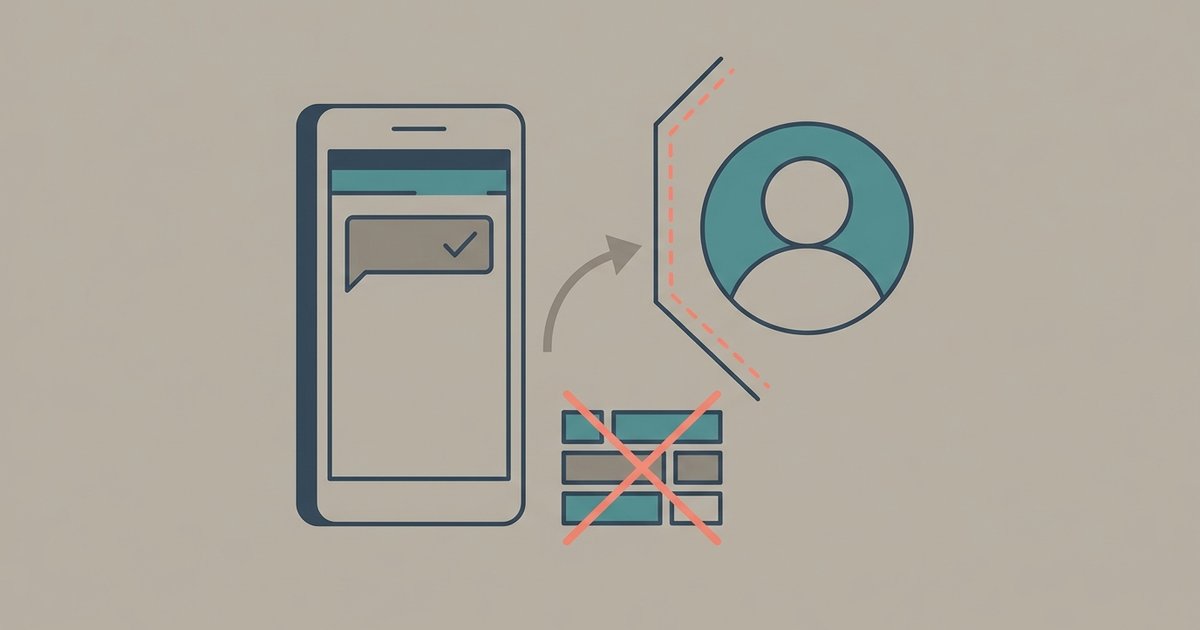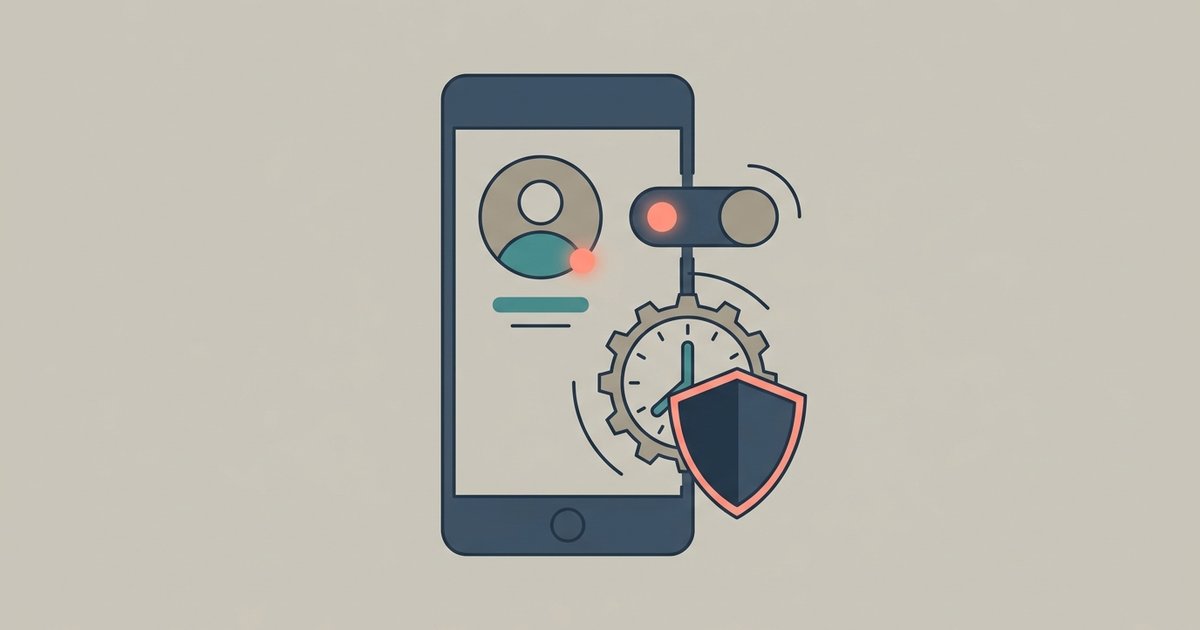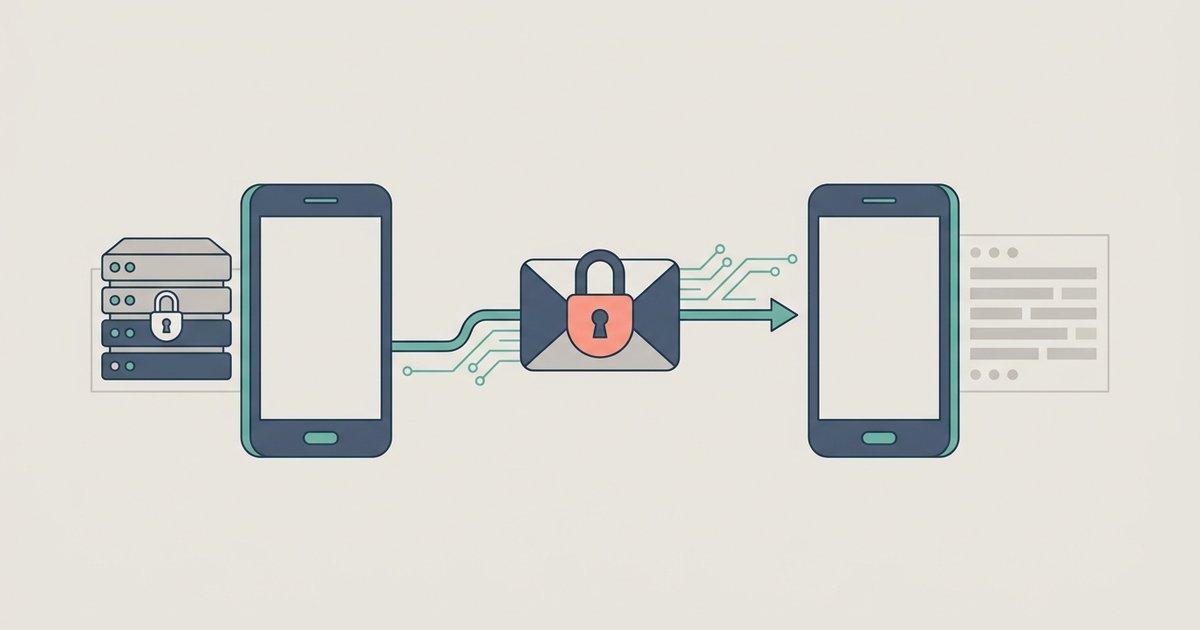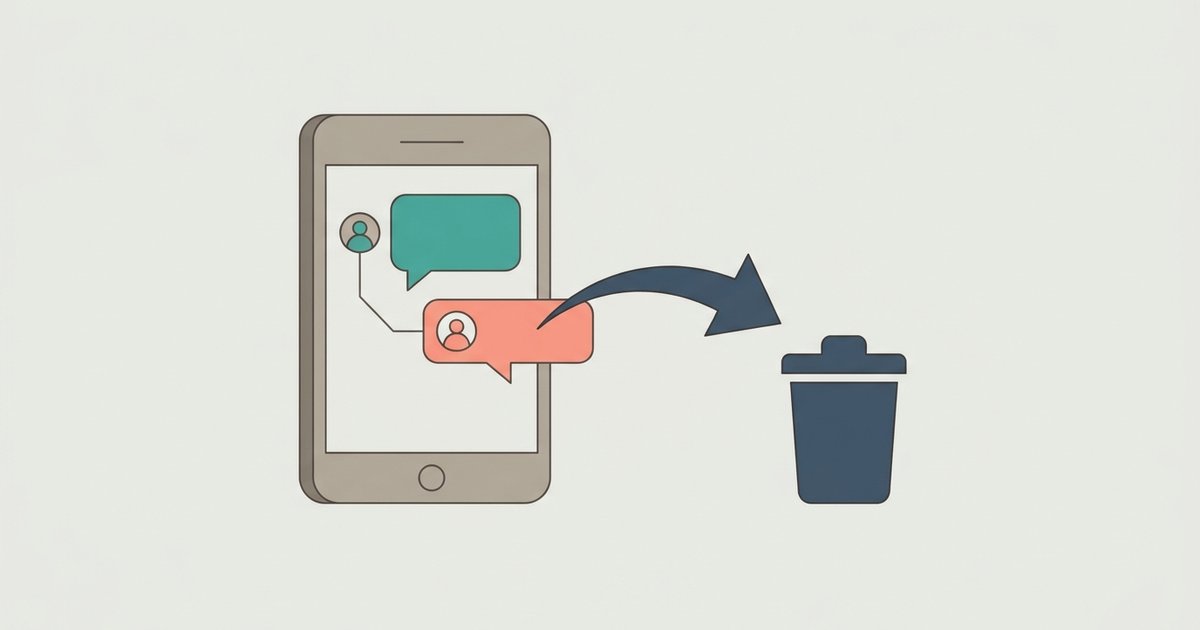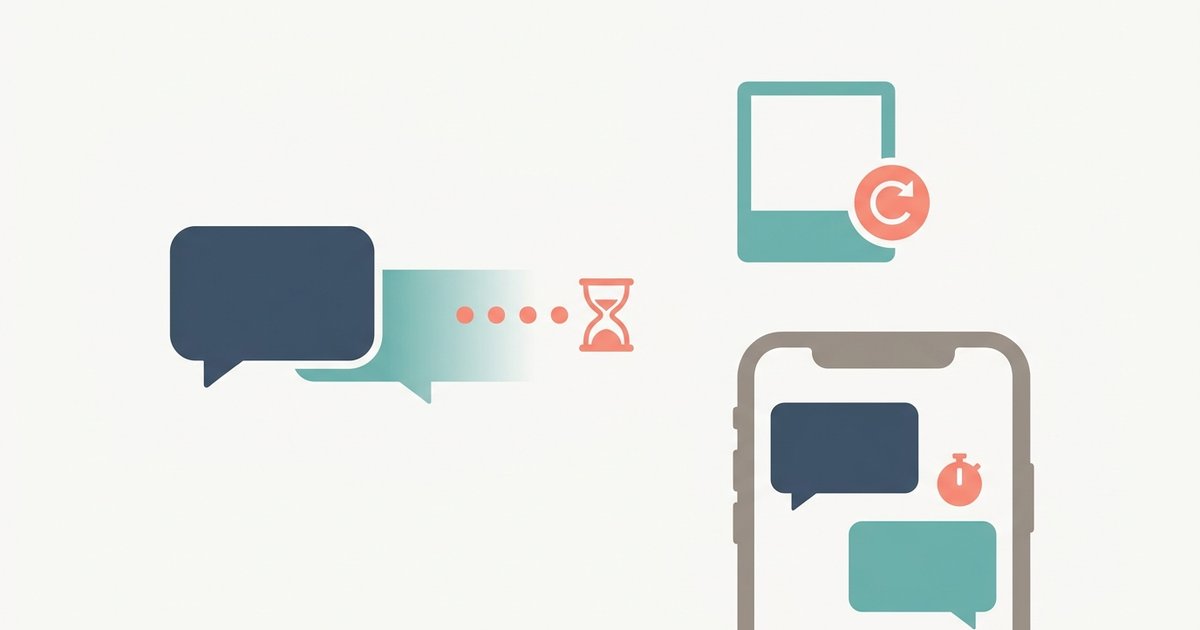
Disappearing messages delete new messages in a chat automatically after 24 hours, 7 days or 90 days, for everyone in the chat. View once is different: it applies to a single photo, video or voice message, which vanishes from the chat after the recipient opens it one time. Both reduce how long content sits on people's phones, but neither can stop a determined recipient from keeping a copy.
Knowing exactly where each feature stops is what makes them useful rather than a false sense of security.
How disappearing messages work
When disappearing messages are on, every new message in that chat is removed after the period you choose: 24 hours, 7 days or 90 days. The timer applies to messages sent after you turn the feature on. Anything already in the chat stays as it is.
Messages disappear for both the sender and the recipients. In a one-to-one chat, either person can enable disappearing messages, and once enabled, messages disappear for both the sender and the recipients. In groups, anyone can change it by default, but admins can restrict that setting to admins only.
Turn it on for one chat
- Open the chat.
- Tap the contact's name or the group name.
- Tap Disappearing messages. If prompted, tap Continue.
- Choose 24 hours, 7 days or 90 days.
To switch it off, follow the same steps and choose Off. Turning it off stops the timer for messages sent from then on. WhatsApp also notes that once you turn disappearing messages off, you can no longer keep messages from that chat, so keep anything important before you switch it off.
Turn it on for all new chats
You can make disappearing messages the default for every new one-to-one chat you start. Go to Settings, then Privacy, then Default message timer, and pick a duration. WhatsApp then offers to apply the timer to existing chats as well, so you can select the ones you want or leave them untouched. The default timer is off unless you change it.
The default covers new individual chats only. Groups keep their own setting, which you change from the group's info screen in the same way as a one-to-one chat, subject to whatever the admins allow.
Keeping a disappearing message
Sometimes a message in a disappearing chat is worth keeping, such as an address or a confirmation number. Anyone in the chat can keep a message before its timer runs out: press and hold it and tap Keep. Kept messages stay visible to everyone in the chat and do not disappear. You can find them from the chat info under Kept messages, and WhatsApp also collects them in a Kept messages folder.
The sender stays in control. If someone keeps a message you sent, you get a notification, and you can unkeep it. Once the sender unkeeps a message, nobody else in the chat can keep it again. The ability to unkeep does not last forever; WhatsApp gives a limited window after the message was kept. In groups, admins can limit keeping to admins only.
Where disappearing messages leak
WhatsApp's help center lists several situations in which a disappearing message outlives its timer or leaves a trace:
- Notification previews. If the recipient does not open WhatsApp before the message expires, it disappears from the chat, but the preview may still show in their notifications until they open the app.
- Forwarding. A disappearing message forwarded into a chat without disappearing messages will not disappear there.
- Quoted replies. When someone replies to a message, the original is quoted in the reply. That quoted text may still be visible after the original has gone.
- Backups. If a backup runs before a message disappears, the message is included in the backup. WhatsApp deletes disappearing messages when a backup is restored.
- Screenshots and copies. Nothing in the disappearing messages feature stops someone from screenshotting or copying the text before it goes.
Media sent in a disappearing chat is not saved to the recipient's photos automatically, which closes one of the most common ways content would otherwise survive. In some countries, disappearing messages are not available for payment or order-related messages.
How view once works
View once applies to individual photos, videos and voice messages. The recipient can open the item one time; after they close it, it is gone from the chat. You have to choose view once each time you send something. It is not a setting that stays on.
To send a view once photo or video on Android, open a chat, tap the attachment option and choose Camera or Gallery, pick your photo or video, then tap the view once icon (a small "1") next to the caption field. When it turns green, you are in view once mode, and you tap send. For a view once voice message, start recording, swipe up to lock it, then tap the same icon before sending. The steps on iPhone are similar.
Recipients get stricter limits than with ordinary media:
- The photo or video is not saved to their Photos or Gallery.
- They cannot forward, copy, save, star or share it.
- WhatsApp blocks screenshots of view once media, and blocks screen recording of view once photos and videos.
- They must open it within 14 days of it being sent, or it expires from the chat.
Once you send a view once item, you cannot view it again yourself. If the recipient has read receipts on, you see an Opened label when they have looked at it. If they have read receipts off, you will not know.
What view once cannot stop
WhatsApp is candid about the limits, and they matter:
- Anyone can photograph or film the screen with another phone or camera before the item disappears.
- WhatsApp notes that the audio of view once voice messages can be recorded with the built-in screen recorder on iPhone and Android.
- Encrypted view once media may be stored on WhatsApp's servers for a few weeks after sending.
- If the recipient reports a view once message, the media is provided to WhatsApp as part of the report.
- Unopened view once items can be restored from a backup. Opened ones are not included in backups.
WhatsApp's own advice is to send view once content only to people you trust.
Which one to use
Use disappearing messages when you want a whole conversation to stop piling up, such as a group arranging a one-off event or a chat where you routinely share addresses and codes. Use view once for a single sensitive item, such as a photo of a document or a Wi-Fi password, that the other person needs to see once and has no reason to keep.
For either feature, the working assumption should be that the recipient could keep what you send if they really wanted to. Treat both as good hygiene that reduces how much sits on phones and in backups over time, and do not send anything through them that would cause real harm if it did survive.
\nRelated reading: How to Know if Someone Blocked You on WhatsApp.