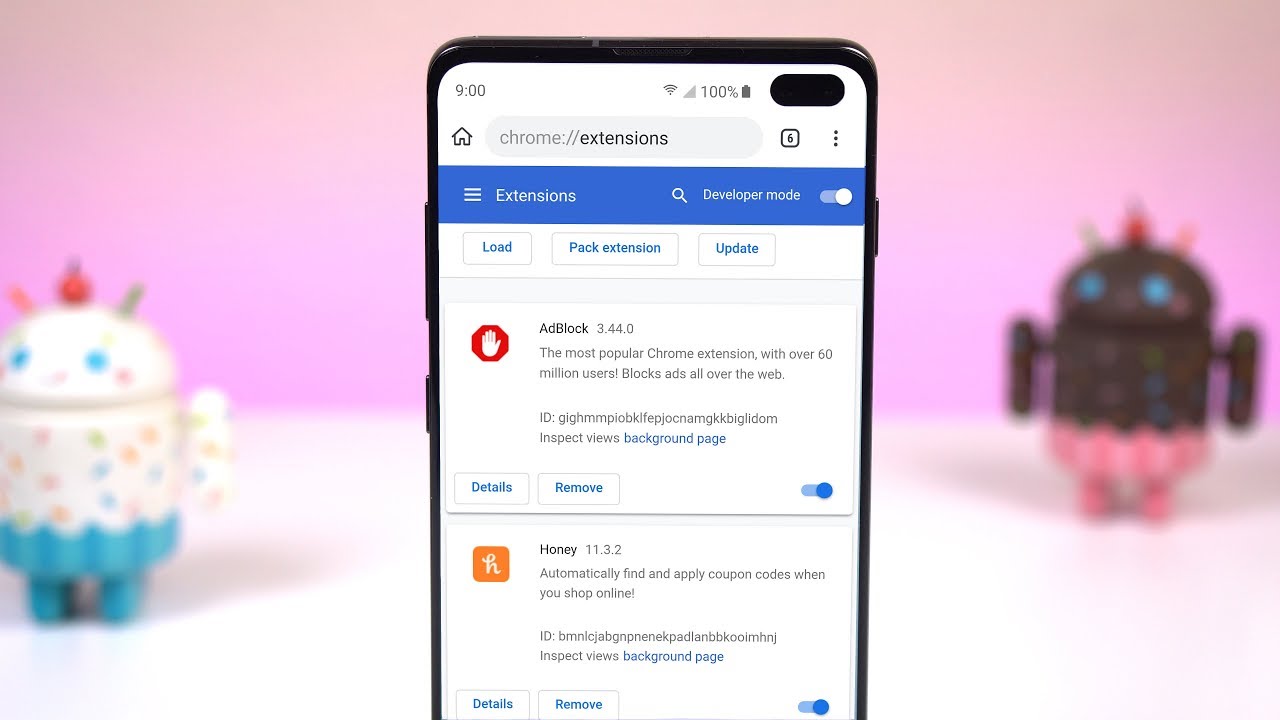
No, there is no official, non-sideload method to install desktop Chrome extensions on Android. The standard Chrome app does not support extensions, and Google has not announced plans to add this feature.
Why Chrome for Android Blocks Extensions
Google deliberately restricts extensions in Chrome for Android for two primary reasons: performance and security. Desktop Chrome uses a multi-process architecture that isolates each extension in its own sandbox, but mobile devices have limited RAM and CPU resources. Running extensions would degrade battery life and cause frequent crashes on phones with less than 6GB of memory. Additionally, the mobile Chrome interface is touch-optimized, and many extension UIs rely on hover states and right-click menus that have no direct mobile equivalent. Google also enforces a strict WebView policy on Android; extensions that could inject code into every page pose a higher risk of data theft or ad injection on mobile, where users grant fewer permissions. This is why the Play Store version of Chrome lacks the `chrome://extensions` page entirely, you cannot even view extension IDs or toggle developer mode. If you need to enable html5 in Chrome, you can do so through the browser's built-in settings, but that does not activate extension support.
The Sideloading Workaround and Its Limits
The sideloading method involves downloading a modified version of Chrome (often called "Chrome Dev" or "Chrome Canary" from third-party sources) that has the extension API enabled, then manually copying `.crx` files into the app's data directory. This is not an official Google release, it is a repackaged build that bypasses Play Store security checks. The workaround breaks frequently with each Chrome update, and you lose all extensions every time the app auto-updates. Security risks are substantial: the modified APK could contain spyware, and the extensions themselves may request permissions that expose your browsing data. You also cannot use Chrome's sync feature with a sideloaded build, so bookmarks and passwords remain local. If you want to add extensions to Chrome mobile, the only supported path is to switch to a browser that natively includes that capability.
The One Official Alternative You Can Use Today
Instead of sideloading, install a Chromium-based browser from the Play Store that supports extensions out of the box. Kiwi Browser is one of several Android browsers built on Chromium that let you install extensions directly from the Chrome Web Store, alongside Yandex Browser, Quetta Browser, and Lemur Browser. Firefox for Android is another strong choice, supporting its own library of extensions (including uBlock Origin, Dark Reader, and Privacy Badger) through the official Mozilla add-ons store. Both browsers are fully supported, receive regular updates through the Play Store, and do not require any file manipulation. For Android users, switching to browsers like Kiwi, Yandex, Quetta, Lemur, or Firefox is a legitimate way to run extensions without sideloading, and for a deeper understanding of the underlying mechanisms, Chrome extensions and developer mode offer further insight into how these tools function across different environments.