You must find and remove the source of the hijack—usually a rogue extension or a program with a background service—not just reset the homepage URL. Simply retyping your preferred homepage will not stick until the controlling software is disabled.
Check for suspicious extensions that changed your chrome homepage
Open Chrome, click the three-dot menu in the top-right corner, hover over "Extensions," then click "Manage Extensions." Look for any extension you did not intentionally install, especially ones with generic names like "New Tab," "Search Helper," or "Shopping Saver." Toggle the switch on each suspect extension to disable it. If the homepage stops changing, you have found the culprit. Remove that extension permanently by clicking "Remove." Even extensions that claim to help you add webpages to Google Chrome homepage can sometimes be bundled with adware that overrides your start page. A clean extension list is the first line of defense.
Scan and remove unwanted programs
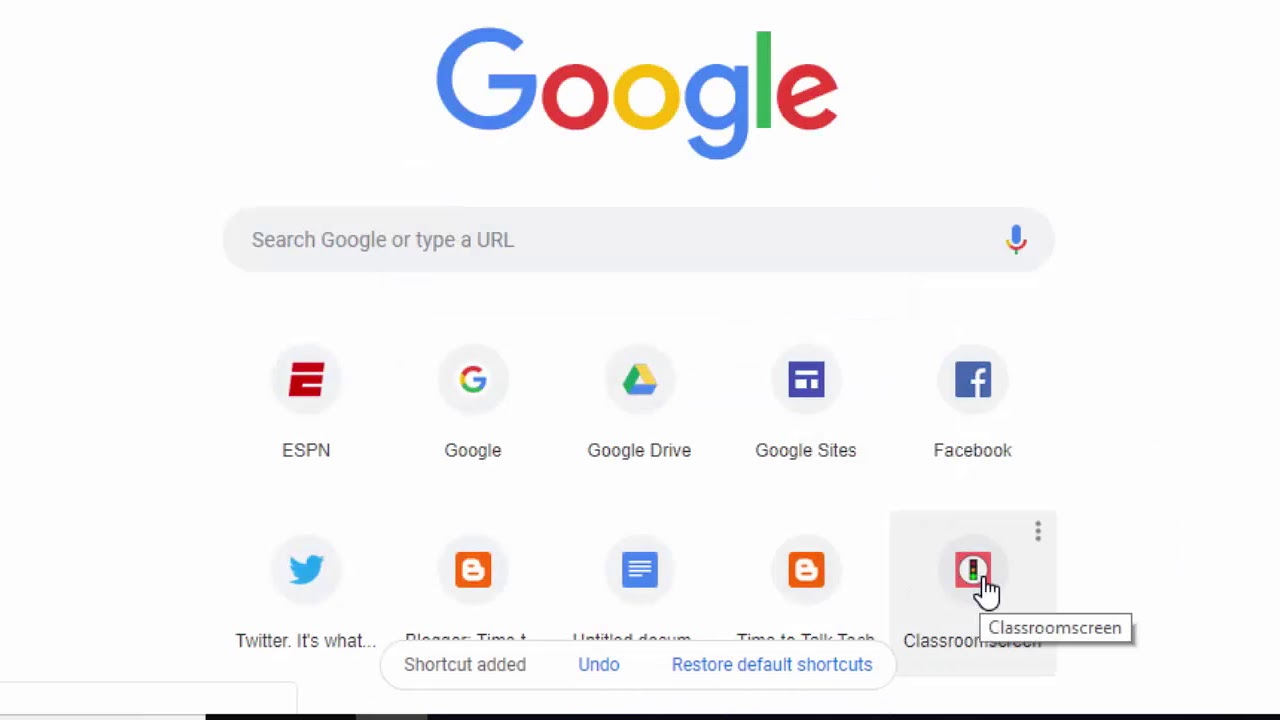
If no extension is responsible, a desktop program running in the background is likely forcing the change. Chrome includes a built-in tool for this: go to Settings, then "Reset settings," and click "Restore settings to their original defaults." Click "Find" to let Chrome scan for harmful software. Follow the prompts to remove anything it discovers. After the scan, manually check your Windows "Programs and Features" list (or macOS Applications folder) for any software you do not recognize, especially toolbars, system optimizers, or "browser managers." Uninstall them. Some of these programs also claim to help you add websites to Google Chrome's most visited list, but their real purpose is to hijack your homepage for affiliate revenue. Restart Chrome after removal and set your homepage again.
When the homepage still won't stick
If the homepage reverts even after removing all extensions and unwanted programs, a deeper mechanism is at work. Type `chrome://policy` into the address bar and press Enter. If you see any policies listed under "HomepageLocation" or "HomepageIsNewTabPage," your browser is being controlled by a system administrator or a malware-installed policy. On a personal computer, this usually means a malicious entry in the Windows Registry or a scheduled task that re-applies the hijack on every launch. You can reset Chrome completely by going to Settings, "Reset settings," and choosing "Restore settings to their original defaults." This removes all extensions, temporary data, and policy overrides. After the reset, you can add a shortcut on Chromebook or on any desktop by dragging a URL to your taskbar or dock, but the homepage itself will now obey your manual setting. If the policy returns, use a tool like AdwCleaner to scan for deeply embedded registry modifications. This is the only reliable method when you have tried to make msn my homepage in Google Chrome only to see it replaced again on restart, because the problem is not your settings but something actively overwriting them, and for those interested in customising the Chrome homepage and shortcuts, understanding these deeper mechanisms is essential to maintaining control over your browser.