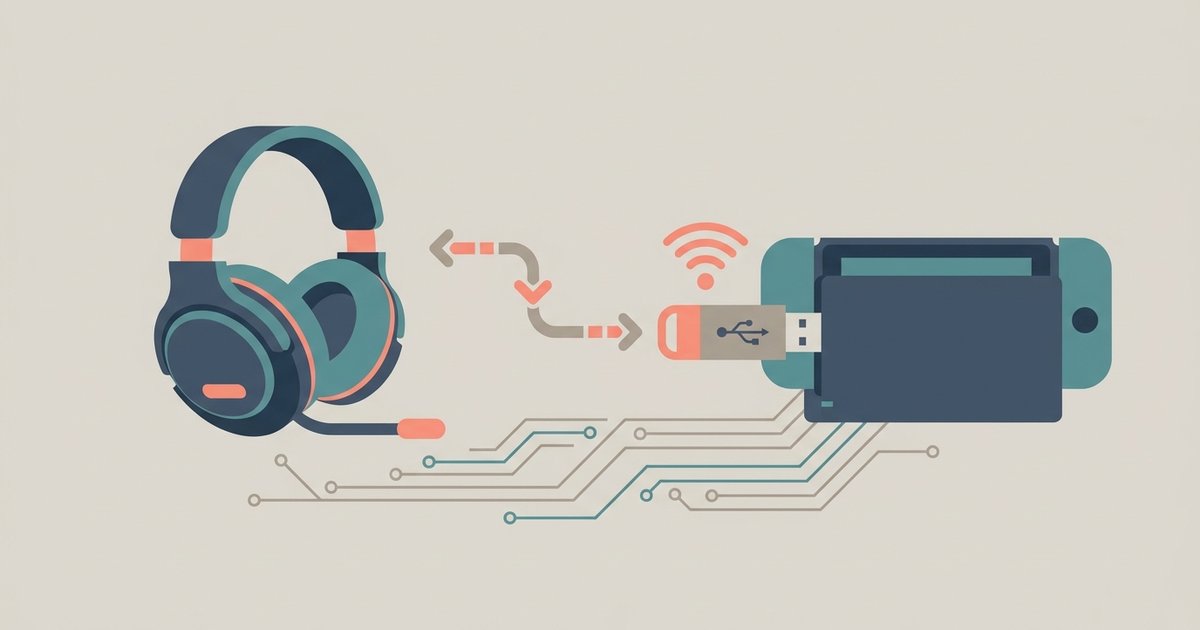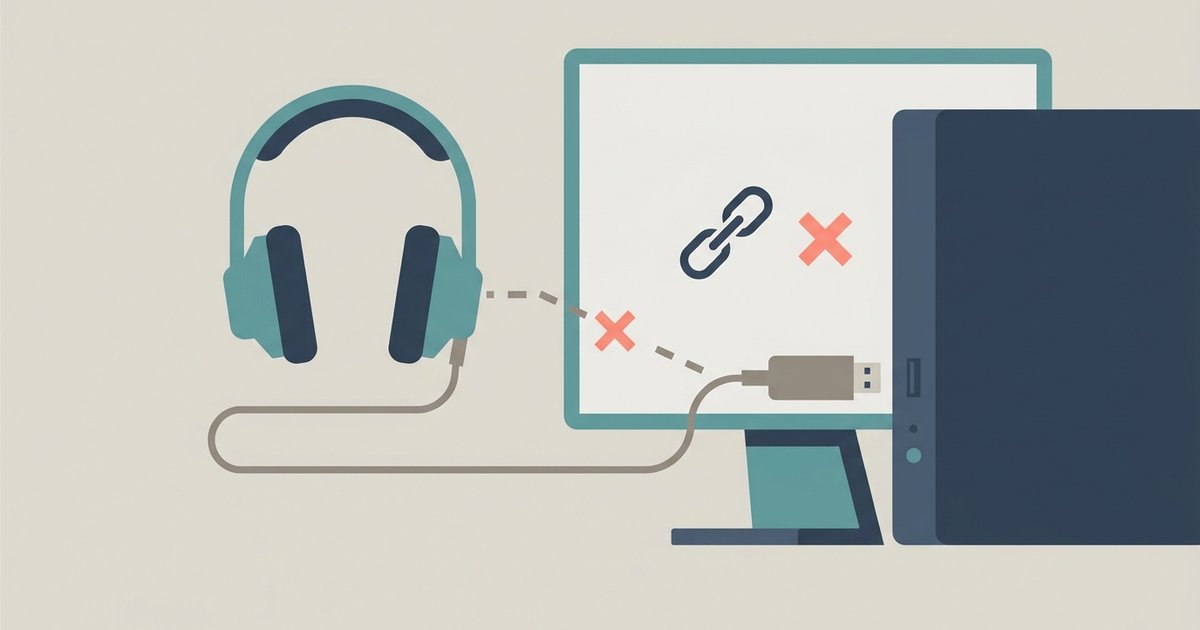
The USB adapter likely needs a forced re-pairing to the headset because it lost its factory link, or Windows is defaulting to the wrong playback device. Hold the adapter's button for 4 seconds until it flashes, then put your headset in pairing mode to re-establish the connection.
Poly headset not connecting after losing pairing
Book a manual re-pairing session right now before you change any Windows settings. Press and hold the small button on the side of the adapter for four seconds until its light begins flashing red and blue, then put your headset into pairing mode by holding the power button until the LED alternates red and blue. The adapter and headset will find each other within ten seconds. This is the core of any reliable **poly headset pairing** routine, without this forced step, the adapter simply ignores the headset even if both are powered on.
2. Windows is selecting the wrong speaker and microphone
Open Control Panel > Sound > Playback tab, select your Poly adapter, set it as the Default Device, and do the same on the Recording tab for the microphone. Then in Control Panel > Sound, ensure the Poly adapter is set as the Default Device, which also sets it as the default communication device. If you ever tried to connect a Bluetooth speaker to an Xbox or other peripherals, Windows may have cached that device as your preferred output, forcing the Poly to be the default communication device overrides that confusion. Skip the Enhancements tab entirely by checking “Disable all enhancements” in the device properties if sound is crackling or missing.
3. The USB port is not providing enough consistent power
Arrive at the back of your PC and plug the adapter directly into a motherboard USB 2.0 port, skipping every front-panel port, docking station, and USB hub. Avoid USB 3.0 ports if possible, they sometimes cause RF interference with Bluetooth adapters. If you are following Turtle Beach headset setup tips or any wireless headset guide, they all stress this same rule: a direct, high-power port is mandatory for stable operation. Skip the Device Manager troubleshooting until you have moved the adapter to the correct physical port.
4. When the adapter itself is in call-only mode or crashed
Unplug the adapter from the USB port and wait a full 30 seconds, which drains residual capacitance and resets the internal microcontroller. After plugging it back in, the adapter should re‑enumerate as a full audio device. If the light stays solid but no sound plays, hold the headset power button for 10 seconds to force it off, then turn it on normally. For a similar issue, if you ever tried to connect a Logitech G733 to an Xbox, you know that Bluetooth adapters can enter a silent crash state that only a hard power cycle fixes, the Poly adapter behaves the same way. After the 30‑second unplug, repeat the forced re‑pairing from the first section to ensure a clean link. This same adapter behavior is why you should confirm compatibility before attempting Poly Bluetooth headset Xbox adapter use.
Poly USB adapters ship pre-paired from the factory, and for those seeking guidance on connecting a headset to a console, the broader topic of How to Connect a Headset to a Console or PC offers further clarity.