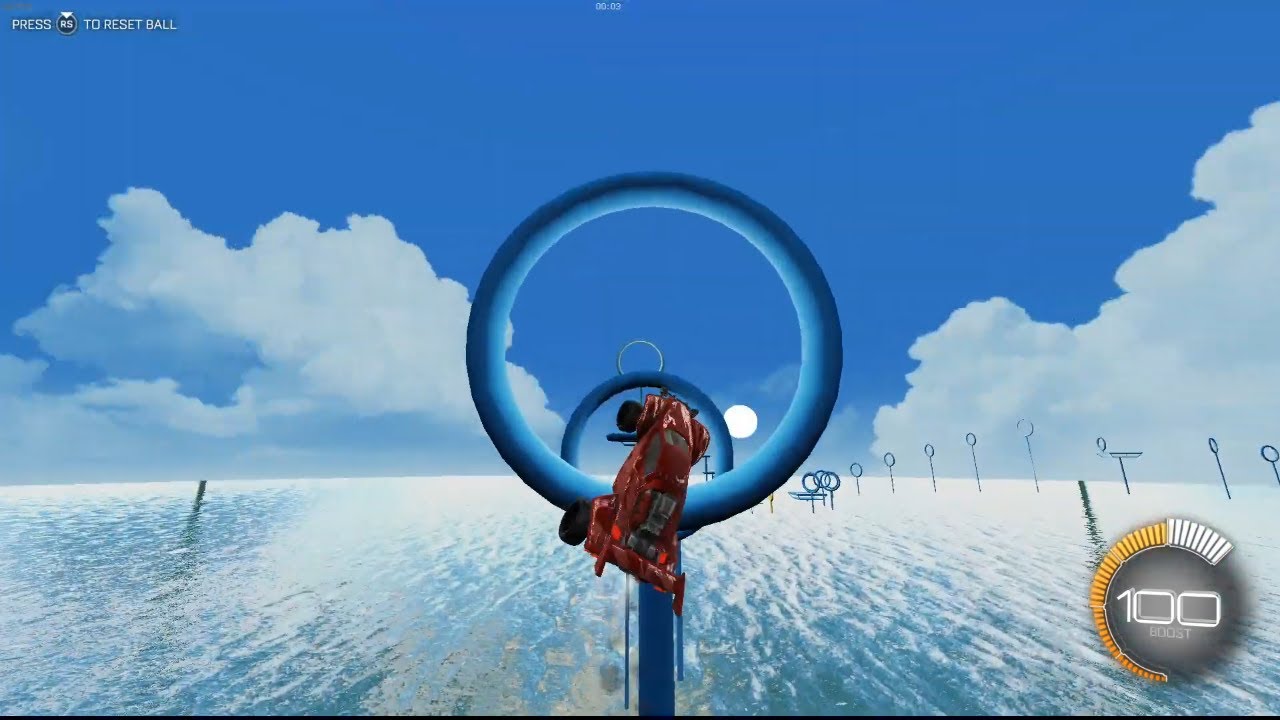
To download workshop maps in Rocket League on Epic Games, you must use BakkesMod, a third-party modding tool, because the Epic Games version lacks the native Steam Workshop integration. This guide provides the exact steps to get custom maps running, from installing BakkesMod to loading a map in-game, so you can bypass the platform limitation and access the community's best creations.
Why you can't download workshop maps directly on rocket league epic games
The core issue is that the Epic Games version of Rocket League does not have a native Workshop feature for browsing and downloading maps directly within the game, unlike the Steam version. This means you cannot simply open a "Workshop" tab in the main menu. To access custom maps, you need to use BakkesMod, a third-party modding tool that injects into Rocket League, and combine it with external map sources. BakkesMod acts as the bridge, allowing the game to load custom map files that you manually place into your game directory.
Install BakkesMod and the workshop plugin
First, download BakkesMod from the official website (bakkesmod.com). Run the installer and follow the on-screen instructions. After installation, launch Rocket League normally. Once in the main menu, press F2 to open the BakkesMod plugin manager. Click the "Install" button next to it. The plugin will download and install automatically. This plugin is essential because it adds the necessary functionality for BakkesMod to recognize and load custom map files that you will add later. After installation, restart Rocket League to ensure the plugin loads correctly.
Find and download custom maps from external sources
Your next step is to find custom maps. Since you cannot browse them in-game, you must use external websites. A reliable source is bakkesplugins.com/maps, which hosts a large, curated collection of maps that are compatible with BakkesMod. Alternatively, you can use the Steam Workshop website to find maps. Even though you don't own the Steam version, you can still browse the Steam Workshop for Rocket League (appid 252950) and copy the map's file ID or download the map file directly using a Steam Workshop downloader tool. When using a downloader, you will typically receive a .udk or .upk file, which is the map file format Rocket League uses.
Install the map file into your Rocket League folder
Once you have downloaded a map file (with the .udk or .upk extension), you need to place it in the correct directory. Navigate to your Rocket League installation folder. This is usually located at `C:\Program Files\Epic Games\rocketleague` or wherever you installed the game. Inside, go to the `TAGame` folder, then `CookedPCConsole`. Create a new folder named `mods` if it doesn't already exist. Move or copy the downloaded map file (the .udk or .upk file) into this `mods` folder. This is the directory where BakkesMod will look for custom maps. Ensure the file is not inside any subfolder; it should be directly in the `mods` folder.
Load and play your new workshop map
Now, launch Rocket League with BakkesMod running. Start a free play match or any offline mode. While in the game, press F6 to open the BakkesMod console. Select the map file you placed there and confirm. The game will load the map, and you can immediately start playing. This command tells BakkesMod to load the specific map file you selected. If you want to switch maps, you can repeat the command and choose a different file. Remember, you must have BakkesMod running and the Workshop Map Loader plugin enabled for this command to work.
By following these steps, you can successfully download and play any custom workshop map on Rocket League via Epic Games. The process requires a one-time setup of BakkesMod and the plugin, but after that, you can easily add new maps by dropping files into the `mods` folder and using the `plugin loadmap` command. This method opens up thousands of community-created maps, from training drills to obstacle courses, significantly expanding your gameplay.
\nRelated reading: How To Download Modded Games On iOS, How To Download Games On Tesla, and How To Download Games On Leappad Academy.