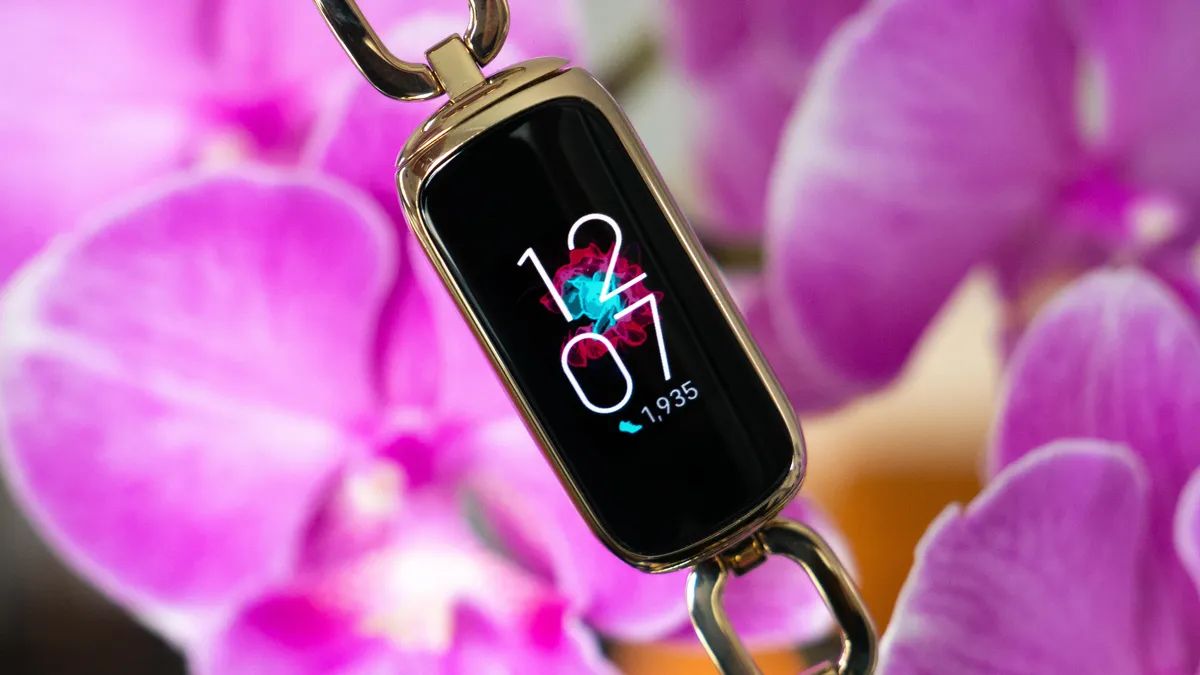
If your Fitbit Luxe is not charging, the most common cause is simply that the gold contacts on the back of the device and the pins on the charging cable are dirty or misaligned. Before anything else, a quick clean with a dry cloth or a pencil eraser will fix the issue in most cases. If that doesn't work, the problem usually lies with the cable, the power source, a completely drained battery, or a rare software glitch, all of which are covered in the step-by-step guide below. If your device powers on but still seems unresponsive, you may also need troubleshooting why your Fitbit isn't detecting heart rate.
Clean the charging contacts on your Luxe and cable
Start here because this is the most frequent reason for a charging failure. Over time, sweat, lotion, and dust build up on the four gold dots on the back of your Luxe and the corresponding pins on the charging cable, creating a barrier that blocks the flow of power.
First, unplug the charging cable. Use a soft, dry, lint-free cloth to wipe the gold contacts on the back of your Luxe and the pins on the cable. For more stubborn buildup, dip a cotton swab in isopropyl alcohol and gently rub the gold dots and the cable pins. Make sure the contacts are completely dry before attempting to charge again.
If the gold dots still look discolored or have a film on them, gently rub them with a pencil eraser. This abrasive action removes oxidation and stubborn grime without scratching the plating. After erasing, brush away any eraser bits with a dry cloth. Avoid scraping the charging contacts with anything metal, as this can damage the plating and cause corrosion.
Check the charging cable and power source
If cleaning didn't solve it, inspect the charging cable itself. Look at the gold pins on the flat end of the cable. Gently push each pin with your fingernail or a plastic tool, they should spring back. If a pin stays pushed in or feels stuck, the cable is damaged and needs to be replaced. Also, examine the entire length of the cable for kinks, fraying, or exposed wires.
Next, try a different power source. Plug the cable into a UL-certified USB wall charger, a USB port on your computer, or another low-energy charging device. Avoid using USB hubs, as they may not provide sufficient power for charging. If you were using a laptop's USB port, try a wall adapter instead, some computer ports deliver inconsistent power.
Charge from a wall outlet for at least one hour
If your Luxe's screen is completely black and it has been dead for a while, a completely depleted battery might take time to show signs of charging. Plug the charging cable into a wall outlet (using a UL-certified adapter) and connect it to your Luxe, ensuring the pins align magnetically. Leave it undisturbed for a full 60 minutes. Even if the screen stays black for the first 20-30 minutes, this is normal. After an hour, check for the battery icon or the Fitbit logo. If it appears, the device is charging and will reach a full charge in about 1-2 hours.
Restart your Fitbit Luxe the correct way
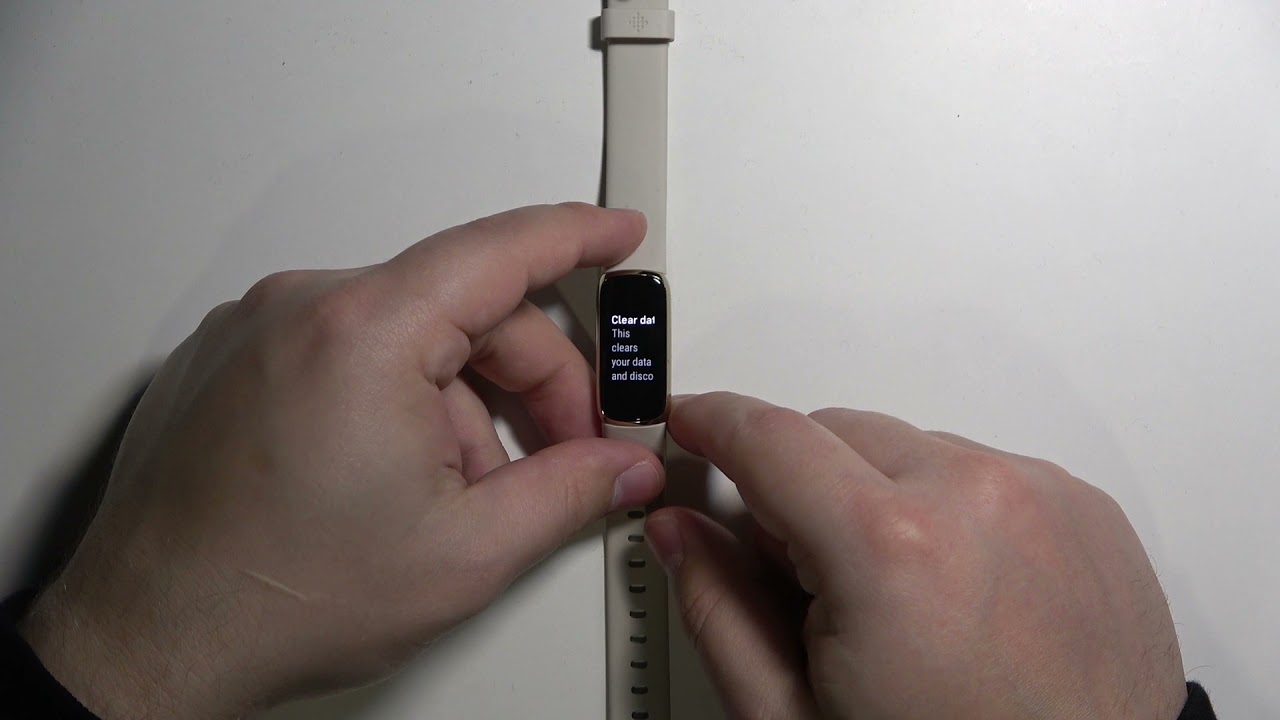
A software glitch can sometimes prevent charging, even when the hardware is fine. The verified soft reset for the Luxe uses the button on the charging cable, not the device itself. Connect your Luxe to the charging cable, then press the button on the flat end of the charger 3 times, pausing for 1 second between each press. Wait 10 seconds for the Fitbit logo to appear. This reboots the hardware without deleting any of your fitness data. After the logo shows, leave it on the charger and check if the charging indicator appears.
Update your Fitbit Luxe software
Outdated firmware can include bugs that affect charging behavior. To check for updates, open the Fitbit app on your phone and tap on your Luxe's device icon. Look for the "Update" option, if it's available, ensure your Luxe has at least 30% battery (if it won't charge, skip this step and contact support). Follow the on-screen instructions to install the update. Software updates often include improvements to power management and charging algorithms, so keeping the firmware current can resolve intermittent charging issues. If you're having trouble with the update process itself, you may need to first resolve any Fitbit setup and syncing issues in the app before the update can proceed. If your phone itself struggles to hold a charge, the same wireless-pad quirks may explain why won't my iPhone charge on a charging pad.
When to contact Fitbit Support
If you've cleaned the contacts, tested multiple cables and power sources, charged for over an hour, restarted the device, and updated the software, and your Luxe still won't charge, the problem is likely internal battery degradation or a hardware fault. At this point, reach out to Fitbit's official support channels through the Fitbit app or website. Provide them with the details of your troubleshooting steps and your device's behavior. They can run diagnostics, confirm if your device is under warranty, and arrange a repair or replacement if necessary. Persistent charging failure after all these steps indicates a physical issue that only Fitbit's team can safely address.