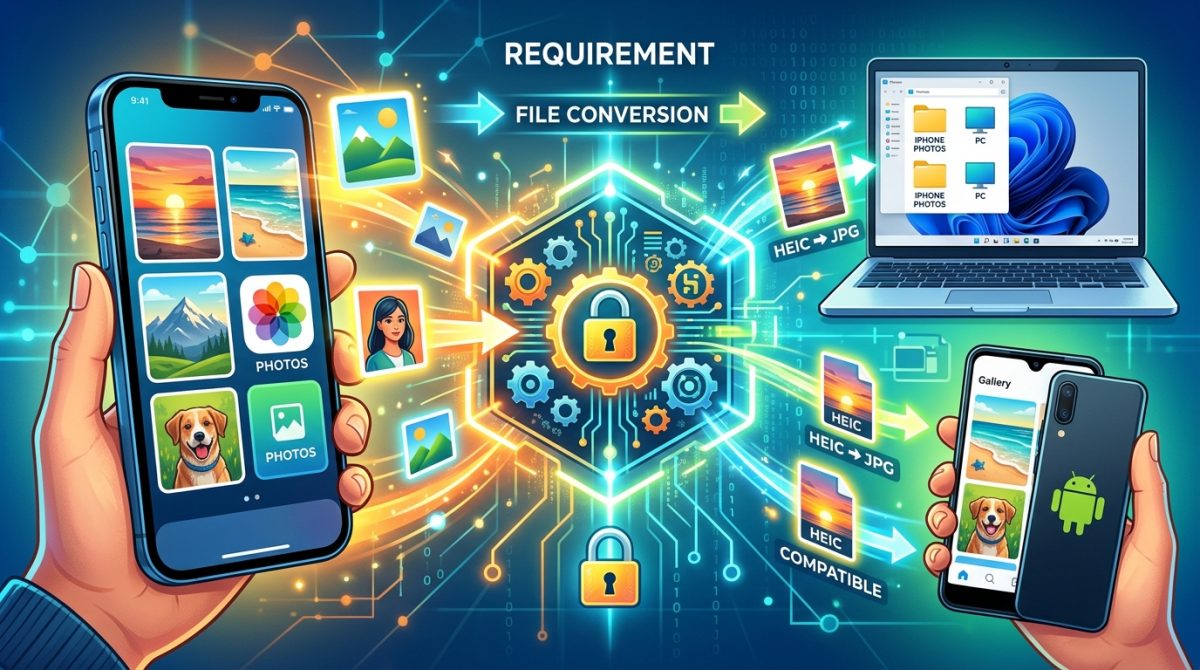
You send a photo from your iPhone to a friend on Windows. They open the file. Nothing. A blank icon stares back at them, or Windows asks them to find an app that can handle it. The photo is not corrupted. The transfer worked fine. The problem is the format itself, and it trips up iPhone users every single day.
Key Takeaway: iPhones shoot in HEIC format by default, a highly compressed file type that Windows and Android cannot open without extra steps. The fix is straightforward: convert those HEIC files to JPEG before sharing, using a browser-based tool that requires no software installation. Once converted, your photos open instantly on any device, every time. Knowing this one step saves a lot of confusion.
Apple switched its default photo format to HEIC starting with iOS 11 in 2017. The reasoning was sound. HEIC files are roughly half the size of an equivalent JPEG while holding the same visual quality, which means more photos fit on your phone without sacrificing detail. For anyone living entirely inside Apple’s ecosystem, this is invisible. AirDrop between iPhones, sharing to a Mac, syncing through iCloud, all of it handles HEIC without a hitch. The format only becomes a problem the moment a file crosses into non-Apple territory.
Why Windows and Android Struggle With HEIC
HEIC stands for High Efficiency Image Container. It is built on the HEVC video compression standard, which is modern and capable but not universally supported. Windows 10 and Windows 11 technically handle HEIC, but only after you install a paid codec from the Microsoft Store. Many people never bother. Android has similar gaps, depending on the device manufacturer and the Android version running on the phone. The result is a format that is efficient in theory but invisible to a large portion of devices people actually use.
According to its entry on High Efficiency Image File Format, the broader HEIF standard was developed by the Moving Picture Experts Group and is designed to store more information in less space than older formats like JPEG. That efficiency is exactly what made it attractive to Apple, and it is also what created the compatibility gap that frustrates everyone outside the Apple world.
The real-world impact shows up in consistent, recognizable ways. A family member on Android receives your vacation photos and sees blank file icons. A coworker on Windows tries to open a HEIC image attached to an email and gets an error prompt instead. You try to upload an iPhone photo to a website that only accepts JPEG or PNG, and the upload fails with no clear explanation. Every one of these situations has the same root cause and the same fix.
The Fix: Convert Before You Share
The most reliable solution requires no software installation, no technical knowledge, and no permanent change to your phone. You convert the HEIC file to JPEG using a browser-based tool before sharing it.
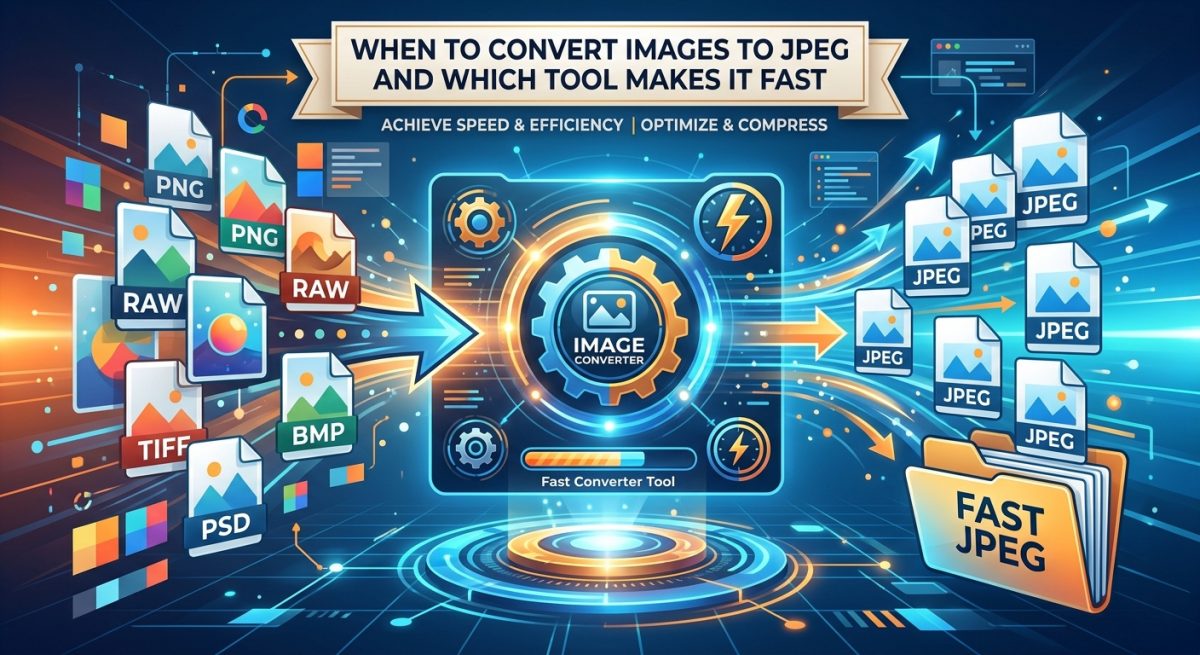
A HEIC to JPEG converter lets you drag your file onto the page, process it in seconds, and download the converted JPEG. The file you get back opens on any device, in any photo viewer, on any operating system. No codec needed. No workarounds. It simply works.
This approach is ideal for the one-off situations that make up most real-world HEIC problems. You are not managing a professional photo archive. You have a handful of images that need to reach someone on a different platform, and you need them to open correctly when they arrive. A browser converter handles that without adding anything permanent to your setup.
What the Conversion Actually Does
When you convert HEIC to JPEG, the tool decodes the HEIC container and re-encodes the image data using the JPEG standard. You lose a small amount of compression efficiency because JPEG is an older format, so the resulting file is slightly larger. The visual quality difference is not noticeable in everyday use. A photo that looked sharp on your iPhone will look equally sharp as a JPEG on any other device.
The conversion does not damage the photo or alter it beyond the format change. Colors stay accurate. Resolution stays the same. Metadata embedded in the file, like the date and time the photo was taken, typically carries over as well. You are not losing anything meaningful. You are gaining universal compatibility.
When to Change the iPhone Setting Instead
If you regularly share photos with people on Windows or Android, adjusting how your iPhone captures photos in the first place makes sense. Inside the Settings app, navigate to Camera, then Formats, and select Most Compatible. With that option active, your iPhone shoots in JPEG going forward instead of HEIC. Photos already saved to your device remain in HEIC, so you will still need the browser converter for those, but every photo you take from that point on will be immediately compatible with Windows, Android, and the web.
The trade-off is storage. JPEG files are larger than HEIC files. On a phone with 128GB or more of storage, this is rarely a meaningful concern. On an older device running tight on space, switching to JPEG may accelerate how fast your storage fills up. For most people, the convenience outweighs that cost.
Format Comparison: HEIC vs. JPEG at a Glance
| Feature | HEIC | JPEG |
|---|---|---|
| File size | Roughly half that of JPEG | Larger, but universally supported |
| Image quality | Equivalent at smaller file size | Equivalent at larger file size |
| Windows support | Requires paid codec | Native, no setup needed |
| Android support | Varies by device and version | Universal across all devices |
| Web compatibility | Limited, many sites reject it | Accepted everywhere |
| Apple ecosystem | Seamless | Fully compatible |
Format Literacy: Other Quirks Worth Knowing About
HEIC and JPEG are not the only formats where compatibility creates friction between devices. Anyone who moves images across platforms regularly will eventually run into other format questions worth understanding.
PNG is a common point of confusion for people used to JPEG. PNG files are lossless, meaning they preserve image data without the compression artifacts that JPEG introduces. That makes them well-suited for screenshots, graphics with text, and images where sharp edges matter. But PNG files can be large, and not every platform treats them identically. If you leave this article wondering about other format quirks, a resource that covers PNG files in depth can answer the questions that come up most often.
Knowing even the basics of image formats changes how you handle photos in practice. A photo taken on an iPhone might be viewed on a Windows laptop, edited in a browser tool, uploaded to a social platform, and sent to a print shop all in the same week. Each step in that chain has its own format preferences, and being aware of them saves time.
If Your HEIC Files Won’t Open Right Now
For anyone with HEIC files already sitting on a Windows or Android device that refuse to open, the path forward is straightforward:
- Transfer the files to any device with a browser, or open the browser directly on the device where the files are
- Use a browser-based HEIC converter and drag the files onto the page
- Download the JPEG versions that come out
- Open them normally in any photo viewer, image editor, or upload tool
No account required. No software to install. The conversion takes a few seconds per file, and the result opens anywhere without extra steps.
For anyone who receives HEIC files regularly from iPhone users, bookmarking a reliable converter is worth doing once. It turns a recurring frustration into a thirty-second task.
The Format Problem Is a Design Choice, Not a User Error
The HEIC compatibility issue is not something users caused, and it does not require any technical background to understand or fix. Apple made a reasonable engineering decision that optimizes for storage efficiency. The format simply has not reached universal adoption outside Apple’s own platforms, and that gap is unlikely to close any time soon.
The mismatch between what iPhones produce by default and what the rest of the world can read has been consistent for nearly a decade. Knowing about it, and having a one-step solution ready, means it stops being a problem the next time someone sends you a blank icon instead of a photo. One browser tab is all it takes.