45 practical guides and explainers for anyone living with Samsung technology, from smartphones and tablets to monitors, smart TVs, and robot vacuums. Whether you are a long-time Android user or just unboxed a new Galaxy device, these articles are written for everyday owners who want to solve a problem, understand a feature, or make a smarter purchase without digging through jargon-heavy manuals.
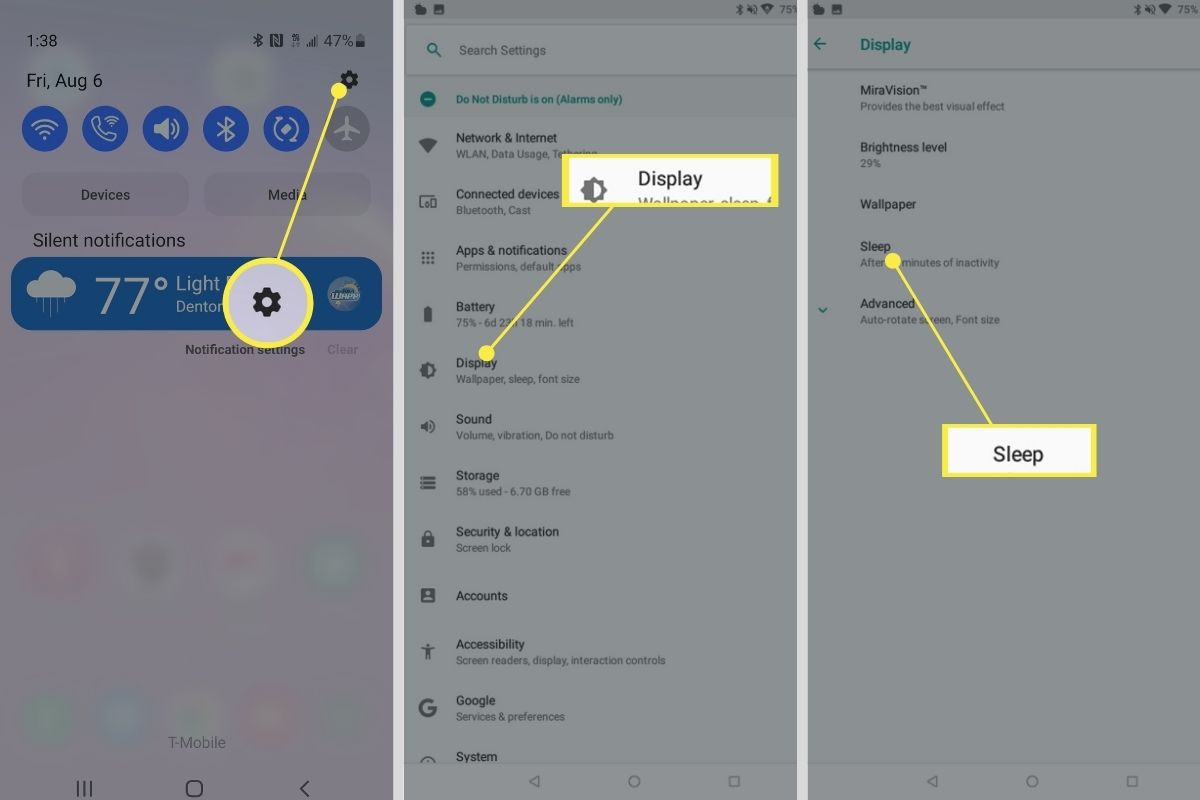
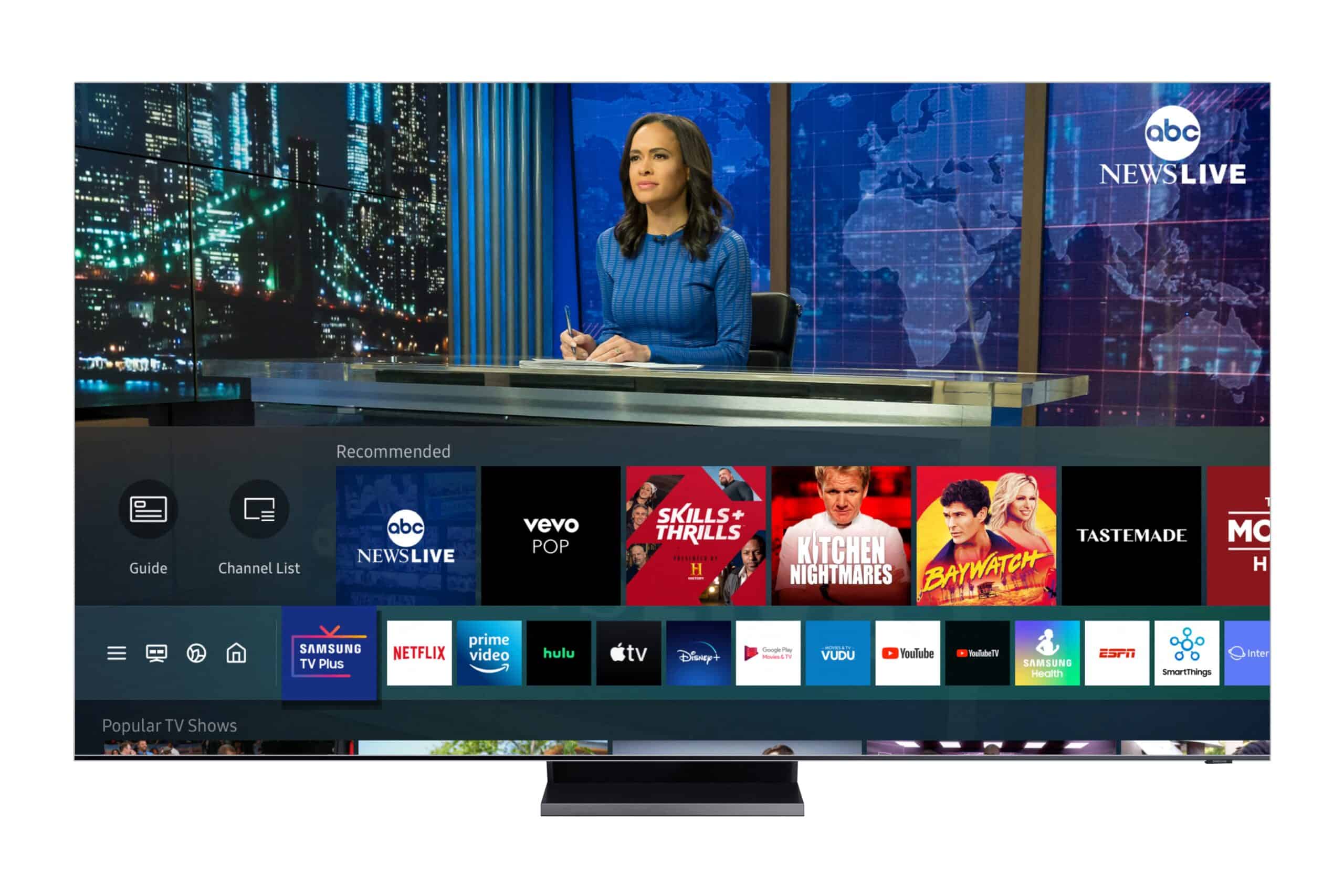
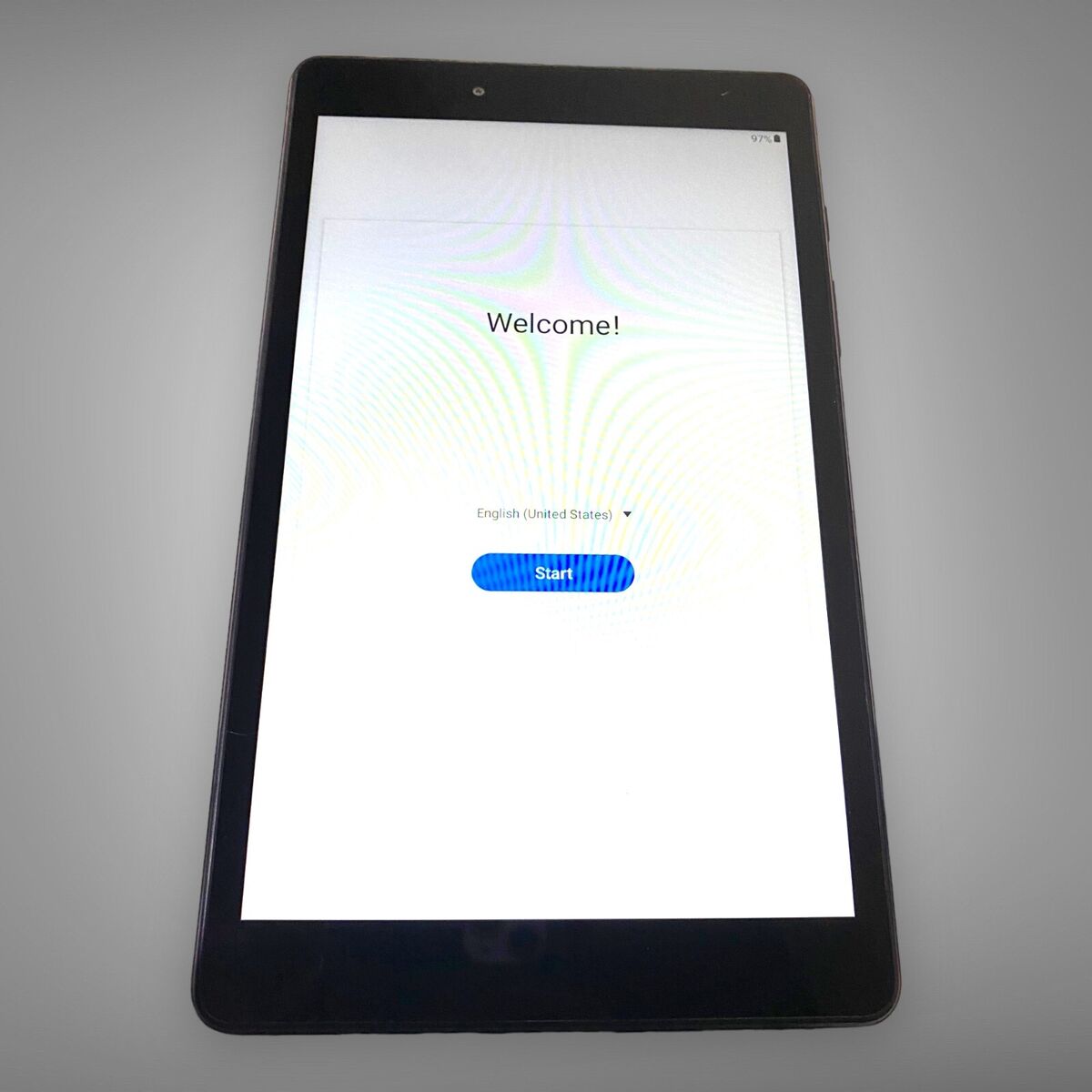
The articles break down into a few clear themes. One major group focuses on device setup, maintenance, and everyday troubleshooting, such as connecting a Samsung monitor to a PC via HDMI, increasing RAM on a tablet, stopping a tablet screen from timing out, or cleaning up storage. Another theme covers account access and recovery, but always from a legitimate owner’s perspective: articles explain how to factory reset a Chromebook or tablet when you have forgotten the password, how to recover a Google account on a Samsung tablet, and how to unlock a tablet after forgetting the pattern, all framed as ways to regain access to your own device, not to bypass anyone else’s security. A third group is about choosing hardware and understanding platform basics, including buying guides for robot vacuums, external hard drives, 4K monitors, and SSDs, as well as explainers on Tizen Smart TV, smart TV pricing at Walmart, and what Samsung’s AR glasses patents might mean for future products.
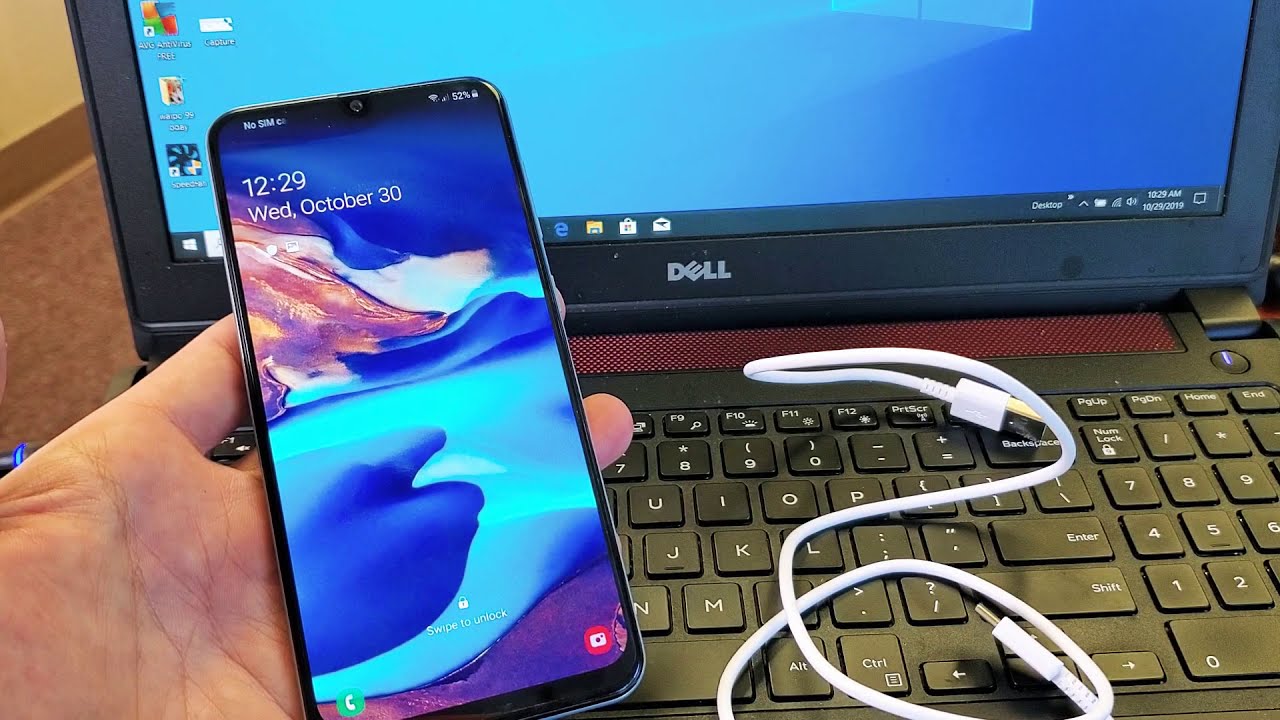
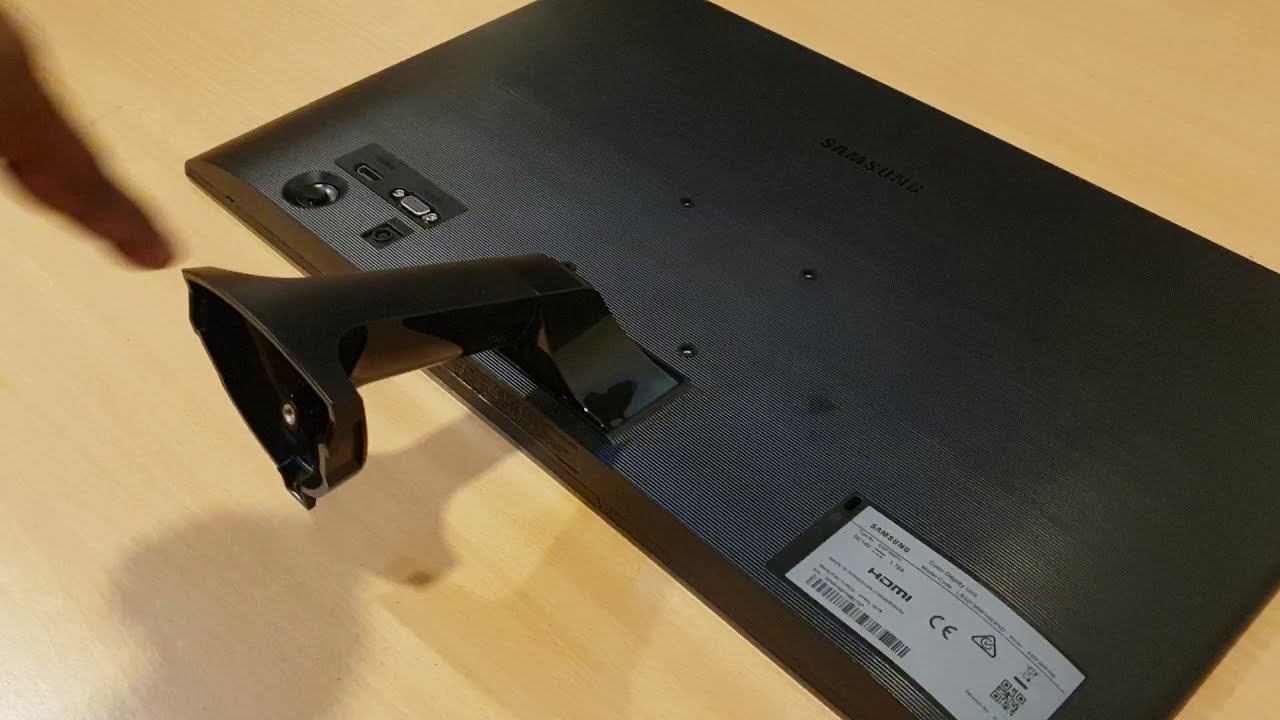
Across the board, these pieces help you do concrete things: switch mobile networks, remove a monitor stand, download photos to a computer, pair a smartwatch, or decide which smart light bulbs suit your home. Several also cover safety and security angles, such as how to turn off touch controls on earbuds or how to connect Alexa to a smart TV, ensuring you get the most out of your devices without compromising your privacy or data.