The macOS tag on robots.net collects practical, straight-talking guides for everyday computer users, whether you’ve just switched to a Mac, help a family member with theirs, or simply want to stop fighting with your keyboard and webcam. These articles assume you’re not a technician, but you do want clear steps to get things working now. The focus is on common tasks and fixes you’ll actually run into, not abstract theory.

One clear theme is connecting and configuring hardware: you’ll find walkthroughs for joining Wi‑Fi, finding an Ethernet IP address, pairing a Logitech MX Keys Mini or M310 mouse, and setting up a NexiGo or Logitech Brio webcam. A second theme centers on keyboard and display basics, from typing a squared symbol or euro sign, to understanding the Command key on a Windows keyboard, to changing your desktop background or troubleshooting an HDMI cable that only shows the wallpaper. A third, smaller group covers software and communication tools: installing Zoom, making Edge your default browser, unsending a photo in iMessage, or downloading movies from Amazon Prime to your laptop.

Several articles also address security and permission concerns from a safe, responsible angle. For example, the piece on granting webcam permission explains how to manage app access, while the article about “hacking” a webcam is framed around protecting yourself from unauthorized access, not exploiting it. Similarly, antivirus recommendations and browser-uninstall guides focus on maintaining control and privacy. Across all these, the goal is to help you do the task at hand without guesswork, and to make safe, informed choices with your own devices.
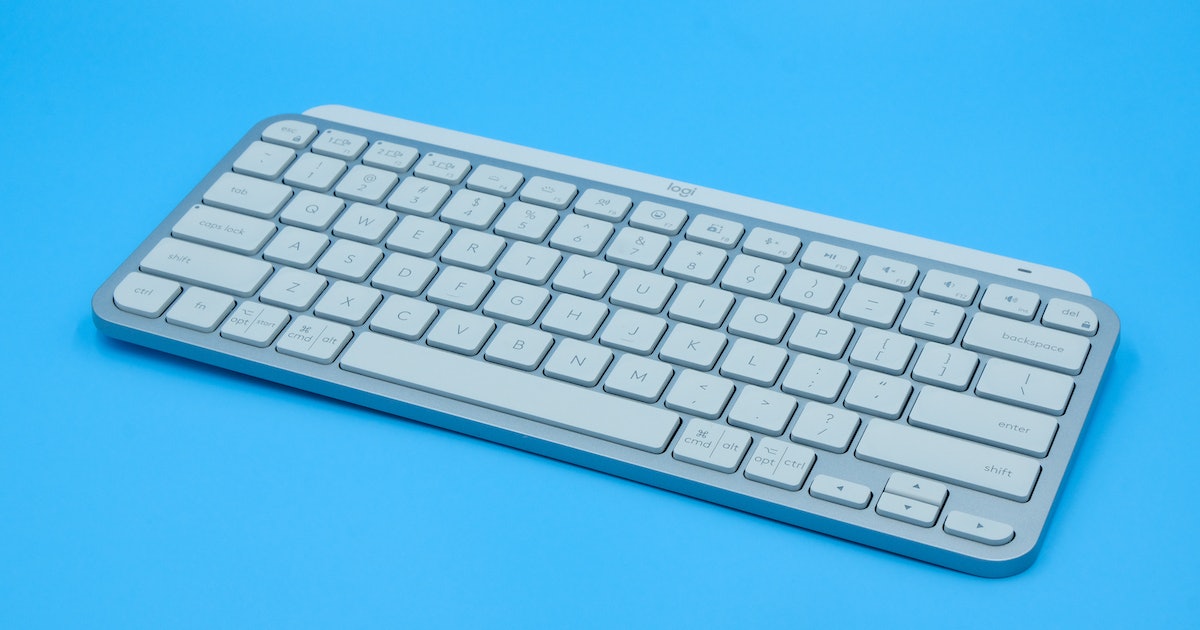
How To Pair Logitech Mx Keys Mini

Check Your Device Is Compatible with the Logitech MX Keys Mini To pair Logitech MX Keys Mini, you'll need a device with Bluetooth wireless capability, the keyboard connects via Bluetooth...

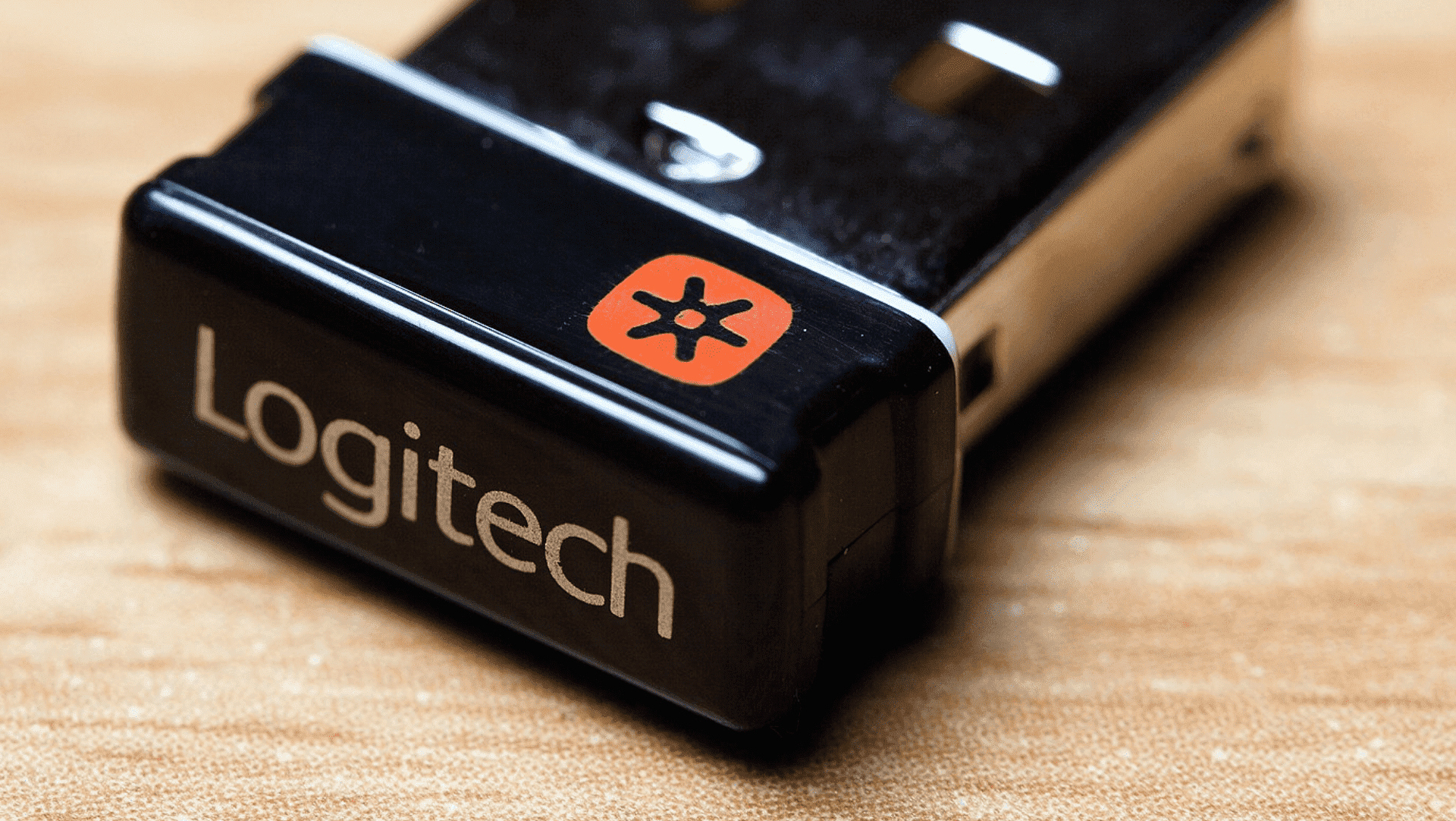
How Do I Install Logitech Unifying Software

To install Logitech Unifying software, download the official installer from the Logitech website, run it on your Windows or macOS computer, and follow the prompts to pair up to six...

How To Change Background On PC

To change background on PC, right-click an empty desktop area and choose "Personalize," or open Start > Settings > Personalization > Background. From there, pick a Picture, Solid Color, Slideshow,...

How To Make A Euro Sign On Keyboard

To type the euro sign on a keyboard, use Ctrl+Alt+E (or Ctrl+Alt+5) on a US Windows keyboard, or Option+Shift+2 on a US Mac keyboard. These shortcuts instantly insert the €...

How To Undo On Keyboard

The universal keyboard shortcut to undo on keyboard is Ctrl+Z on Windows and Command+Z on Mac. Pressing this shortcut once reverses your last action, and pressing it repeatedly undoes multiple...

What Are The Function Keys On A Keyboard

Function keys on a keyboard are the row of keys labeled F1 through F12, typically located at the very top of the keyboard. Their primary purpose is to provide quick...

How To Find Ethernet Ip Address

To find your Ethernet IP address on Windows, open Command Prompt, type ipconfig, and press Enter. Look for the "IPv4 Address" under the Ethernet adapter section to get the answer...

How To Connect A Computer To Wifi

To connect computer to wifi, click the network icon on your taskbar (Windows) or menu bar (Mac), select your network, enter the password, and click Connect or Join. This process...