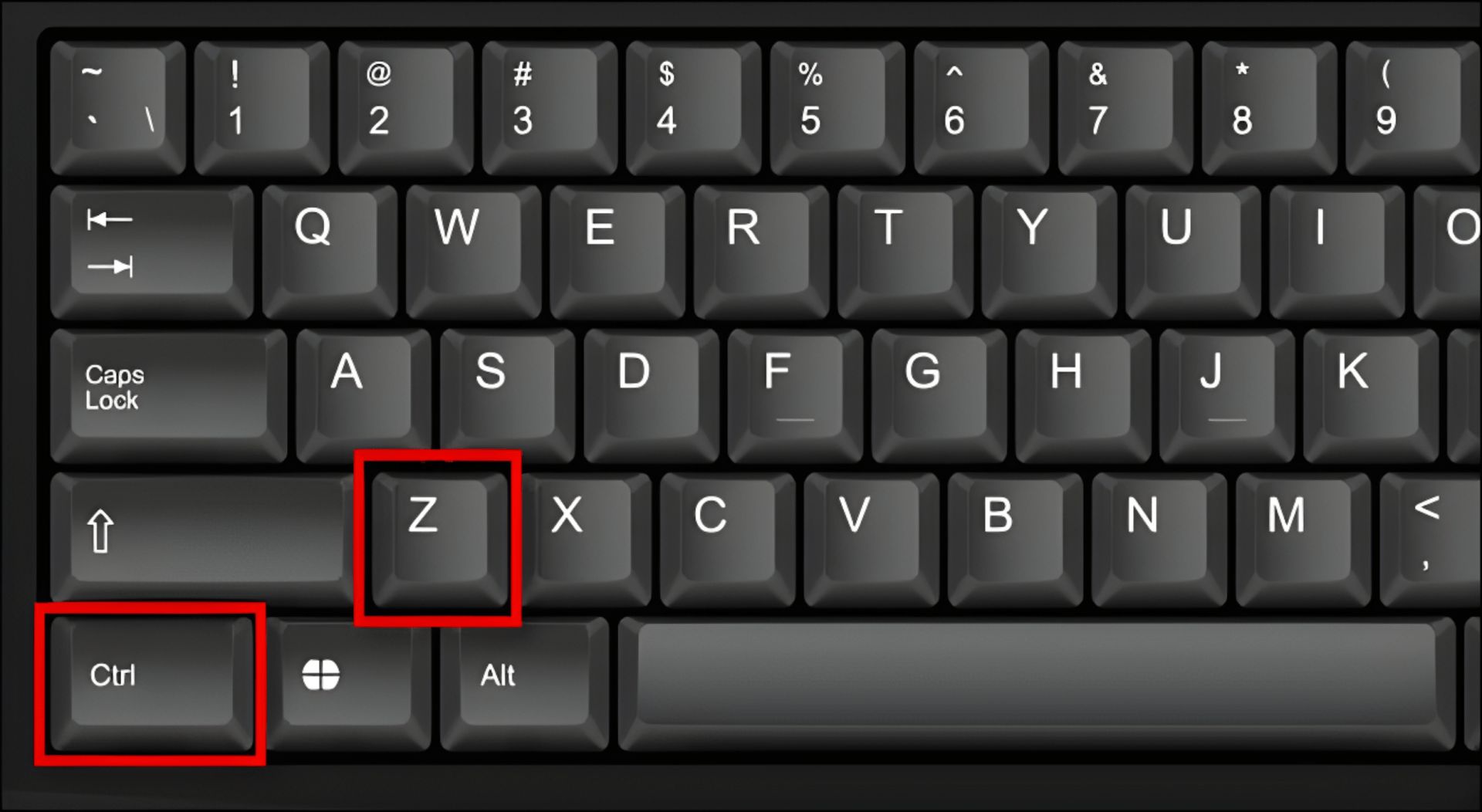
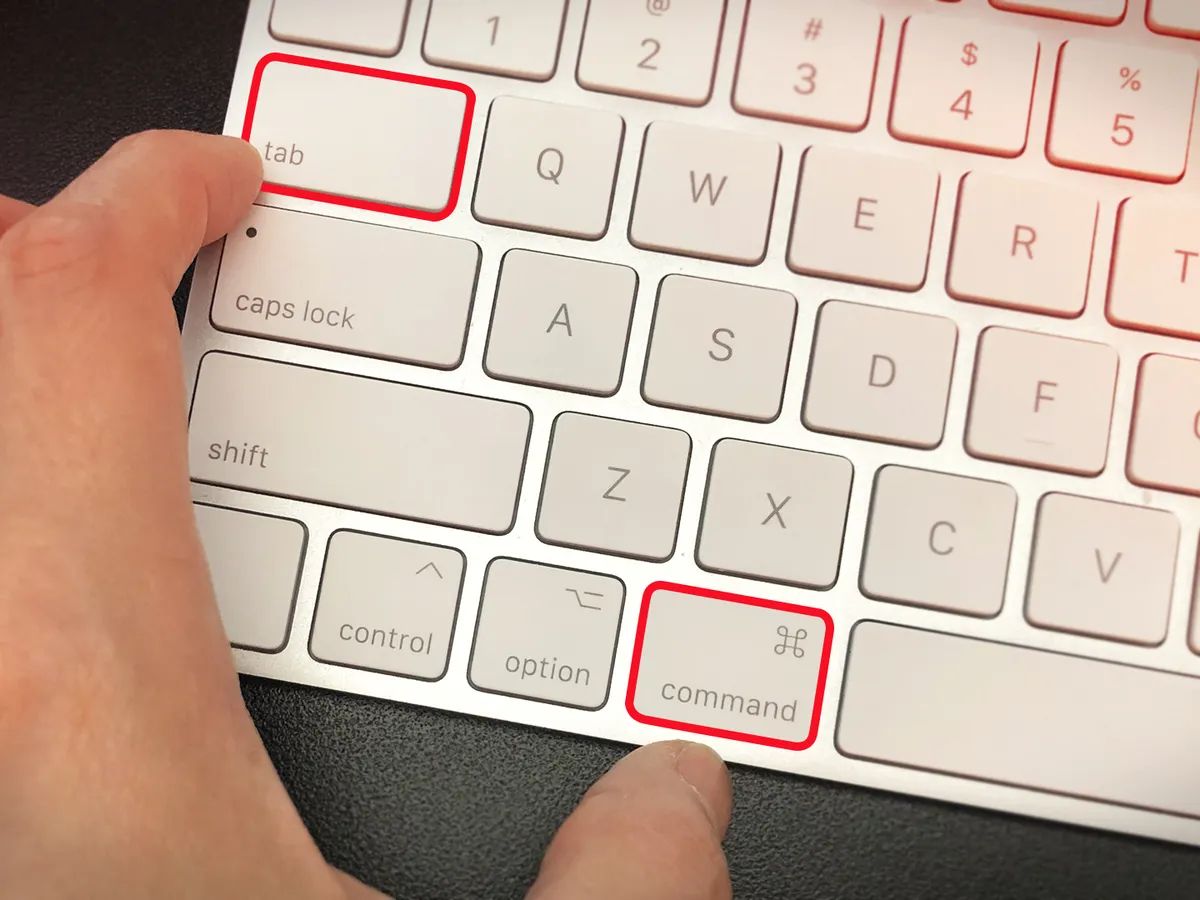
51 practical guides for anyone who uses a computer day to day and wants to spend less time hunting for keys or clicking through menus. These articles are written for everyday consumers, students, remote workers, gamers, and home users, who need clear, step-by-step answers to common keyboard questions. Whether you are on a Chromebook, a Dell laptop, a Windows PC, or using a Logitech keyboard, the focus is on getting a specific task done quickly without jargon.
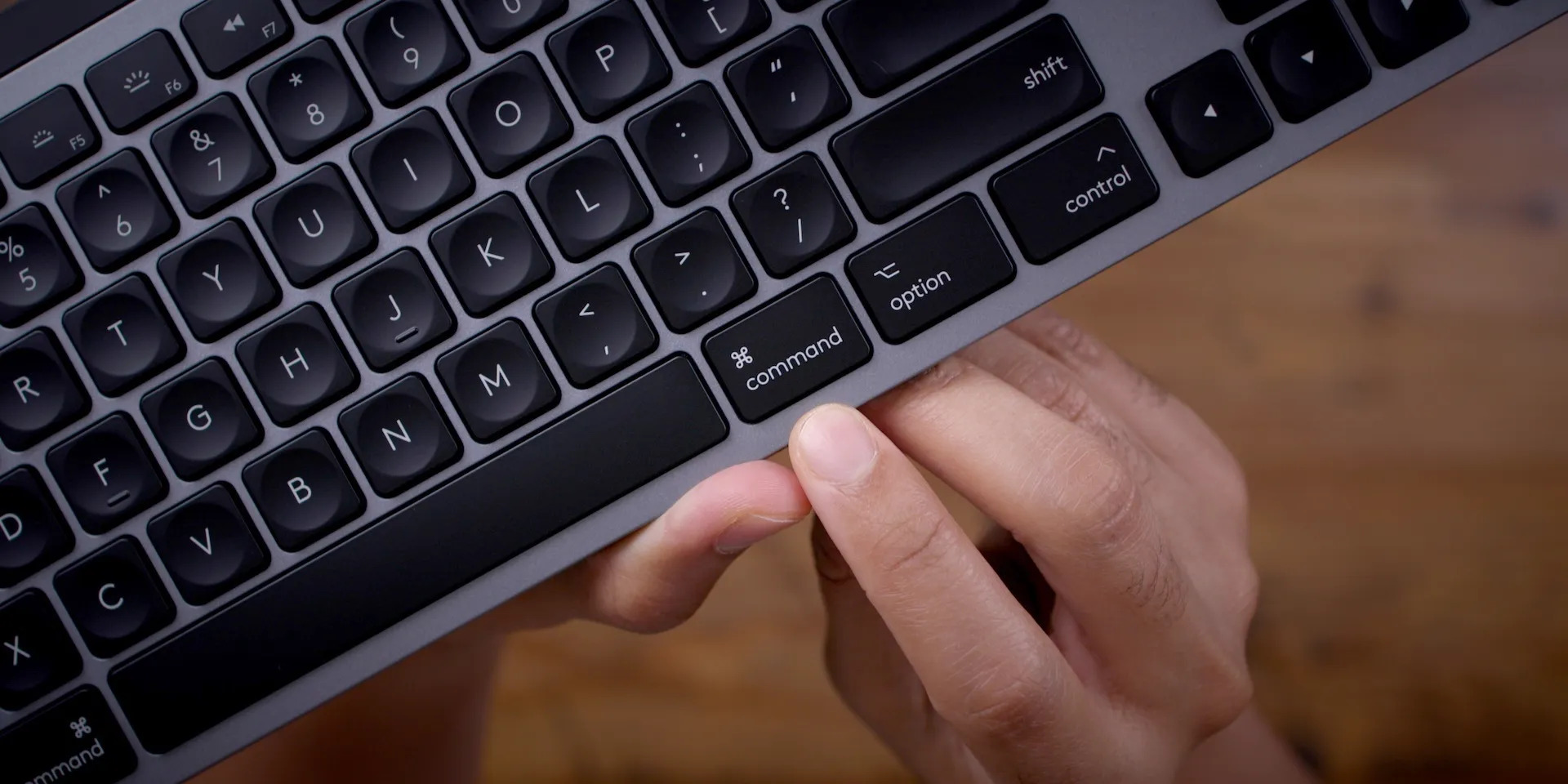
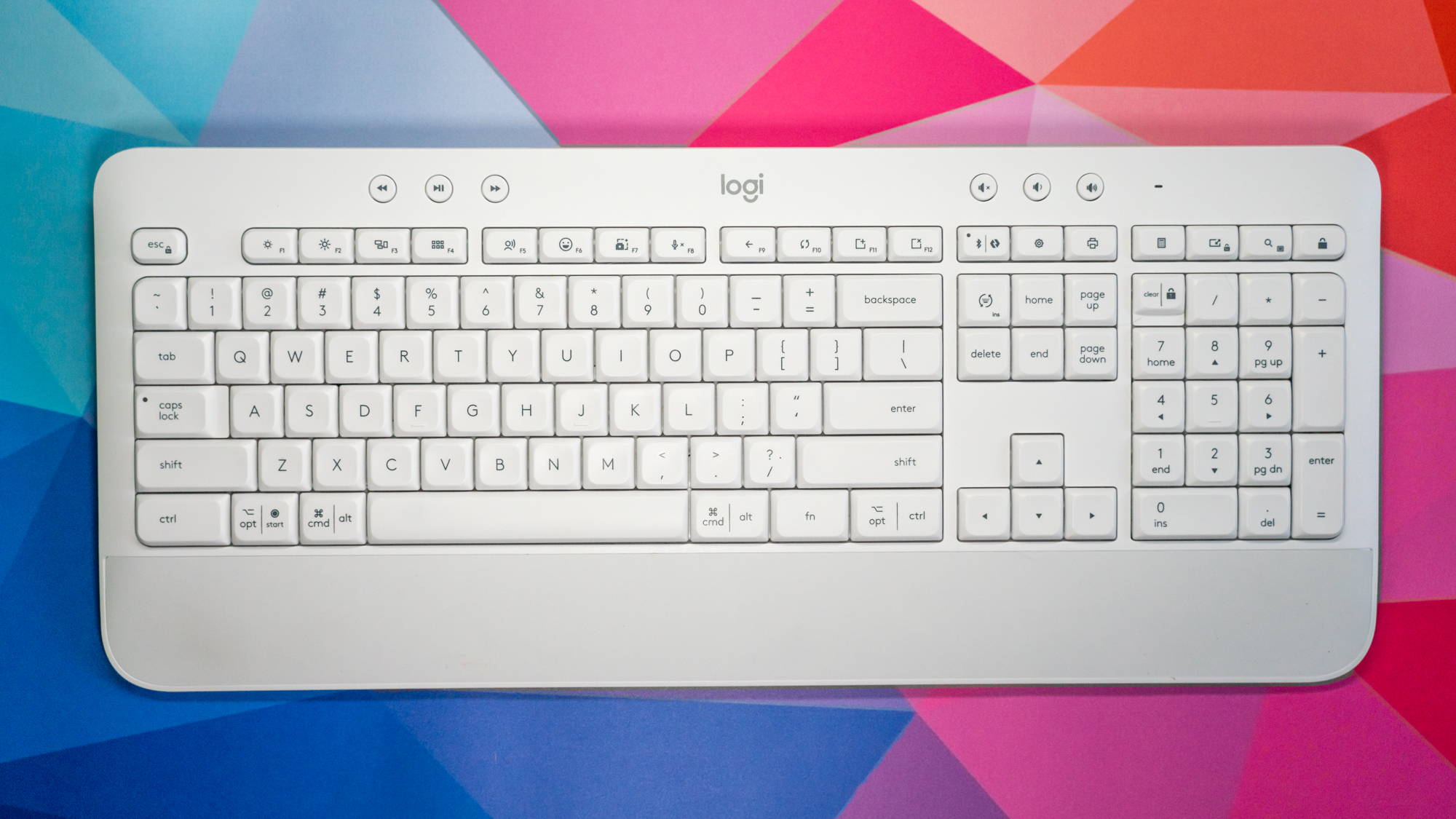
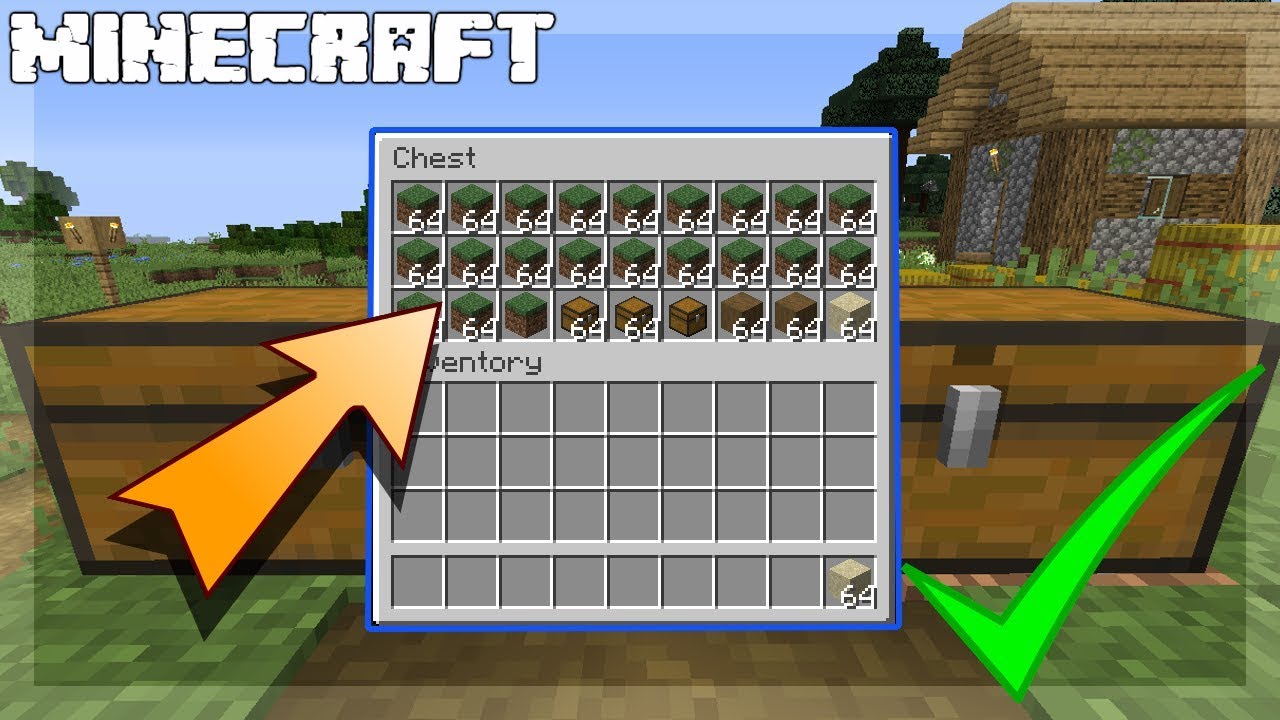
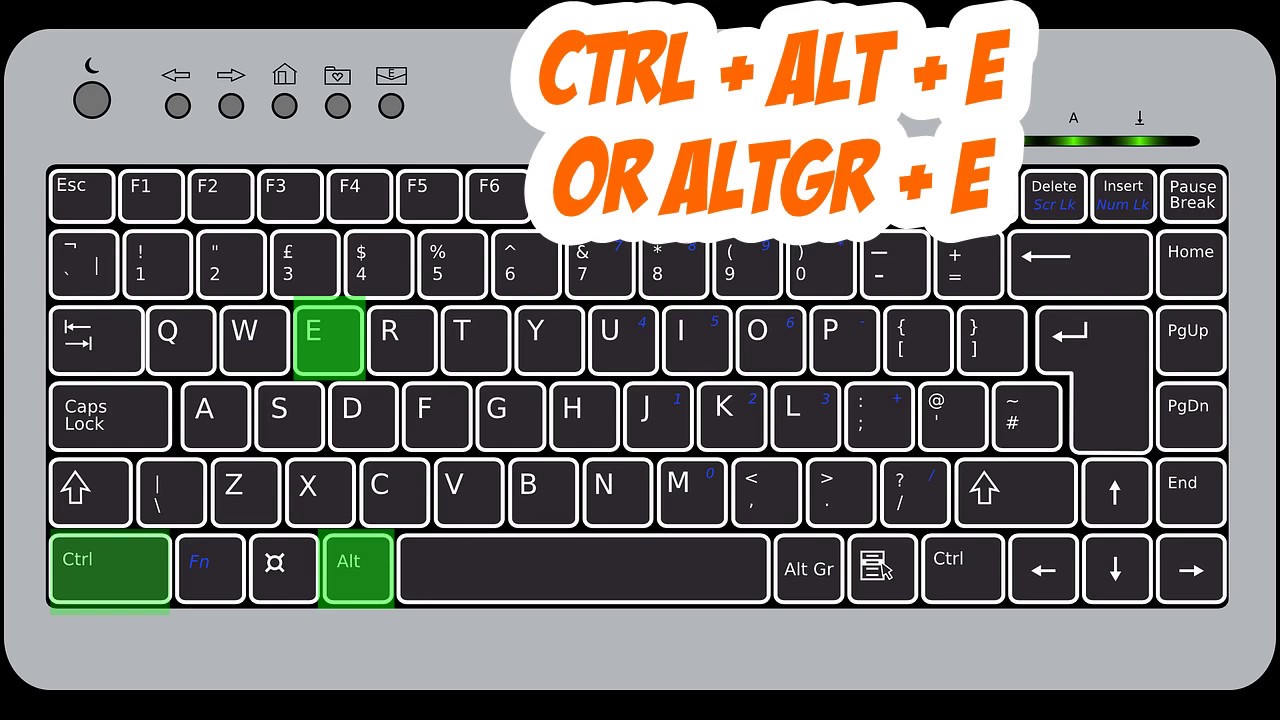
The articles cluster around a few recurring problems. One group helps you locate and type symbols and characters that are not obvious on a standard layout, such as the apostrophe, backslash, division sign, Euro sign, squared symbol, or Roman numerals. Another group covers system and app controls, including how to undo, save a document, highlight text, go full screen on Windows 10, adjust the browser window size, or take a snippet. A third set is device-specific, addressing things like how to turn on a Chromebook, disable the touchpad on a Dell laptop, print screen with a Logitech keyboard, or use the Command key on that same brand. Some articles also cover gaming and communication tools, such as opening inventory in Minecraft PC, seeing coordinates in Java, zooming with Optifine, or unmuting on Discord.
Beyond simple how-tos, several pieces handle safety, security, or legitimate alternatives. For example, articles about unlocking a Logitech keyboard or turning on a webcam on an HP laptop focus on restoring access to your own hardware. The guide on Control Alt Delete for Chromebook explains a standard system function, while the one on how to right-click on a Dell laptop offers a trackpad gesture as a safe alternative to a physical button. None of these entries encourage bypassing protections or cheating; they are straightforward instructions for everyday tasks.