This tag collects the full range of Dell-related guides and buying advice published on robots.net, aimed at everyday users, small business owners, and remote workers who own or are considering Dell hardware. The articles are practical and solution-oriented, covering both setup and maintenance tasks for laptops, desktops, monitors, and peripherals.
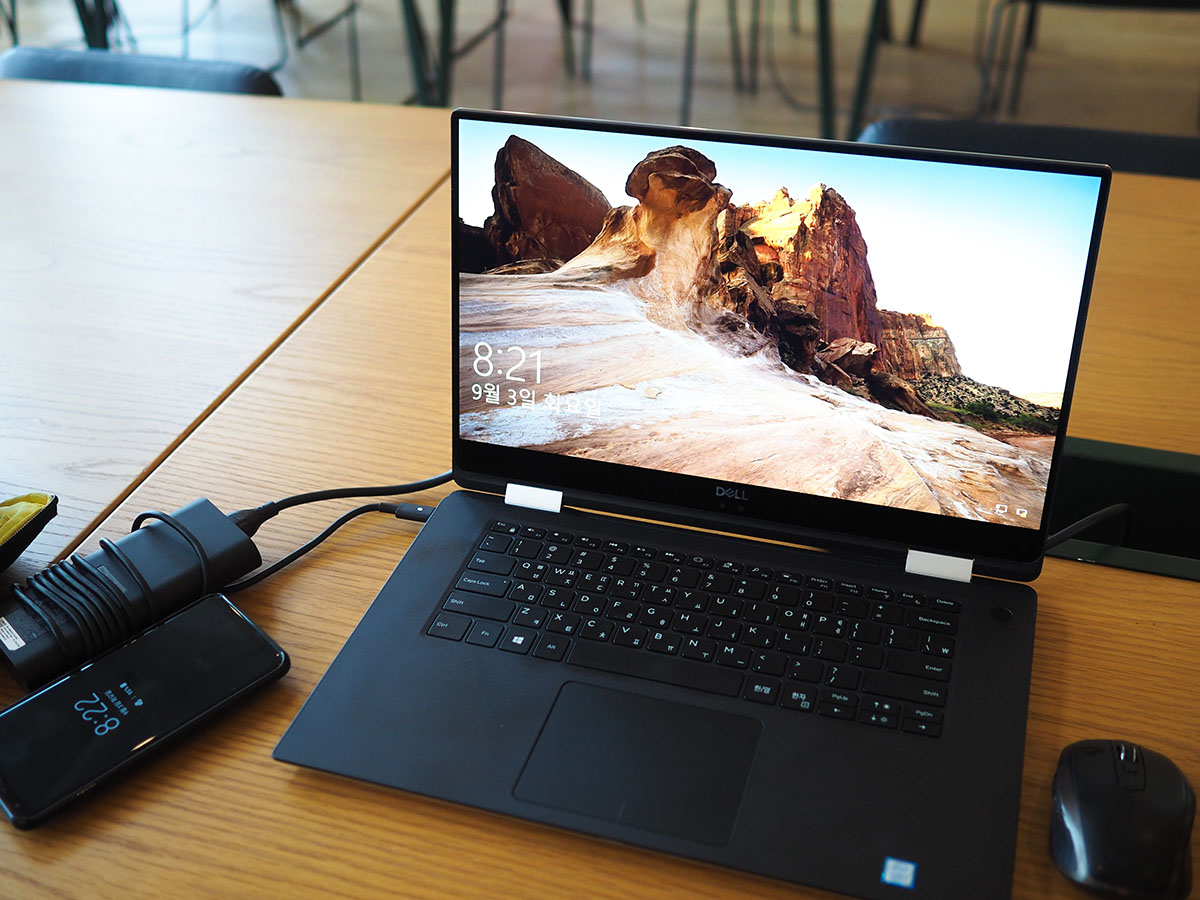
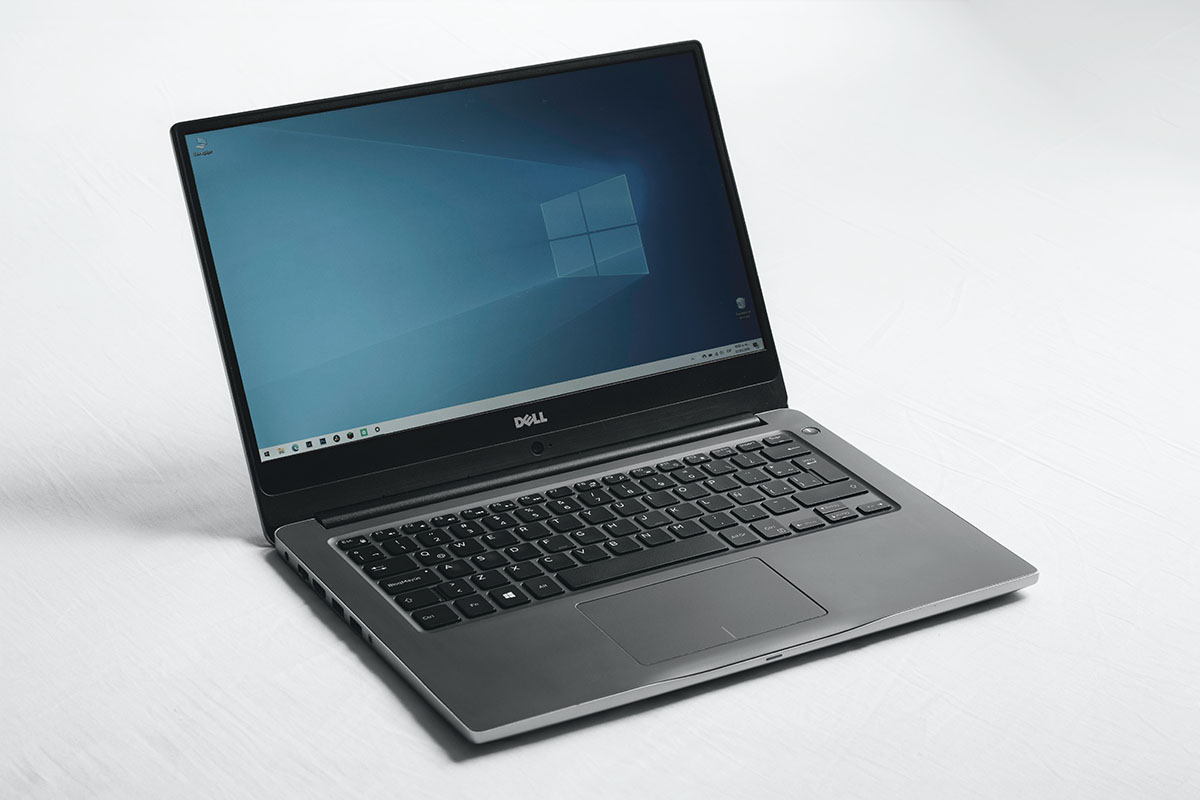
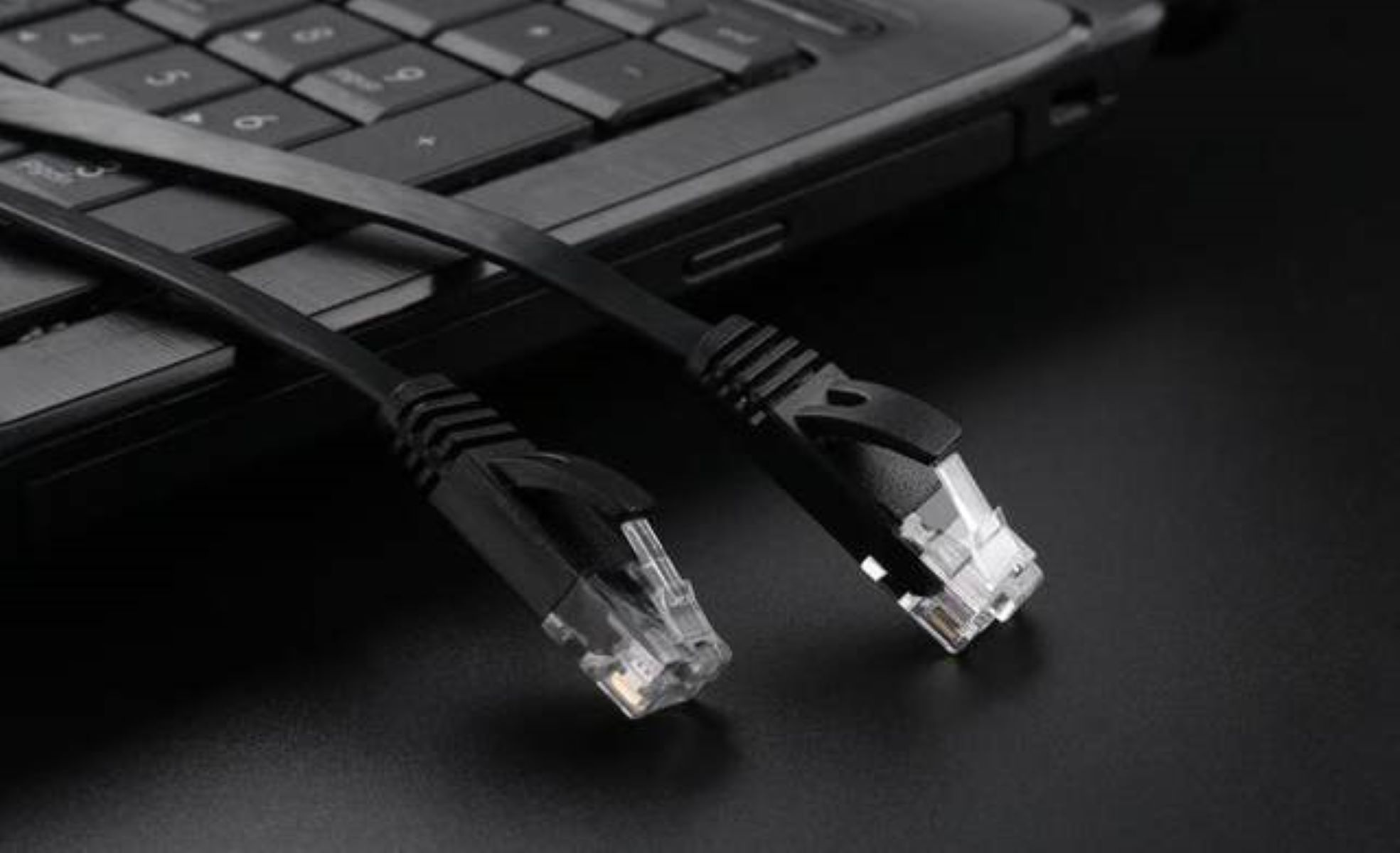
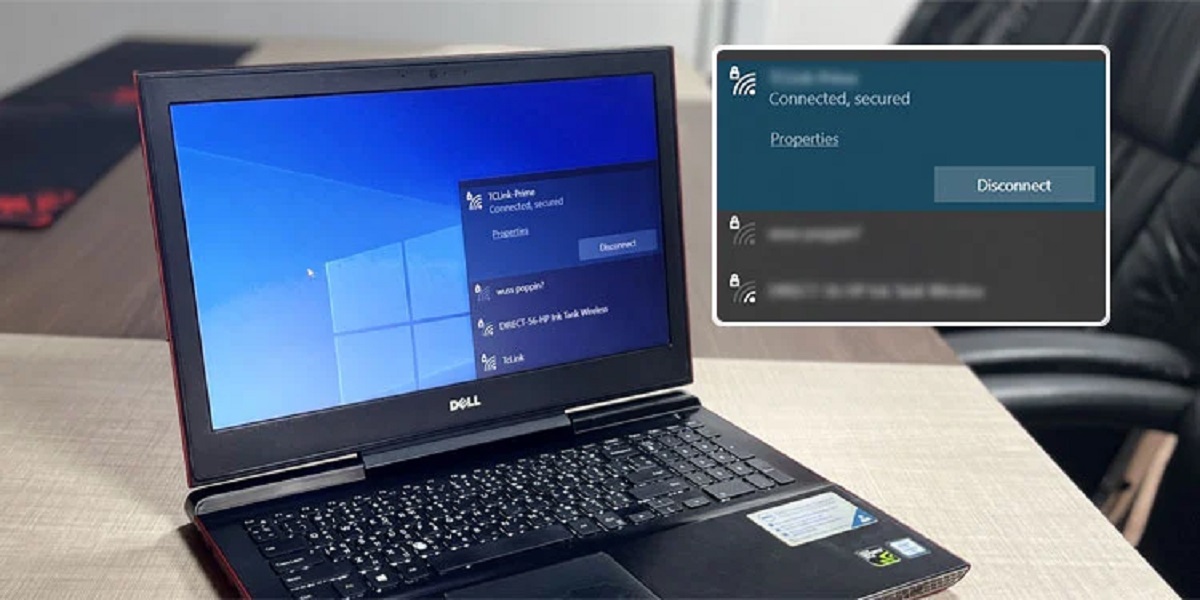
A clear theme is hardware operation and troubleshooting: several pieces walk through connecting a Dell computer to Wi-Fi or via Ethernet, turning on a monitor, pairing a wireless keyboard, or disabling the touchpad. Others address common maintenance and recovery steps, such as factory resetting a laptop, force shutting down a frozen system, removing a hard drive from a desktop, or turning off the camera privacy shutter. For readers dealing with access issues, there are guides on resetting a password, finding the serial number, and using copy-paste or right-click functions on a Dell laptop. These are written as straightforward, safe procedures for legitimate device management, not as workarounds for unauthorized access.
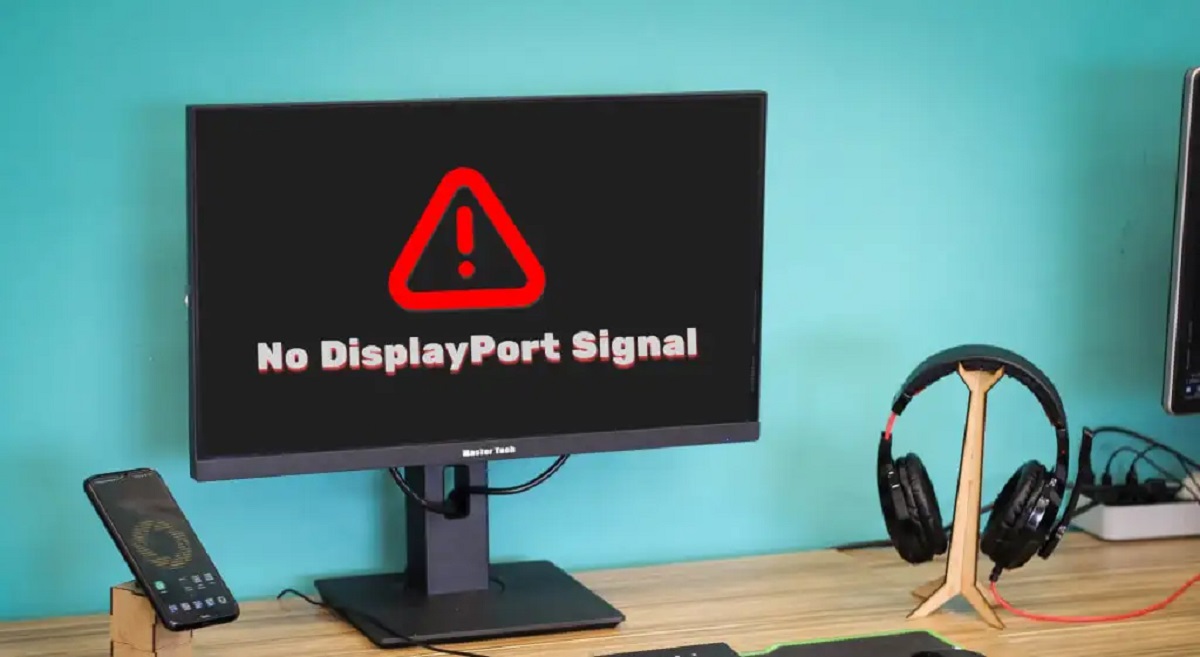
A second theme is informed purchasing. The buying guides cover tower servers for small businesses, prebuilt gaming PCs, 4K monitors, and laptops suited to video editing, remote work, or general gaming. A few articles also answer background questions, such as where Dell laptops are made and what a DisplayPort signal on a Dell monitor means. Together, these pieces help readers choose the right model, understand their hardware, and keep it running reliably.