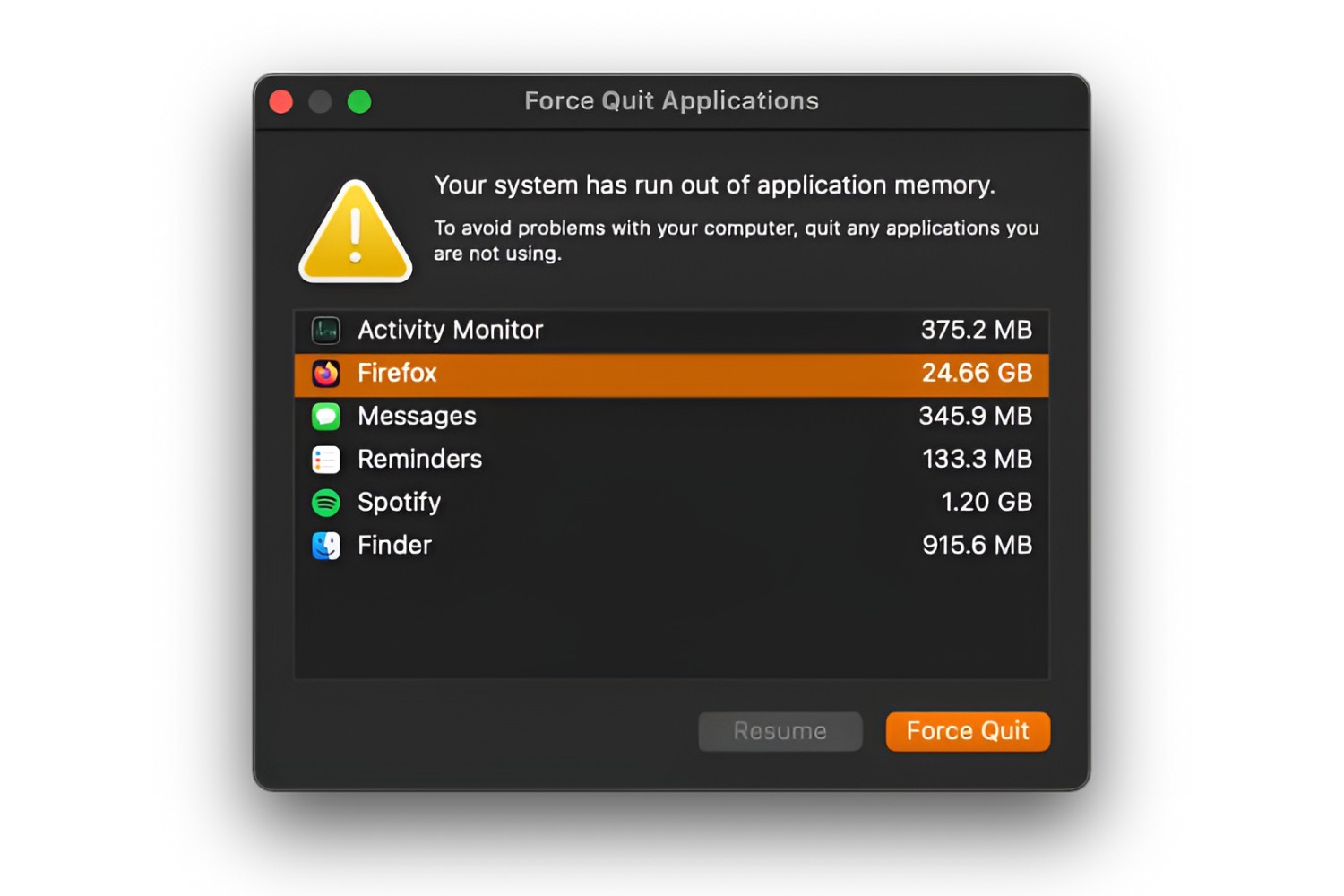
To force close Firefox when it’s frozen or unresponsive, you need to bypass the normal close methods and terminate the underlying processes directly. On Windows, open Task Manager with Ctrl+Shift+Esc; on Linux, use the terminal’s kill -9 command; and inside Firefox itself, press Shift+Esc for the built-in Process Manager. These three routes cover every scenario, so pick the one that matches your operating system or how much of the browser is still responsive.
Quick ways to force close Firefox
If Firefox is completely frozen, the fastest fix is to kill its process at the operating system level. On Windows, that means Task Manager: press Ctrl+Shift+Esc, find firefox.exe, and click End Task. On Linux, open a terminal and run ps aux | grep firefox to get the process ID, then kill -9 <PID>. If Firefox is still partially responsive, say, the window is sluggish but the menu bar works, you can use Firefox’s own Process Manager with Shift+Esc to close just the problematic tab or extension without killing the whole browser. This OS-specific summary gets you to the right method immediately, depending on where you’re stuck.
Force close Firefox on Windows with Task Manager
Task Manager is the most reliable way to force close Firefox on Windows because it lets you end every background process the browser spawns, not just the visible window.
- Open Task Manager by pressing
Ctrl+Shift+Esc, or right-click the taskbar and select Task Manager. You can also useCtrl+Alt+Deleteand choose Task Manager from the screen that appears. - Under the Processes tab, scroll to find Firefox, it may appear as multiple entries (e.g., one for the main window, others for tabs or extensions). Alternatively, switch to the Details tab and look for
firefox.exe. - Select the unresponsive Firefox process or processes, then click End Task (or End Process on the Details tab). This terminates the selected items immediately.
- Close Task Manager and relaunch Firefox. It should start fresh without lingering processes holding it back.
Ending all Firefox entries in Task Manager is the definitive fix for a fully hung browser on Windows. If only one tab is causing trouble, you might avoid this step and use Firefox’s internal Process Manager instead, but when the whole window is dead, Task Manager is your first and best tool.
Why clicking the X button may not work
Clicking the X button or pressing Ctrl+W closes a single window, not the entire Firefox application, unless it’s the last open window. Firefox runs multiple processes by design: one for the main UI, others for tabs, extensions, and content. When you click X, you’re asking the main process to shut down gracefully, but if a child process (like a heavy tab) is stuck or unresponsive, it can block that shutdown. The window disappears, but firefox.exe stays alive in the background, consuming memory and CPU. That’s why the X button feels like it “does nothing” when Firefox is frozen, it’s not ignoring you; it’s waiting on a process that won’t respond. The only way around this is to force-terminate those stuck processes, which is exactly what Task Manager, kill -9, or Firefox’s Process Manager does.
Force close Firefox on Linux with the terminal
On Linux, the terminal gives you precise control over Firefox processes, which is essential when the GUI is unresponsive and you can’t click anything.
- Open a terminal window. If Firefox has frozen your desktop, switch to a virtual console with
Ctrl+Alt+F2and log in, or useCtrl+Alt+Tif the desktop still responds. - Run
ps aux | grep firefoxto list all Firefox processes. The output shows a PID (process ID) in the second column for each line, note the numbers for anyfirefoxorfirefox-binentries. - Terminate the unresponsive instances with
kill -9 <PID>, replacing<PID>with the actual number. Repeat for each Firefox PID you see. The-9flag sends a SIGKILL, which cannot be ignored or blocked by the frozen process. - Verify the processes are gone with
ps aux | grep firefoxagain, if nothing appears, Firefox is fully closed. Relaunch it normally.
Using kill -9 is the nuclear option on Linux because it doesn’t allow Firefox to save session data or clean up, but that’s exactly what you want when the browser won’t die on its own. For a less aggressive approach, try kill <PID> (without -9) first; it sends SIGTERM, which Firefox may honor if it’s merely sluggish rather than completely dead.
Use Firefox’s built-in Process Manager
Firefox includes its own Process Manager that lets you see exactly which tab or extension is consuming resources and end just that item, keeping the rest of your session alive. This is the least disruptive way to force close Firefox when the browser is still partially responsive.
- Open Firefox’s Process Manager by typing
about:processesin the address bar and pressing Enter, or pressShift+Escwhile the Firefox window is active. - The Process Manager displays a table with columns for memory and CPU usage, listing every tab, extension, and background process. Look for entries with unusually high numbers, those are the likely culprits behind the freeze.
- Select the unresponsive item (a tab or extension) and click the End Process button. This terminates only that process, not the whole browser.
- Close the Process Manager and continue browsing. If the browser was frozen because of one heavy tab, it should recover immediately; if not, repeat the process for other suspicious entries.
Firefox’s Process Manager is particularly useful when you don’t want to lose your open tabs or session. It gives you a real-time view of resource usage, so you can pinpoint the exact cause of the freeze before deciding what to kill. Unlike Task Manager or kill -9, this method doesn’t nuke the entire application, it surgically removes the problem.
Common causes and next steps
Firefox typically becomes unresponsive due to too many processes running at once, memory leaks that accumulate over long sessions, heavy websites that demand excessive CPU or RAM, outdated Firefox versions with known bugs, hardware acceleration conflicts with your graphics driver, or problematic extensions that interfere with normal operation. If you’re force-closing Firefox regularly, start by updating the browser to the latest version, then disable extensions one by one to identify the offender, and finally check your hardware acceleration settings under Options > General > Performance. For recurring freezes that persist after these steps, the most thorough fix is to uninstall Firefox completely, removing all profile data, and then reinstall it fresh. This clears any corrupted configuration files or lingering extension data that a simple restart won’t fix. If you’re ready to fully uninstall a browser without leaving leftover files behind, use your package manager to purge it cleanly before reinstalling.