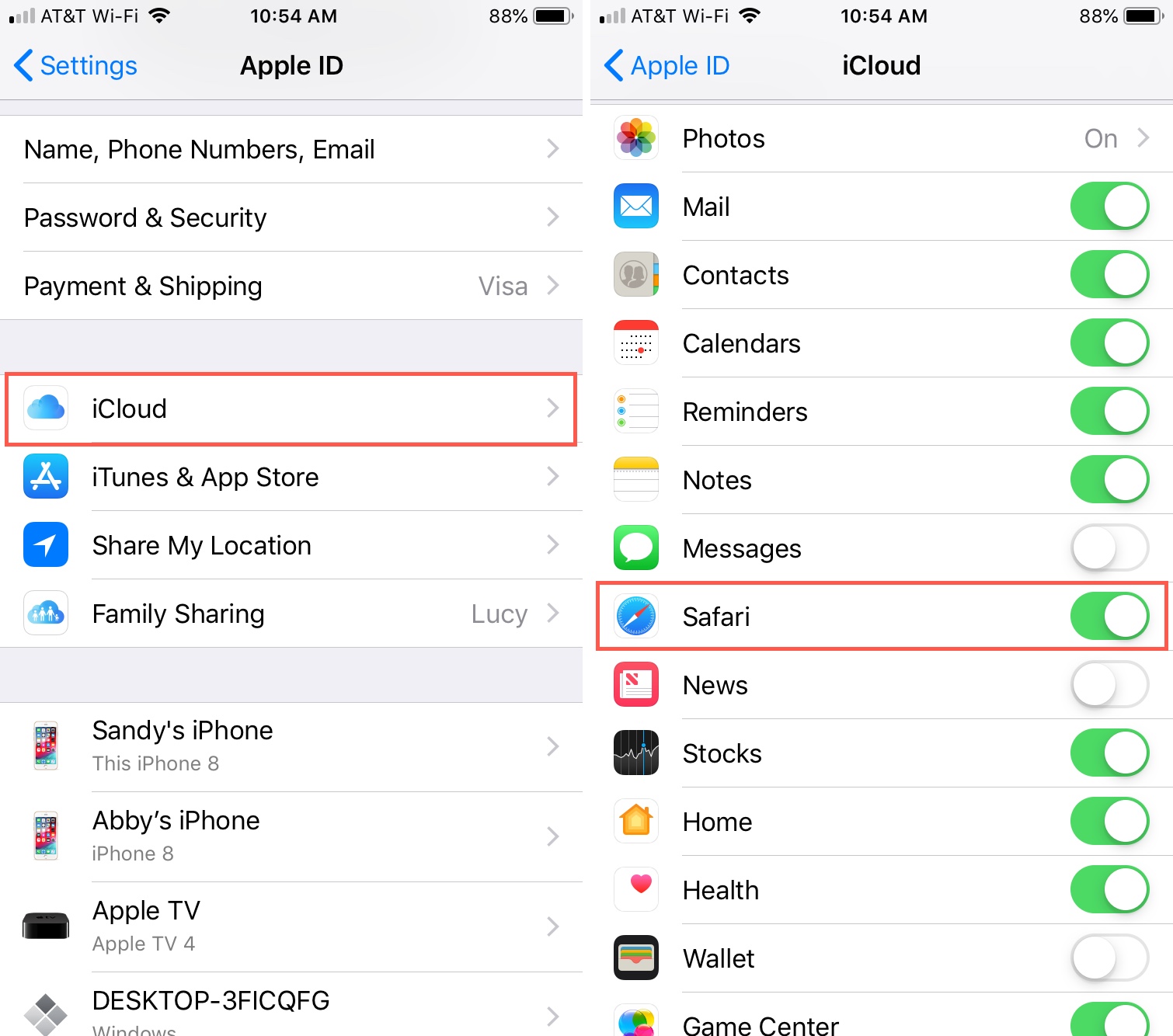
To sync Safari bookmarks between devices, turn on iCloud Safari sync on each iPhone, iPad, and Mac using the same Apple ID. Once enabled, bookmarks update automatically across all your devices whenever you add, edit, or delete one, as long as each device has an active internet connection.
How to sync Safari bookmarks with iCloud
All your Apple devices must be signed in with the same Apple ID for Safari bookmarks to sync. On an iPhone or iPad, open Settings, tap your name at the top, then tap iCloud. Next, tap "See All" (or "Show All" on older iOS versions) and turn on the Safari toggle. On a Mac, the exact steps depend on your macOS version.
For macOS 15 or later, choose Apple menu > System Settings, click your name, then click iCloud. Click "See All" next to "Saved to iCloud" and turn on Safari. For macOS 13.3 to 14, the path is the same, but you'll click "Show All" or "Show More Apps" under "Apps Using iCloud" before turning on Safari. For macOS 13 to 13.2, simply turn on Safari directly under the iCloud settings pane. On a Windows PC, you can access your synced web bookmarks by installing iCloud for Windows and ensuring "Bookmarks" is selected in the app's options.
After enabling Safari in iCloud on each device, syncing happens automatically in the background. You don't need to press any button or initiate a manual transfer, just add a bookmark on one device, and it will appear on your others shortly, provided they're online.
What else syncs with Safari bookmarks
iCloud syncs more than just bookmarks. Your Reading List, Tab Groups, open tabs, browsing history, Safari profiles, and several Safari settings (excluding privacy-sensitive ones) all stay in sync across your devices. Safari extensions' on/off status also syncs, but the extensions themselves are not automatically installed, you must install each extension individually on every device where you want it.
To use Safari bookmarks syncing, your devices must meet minimum system requirements: iOS 11 or later on iPhone and iPad, macOS High Sierra 10.13 with Safari 11 or later on Mac, and Windows 10 with iCloud for Windows 10 or later on PC.
Fix Safari bookmarks not syncing
If your bookmarks aren't appearing on other devices, start by checking Apple's System Status page for any known iCloud outages or maintenance. If iCloud is fully operational, verify that the date and time settings are correct on all your devices, incorrect clocks can break the encrypted sync connection.
A common troubleshooting step is to turn off Safari in iCloud settings, wait a few minutes, and then turn it back on for each device. This forces a fresh sync cycle and often resolves stuck updates. Do this one device at a time, starting with your primary device, and give each device a couple of minutes to re-sync before moving to the next.
Fix duplicate or missing Safari bookmarks
Duplicate bookmarks usually appear after a sync conflict, such as when two devices edit the same bookmark while offline. To clean them up, manually review your bookmark library and delete the duplicates. Keeping all devices on a stable internet connection reduces the chance of future conflicts.
If bookmarks are missing entirely, confirm that Safari is enabled in iCloud settings on every device and that all devices use the same Apple ID. Restarting the affected devices can also help. Note that if a folder contains more than 500 bookmarks, their order might not be consistent across all devices, this is a known limitation, so consider splitting large folders into smaller ones if ordering matters to you.
How to restore Safari bookmarks from iCloud
Your bookmarks are automatically archived in iCloud, so you can restore an earlier version if you accidentally delete something important. Go to iCloud.com, sign in with your Apple ID, and look for the bookmark restore option. You'll be able to choose from archived versions and replace your current bookmark set with an older one. This is a useful safety net whenever you need to revert a batch of changes or recover bookmarks that vanished during a sync problem.
\nRelated reading: Does Safari On iPhone Work With A Windows PC, Why Are All My Bookmarks Gone In Chrome, and How To Change Safari Favorites Icons.