WebGL is already enabled by default in Safari 15 and later on macOS, and in iOS and iPadOS 15 and later, so you likely don't need to change anything to enable WebGL on Safari. If a website still shows a "WebGL not supported" error, follow the troubleshooting steps below, these are only necessary for older versions or if the setting was manually turned off.
Is Safari WebGL already enabled?
In modern versions of Safari, WebGL and WebGL 2.0 are turned on by default. This means that if you're running Safari 15 or newer on a Mac, or iOS/iPadOS 15 or newer on an iPhone or iPad, your browser can already render 3D graphics and interactive WebGL content without any manual configuration. The steps in this article are only relevant when a specific site fails to load 3D content, or when you're using an older operating system where WebGL may be disabled.
Enable WebGL on Safari for macOS
If you need to manually enable WebGL on Safari for macOS, for example, because a website reports that WebGL is unavailable, the process involves revealing the Develop menu and checking a single option. This is a troubleshooting step, not something you need to do for normal browsing on a current system.
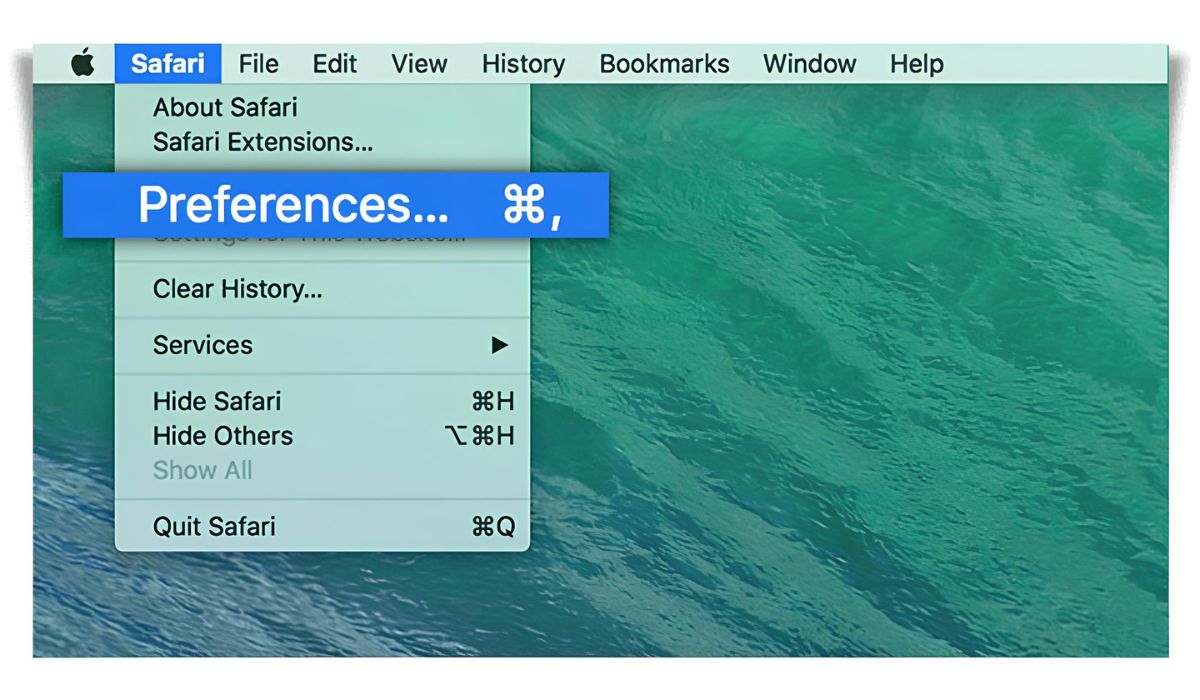
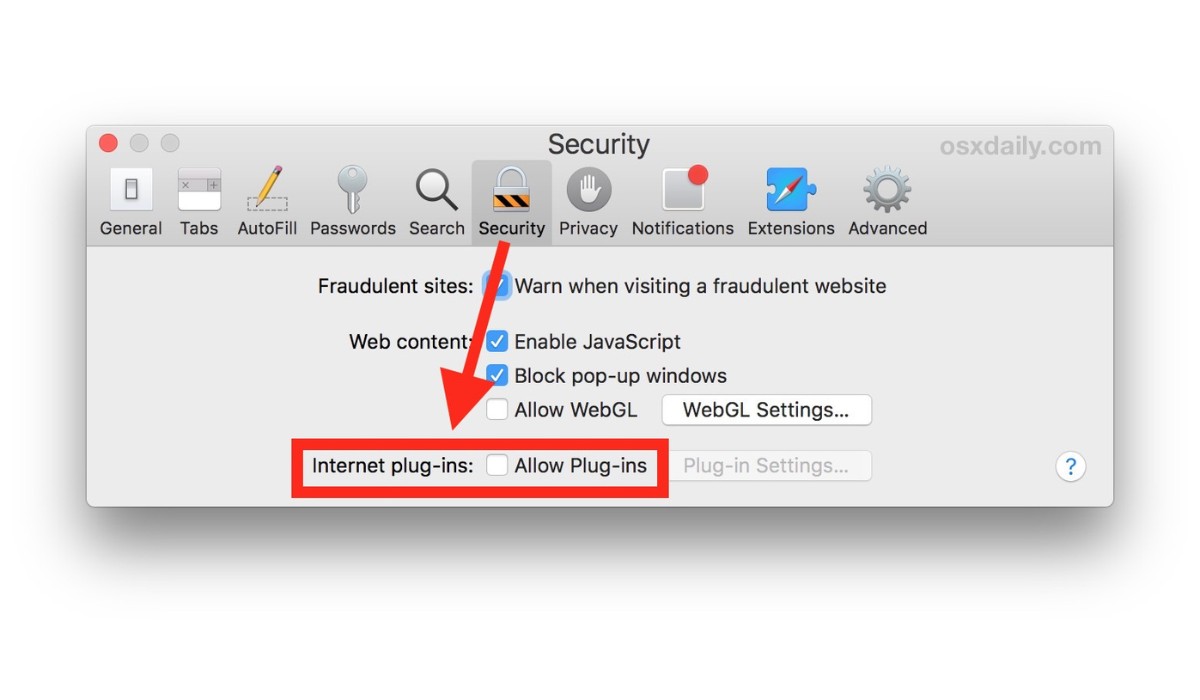
- Open Safari and click Safari in the top-left menu bar, then select Preferences.
- Click the Advanced tab at the top of the Preferences window.
- Check the box labeled "Show Develop menu in menu bar" at the bottom of the Advanced pane. This adds a Develop menu to Safari's top menu bar.
- Click the new Develop menu in the menu bar, then hover over Experimental Features.
- In the dropdown list, ensure "WebGL 2.0" is checked. If it's unchecked, click it to enable WebGL.
Once you've checked WebGL 2.0, reload the page that was showing the error. This manual toggle is primarily useful if the setting was accidentally disabled or if you're on an older Safari version where WebGL isn't on by default. On Safari 15 or later, this step is usually unnecessary because WebGL is already active.
WebGL on iOS and iPadOS
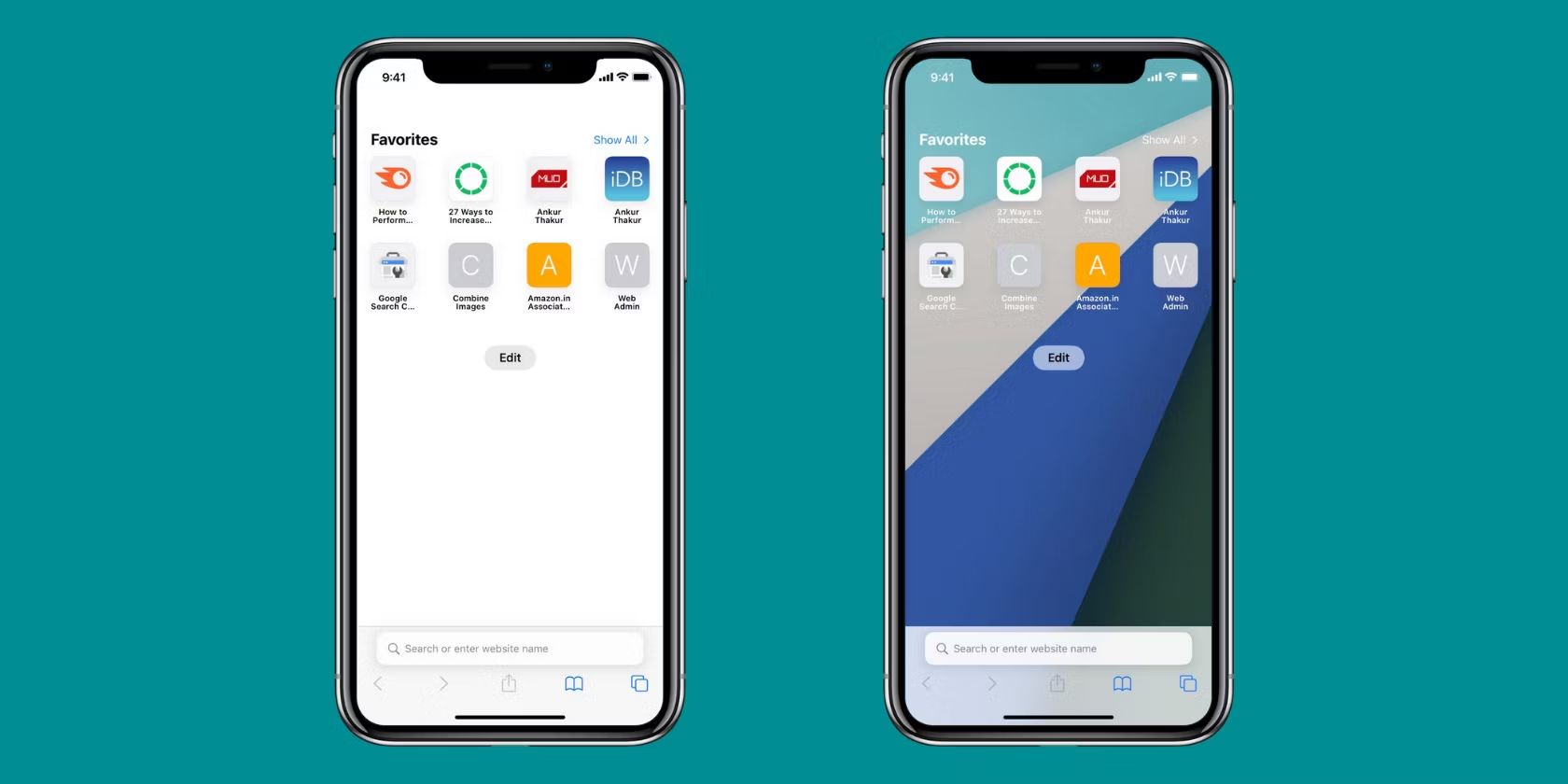
On iPhone and iPad, Safari enables WebGL automatically, there is no manual toggle or hidden menu to turn it on. The only way to ensure WebGL works on iOS or iPadOS is to keep your device's operating system up to date. Safari on iOS supports WebGL 2 from iOS 15 and iPadOS 15 or later, so if you're running an older version, updating the system is the sole fix. You won't find a "WebGL" setting in the Safari preferences on a mobile device, and attempting to enable it through a website's instructions won't work because the option simply doesn't exist there.
What to do when WebGL still won't work
If you've verified that WebGL 2.0 is checked in the Develop menu on macOS, or you're on a current iOS/iPadOS version, but a site still reports WebGL is unavailable, the fix is to update your macOS and Safari to the latest versions. Outdated software is the most common cause of WebGL failures, newer versions of Safari include bug fixes and improved graphics support that older builds lack. The manual enable steps above only help if the setting was accidentally toggled off; if WebGL is already enabled and still failing, the problem is almost certainly an outdated operating system or browser. Check for updates by opening System Settings (or System Preferences on older macOS) and selecting Software Update, then restart Safari after installing any pending updates. If the issue persists after updating, the problem may be with the website itself or with your Mac's graphics hardware, not with Safari's WebGL support.
\nRelated reading: How To Remove Duckduckgo From Safari and How To Find Settings In Safari.