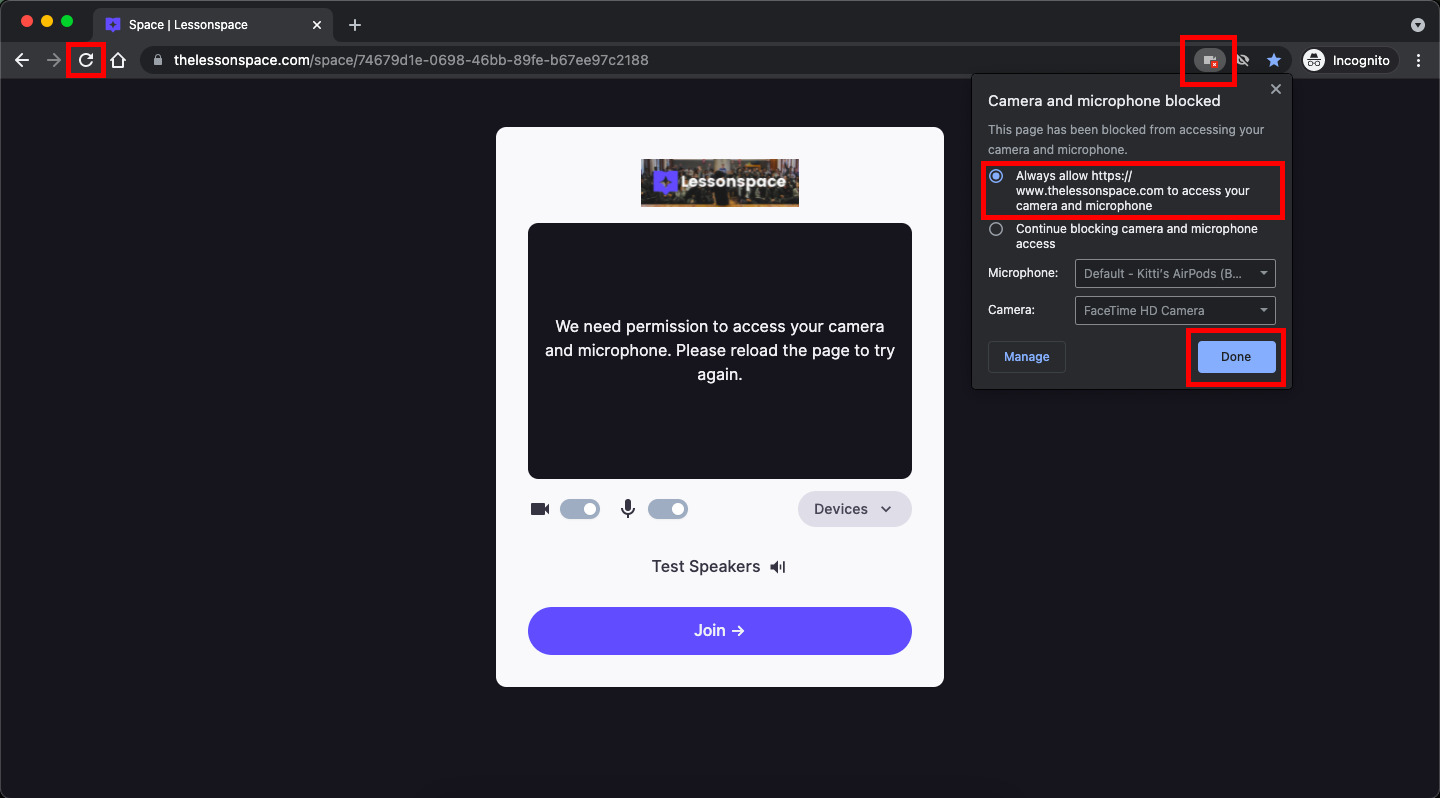
To allow Google Chrome to share your screen, you need to grant the browser permission to capture your display when a website requests it. The most common fix for a blocked permission is to click the lock icon (or "Site settings" icon) in the address bar, then change the "Screen" or "Share screen" permission from "Block" to "Allow" for that specific site, and reload the page. If you need to share the page’s content instead of your screen, you can email a page from Google Chrome directly.
Update Chrome to allow Google Chrome to share screen
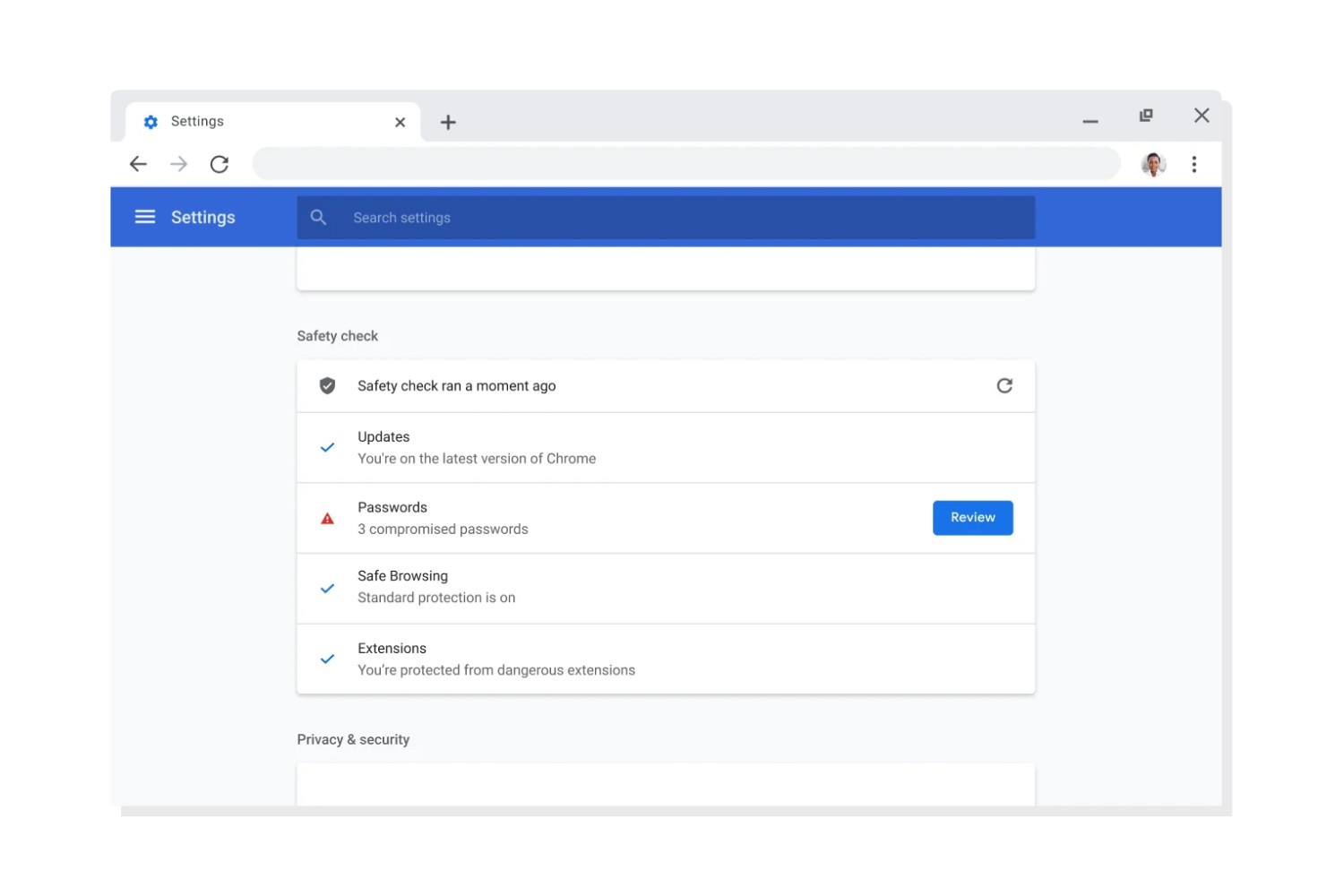
Before troubleshooting permissions, make sure Chrome is up to date, because an outdated browser can cause screen sharing options to disappear or fail. Chrome will automatically check and install any pending updates; after that, click "Relaunch" to restart the browser.
Grant screen recording permission on a Mac
On macOS, Chrome needs explicit system-level permission to record your screen, and without this, the share button may appear greyed out or the share fails silently. To grant this, open System Settings (or System Preferences on older macOS), go to Privacy & Security, then select Screen Recording. Find Google Chrome in the list and tick the checkbox next to it. If Chrome was already running, you’ll need to quit and reopen it for the change to take effect. This step is essential for macOS users who want to share a window or the entire screen, because the OS treats screen capture as a sensitive privacy action.
Start sharing your screen in a meeting
After updating Chrome and granting the necessary permissions, you can finally share your screen during a video call. Here’s how to do it in any major meeting platform (Zoom, Google Meet, Microsoft Teams, etc.):
- Join or start the meeting where you want to share your screen.
- Look for the share button in the meeting controls, it’s usually labelled "Share Screen," "Present," or shows an icon of a monitor with an arrow.
- Click that button, and Chrome will open a small dialog showing three options: your entire screen, a specific application window, or a browser tab.
- Choose the option that fits what you want to show. For a single tab, pick the tab; for a full presentation, choose "Entire Screen" or the specific window.
- Your screen (or selected window/tab) will now be visible to other meeting participants.
Once sharing starts, you’ll see a red "Stop sharing" bar at the top of your screen (or a similar indicator), which you can click anytime to end the session. If you run into issues, double-check that the site you’re using is allowed to access your screen via the address bar icon, and that your Mac’s Screen Recording permission is still enabled for Chrome.
\nRelated reading: How To Remove Duckduckgo From Google Chrome and How To Stop Trending Searches On Google Chrome.