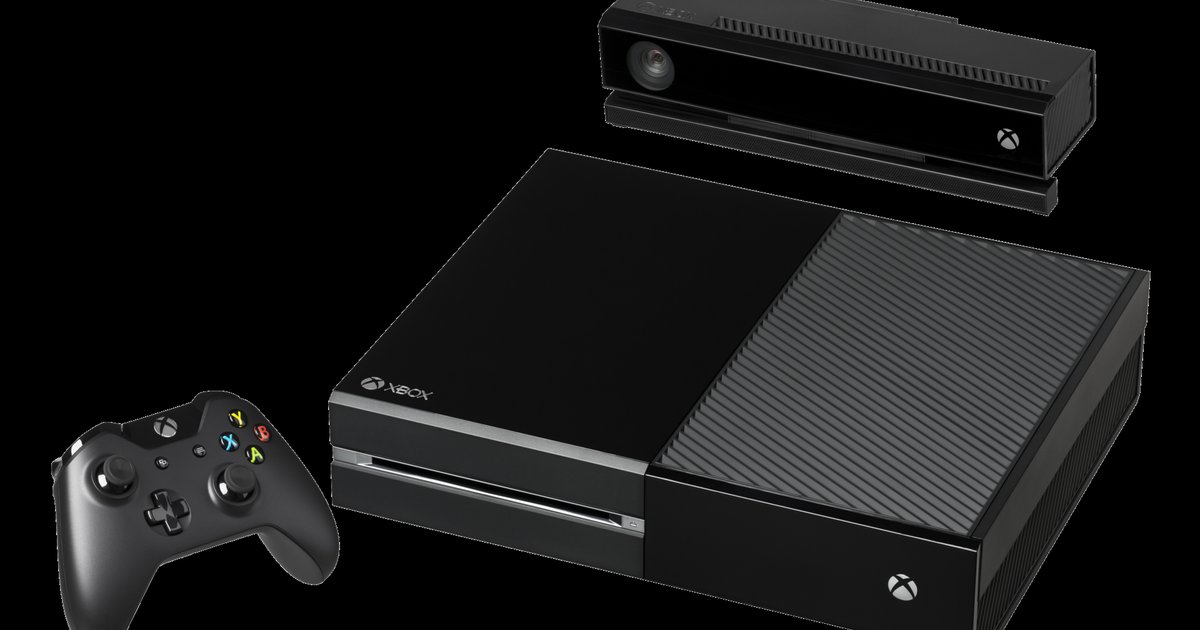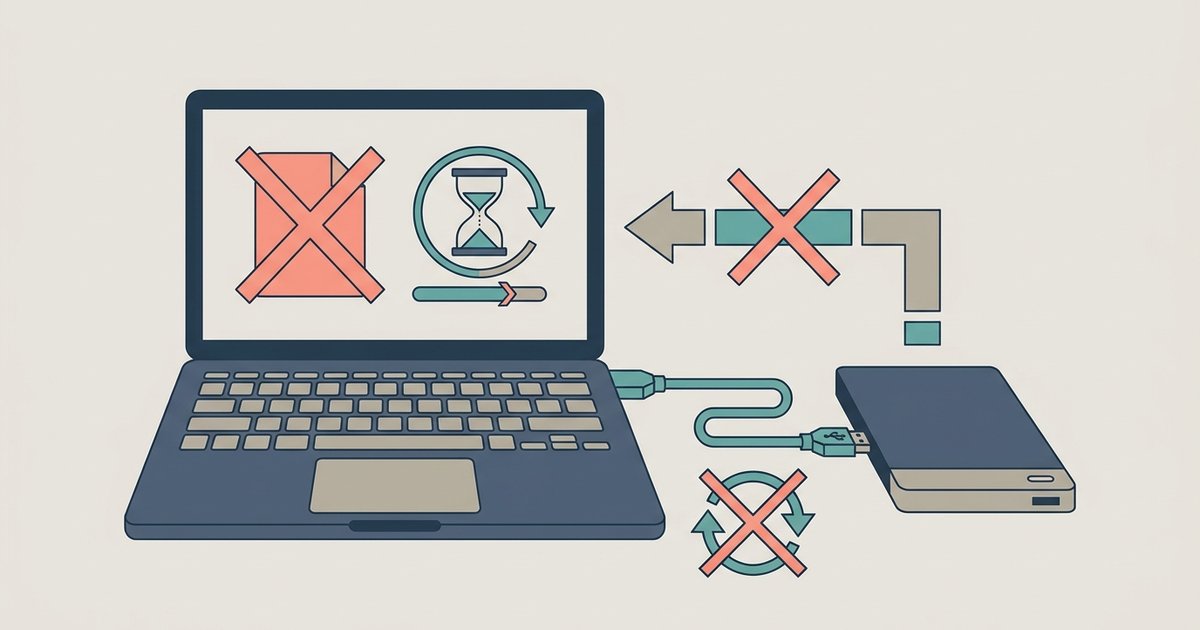
The console is likely stuck in a low-power state where background transfers are suspended, or it has lost its persistent internet connection. Manually waking the console with a controller and running a network multiplayer test usually forces the queue to unstick.
Wake the console for an Xbox remote download
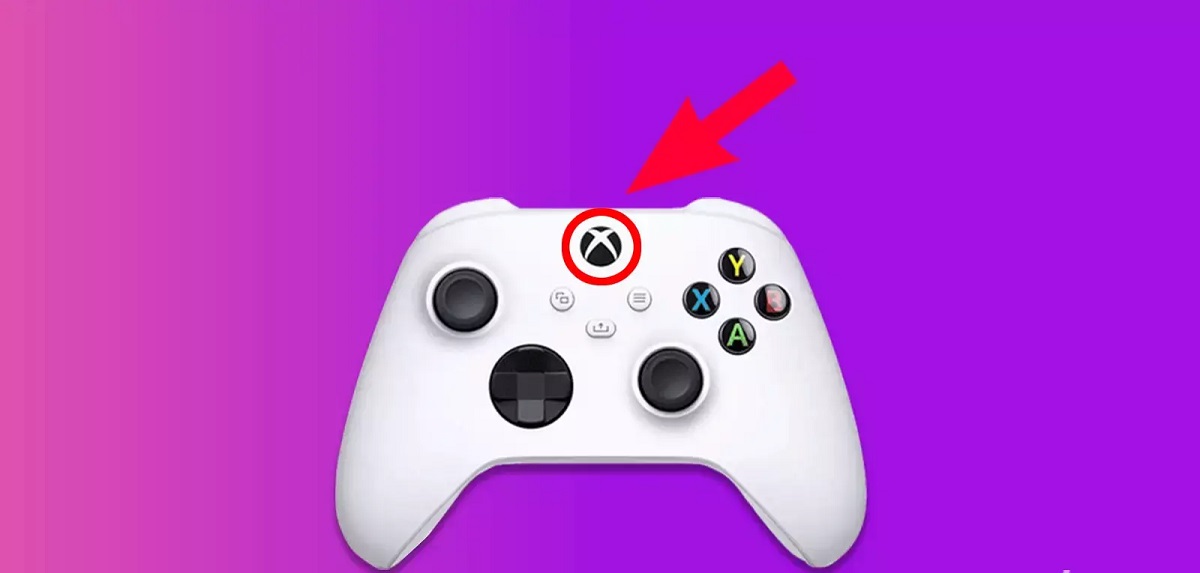
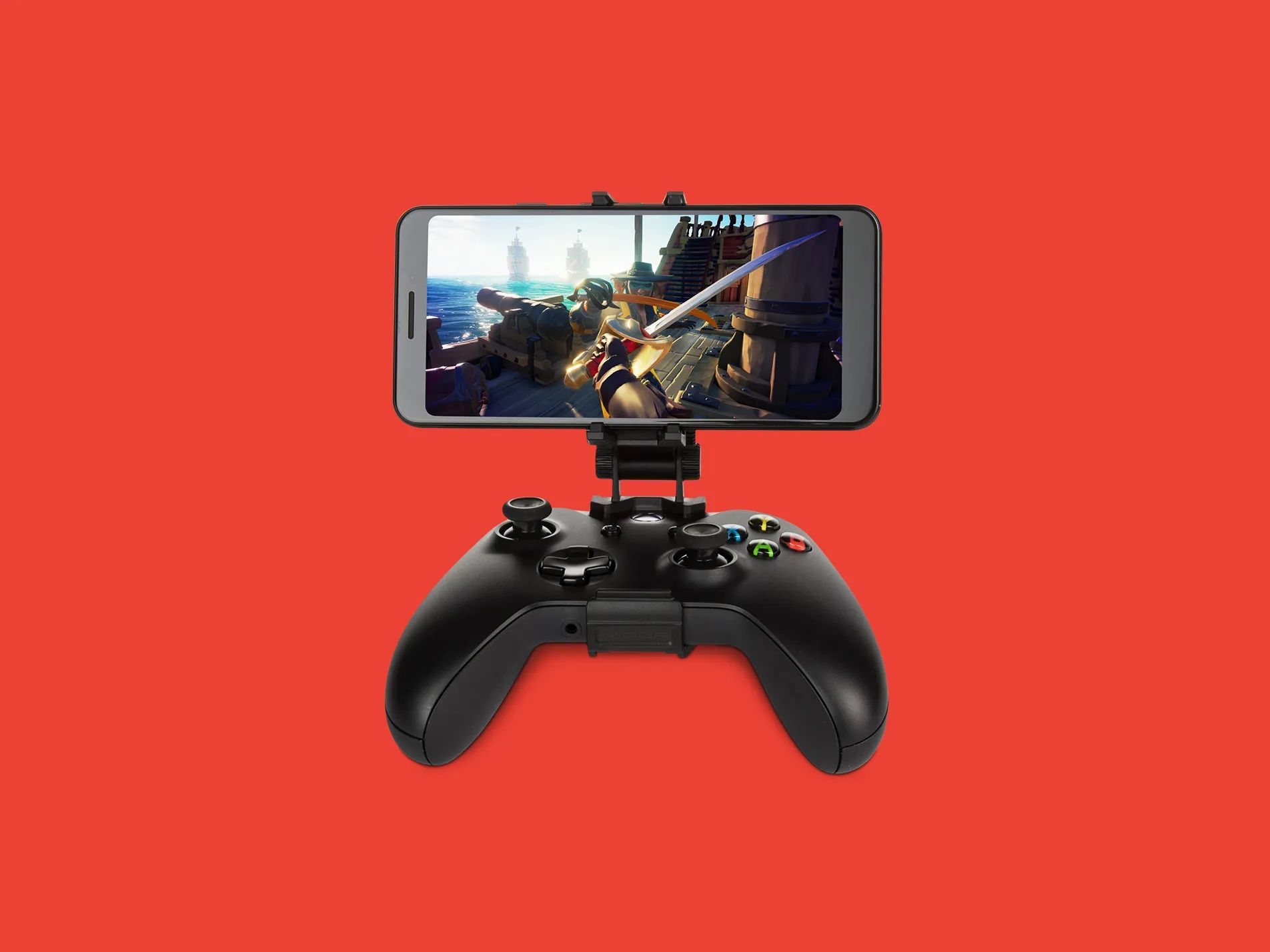
When you send a remote download, the command only places the game into a queue. The system is in a low-power state like "Shutdown (energy saving)" or "Sleep" where background downloads are paused by design. The common mistake is assuming the machine is already awake just because it responded to the remote command. In reality, the queue is held in memory but the network adapter is not fully engaged for data transfer. To trigger the actual download, you must physically wake the hardware by pressing the Xbox button on a controller or the power button. Once the dashboard loads, the system resumes full network access and the queued item immediately begins transferring data. This is the standard workflow for any "remote download Xbox games" scenario: the remote command sets the queue, but only a manual wake-up starts the download.
Force a connection handshake
If manually waking the unit does not start the download, the queue still shows "Queued" with no movement. The next step is to force a network handshake by running the built-in network multiplayer test. Navigate to Settings > General > Network settings and run the multiplayer connection test. This command forces the device to re-authenticate with Xbox Live servers and re-establish a persistent link. Even if a simple restart fails to clear the queue, this test often resets the server-side session that controls download allocation. The test takes about thirty seconds. After it completes, check the queue again. The stuck item should begin downloading immediately. This method is especially effective if you previously configured the system to "set Xbox to download while off" but the setting did not properly activate during the low-power state.
When the queue stays frozen
If the queue remains frozen after both waking the hardware and running the network test, the issue is not network-related. It points to a regional store mismatch or a full storage drive. The Xbox queue will silently remove a title if the game’s store region does not match the device’s region setting. It will also vanish if the drive has less than the required free space. For instance, attempting to download free Xbox 360 games from a region-locked store on a modern Xbox One or Series console will cause the queue to disappear. Similarly, if you try to "download full games on Xbox 360" on a unit that lacks backward compatibility for that specific title, the queue will refuse to proceed. Check your storage and verify your region under Settings > System > Language & location. Clear sufficient space if the drive is nearly full, then resend the remote command. If the queue remains empty, the game is likely incompatible with your console generation or region.
The Xbox queue holds a remote install command in memory but will not transfer a single byte until the system is physically woken from a low-power state.