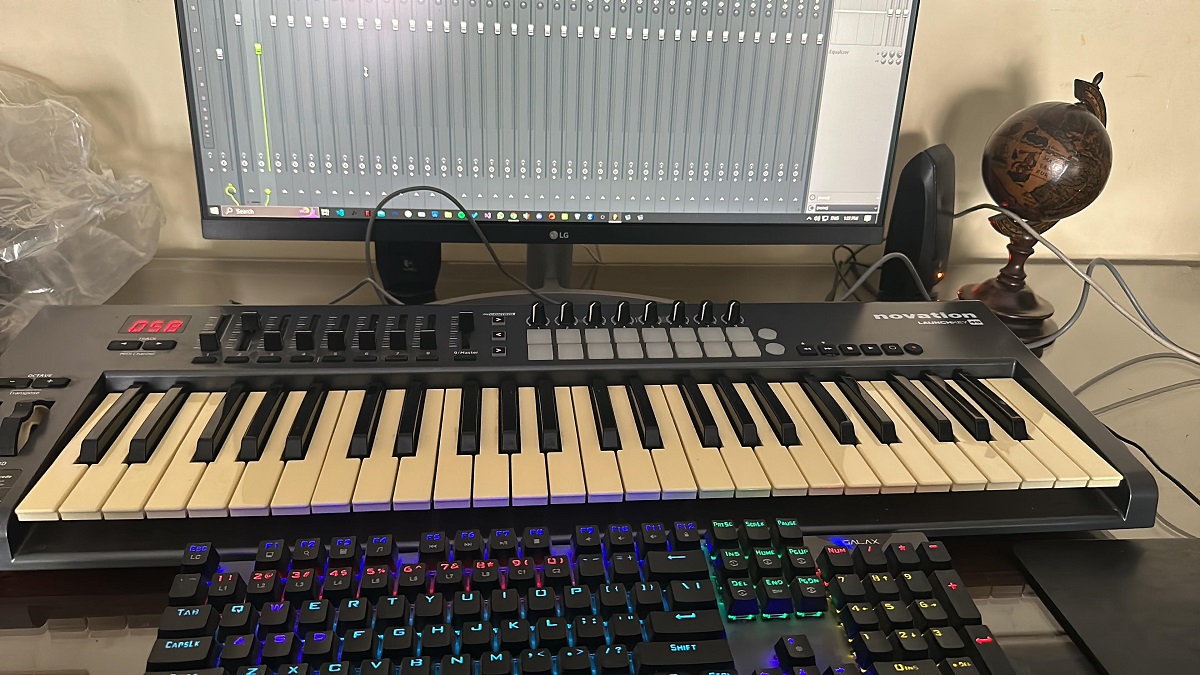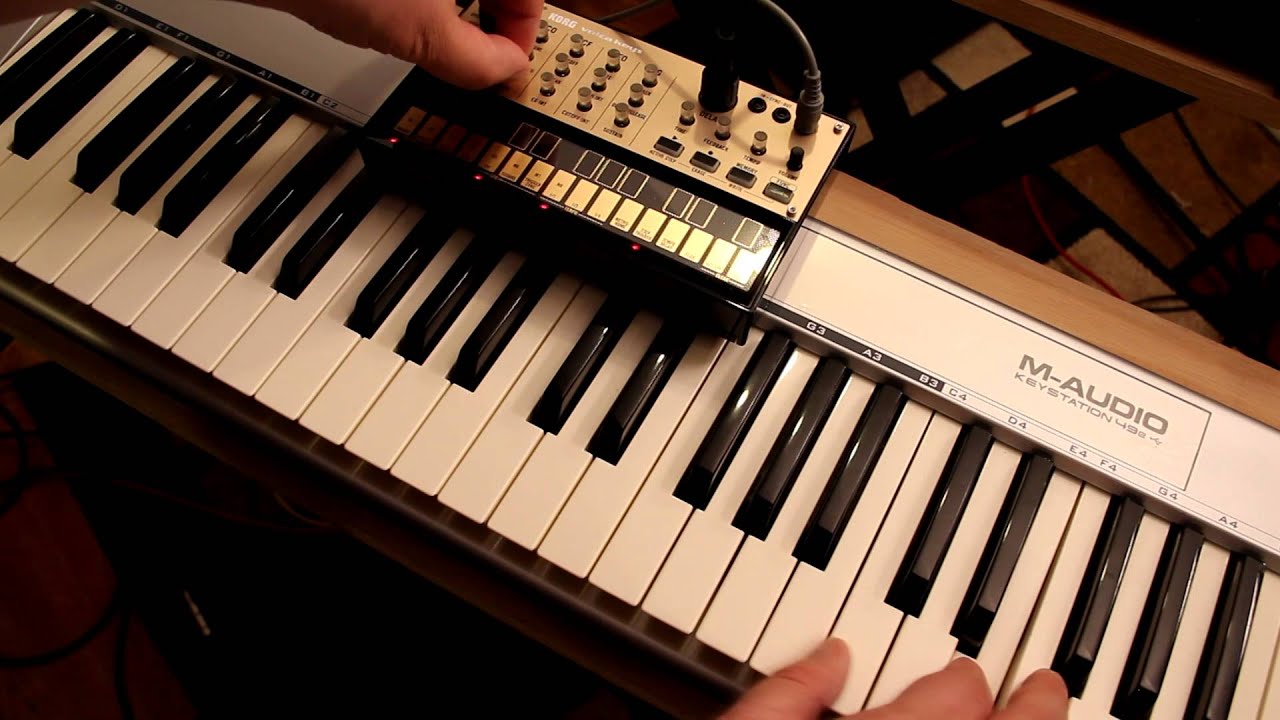
To use a MIDI keyboard in BandLab, connect it to your computer or mobile device, open BandLab Studio, and create a Virtual Instrument track, your keyboard should be detected automatically, letting you play and record right away. If it isn’t picked up, you can manually select it from the track’s settings, and for browser use, make sure MIDI permissions are enabled in your site settings. If you don’t have a controller yet, you can build your own MIDI keyboard tailored to your exact workflow. You can also use a MIDI keyboard with korg volca to sequence its analog sounds alongside your BandLab projects.
How to connect a MIDI keyboard to BandLab
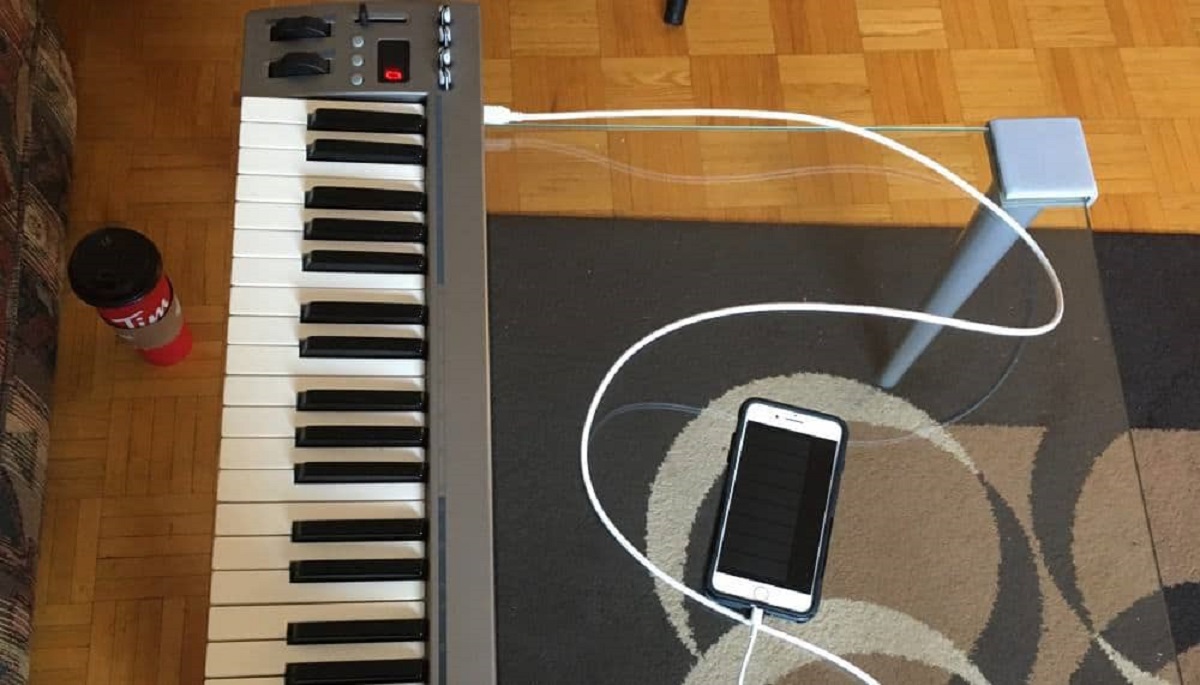
Connecting a MIDI keyboard to BandLab is generally straightforward, with most USB devices being supported and often working by simply plugging them in. For desktop users, connect your MIDI device to your computer using a USB cable. If you have a 5-pin MIDI device, you will need a USB-to-MIDI interface cable or a dedicated audio interface with 5-pin ports. For mobile users, connect your MIDI device to your phone using a supported adapter or an OTG (On-The-Go) cable, though you might also connect a MIDI keyboard in Roblox to play virtual instruments in that game. Bluetooth MIDI controllers can be paired directly via your mobile device's Bluetooth settings.
Ensure your MIDI keyboard is powered on; some devices draw power directly from the USB connection, while others require an external power supply. Once connected, open the BandLab Studio, either in your web browser or the mobile app, and you’re ready to move to the next step.
Add a virtual instrument track and select your MIDI input
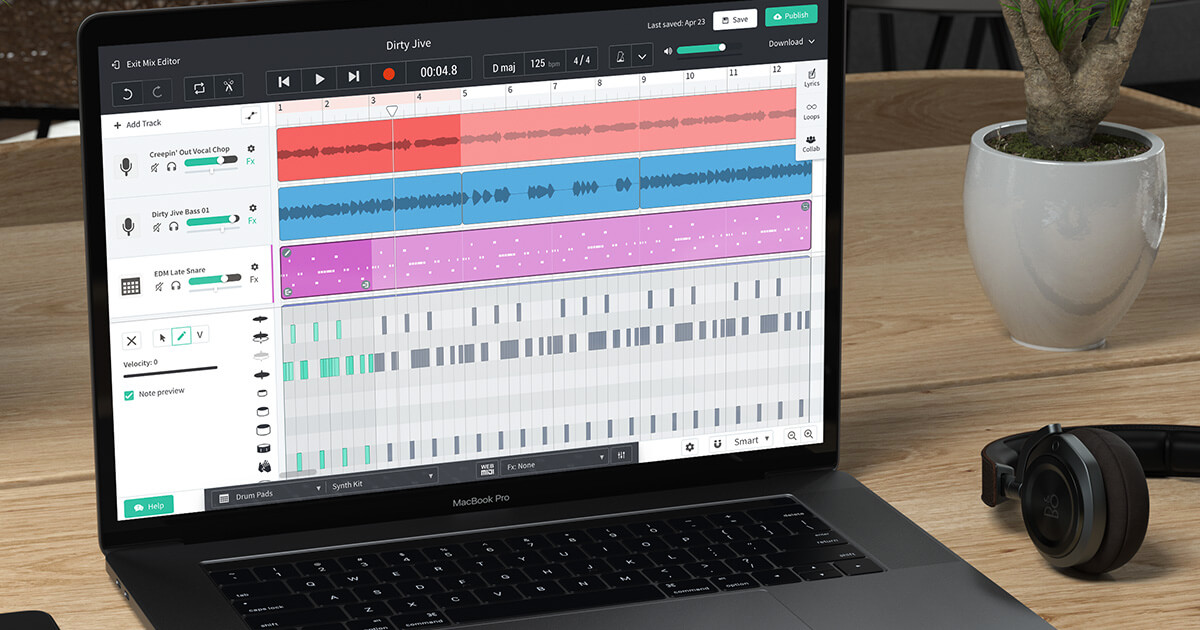
Inside BandLab Studio, add a “Virtual Instrument” track to start playing and recording. Your connected MIDI device should typically be detected automatically by BandLab, so you can begin making music immediately after the track is created.
If your device is not automatically detected, you can manually select it from the Instrument track panel. On the desktop web version, click the gear icon on the instrument track to open settings and choose your MIDI controller under “MIDI input.” For web browser use, ensure that your browser permissions allow MIDI devices to be connected. If you encounter issues, check your browser's site settings (e.g., under Privacy and Security) for BandLab and ensure MIDI device control is allowed.
Play and record with your MIDI keyboard
Once connected and selected, you can play and record your MIDI performances using BandLab's virtual instruments. Test the connection by playing a few notes on your keyboard, if you hear sound and see notes register on the track, you’re good to go.
- Arm the Virtual Instrument track for recording by clicking the record button on the track.
- Press the main record button in the transport bar, then play your keyboard to capture your performance in real time.
- Stop recording, then open the MIDI Editor (Piano Roll) to fine-tune what you played.
In the MIDI Editor, you can adjust timing, velocity, pitch, and note length. This flexibility empowers you to refine your performances and compositions with precision, whether you’re correcting a slightly off-beat melody or adding dynamic accents to a chord progression.
Using virtual instruments and MIDI controls
BandLab offers a rich selection of virtual instruments that can be seamlessly integrated with your MIDI keyboard. Assign different BandLab virtual instruments to your keyboard by selecting them from the track’s instrument dropdown, this gives you access to everything from realistic pianos to synthesizers and orchestral textures.
BandLab's MIDI Mapping feature, available exclusively on BandLab Web, allows you to assign controls (knobs, faders, buttons) on your MIDI controller to various parameters within the Studio. To map controls, enter MIDI Mapping mode by clicking the Triple Line Icon (top left of the Studio), then selecting View > MIDI Mappings. Click on a parameter highlighted in red, then move the desired control on your MIDI device to assign it.
Your MIDI mappings are saved via your browser's cookies, so they should persist for future sessions. This means you can set up your keyboard once, say, mapping a fader to filter cutoff or a knob to reverb send, and have it ready every time you open BandLab Web.
Troubleshooting MIDI keyboard issues in BandLab
If you experience connection issues, try using different USB ports or cables. A loose cable or a faulty port is often the culprit, so swapping both can quickly resolve the problem. Clearing your browser's cache and cookies can also resolve some detection problems, as stale data can interfere with how BandLab recognizes your device.
If your keyboard still isn’t detected, check your browser’s site settings for BandLab and confirm that MIDI device access is allowed. On some browsers, this setting is under Privacy and Security, and you may need to refresh the page after enabling it. For mobile users, verify that your OTG adapter is supported and that your keyboard is powered on, some devices won’t send MIDI data over a passive cable.
When all else fails, restart both your browser and your keyboard, then reconnect, and you can confidently use your MIDI keyboard in BandLab for recording, editing, and performing with virtual instruments. Most detection issues stem from simple communication hiccups, and a fresh connection usually clears them. Once your keyboard is recognized, you can confidently use a MIDI keyboard in BandLab for recording, editing, and performing with virtual instruments.