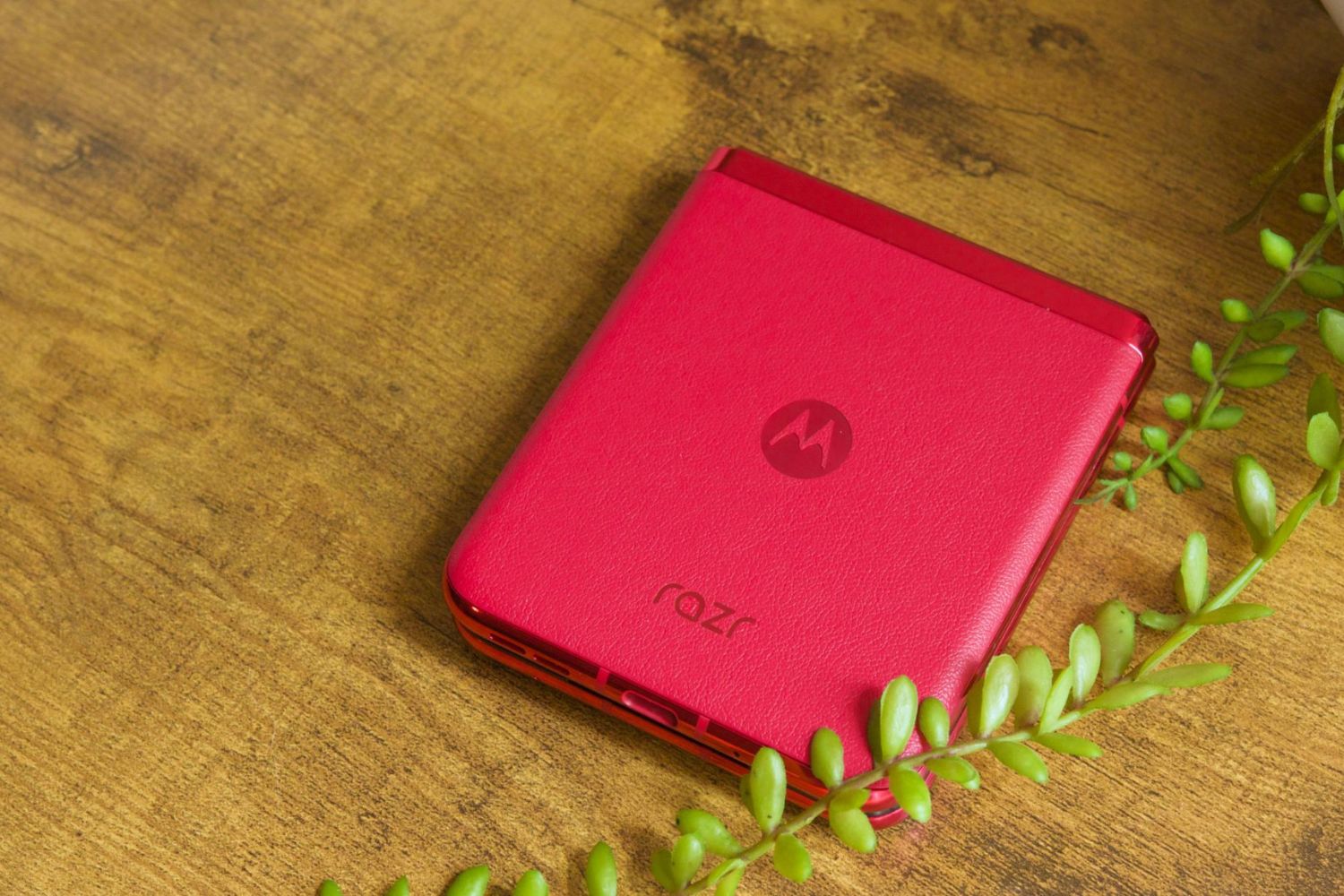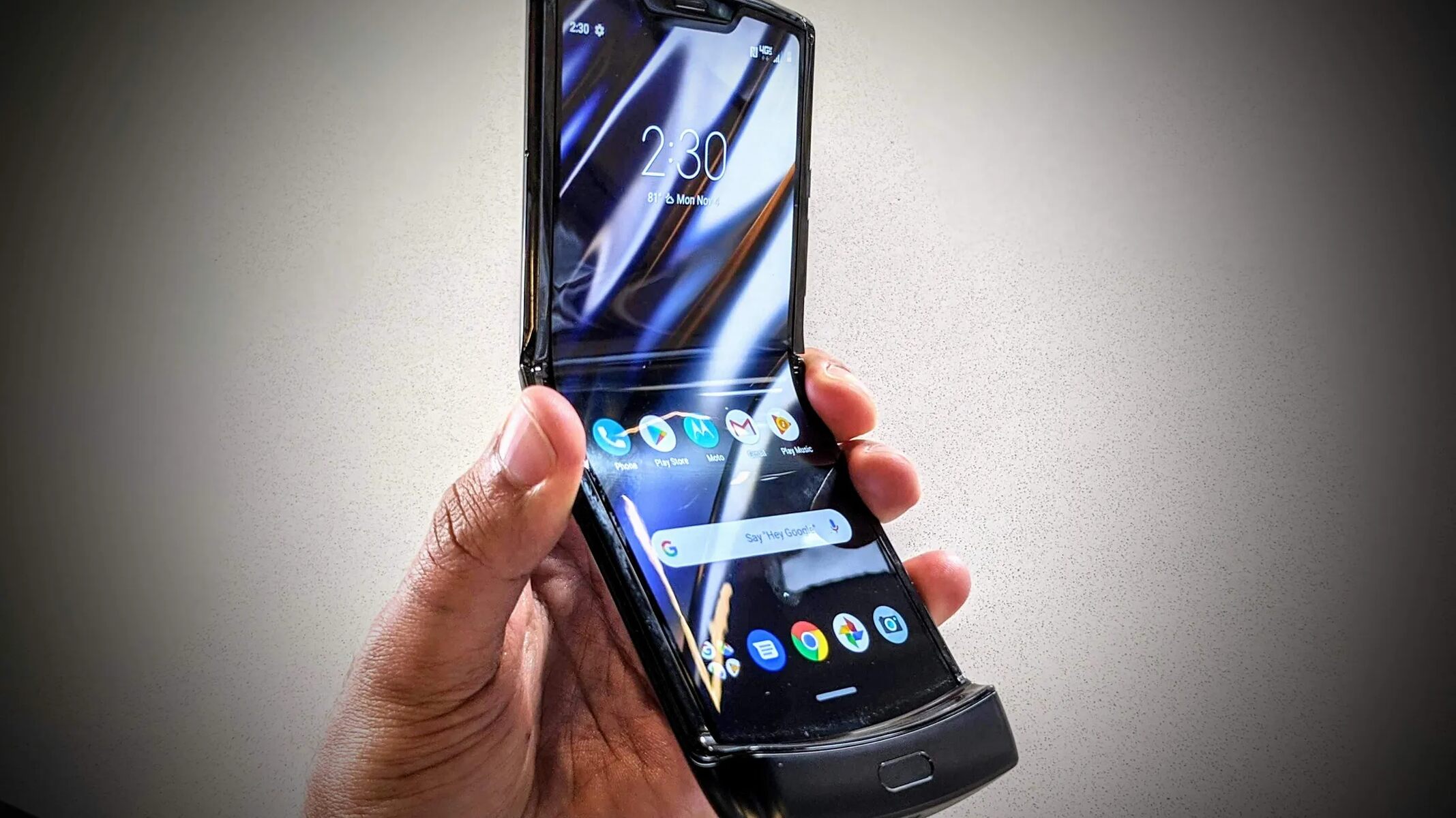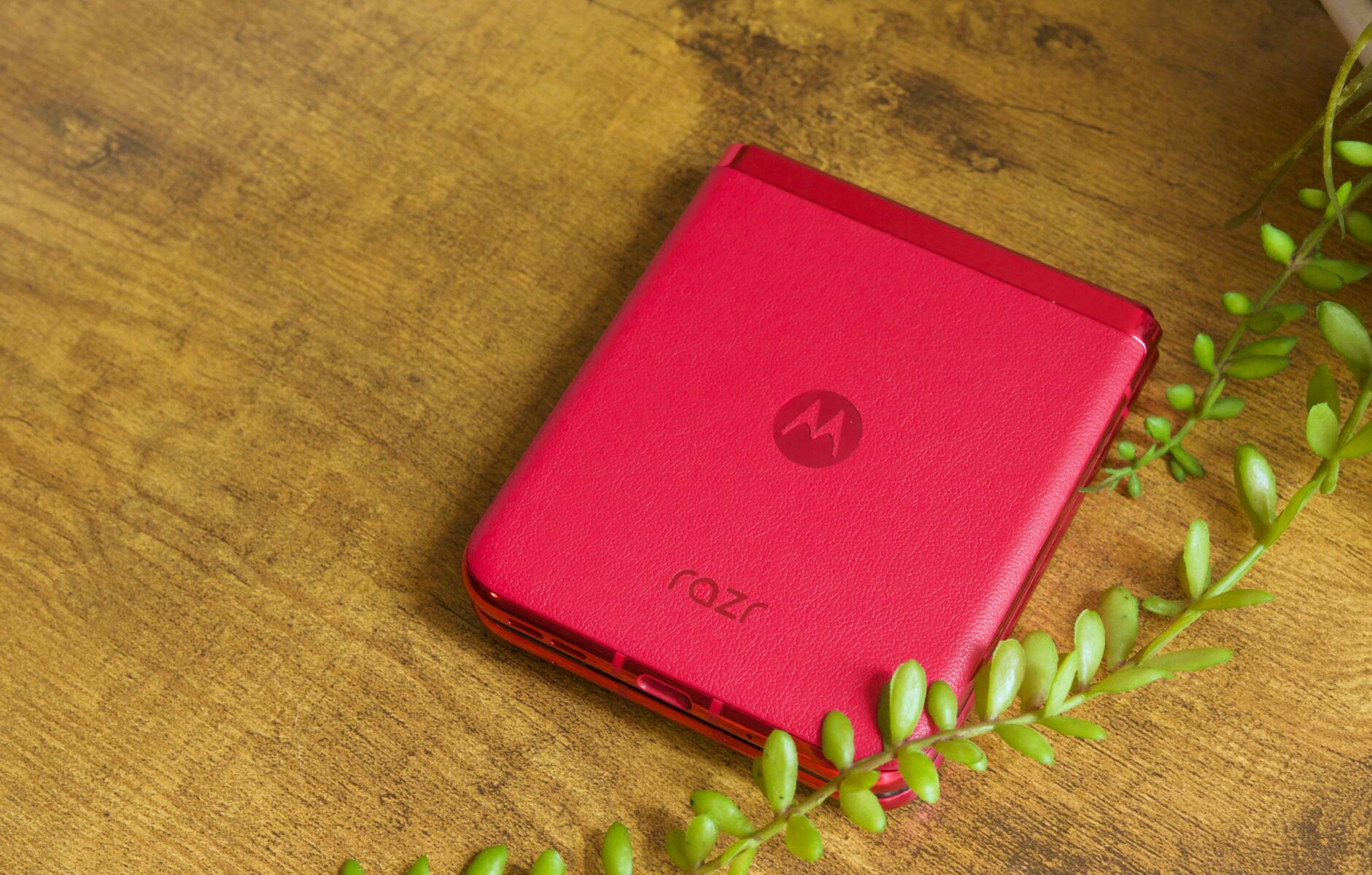
If your Motorola Razr won't turn on or charge, the first thing to do is plug it into the charger and wait at least 10 minutes before pressing the Power button, this gives a completely drained battery enough time to gain the voltage needed to power up. This immediate first-aid step is the most common fix for Motorola razr power issues, as many devices appear dead simply because the battery has been fully depleted.
Check the Physical Charging Connection
Before diving deeper into troubleshooting, inspect the charging port for dust or lint and carefully remove any debris with a dry, non-metal tool like a toothpick or wooden skewer. Ensure the USB charging plug fits securely into the phone, a loose connection is a frequent culprit behind intermittent charging or no charging at all. Remove any phone case to ensure it's not obstructing the charger/port connection, as even slim cases can prevent the plug from seating fully. Always use the charger that came with the phone or a compatible one, since third-party chargers may not deliver the correct power output and can cause charging failures.
Understand Your TurboPower Charger Behavior
Your Motorola Razr's TurboPower charger has specific behaviors you should know before assuming something is broken. TurboPower charging is rapid when the battery is below 78% and switches to regular speed at 78% or higher; if you're not seeing rapid charging below 78%, disconnect and reconnect the charger to reinitiate the fast-charging handshake. If your phone gets hot while charging, the TurboPower charger may slow down charging if the battery reaches 111 degrees (F) until it cools down, this is a protective measure, not a malfunction. Additionally, overcharge protection may limit charging to 80% if the phone has been plugged in for three days; to fully charge, disconnect and reconnect the charger to reset this safeguard.
Restart Your Motorola Razr to Fix Battery Drain
If you're experiencing fast battery drain, reboot your phone, especially if it hasn't been turned off in over a week, this verified recommendation clears temporary system data and background processes that can silently consume power. A simple restart refreshes the operating system and can resolve software glitches that cause abnormal battery usage, making it the quickest fix for unexplained power loss.
Diagnose a Black Screen That Isn't a Power Failure
If your phone turns on but the screen remains black, try calling it from another phone; if it rings, the issue is likely with the screen rather than the power system. This simple test distinguishes between a dead display and a true power failure, if the phone rings, it's receiving power and the problem lies in the screen assembly or its connection. In that case, you may need professional screen repair, but you can still access your data via Motorola's PC software or cloud backups while you arrange service.
Check for Software Updates
Navigate to Settings > System > System updates (or About Phone > System updates) to manually check for and install the latest software. Software updates for the Motorola Razr often include optimizations aimed at improving power efficiency, addressing battery management, and enhancing overall system stability. If your phone starts but gets stuck on the startup screen, restart it again and check for available software updates after it boots, a fresh update can resolve boot-loop issues and power management bugs.
Perform an External Factory Reset
When your phone is off or unresponsive and standard troubleshooting fails, perform an external factory reset using the hardware buttons. Press and hold the Volume Down and Power buttons simultaneously until the Fastboot Flash mode screen appears, then use the Volume buttons to select "RECOVERY MODE" and press the Power button. If an Android robot with "No Command" appears, press and hold the Power button, then press and release the Volume Up button to access the recovery menu. In the Android system recovery screen, select "Wipe data/factory reset" and then "Factory data reset" to proceed, followed by "Reboot system now" to complete the process. Before a factory reset, back up all important data, and ensure you have your Google account credentials and screen lock information for Factory Reset Protection (FRP), without these, you won't be able to access the device after the reset.
Contact Motorola Support
If issues persist after troubleshooting, or if there's physical or liquid damage, contact Motorola support or visit an authorized service location for professional diagnosis and repair. When reaching out, gather specific details about your symptoms, including when the problem started, any error messages, and what troubleshooting steps you've already tried, this information helps support specialists provide targeted assistance. Motorola offers multiple channels, including phone support, live chat, and community forums, where you can access FAQs, user guides, and troubleshooting resources. For hardware issues like a swollen battery, damaged charging port, or cracked screen, professional service is the safest and most effective solution, especially if your device is still under warranty.
\nRelated reading: Troubleshooting Charging Issues On Motorola Razr and Why Is My Tablet Charging So Slowly.