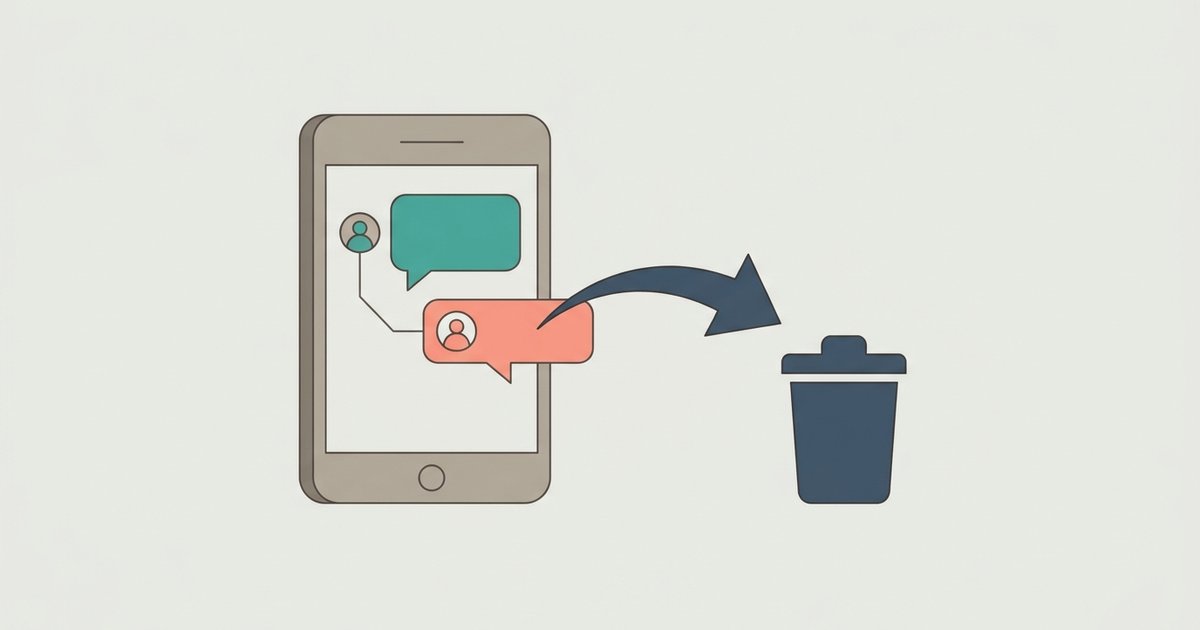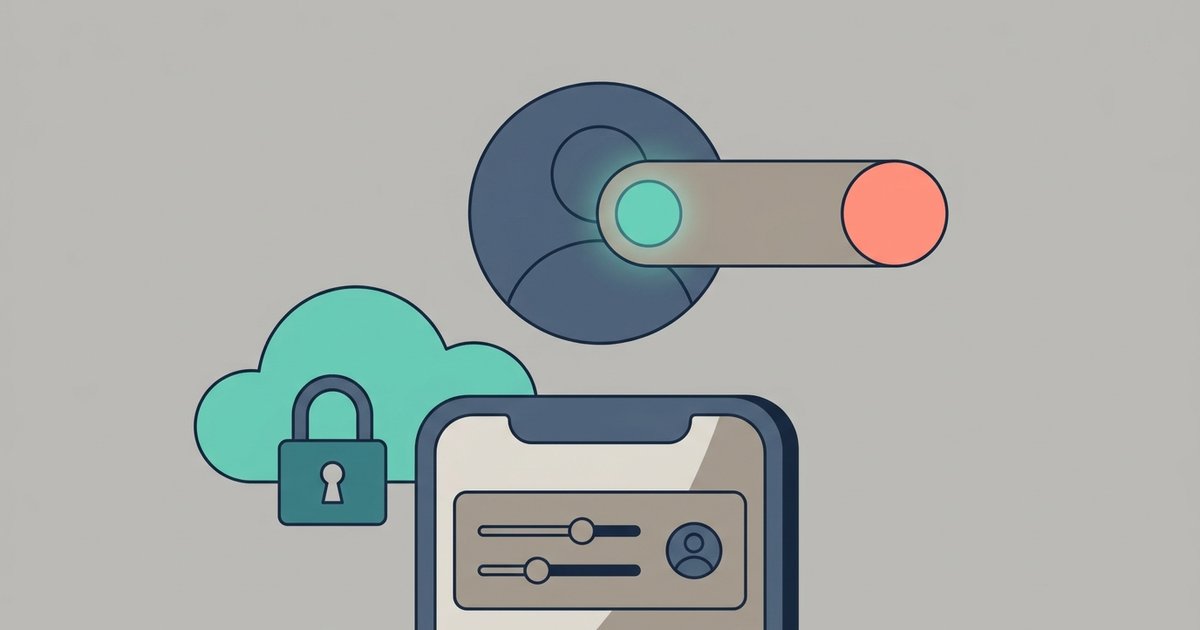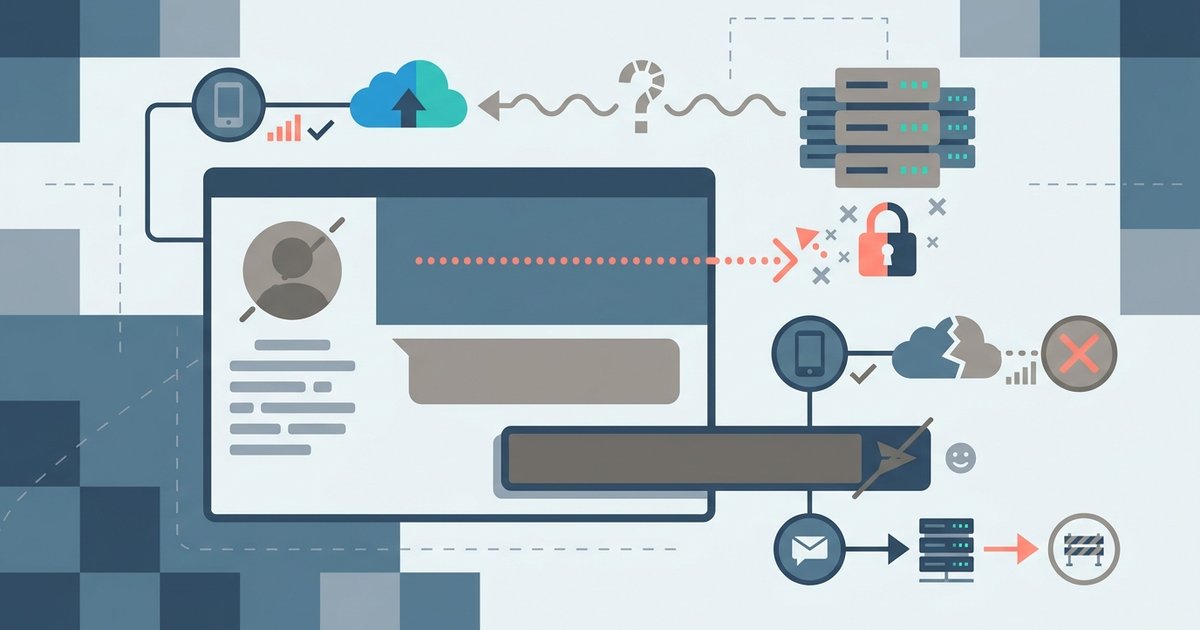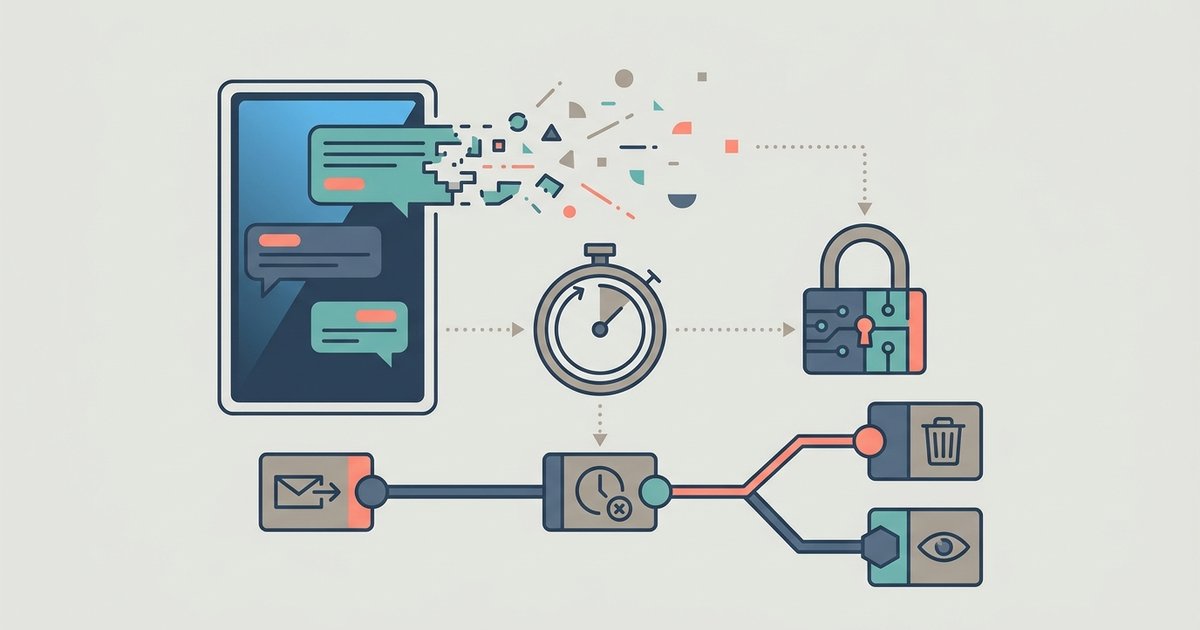
Most Facebook Marketplace scams follow a handful of patterns: pressure to move the conversation off Facebook, fake payment proof, overpayment and refund tricks, requests for verification codes, and listings priced too low to be real. Meta's own guidance boils down to keeping conversations in Messenger, confirming payment in your actual account, never paying in advance for something you have not seen, and reporting anyone who pushes against those rules. Scams hit buyers and sellers alike, so both sides need to know the signs.
The red flags that apply to everyone
Meta lists several behaviors to avoid when talking to a buyer or seller, and they are the fastest way to spot trouble early:
- Moving off Facebook. A request to switch to WhatsApp, a phone call, text or email, especially early in the conversation. Meta notes that conversations routed away from Facebook and Messenger make scams harder to detect.
- Third parties. Being asked to deal with someone who is not the owner of the account, such as a relative of the seller.
- Contact outside Marketplace. Someone reaching you about a listing through another channel entirely.
- Payment problem messages. Emails or messages claiming something went wrong with your payment.
- Pressure. Anyone pushing you to complete the sale immediately. Urgency is designed to make you skip normal precautions.
None of these proves a scam on its own, but each is a reason to slow down.
Scams that target sellers
If you are selling, most of the risk sits around payment. The patterns Meta describes are:
- Screenshot payments. The buyer sends a screenshot showing that they paid and asks you to ship. Meta says never to trust a screenshot as confirmation.
- Overpayment. The buyer claims to have sent too much by accident and asks you to refund the difference, or offers more than your asking price, sometimes saying the extra covers movers who will collect the item.
- Refund requests without payment. The buyer asks for a refund on money that never arrived.
- Fake payment app emails. Messages that appear to come from services such as Zelle or Venmo, telling you to upgrade your account or pay a fee before you can receive the money.
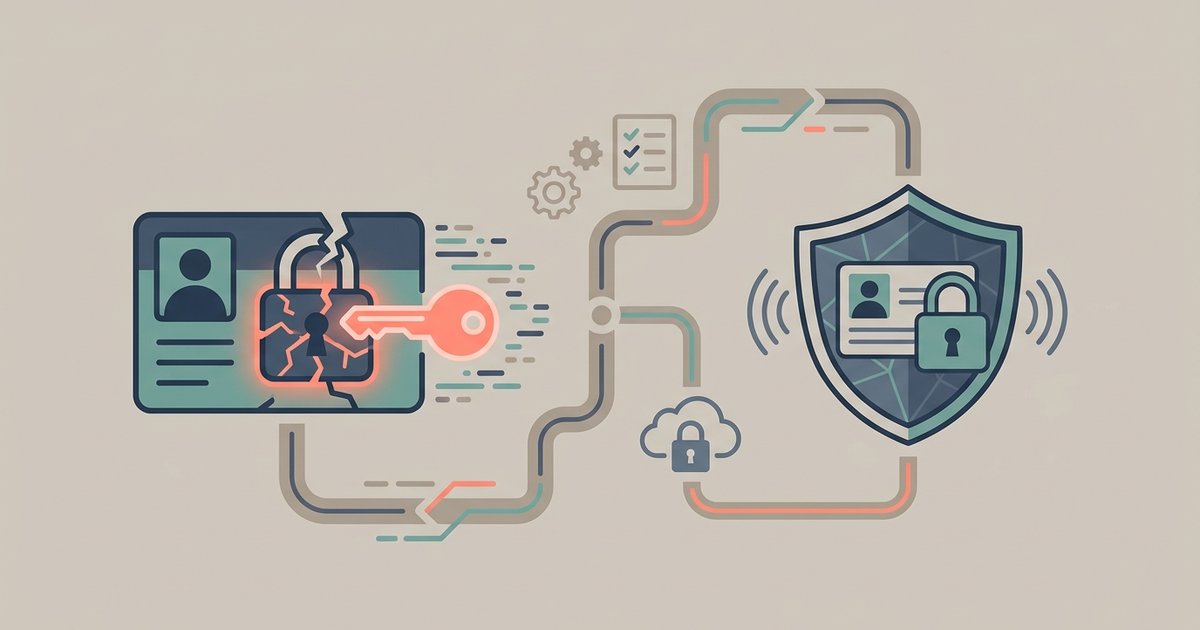
- Verification code requests. A buyer asks you to read back a code sent to your phone or email, often framed as proof that you are real. Meta specifically mentions codes such as a Google Voice code. Sharing it hands over an account.
The defense for nearly all of these is the same: open your payment app or bank account yourself and confirm the money is there before the item leaves your hands. If you are unsure whether a payment is real, contact the payment service's support team directly rather than replying to a message.
Scams that target buyers
Buyers face a different set of tricks, mostly aimed at getting money or card details before any item exists:
- Advance payment. A seller asks you to pay before you receive or see the item. Meta's advice is never to pay in advance.
- Deposits on big items. Rentals and vehicles are common targets. Do not send a deposit until you have physically seen and inspected the item in person.
- Gift card payment. A request to pay with gift cards is a warning sign in itself.
- Off-platform links. A seller sends a link to another site that asks for card or bank details, or asks you to log in with a username and password. Meta says links that ask you to log in are likely a scam, and you should never share financial details this way.
- Too good to be true. Listings priced far below market value can be bait for fake or defective goods.
- Fake tracking. Check any tracking number on the delivery company's own website, and make sure the delivery address is right.
Payment methods and what is protected
Meta draws a clear line here. Eligible purchases made with checkout on Facebook are covered by Purchase Protection. Items exchanged in person using cash, or paid for with other person-to-person payment methods, are not eligible for Facebook Purchase Protection. That means a local pickup paid through a payment app is a private deal, and if it goes wrong, Facebook's purchase protection will not cover it.
| How you pay | Purchase Protection | What to do |
|---|---|---|
| Checkout on Facebook, where offered | Eligible purchases covered | Keep the transaction and messages on Facebook |
| Cash in person | Not eligible | Inspect the item fully before handing over money |
| Person-to-person payment apps | Not eligible | Pay only after seeing the item, and only people you trust |
| Gift cards or wire transfers on request | Not eligible | Treat the request as a scam |
When you buy in person, Meta advises checking the item closely before completing the deal: confirm it is genuine, in the condition described and working properly.
Phishing dressed up as a deal
Some Marketplace scams are not really about the item at all. The goal is your account. Meta groups these under phishing: messages asking for verification codes, account emails and passwords, or personal information. Variations include links to fake sites that look like a real business, text messages that lead to fake sites, and fake requests that appear to come from a company executive. If a conversation about a used bike ends with a request for a login code, it was never about the bike.
Checking the other person
Before committing, open the other person's profile from the listing or conversation. Meta notes that you can see ratings and reviews from other buyers, friends you may have in common, their other listings and their Marketplace activity. A brand new profile with no history is not proof of fraud, but combined with a low price and urgency it should make you cautious. You must be an adult under your country's laws to use Marketplace, and the service is available only in certain countries.
How to report a scam
If something looks like a scam, Meta's instruction is to stop communicating and report it. The routes on a computer are:
- A seller: open Marketplace from the left menu of your Feed, click Buying, open the listing, click the seller's name, then click Options, Report and Scam, and follow the prompts.
- A buyer: open Marketplace, click Selling, then Seller dashboard, open the listing, open the conversation with the buyer, click More options, then Report and Scam.
- A listing: open the listing, click Options below the title, then Report listing and Scam.
If the person has blocked you, Meta has a separate process for reporting something you cannot see, which may involve asking a friend to help. Reporting does not stop you from also contacting your bank, which you should do immediately if you have already sent money or card details.
A simple set of rules
Keep every conversation in Messenger. Confirm payment in your own account, never from a screenshot. Refund nothing you have not received. Never share a verification code or log in through a link someone sends you. Meet in person for anything valuable, inspect before paying, and use checkout on Facebook when it is offered if you want Purchase Protection. If a buyer or seller argues with any of these rules, walk away.