This tag collects our practical guides to managing text messages on Android phones, Samsung Galaxy devices, and Apple’s iMessage. It is written for everyday users who want to take more control over their own conversations, whether that means fixing a delivery problem, cleaning up a mistaken send, or simply understanding the icons and features already on their screen. If you have ever wondered why a message did not go through, or how to undo a slip of the thumb, these articles are for you.
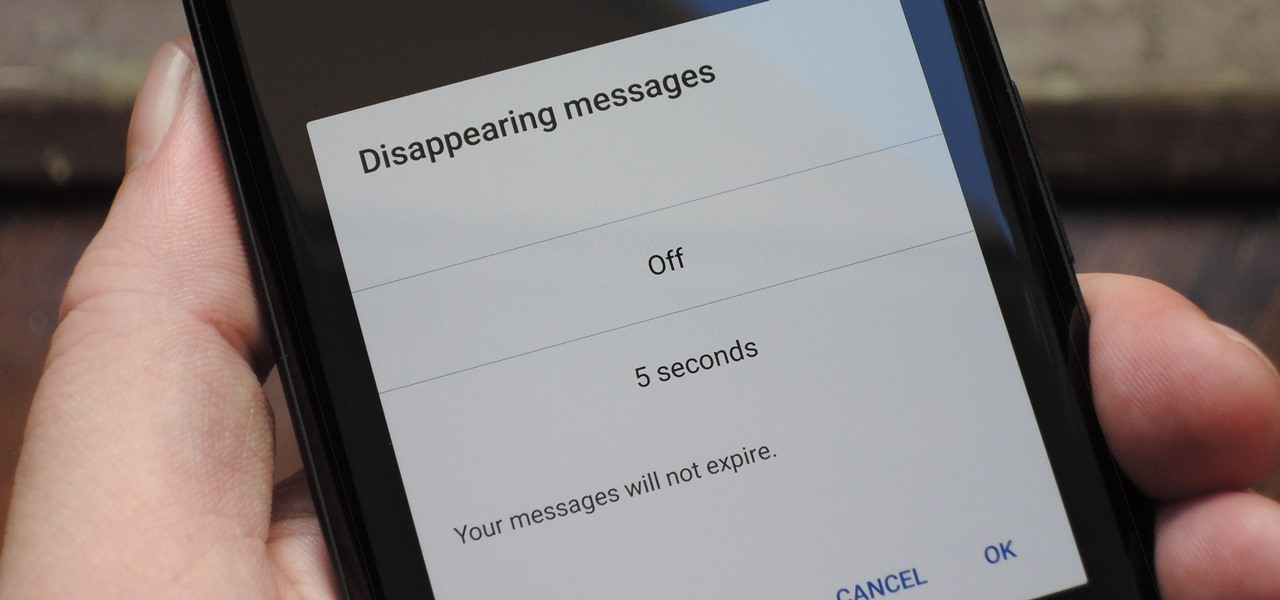
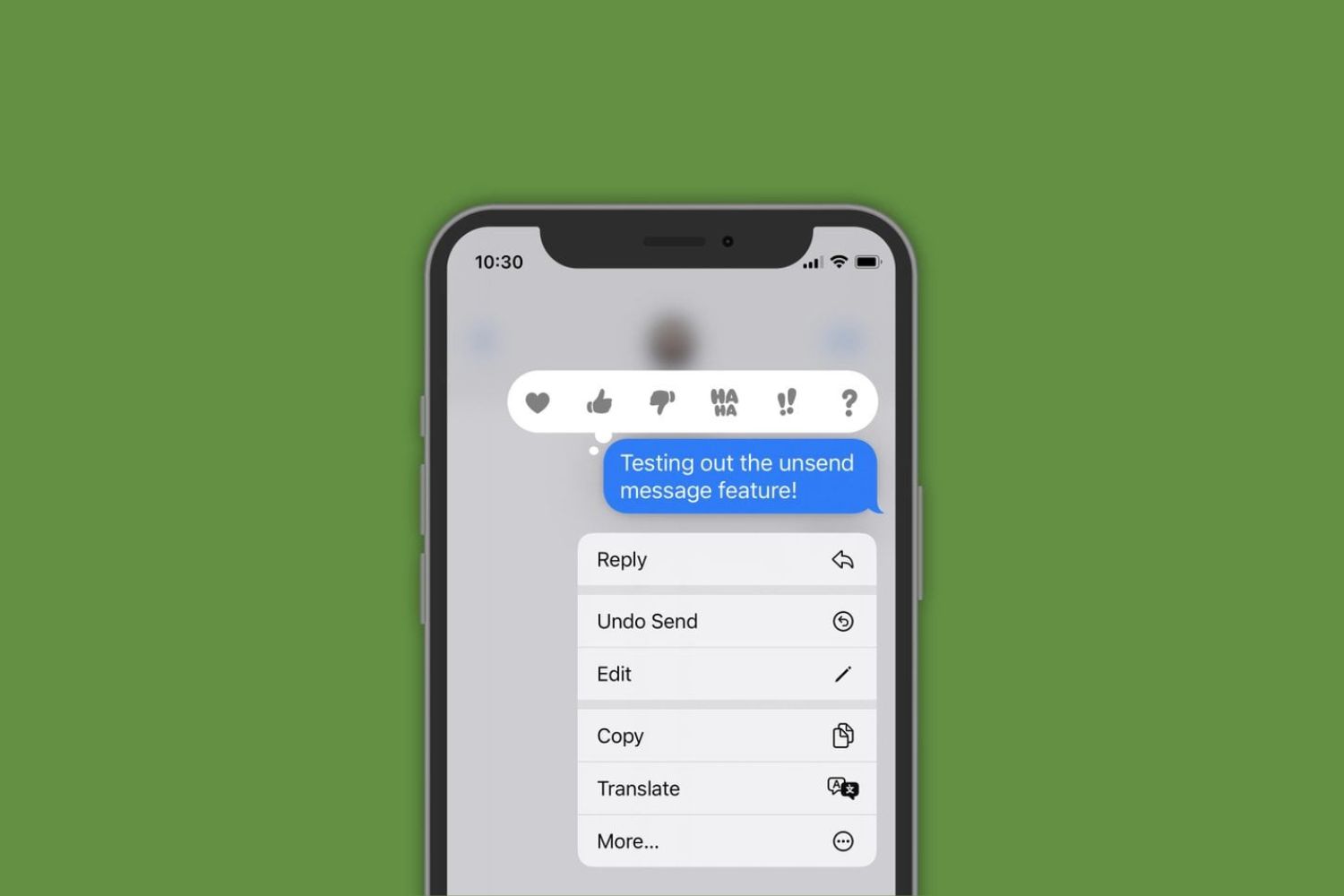
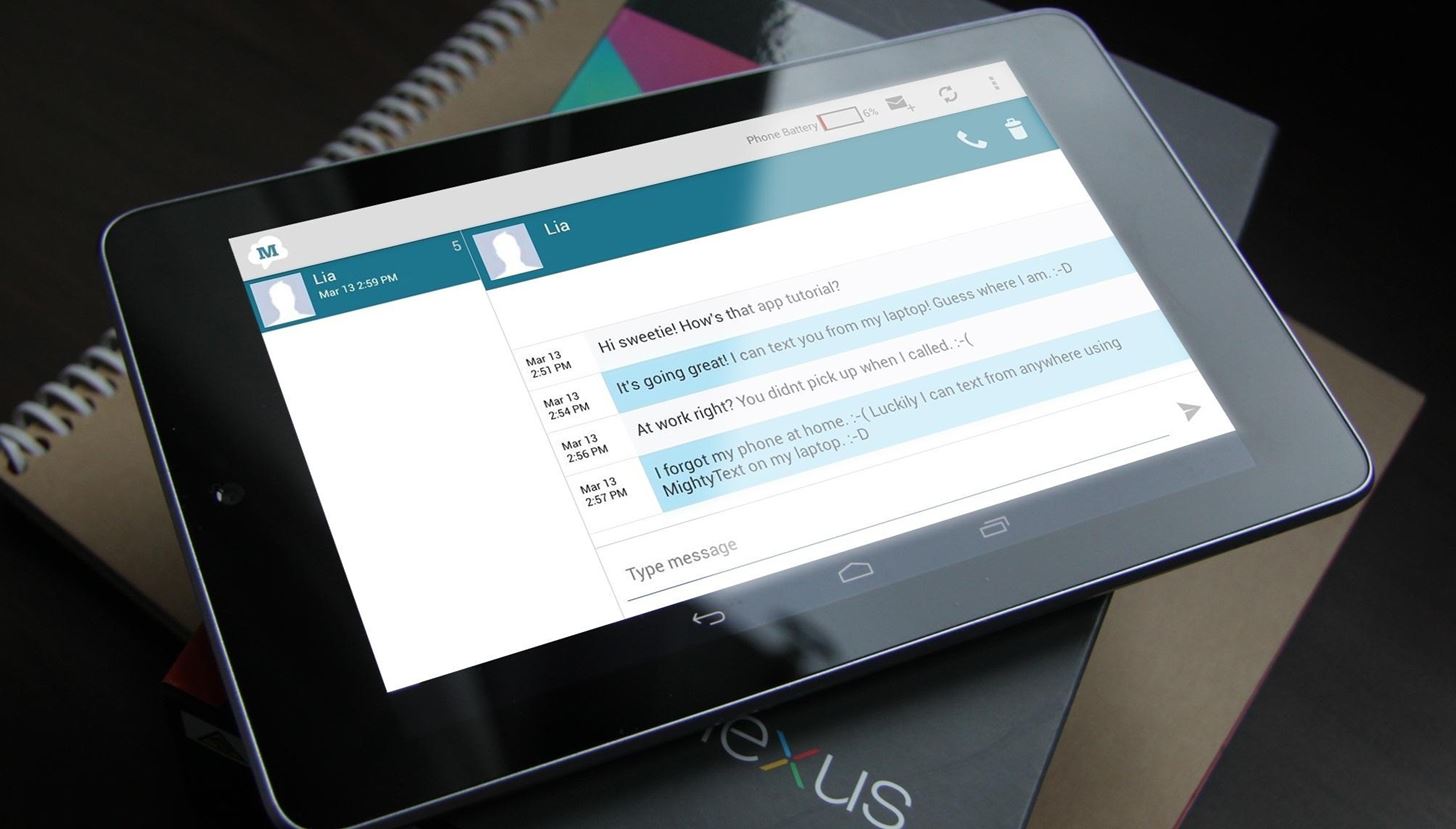
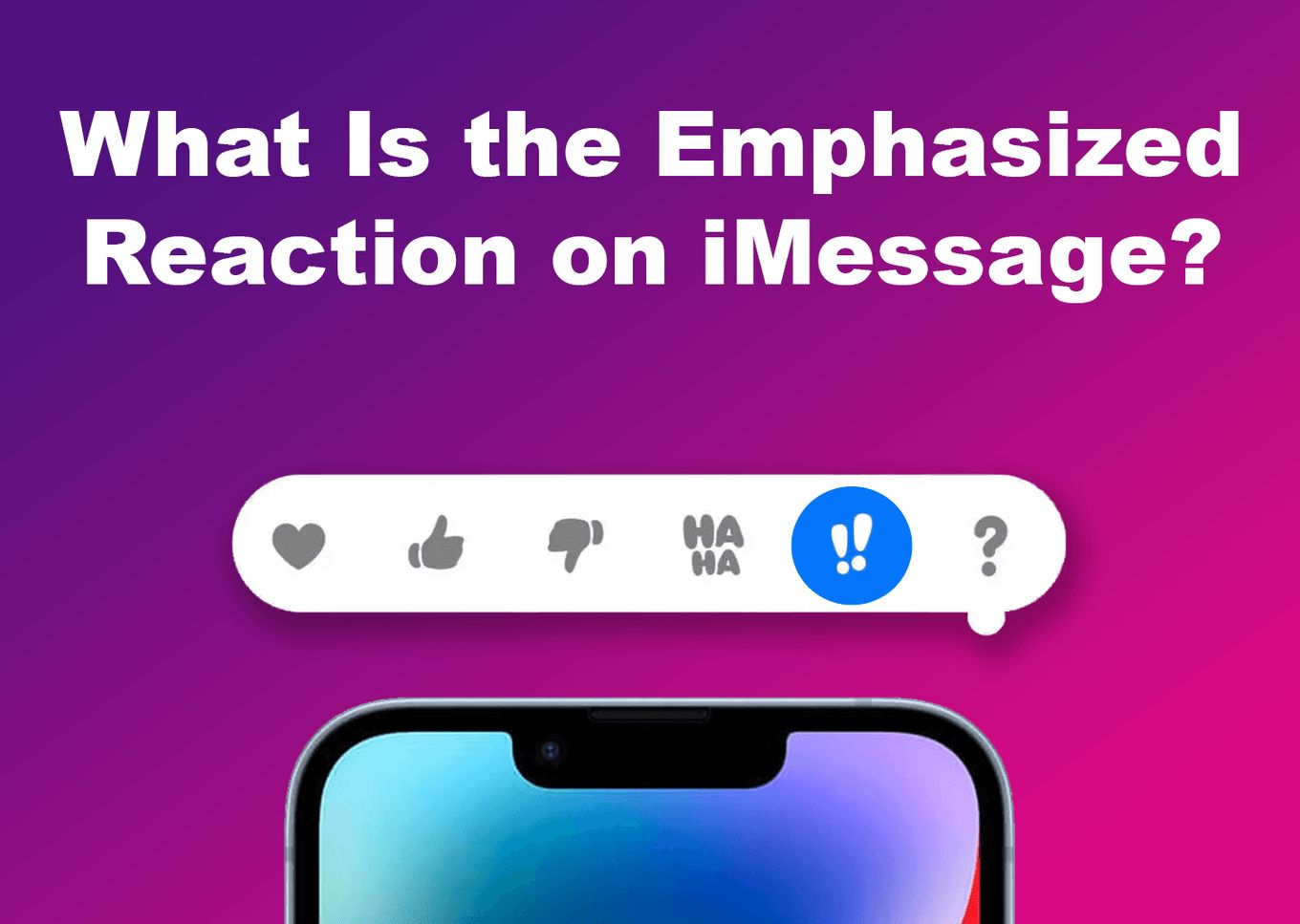
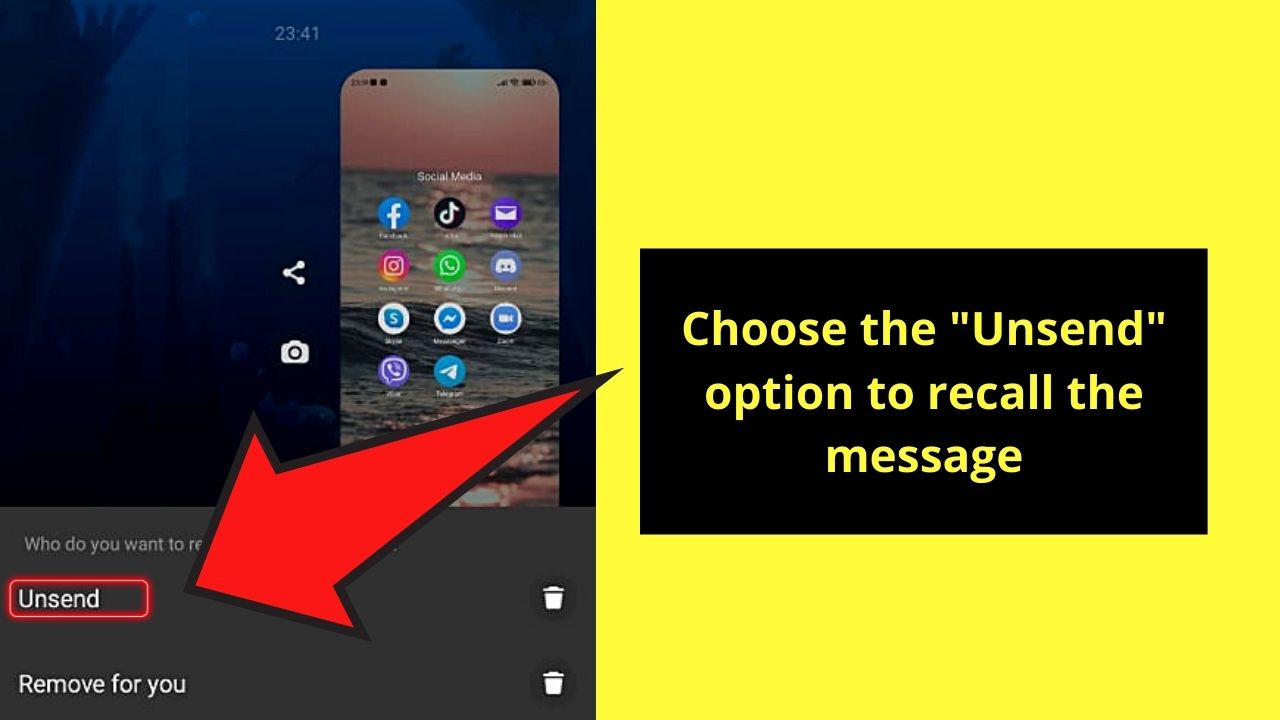
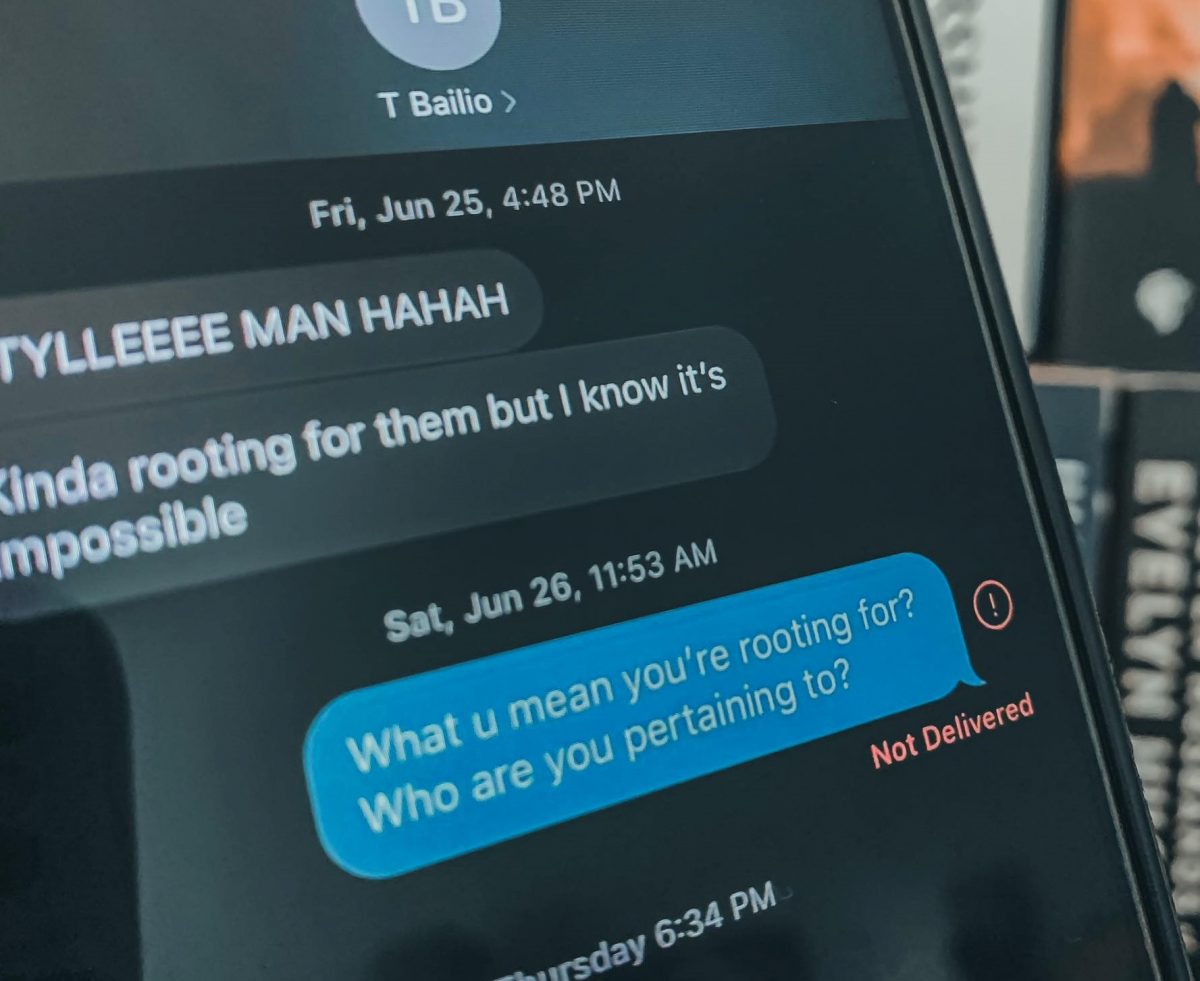
The pieces here fall into two broad themes. The first is message delivery and recovery: you will find help on how to tell if someone has blocked your texts on Android, how to recall a message on Android, and how to forward a text on a Samsung Galaxy. These are straightforward fixes for everyday annoyances. The second theme is visual messaging and read receipts on iMessage, including how to unsend a photo, how to send a disappearing photo, and what the two exclamation points mean when a message fails to send. A third, smaller thread covers device flexibility: one article explains how to send texts from an Android tablet when your phone is not nearby.
Importantly, the iMessage articles approach unsending and disappearing photos as legitimate privacy and cleanup features, not as tricks to hide activity. They explain the built-in, supported ways to retract a message or limit how long a photo stays visible, which is useful for anyone who values discretion or simply made a mistake. Nothing here involves bypassing security, hacking, or cheating; it is all about using the tools your phone already offers, safely and legally.