This tag collects practical, everyday guides for getting more done with the software and devices you already use. It is written for regular computer and smartphone users, students, office workers, and home organizers, who want to stop fumbling through menus and start working faster. The articles focus on common tasks in email, calendars, spreadsheets, and web browsing, with an emphasis on clear, repeatable steps rather than abstract tips.
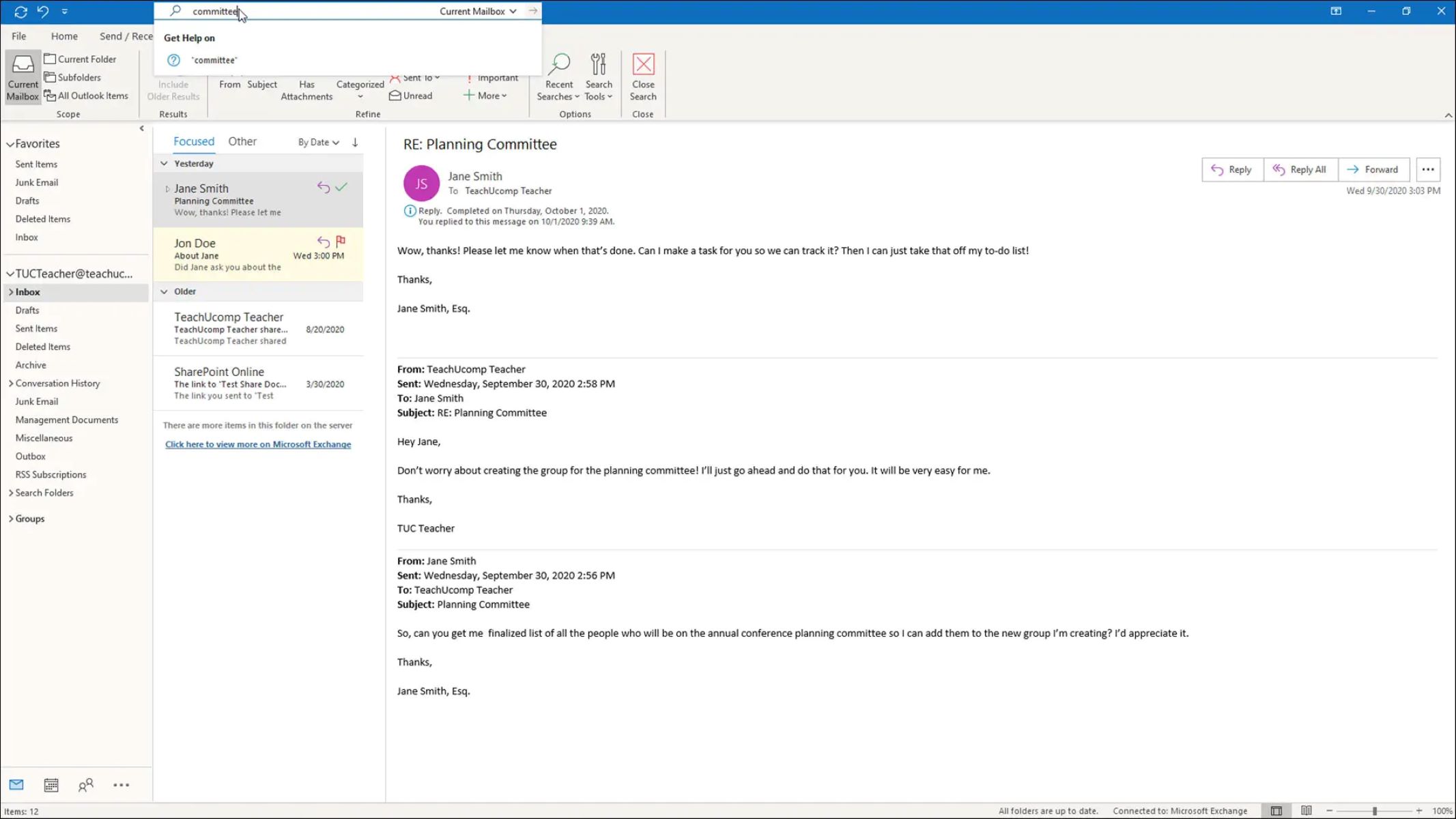
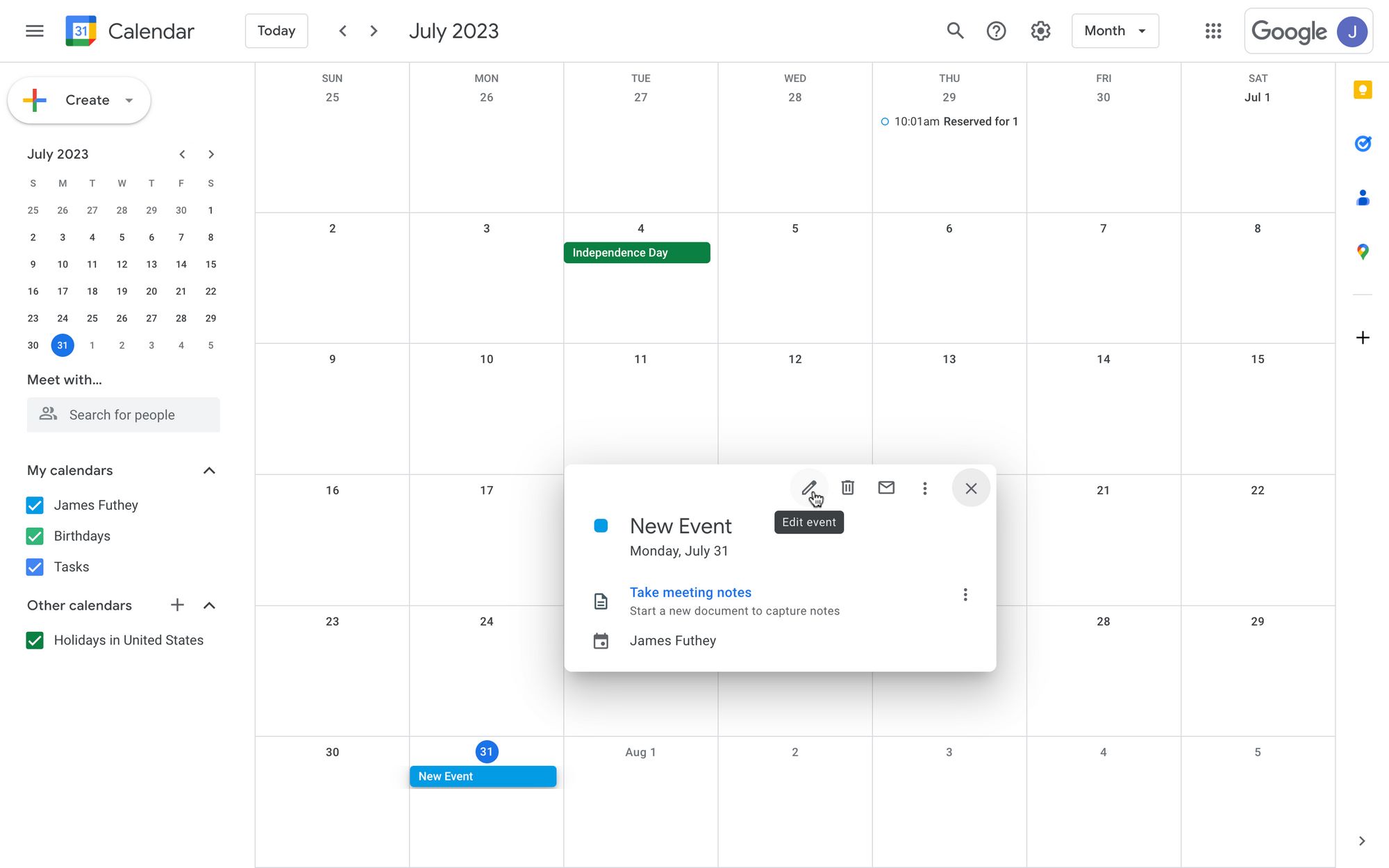
The first group of articles centers on keyboard mastery and document editing. You will find straightforward answers to questions like how to undo an action using only the keyboard, what the Home button on a keyboard actually does, and how to highlight text without touching the mouse. A second theme is calendar management, specifically Google Calendar. These pieces help you add a class schedule, forward an invite to someone else, link Google Sheets to your calendar, or change a recurring meeting into a single instance, all without losing track of your day. A third theme is email and communication hygiene. Here, the tag covers how to clean up a cluttered inbox, create a reusable email template in Outlook, search for a specific message, and understand what it means when you flag an email. It also shows how to email a page straight from Google Chrome, turning a quick research session into a shareable note.
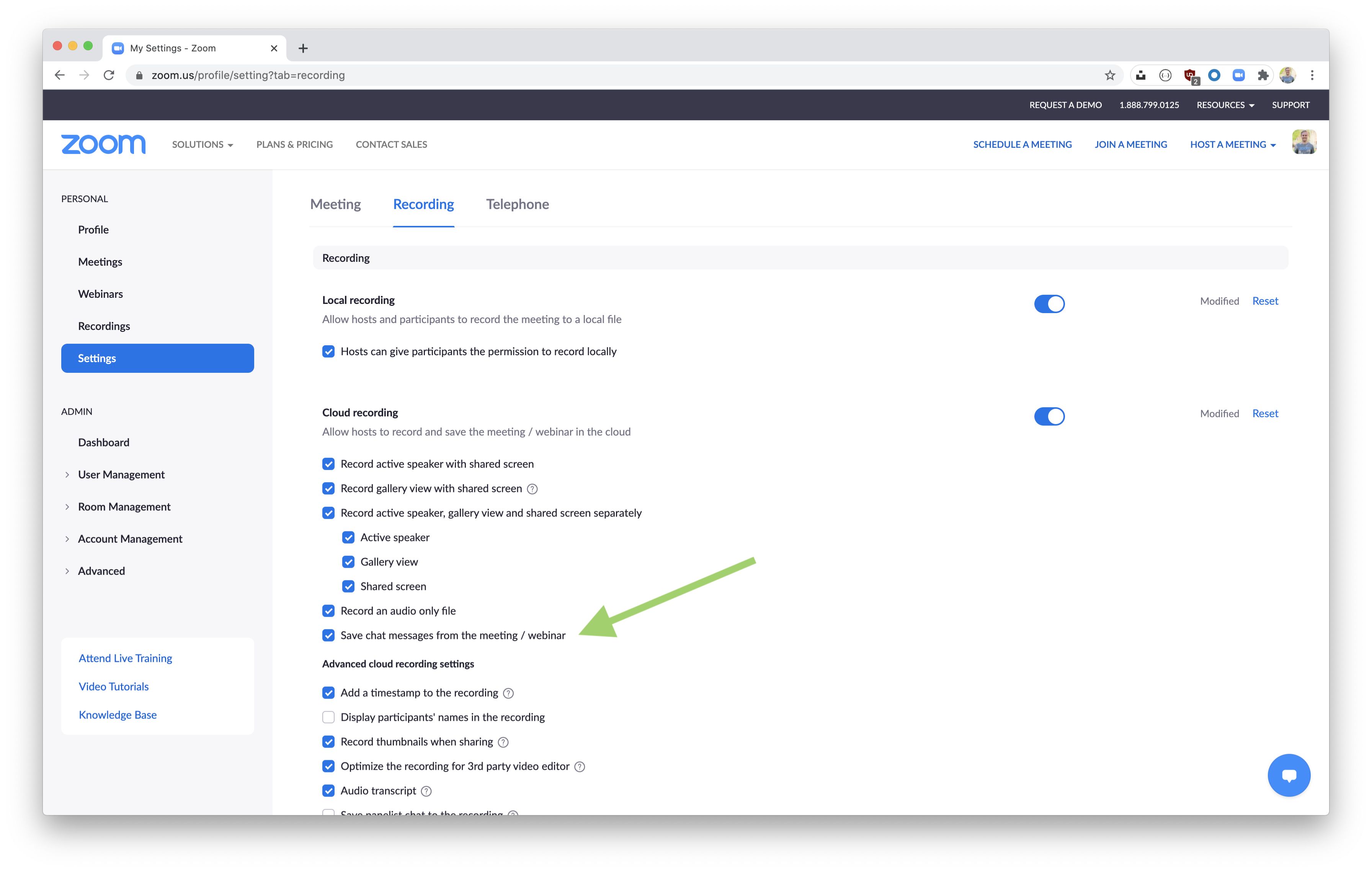
Several articles also address safety and security angles without venturing into risky territory. For example, the guide on checking Zoom meeting history helps you review who may have joined a call, which is useful for verifying attendance or spotting unexpected participants. Similarly, the piece on canceling one instance of a recurring meeting explains how to remove a single session without affecting the whole series, a safe, controlled way to manage your calendar. These are not about bypassing controls or exploiting systems; they are about using built-in features correctly to keep your data and schedule organized.