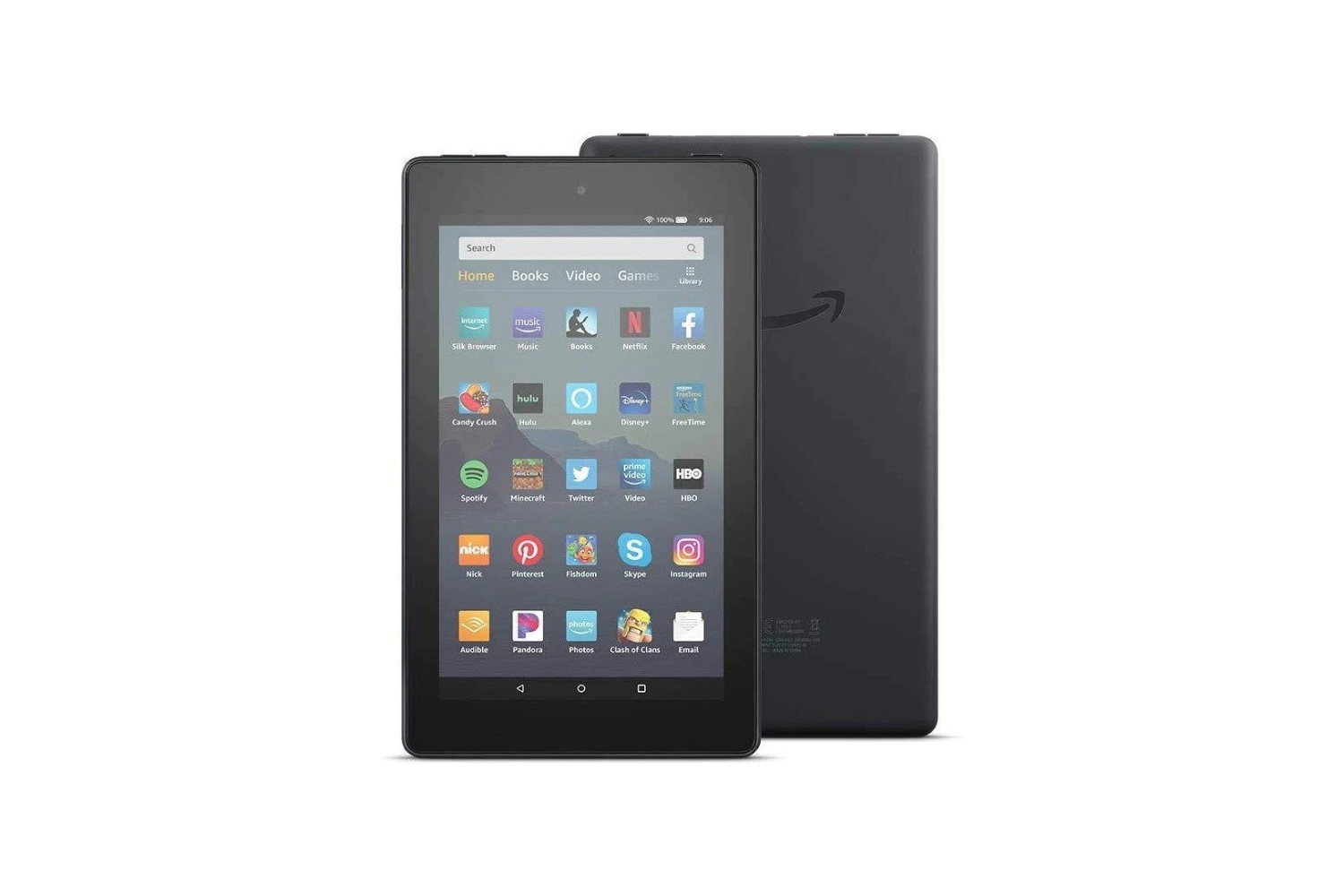
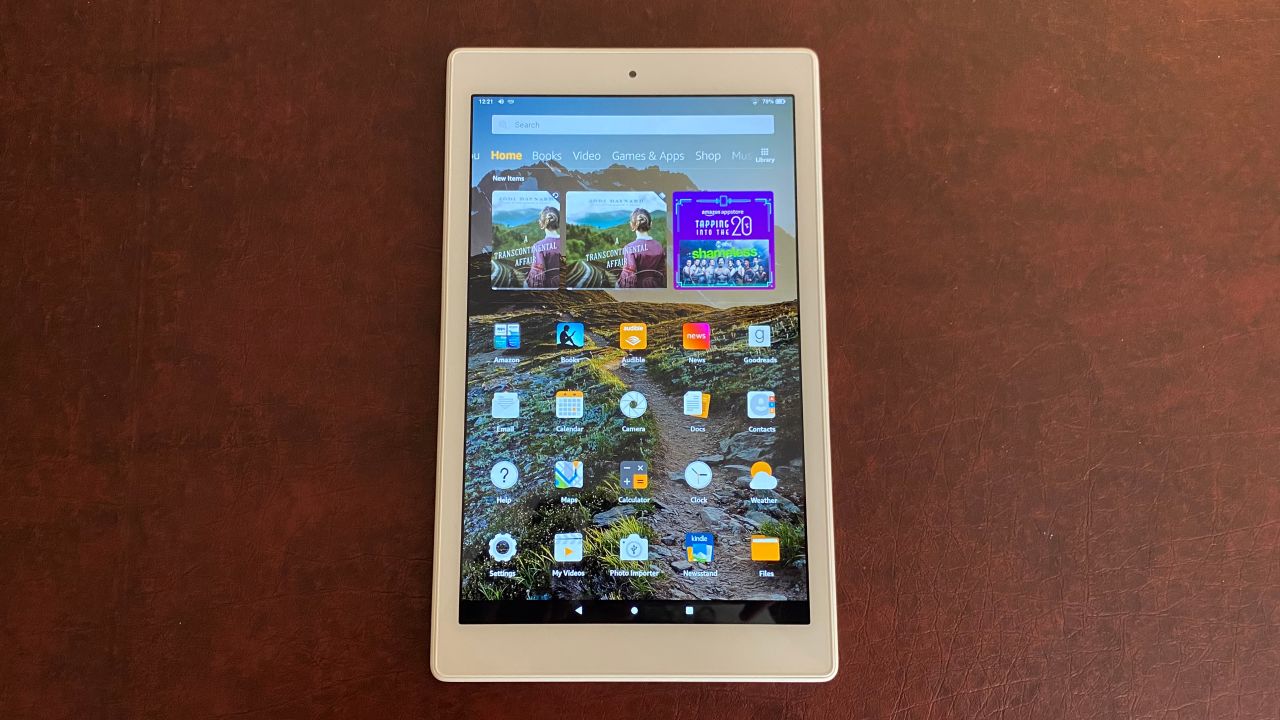
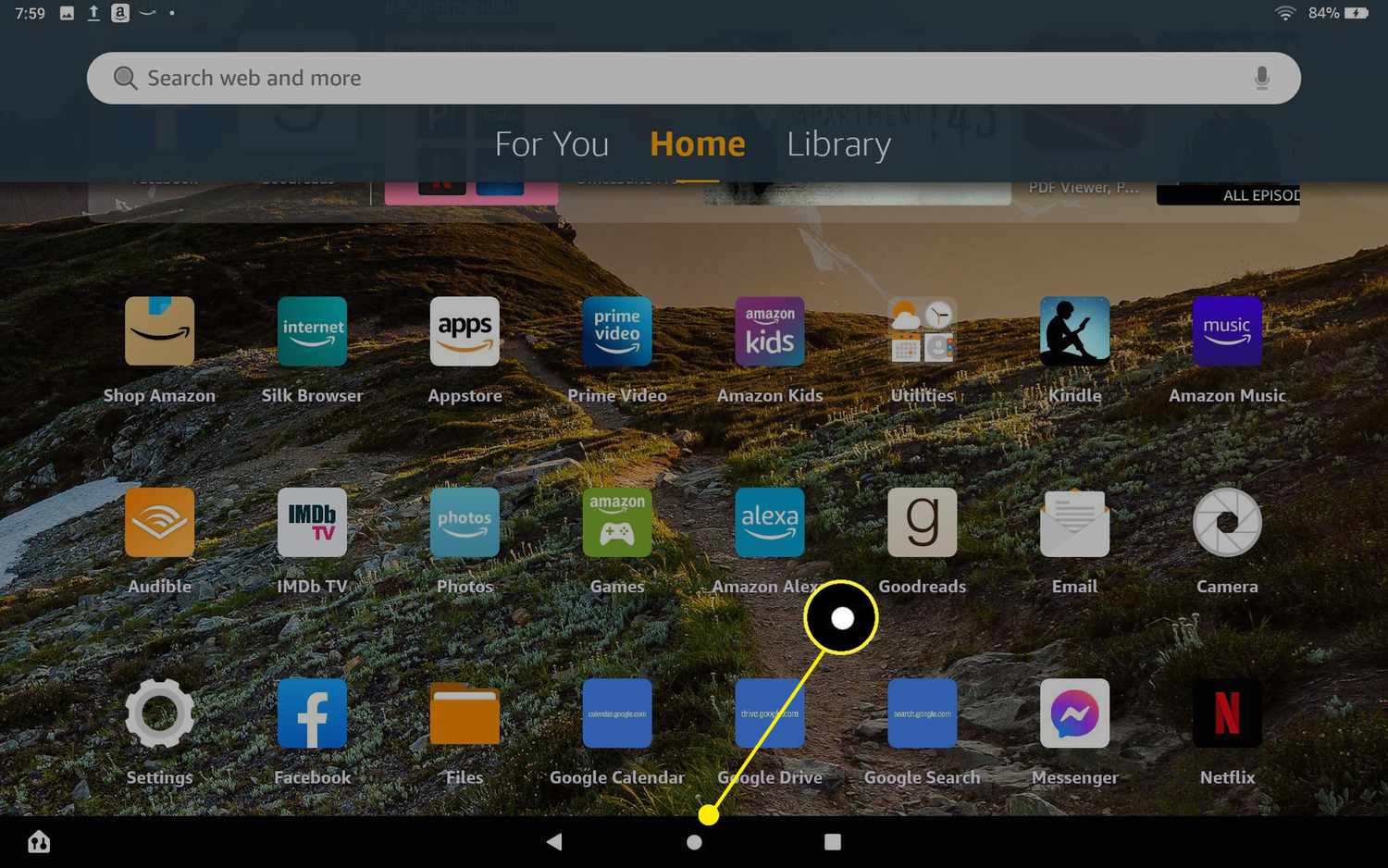
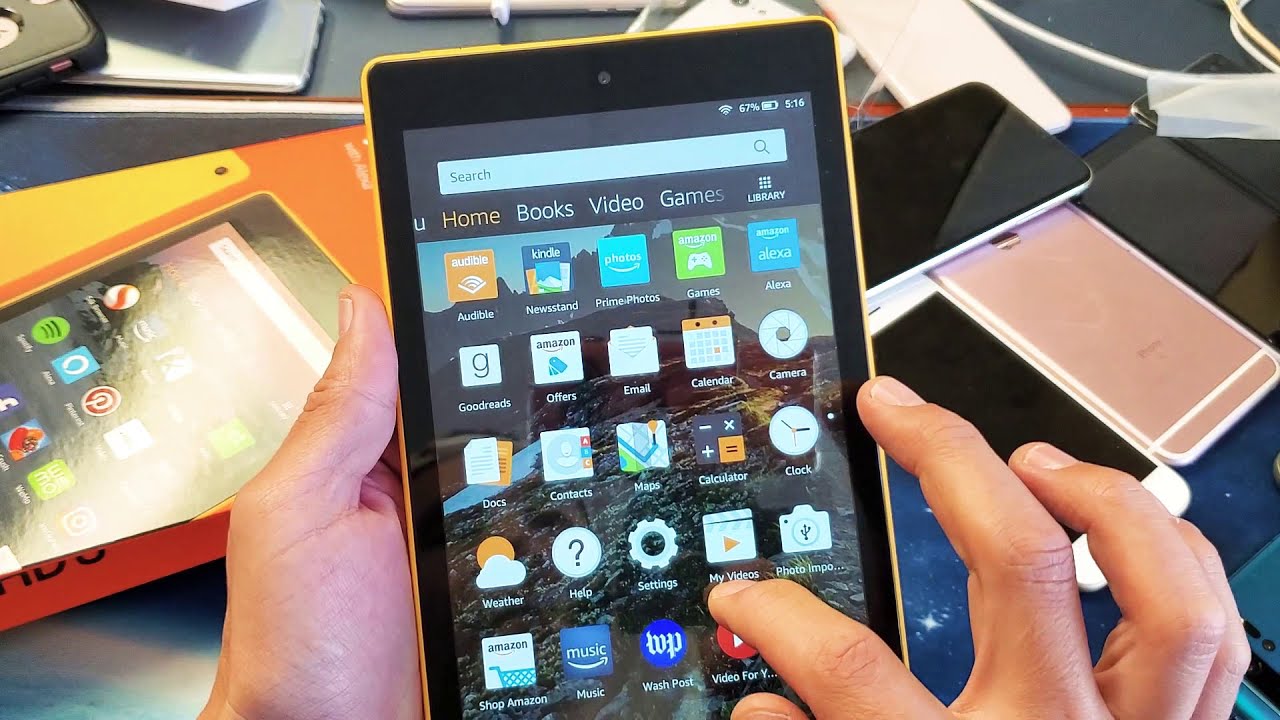
The Fire Tablet tag collects 35 practical, step-by-step guides written for everyday owners of Amazon’s budget-friendly tablets. Whether you just unboxed your first Fire and need help with the basics, or you’ve had one for a while and want to tweak how it works, these articles speak directly to the questions that come up during normal use. The content is aimed at non-technical readers who want clear, safe instructions for setup, maintenance, and everyday troubleshooting.

The articles group naturally around a few recurring themes. One major cluster covers setup, account, and connectivity tasks, registering the device, pairing AirPods or headphones, managing Wi-Fi dropouts, and removing an SD card. Another theme is personalization and control: changing the lock screen, customising the home screen, pinning apps, and managing storage and files. A third theme focuses on safety, security, and legitimate alternatives, for example, articles that explain how to disable ads, turn off Amazon apps, or approve downloads are written to help you manage the device responsibly, not to bypass protections. Similarly, pieces on jailbreaking or sideloading Google Play are framed strictly as discussions of legal alternatives and supported workarounds, never as instructions for piracy or cheating.

Specific topics you’ll find here include how to set a timer, how to use Alexa, how to mirror your Fire Tablet to a Fire Stick, and how to get Roblox running or updated. There are also answers to simple but confusing questions, like what the circle with a line through it means, or what the task switcher does. Whether you’re trying to approve downloads for a child’s profile or figure out why the tablet keeps dropping Wi-Fi, this tag gives you plain-language help for the problems that actually come up.
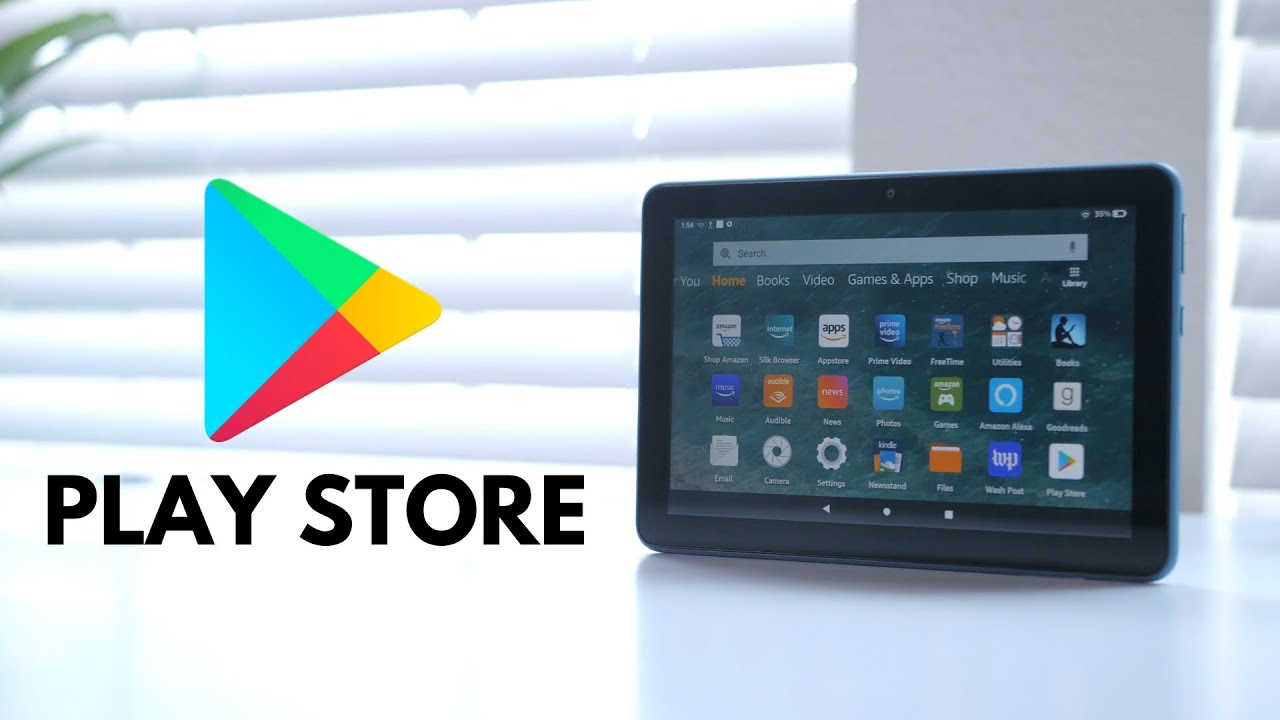
How To Jailbreak A Fire Tablet

How To Jailbreak A Fire Tablet To jailbreak a Fire Tablet today means installing the Google Play Store and standard Android apps on your Amazon device, and the safest way...

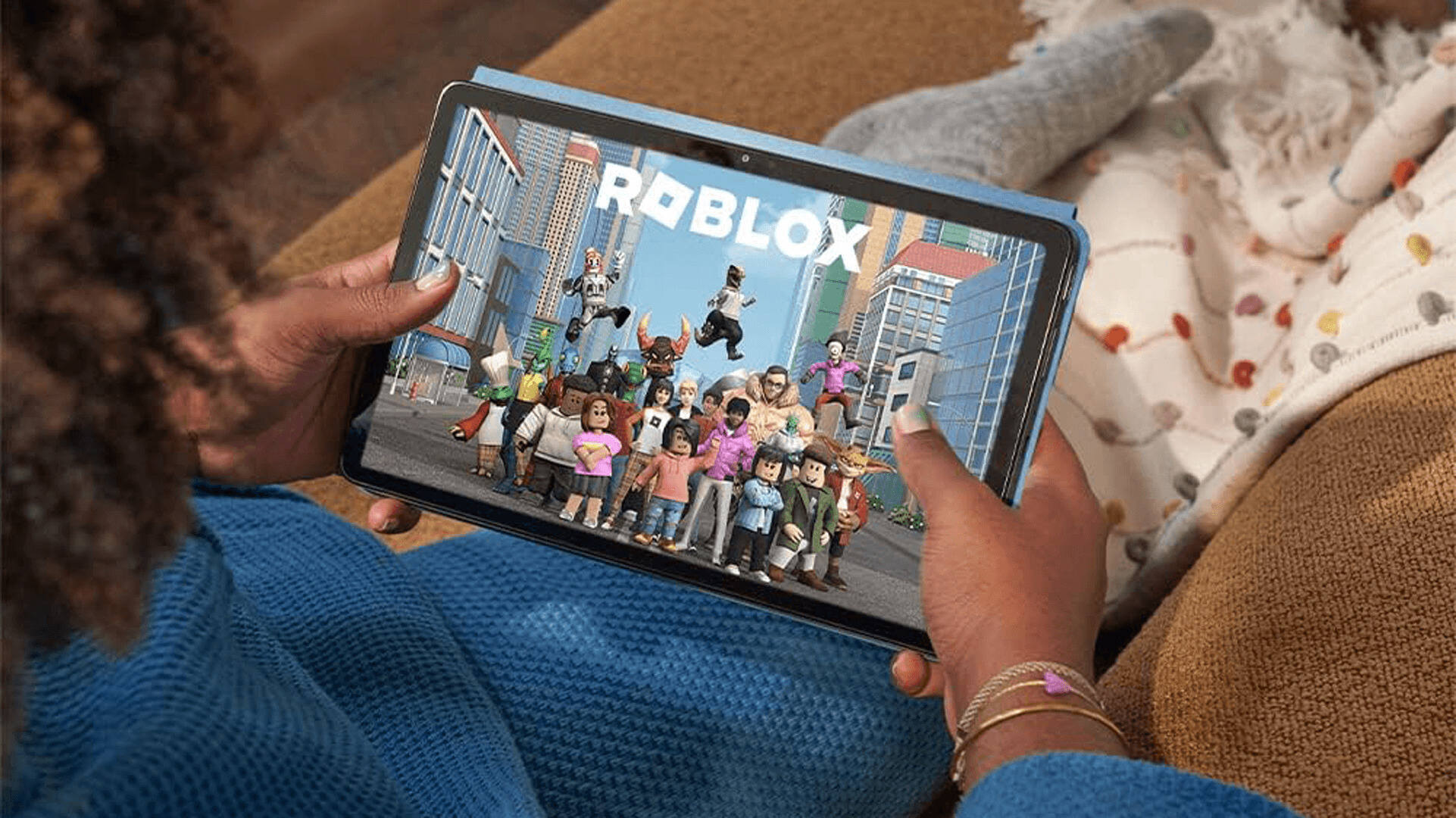
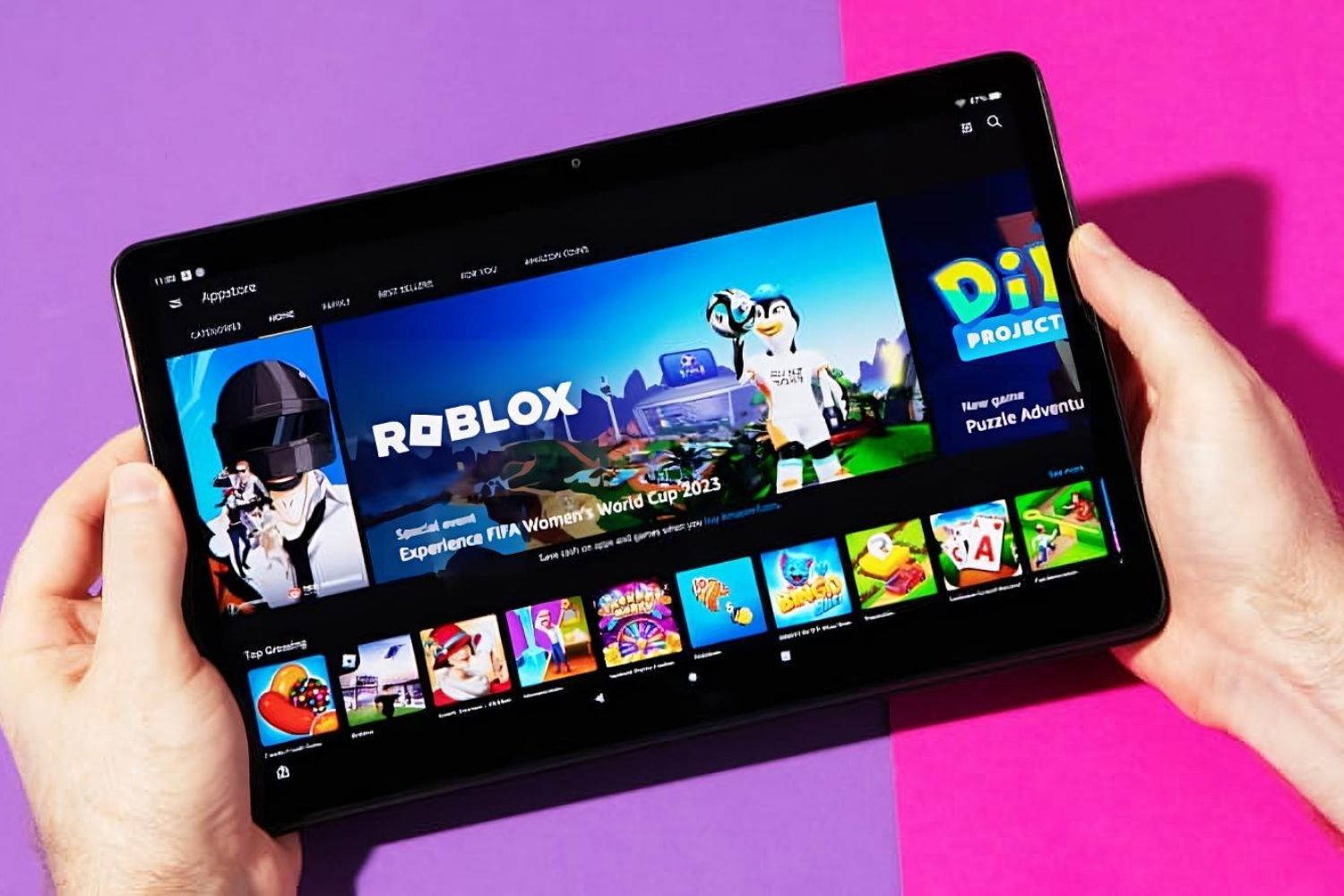
How To Upgrade Roblox On Fire Tablet

To upgrade Roblox on Fire Tablet, update the app through the Amazon Appstore. This is the official, verified method to get the latest features and security fixes for your device....

How To Approve Downloads On Fire Tablet

To approve downloads on a Fire Tablet, you use the Amazon Parent Dashboard to review and grant permission for apps and content your child requests. This system lets you manage...

What Is The Task Switcher On Fire Tablet

The Fire Tablet task switcher is a built-in feature that lets you view and manage all your recently opened applications in one place. It is your central hub for jumping...

How To Disable Amazon Apps On Fire Tablet

To disable Amazon apps on a Fire tablet, you must hide them from your home screen or block them with Parental Controls, because the pre-installed apps are embedded in Fire...

How To Disable Ads On Fire Tablet

To permanently disable ads on Fire Tablet, you must pay a one-time fee through your Amazon account, this is the only official method to remove the lock-screen "Special Offers." The...

How To Download Roblox On Fire Tablet

To download Roblox on Fire Tablet, you need to sideload the Android APK file because the game isn’t listed in the Amazon Appstore. This means you’ll enable a security setting,...

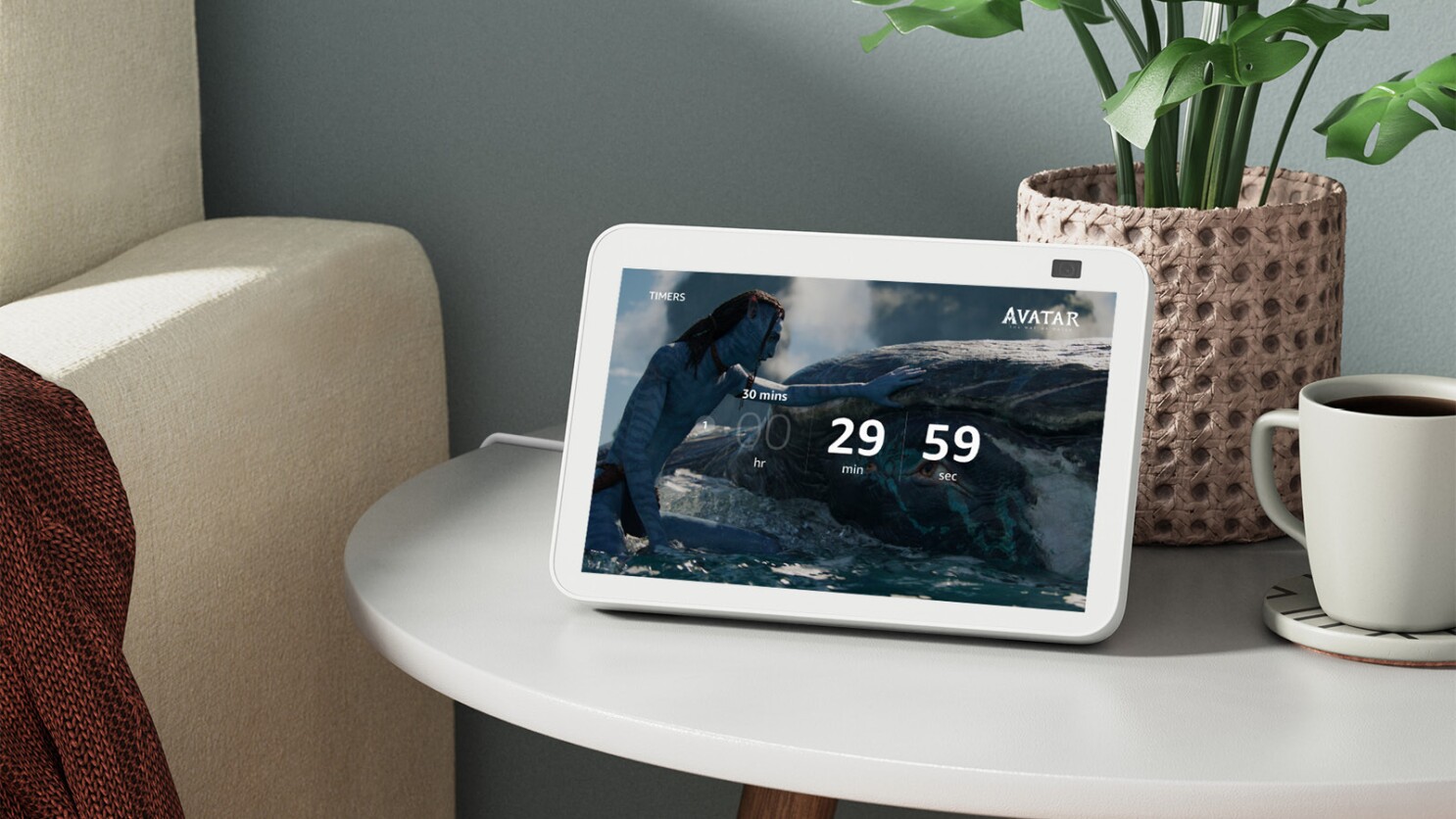
How To Set Timer On Fire Tablet

To set a timer on your Fire Tablet, you need to clarify what you mean by "timer," as the device handles it in three distinct ways: a stopwatch for counting...

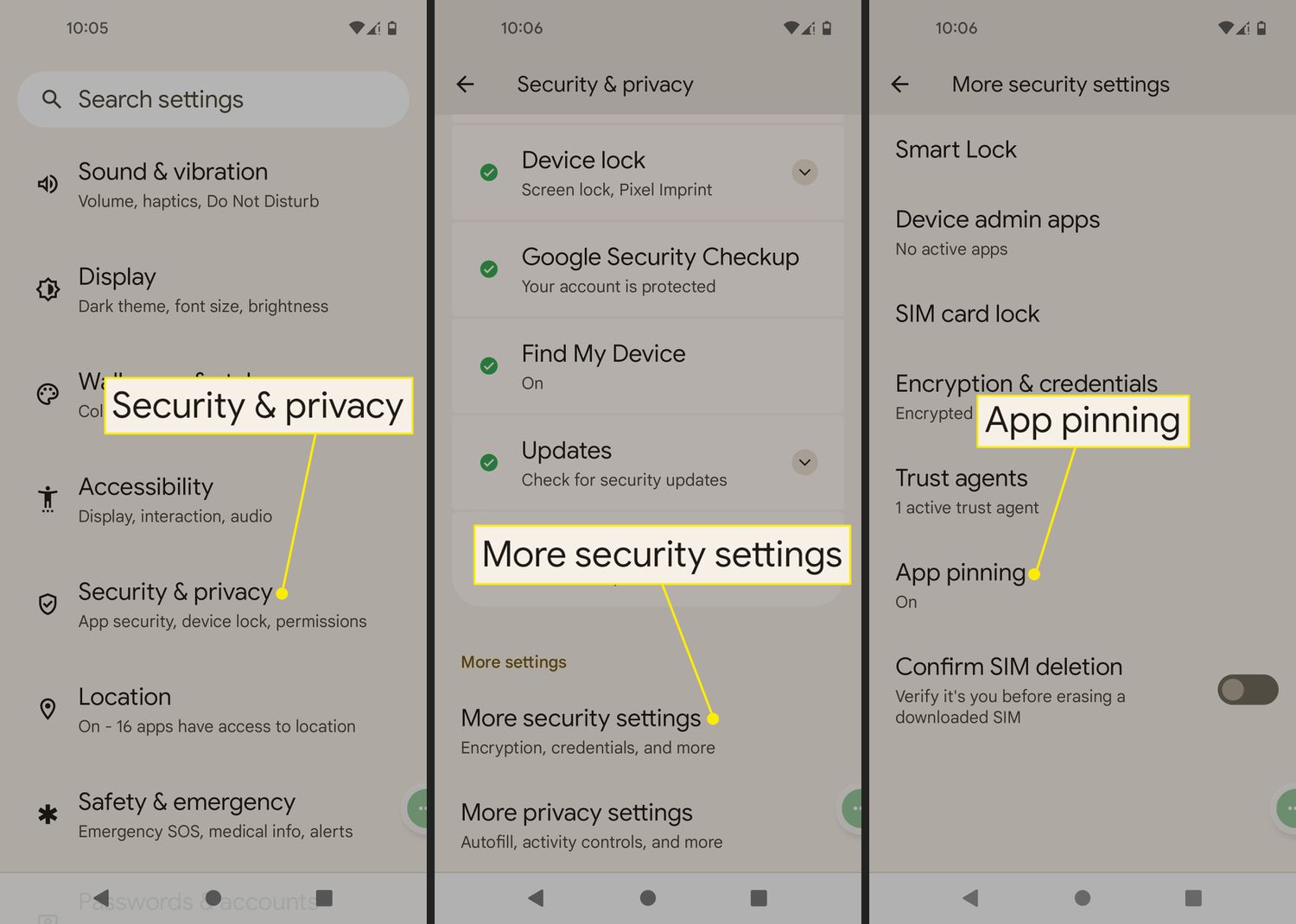
How To PIN An App On Fire Tablet

What pinning an app on a Fire tablet really means Pinning an app on a Fire tablet locks the screen to a single running app so no one can exit...

How To Add Music To Fire Tablet

To add music to a Fire Tablet, you can transfer your own MP3, FLAC, or AAC files from a computer over USB, download purchases from Amazon Music, or install a...