This tag collects all articles on robots.net that deal with the macOS file management utility known as the Finder, along with related storage and backup tasks. It is written for everyday Mac users, people who want to organize their desktops, manage external drives, or move files between devices without diving into terminal commands or third-party software. If you have ever wondered where your downloads went or how to safely copy a large folder to a portable disk, these guides are aimed at you.
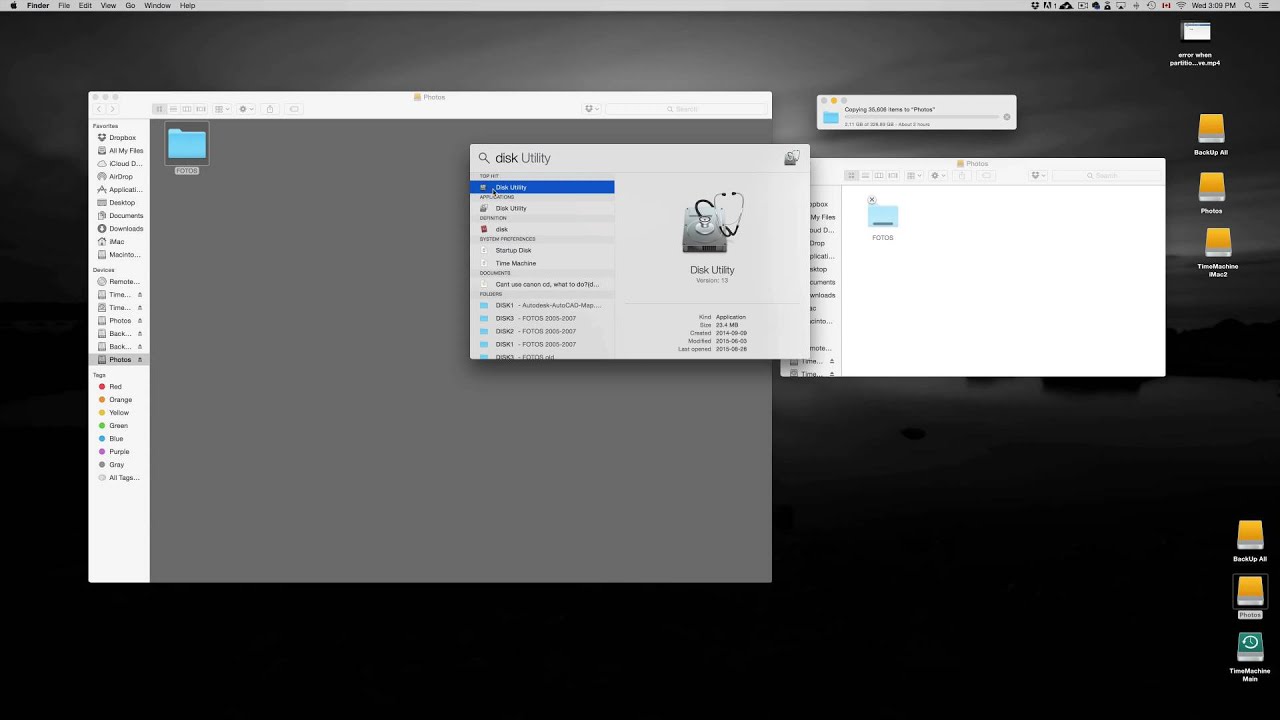
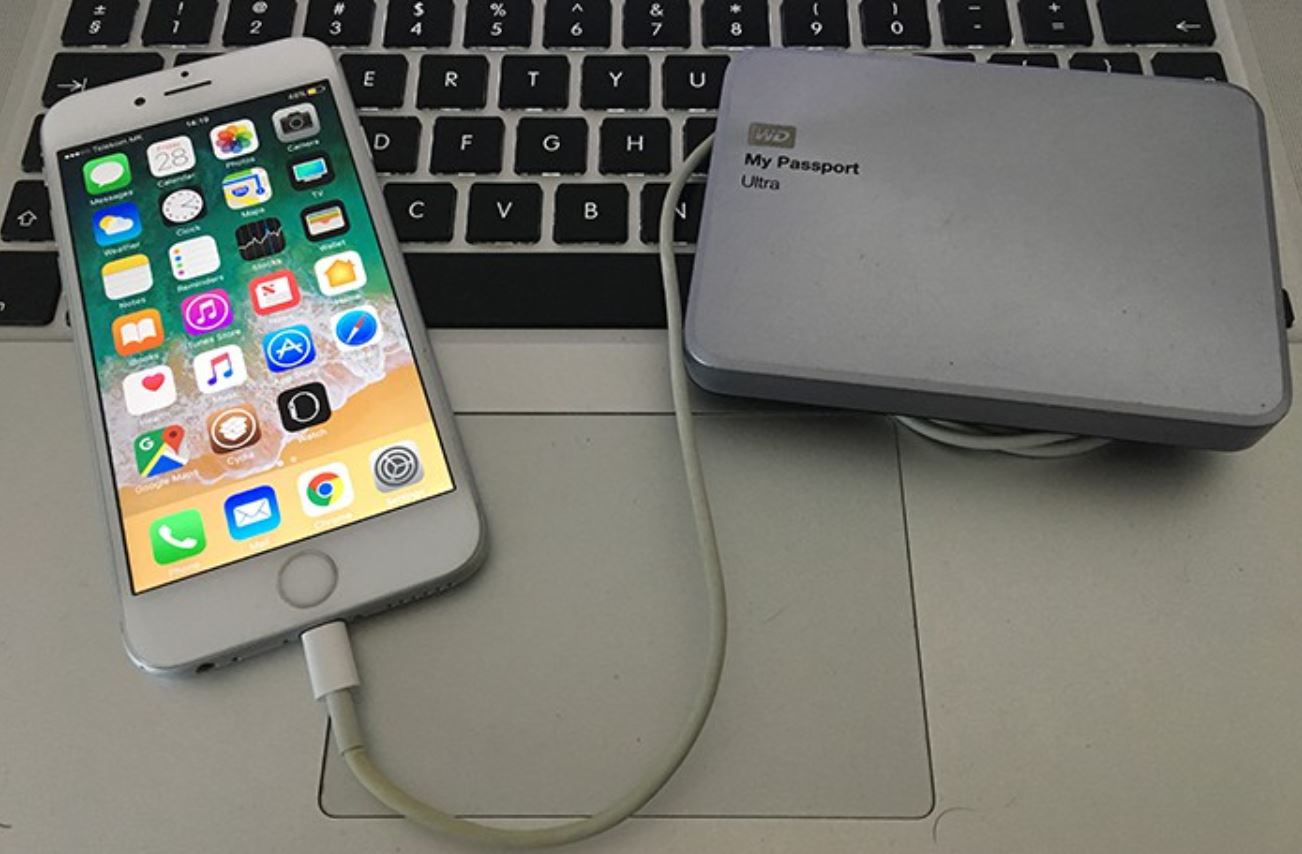
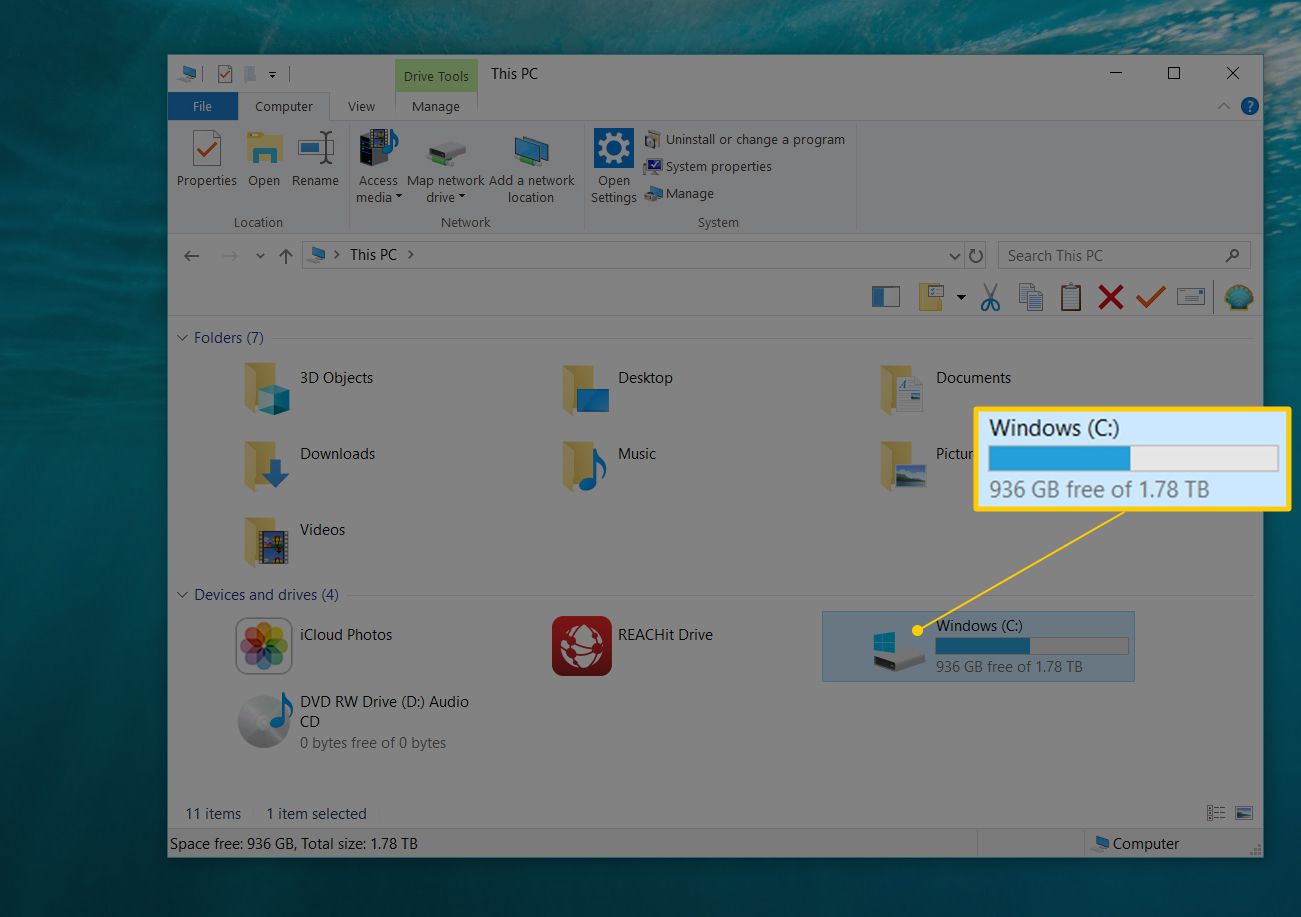
The articles here break down into three practical themes. The first is interface customization: one piece shows you how to add the Downloads folder to the Dock for one-click access, while another walks through the steps of getting iTunes onto an iPhone via the Finder’s sync features. The second theme is storage management and drive access, you will find clear instructions for checking free space on an external hard drive, as well as a guide specifically for locating files on a Seagate drive when it does not appear automatically. The third theme covers safe data transfer and backup, including how to copy one external drive to another on a Mac and how to back up your iPhone directly to an external drive, which is a smart alternative to iCloud for people with limited online storage.
All articles focus on legitimate, built-in methods and standard macOS features. They help you accomplish tasks like verifying a drive’s capacity, moving files between volumes, or creating a local backup, without encouraging any risky workarounds or unapproved software. Whether you are tidying your workflow or protecting your photos, these guides show the straightforward, supported way to get it done.