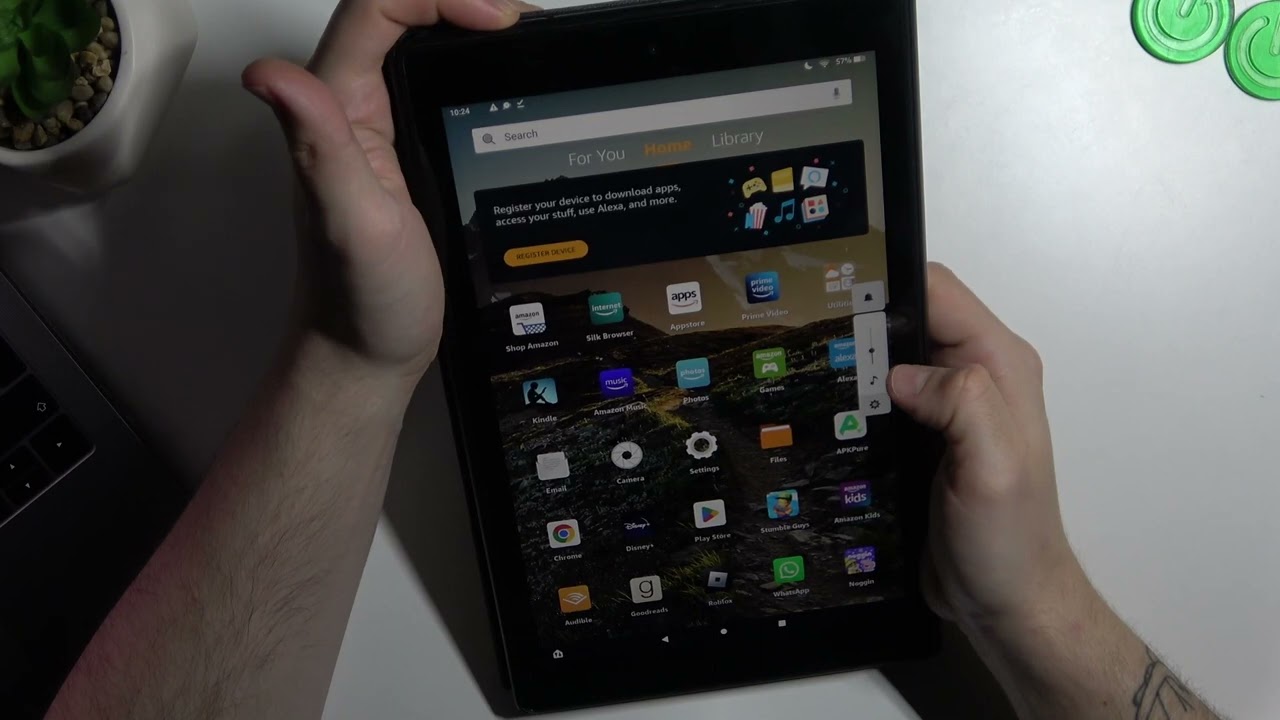
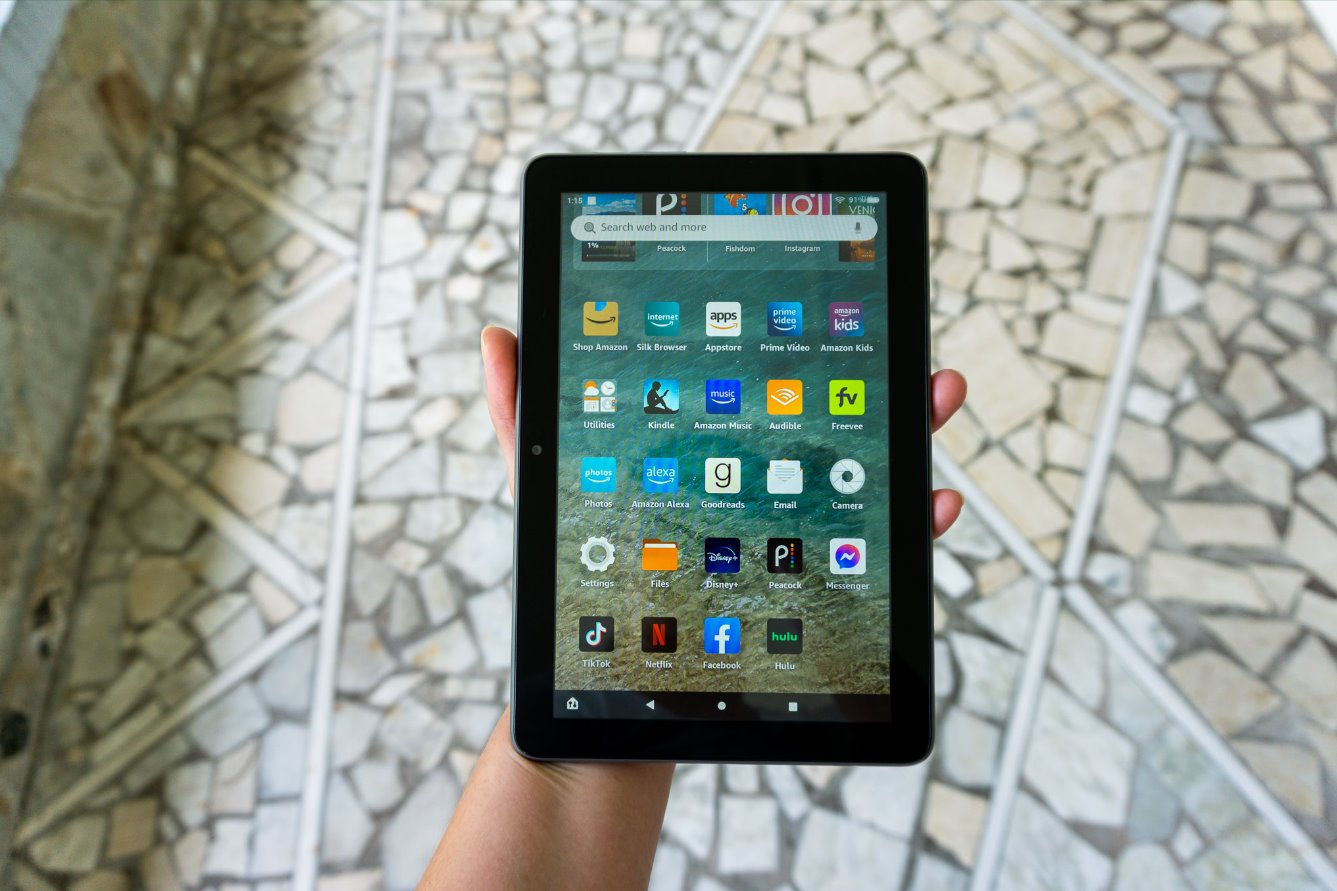
The Amazon Fire Tablet tag on robots.net gathers our guides for getting the most out of your Fire tablet, whether it is the standard model or the dedicated Kids Edition. This collection is written for everyday owners who want to solve a specific problem quickly, from downloading a new game to fixing a frozen screen. If you have a Fire tablet and a question, this is the first place to look for a clear, step-by-step answer.
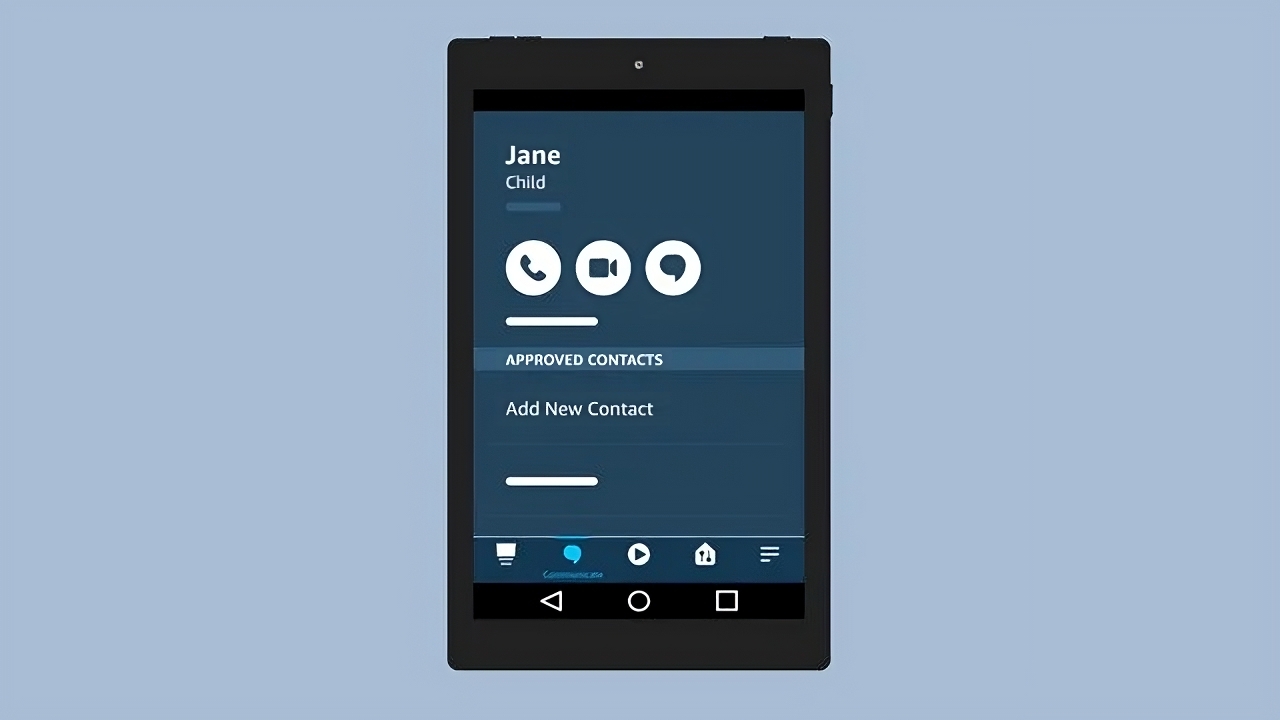
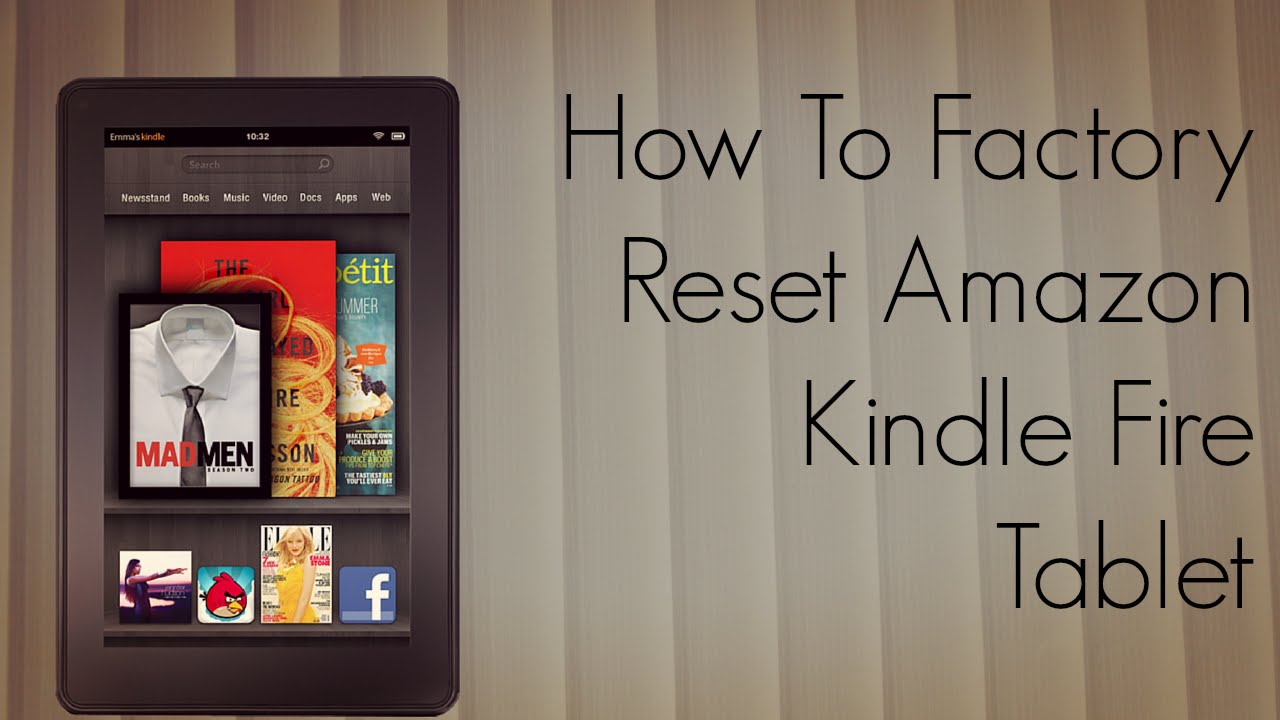
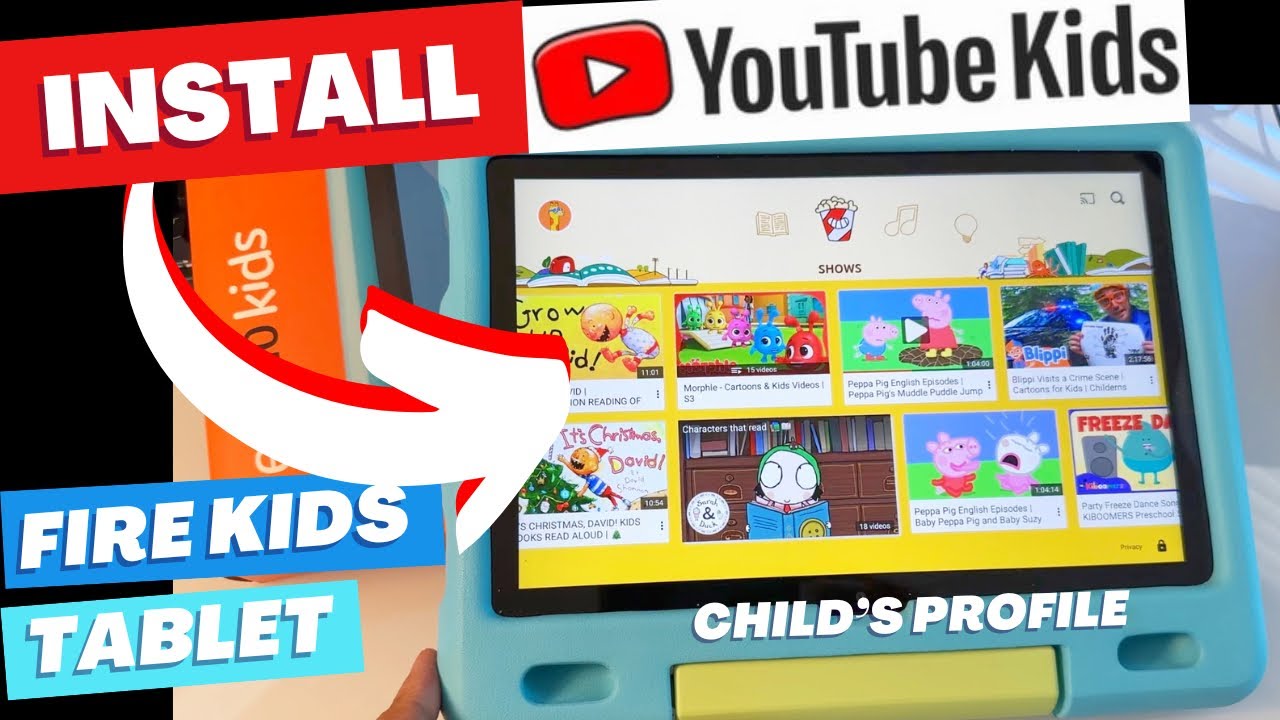
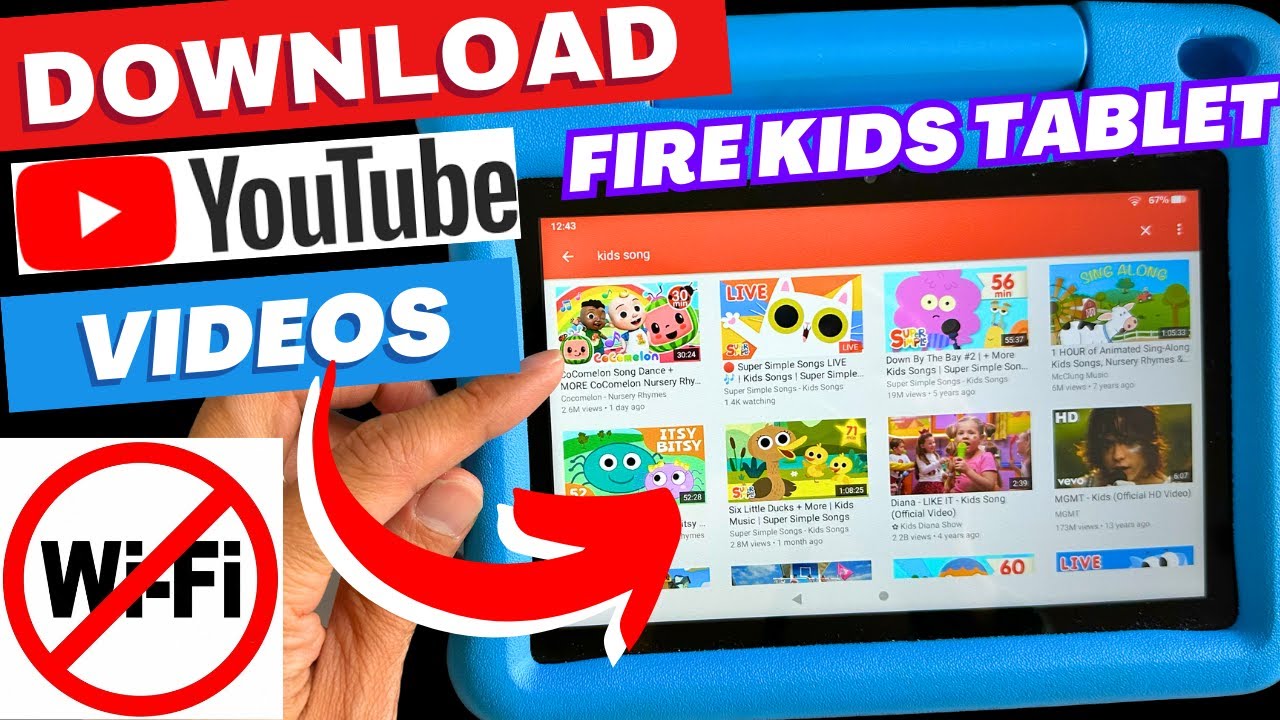
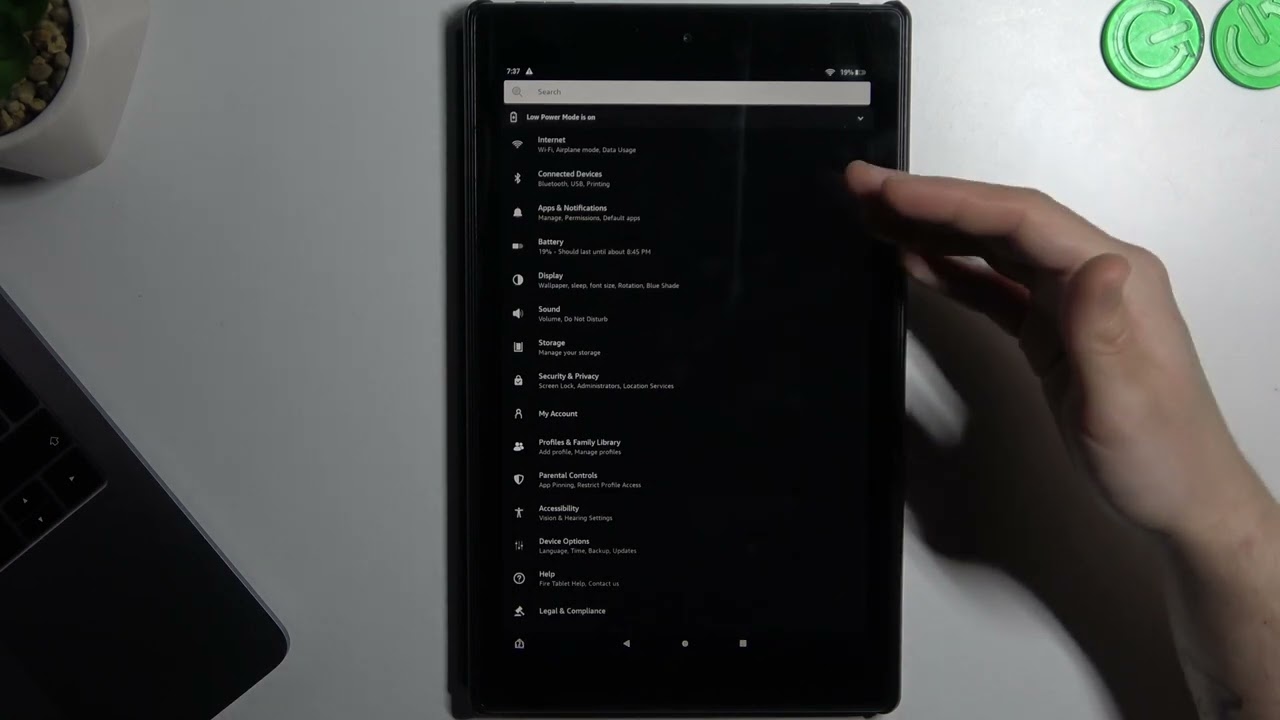
The articles here split into a few practical themes. Many focus on installing and managing content, such as getting apps like YouTube, Among Us, or Pokémon Go onto your device, or handling downloads for Netflix and movies. A second group covers parental controls and family settings, including how to exit Kid Mode, reset a forgotten parental controls password, or block specific apps. A third set is all about troubleshooting and maintenance, with guides on clearing storage, factory resetting the device, adding a microSD card, or even rooting the tablet for advanced users, though those pieces always explain the risks and alternatives, never frame it as a way to cheat or pirate. You will also find practical help for everyday tasks like making video calls, scanning a QR code, or locating a lost tablet.
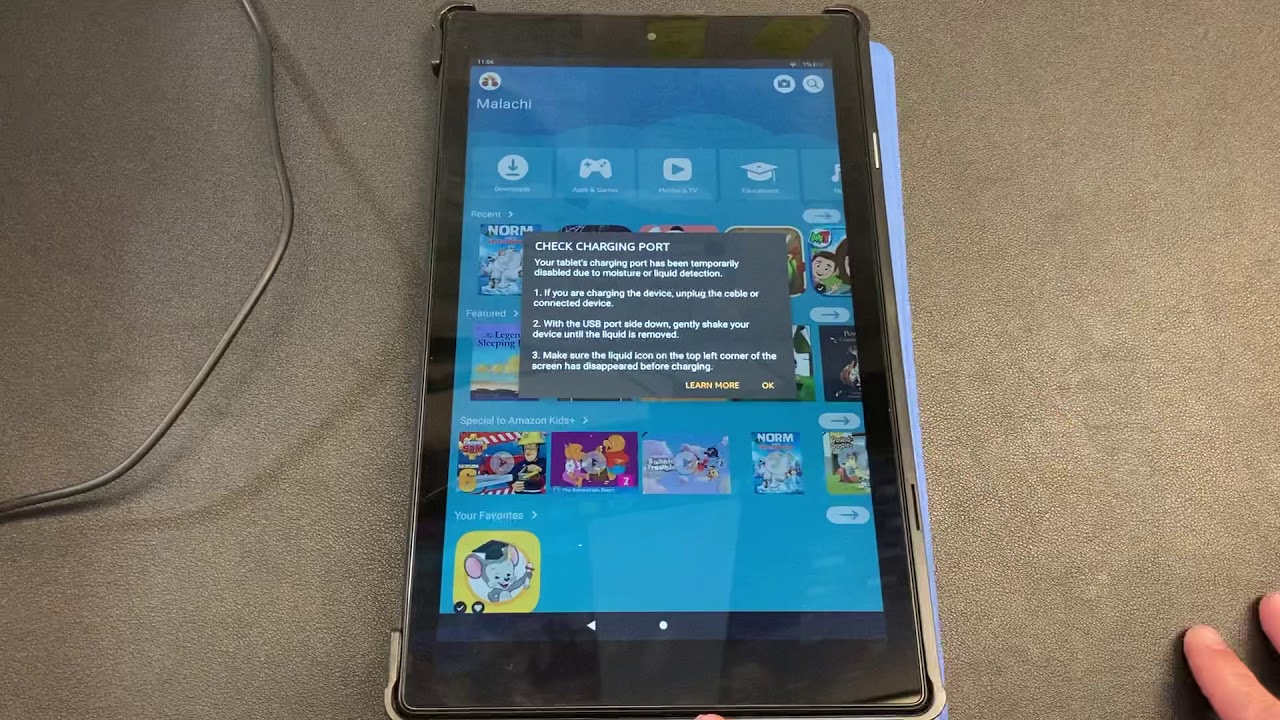
These articles are written to help you perform specific actions, not just read about them. For example, you can learn how to update your apps, refresh a content license, or disable the “moisture detected” warning. The focus is always on safe, legitimate solutions, including how to find deleted photos or remove a profile, so you can manage your device with confidence and keep it running smoothly for the whole family.