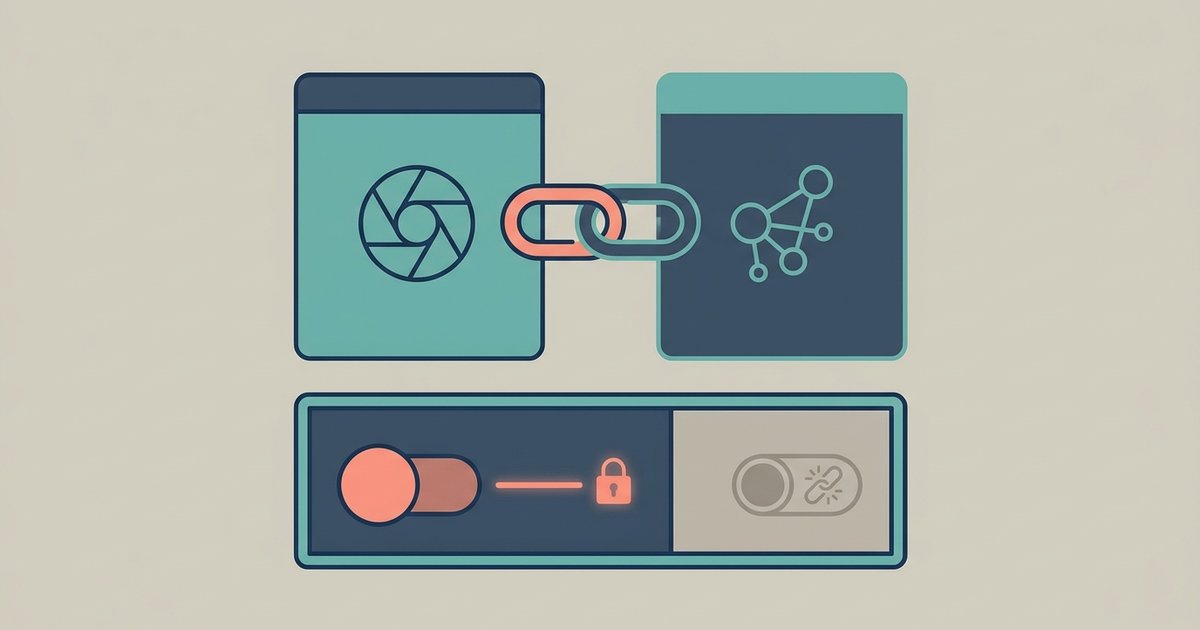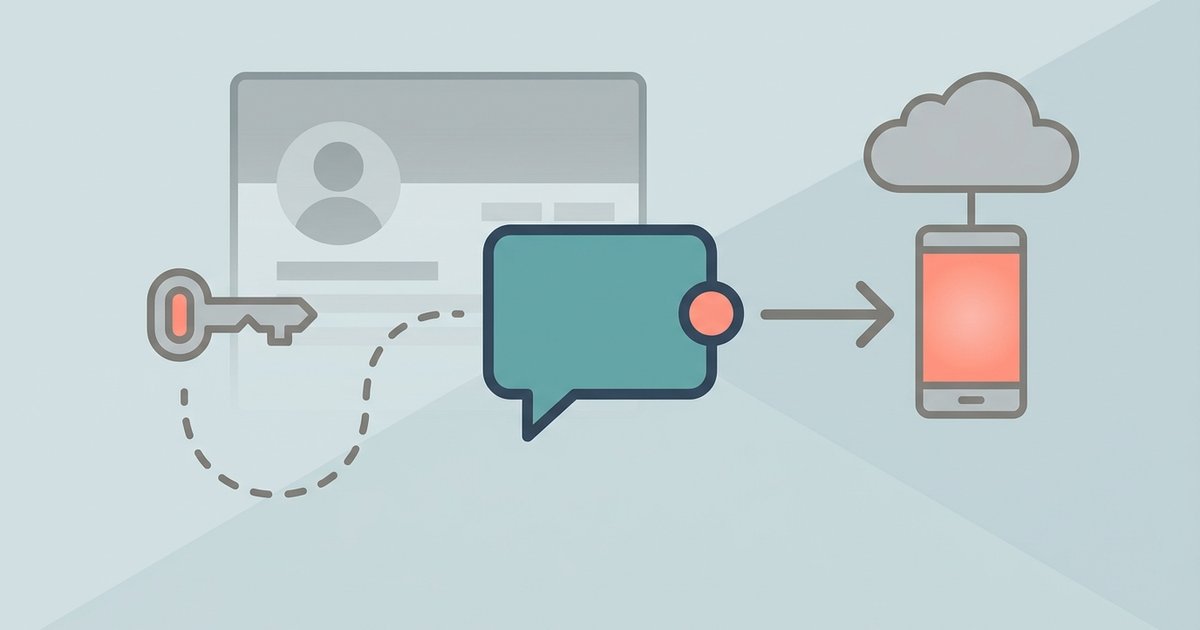
You can use Messenger without an active Facebook profile, but you cannot use it without ever creating a Facebook account. Meta's supported route is to create a Facebook account, deactivate the Facebook profile, and keep signing in to Messenger with the same login. That arrangement has a name in Meta's help center: a Deactivated Except Messenger Account, shortened to DEMA.
What happened to Messenger-only accounts
For years there was a second option. You could sign up for Messenger with a phone number and a name, with no Facebook account attached, and it worked as a plain messaging app. Meta has retired that option. Its help center now states that if you previously used a Messenger-only account, you need to update it to a DEMA to keep using Messenger.
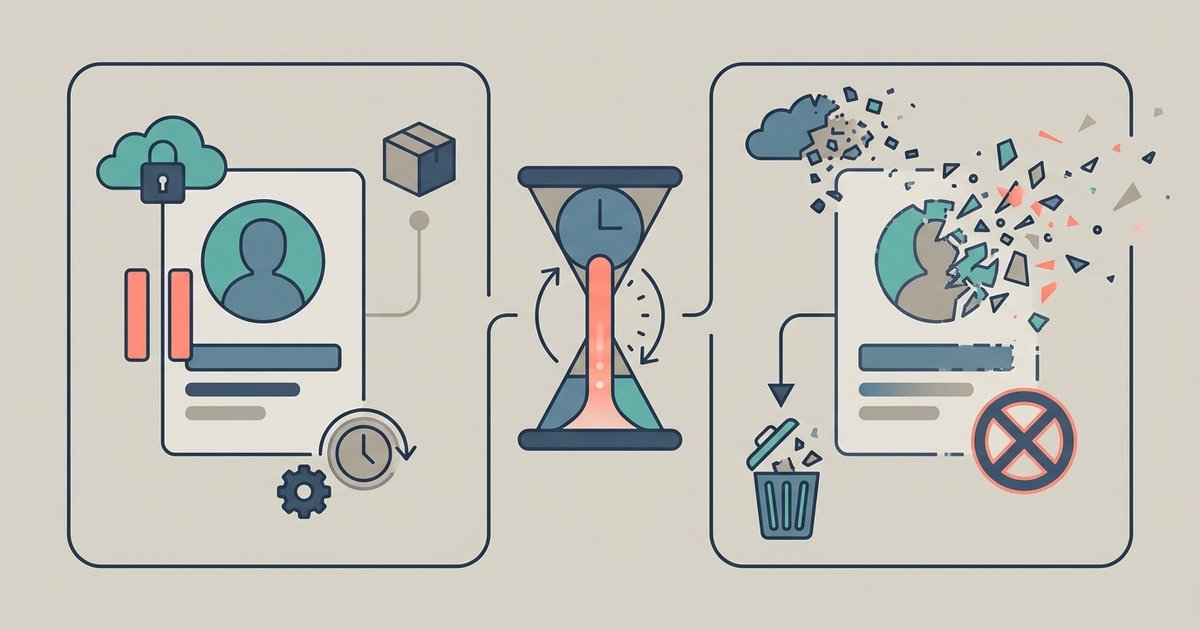
Meta gives those accounts a window rather than cutting them off instantly. According to the help center, an account that is not updated loses access to Messenger after 90 days, with a further 60 days in which you can still update it or download your information before the account is deleted permanently. If you are staring at a prompt asking you to update your account, that is what it is.
What a DEMA actually gives you
A DEMA is a normal Facebook account with the Facebook side switched off. Meta lists what stays true while you are in that state:
- You can still chat with people on Messenger as usual.
- Your profile picture is visible inside your Messenger conversations.
- Other people can search for you in Messenger and send you a message.
- You are not searchable on Facebook.
- You have a deactivated Facebook profile that you can activate again at any time.
- You need to confirm your birthday, and you may be asked to create a password for account security.
Meta also notes that using Messenger will not reactivate your Facebook profile. Opening the app, replying to messages and making calls all leave the Facebook side deactivated.
How to set one up
- Create a Facebook account if you do not already have one. Use an email address or phone number you can receive a confirmation code on, because you will need to get through that step before anything else works.
- Install Messenger and sign in with those details, while the Facebook account is still active. Doing this first means the login is already working before you change anything.
- Deactivate the Facebook profile from Facebook's account settings. Deactivation is the reversible option. Do not pick deletion.
- Choose the option to keep using Messenger when the deactivation flow offers it. This is the step that turns the account into a DEMA rather than switching everything off.
- Confirm your birthday and set a password if you are prompted. Meta asks for this on DEMA conversion, and skipping it can leave you unable to sign back in later.
The exact wording and order of the deactivation screens change between the Facebook app, the Android and iPhone versions and the website, so read the options rather than tapping through from memory. The one you are looking for is the one that says Messenger stays available.
Deactivating is not deleting
This is the mistake that cannot be undone. Deactivating a Facebook profile hides it and can be reversed by activating it again. Deleting the account removes it, and Messenger goes with it, because Messenger is signed in to that same account. If you want off Facebook but still want to message people, deactivation is the only one of the two that gets you there.
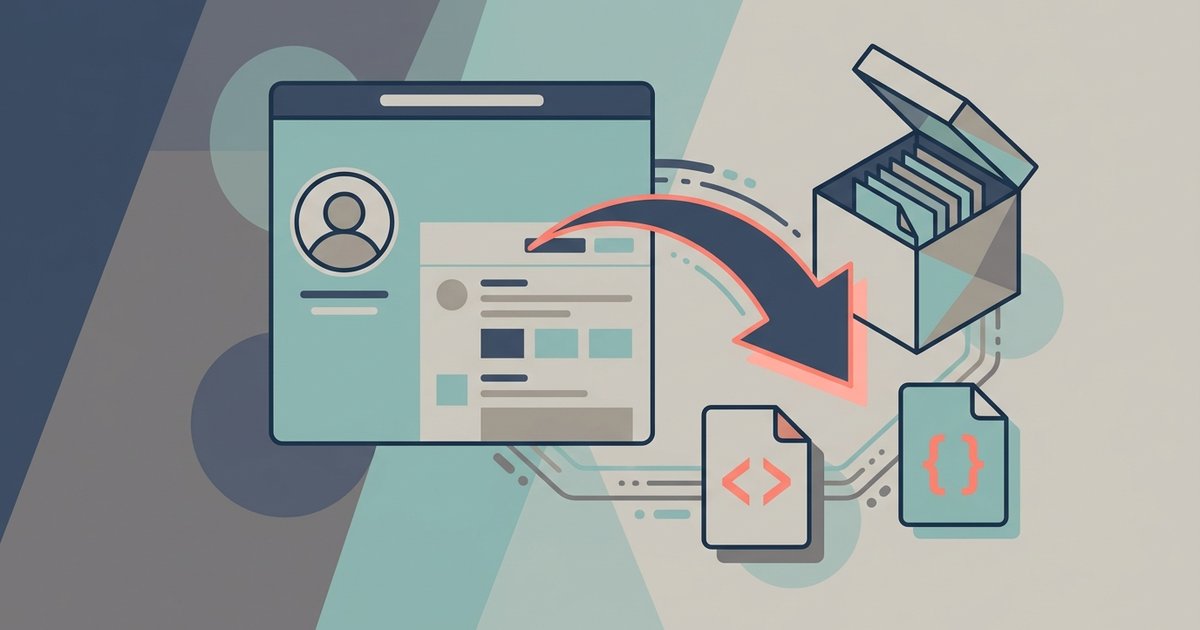
Before you do either, it is worth exporting a copy of your data. Meta's Export your information tool in Accounts Center produces a downloadable archive of your Messenger content. If you already have a DEMA, the help center's route is to open messenger.com on a computer, click your profile picture in the bottom left, click Preferences, click Export your information, then click Create export.
Using Messenger on a computer without a Facebook profile
The Messenger desktop app for Mac and Windows is no longer available, so a browser is the desktop version now. If your profile is active, facebook.com/messages works. If you have a DEMA, messenger.com is the address to use, since it does not route you through a Facebook profile you no longer have.
Signing in on a device or browser you have not used before means restoring your end-to-end encrypted chats before your full history appears. That restore depends on secure storage being set up in advance, using a PIN or a key saved to Google Drive or iCloud. Set it up while you still have a signed-in device, because there is no way to recover encrypted history after the fact.
What you give up
A deactivated profile means no Facebook feed, no posting, no groups, no Marketplace and no appearing in Facebook search. Inside Messenger, Meta notes that parental supervision is not supported for a DEMA, which matters if the account belongs to a teenager who is meant to be supervised through Family Center.
There is also a discoverability trade-off in both directions. People can still find you in Messenger and message you, so deactivating Facebook does not make you unreachable. If reachability is the thing you actually want to change, the controls for who can message you and where their messages land are in Messenger's own privacy settings, not in the deactivation flow.
What other people see
From the other side of a conversation, a DEMA looks close to normal. Your name and picture show up in the chat, messages and calls behave the same way, and nothing announces that your profile is deactivated. What changes is everything outside Messenger: tapping your name will not open a Facebook profile, and searching for you on Facebook returns nothing.
Old posts, comments and tags you left on Facebook before deactivating are handled by Facebook's deactivation rules rather than by Messenger, and some of that content stays visible to other people. If removing it is the point of the exercise, deal with it on Facebook first.
Common failure cases
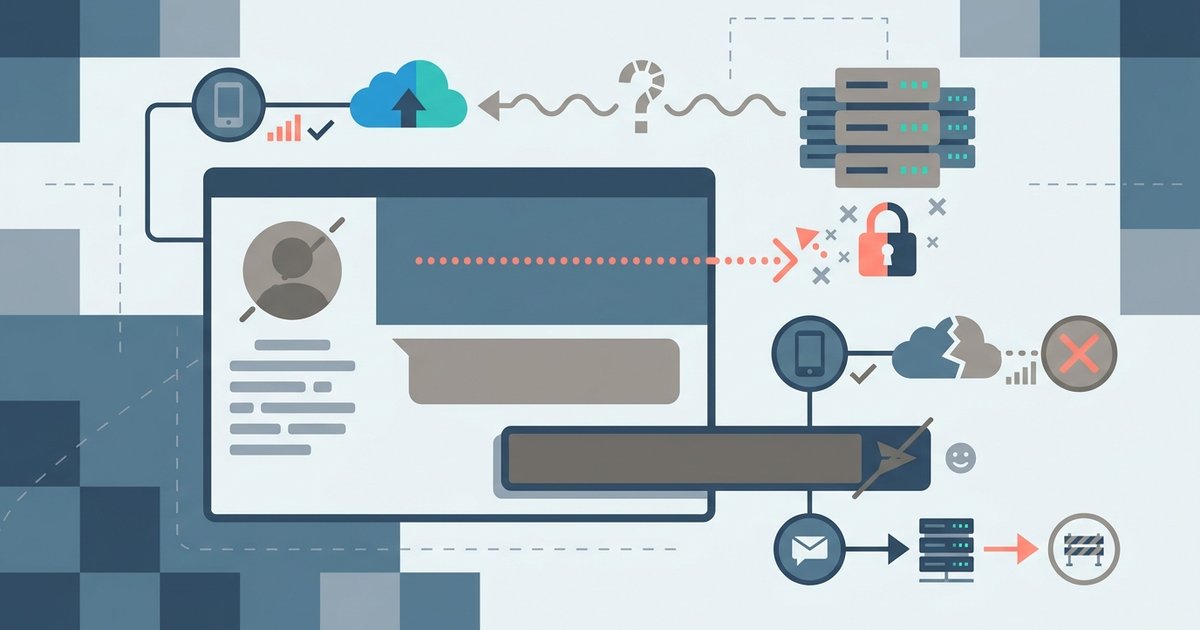
You deactivated and Messenger signed you out. Sign in again with the same email or phone number and password. If Messenger will not take the login, that usually means the account was deleted rather than deactivated, or the deactivation flow was completed without the keep-Messenger option.
You never set a password. Accounts created through older phone-number flows sometimes have no usable password. Set one before you deactivate anything, not after.
You cannot confirm your birthday. The confirmation step is mandatory on DEMA conversion. If the date on the account is wrong, correct it before starting, because a deactivated profile is a poor place to be arguing about account details.
Your Facebook profile reappeared. Activating the profile is deliberate, so check whether you signed in to Facebook itself rather than to Messenger. Messenger use alone does not bring the profile back.
If your only goal is to stop using Facebook while keeping your conversations, do it in this order: set a password, set up secure storage, export your data, then deactivate. Each of those is easy while the account is fully working and difficult or impossible afterwards.
\nRelated reading: Deactivate vs Delete Your Facebook Account: What Actually Happens and Facebook Guide: Privacy, Payments and Settings.