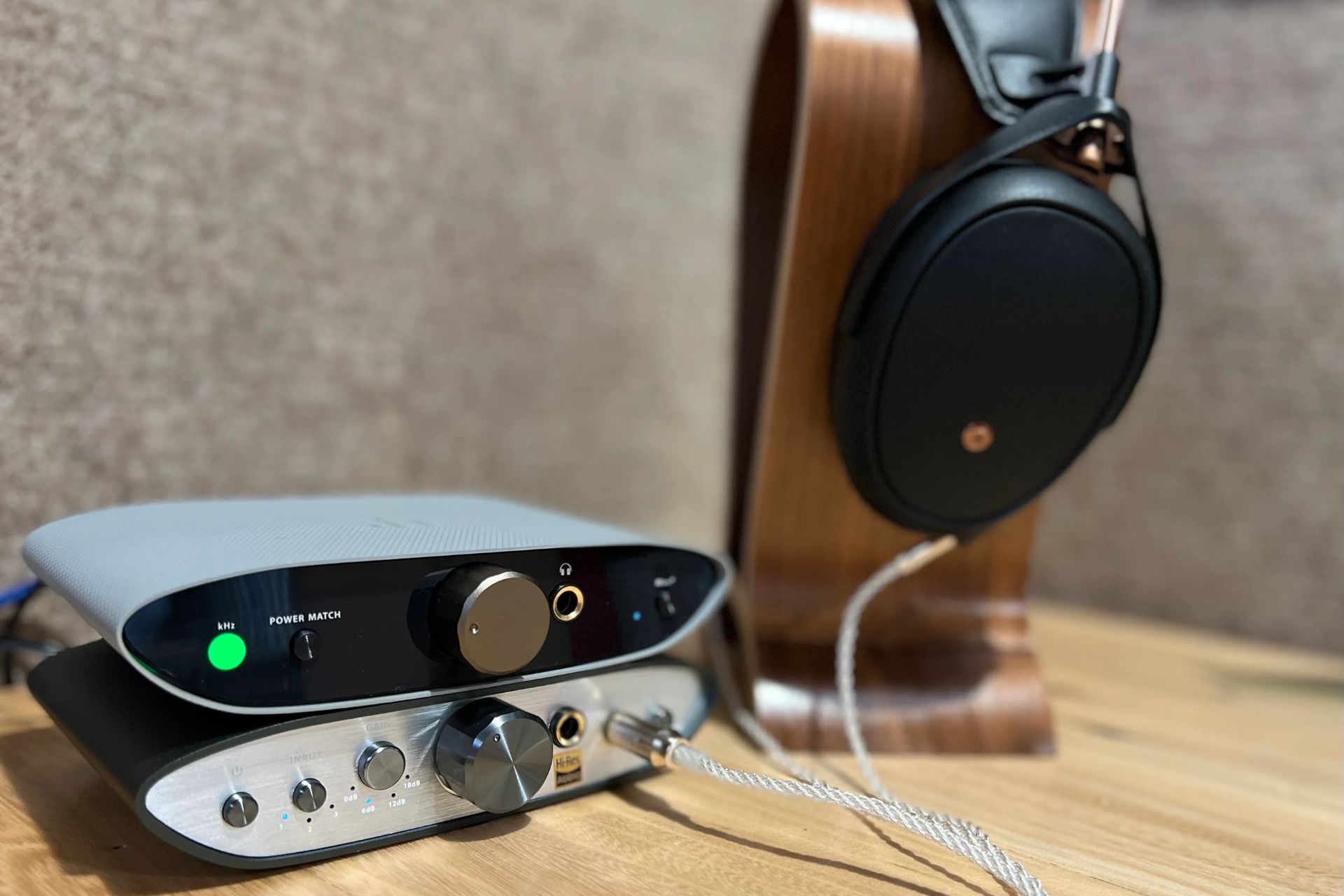
To connect an iPad to a DAC, you need to identify your iPad's port type, Lightning or USB-C, and then use the correct adapter or cable. This guide covers the exact hardware required for each model and explains how to set up the connection for high-resolution audio playback.
What you need to connect an iPad to a DAC
Before you begin, check which port your iPad has. For a Lightning iPad, you will need the Apple Lightning to USB 3 Camera Adapter. For a USB-C iPad, you need a class-compliant USB DAC and a USB-C to USB-C or USB-C to USB-B cable. The correct adapter ensures the iPad can output digital audio to the external DAC without signal degradation.
Connecting a Lightning iPad to a DAC
Follow these steps to connect a Lightning iPad to an external DAC while keeping the iPad charged.
- Plug the Apple Lightning to USB 3 Camera Adapter into your iPad's Lightning port.
- Connect your external DAC to the adapter's USB-A port using a standard USB cable.
- For simultaneous charging, connect a USB power adapter to the Lightning pass-through port on the Camera Adapter, then plug the power adapter into a wall outlet.
- Open a music app and play a high-resolution audio file. The DAC will handle the digital-to-analog conversion, bypassing the iPad's internal converter.
The Apple Lightning to USB 3 Camera Adapter is recommended because it allows simultaneous charging of the iPad and powering of the DAC (if connected to a USB power adapter). This setup lets you listen for extended periods without draining the battery.
Connecting a USB-C iPad to a DAC
For iPads with a USB-C port, the connection is more straightforward.
- Ensure your external DAC is class-compliant (no driver installation required).
- Connect the DAC to the iPad using a USB-C to USB-C cable (if the DAC has a USB-C input) or a USB-C to USB-B cable (if the DAC has a USB-B input).
- Play high-resolution audio from a compatible app. The iPad will output the digital signal directly to the DAC.
- Confirm high-resolution output by checking the DAC's sample rate display (if available) or your music app's settings.
For iPads with a USB-C port, a compatible class-compliant USB DAC can usually be connected directly using a USB-C to USB-C or USB-C to USB-B cable. While some older reports suggested USB-C iPads might limit DAC output to 48kHz with certain cables, current information indicates USB-C iPads can output high-resolution audio to compatible external DACs.
Why an external DAC unlocks high-resolution audio on iPad
The iPad's internal digital-to-analog converter (DAC) is designed for general-purpose audio playback and often limits output to standard resolutions (e.g., 48kHz). To play high-resolution audio files (e.g., 96kHz, 192kHz, DSD, MQA) at their native sample rates, an external DAC is required. An external DAC bypasses the iPad's internal converter, using dedicated hardware to process the full digital stream without downsampling. This results in greater detail, wider dynamic range, and a more accurate reproduction of the original recording. For audiophiles and professionals, this is the only way to hear high-resolution files as intended.
\nRelated reading: Connecting Phone To TV Without Wi-Fi: A Step-by-Step Guide, How To Enable HDMI Alt Mode, and How To Run Two Monitors With One HDMI Port.