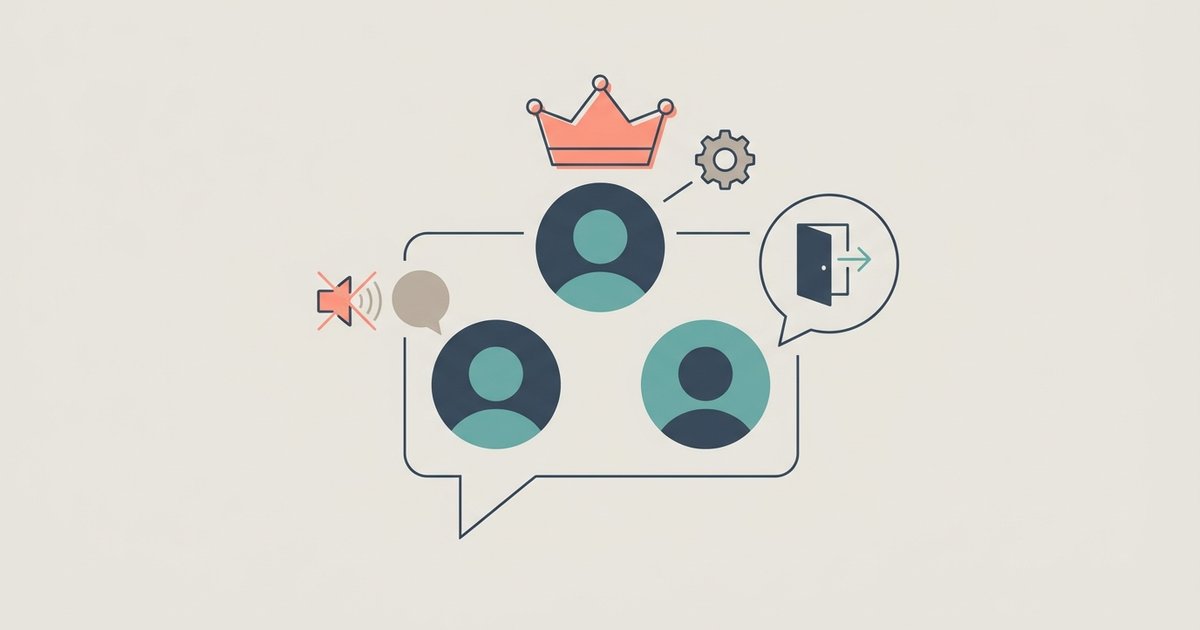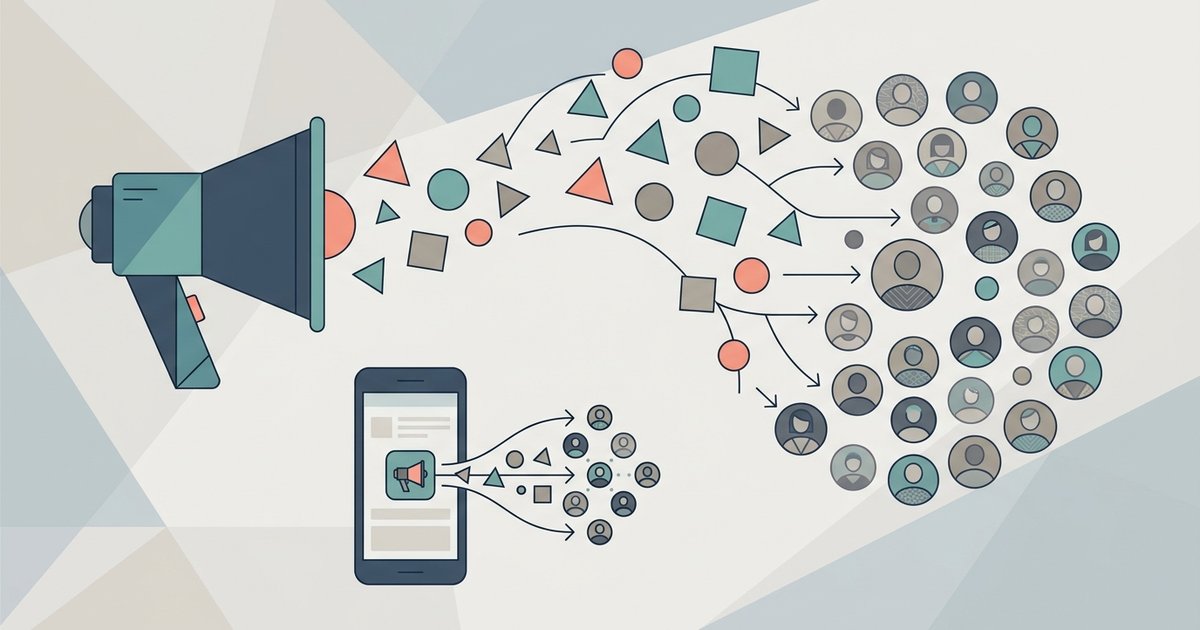
Instagram broadcast channels, now usually just called channels in the app, are one-to-many message threads that a creator runs from their inbox. The creator and any invited collaborators post updates, and members can read, react, vote in polls and, if the creator allows it, reply. Members cannot start their own messages in the channel, which is what separates a channel from a group chat.
Channels are public. Anyone on Instagram can discover them, and the reactions and replies members leave are visible to anyone, which is the part most people joining one don't realize.
What a channel is for
Instagram describes channels as a place to share announcements, behind-the-scenes content, event details and upcoming collaborations. The format suits updates that are too small or too frequent for a feed post but that you want followers to see without relying on the algorithm. A creator can post text, photos, videos and voice notes, run polls, and start a live video inside the channel.
Messages arrive in members' inboxes alongside their other conversations, which makes a channel feel closer to a newsletter than to a story. The difference is that it lives entirely inside Instagram.
Who can start a channel
Instagram's help center says channels are being released gradually and aren't available to everyone. It states that a channel can be started by a public account with more than 1,000 followers. If you meet that threshold and still don't see the option, the feature may not have reached your account yet.
If you plan to share organic branded content in a channel, Instagram requires you to use the paid partnership tool to disclose the commercial relationship, the same rule that applies to posts. Branded content is only available for professional accounts.
How to create a channel
On the Instagram app for Android and iPhone:
- Tap Messages at the bottom.
- Tap Compose in the top right.
- Tap Create channel.
- Enter a channel name, choose an audience, choose when the channel ends, and decide whether to show the channel on your profile.
- Tap Create in the top right.
The end-date setting is useful for event channels or product launches. A channel that closes on a set date doesn't need to be kept going once the event is over. For creators who use Instagram subscriptions, Instagram has described an option to limit a channel to paid subscribers rather than all followers.
You can find your channels at any time by tapping Messages and then Channels at the top of the inbox.
Getting people to join
When you send the first message in a new channel, all your followers receive a notification inviting them to join. Instagram's original announcement described this as a one-time notification, so the first message matters. After that, you have several ways to invite people:
- Invite link. Every channel has one. It can't be turned off, but you can reset it to generate a new link.
- Stories. As the admin you can share the channel itself to your story, or tap and hold a message and choose Share to story. Viewers can tap the image to find and join.
- QR code. Tap the channel name at the top of the channel, then QR code. People scan it with their phone camera.
- Your profile. If you chose to show the channel on your profile, visitors can reach it from there.
What members can do
Joining a channel is only possible in the Instagram app for Android, iPhone and iPad. When you tap a channel link or notification, you see the channel and a list of people who already joined. Tap Join at the bottom and the channel is added to your inbox.
As a member you can read messages, react to them, vote in polls and reply where replies are switched on. Instagram is explicit about privacy here: your reactions, replies and poll responses in channels are visible to anyone on Instagram, and other people may be able to see that you are a member of a channel whether or not they join it. If your own account is private, that setting does not make your channel activity private.
Replies, prompts and insights
Channels began as strictly one-way. Instagram has since added three tools that make them more interactive.
Replies
Admins can let members reply to individual messages. Replies are nested under the message they respond to, which keeps the channel readable. To turn them on, tap your channel name at the top of the channel, choose Channel controls, and enable Allow members to reply to messages. Admins can delete or report replies, and Instagram lists managing reactions and replies among admin controls.
Prompts
A prompt is a question you post for members to answer. Members can respond with text or photos for up to 24 hours and like each other's responses. To create one, go into your channel, tap the plus button and select Prompt. When you reply to a response, your reply is also shared in the main channel.
Insights
Instagram provides channel metrics such as total interactions, story shares and poll votes. Tap your channel name, choose Channel performance, and tap See all for the detail.
Admins, collaborators and moderators
Whoever creates a channel is its admin. Instagram lists what an admin can do: change the channel name or theme, share the channel to a story, invite or remove collaborators, invite or remove moderators, unsend messages they sent, manage reactions and replies, and delete the channel.
Collaborators are other accounts the admin invites to post. If you accept, the channel is added to your inbox and you can send messages to members just like the admin. Instagram warns that messages you send in a channel are discoverable by anyone on Instagram, even if your account is private. The admin is notified whether you accept or decline the invitation, and you can stop being a collaborator by tapping the channel name and then People. Moderators help the admin manage members, messages and content.
Channels compared with other Instagram tools
- Group chats let everyone post and are private to their members. Channels let the admin and collaborators post, and followers can reply or comment if the creator enables those features; channels are public.
- Close Friends stories reach a hand-picked list for 24 hours. Channel messages stay in the channel and can reach every follower who joins.
- Stories and reels depend on ranking to be seen. Channel messages land in members' inboxes directly.
Leaving or muting a channel
Members manage a channel from its details screen, reached by tapping the channel name at the top. That screen is where the options to change notifications or leave the channel sit. The exact labels vary between app versions, so look for a mute or notifications setting if you want to keep the channel but stop the alerts.
If you run a channel, decide what it is for before sending the first message, because that message triggers the invitation to all your followers. A clear promise, such as weekly updates or early news on launches, gives people a reason to join and a reason to stay. If you join channels, remember that everything you post there is public, and react or reply accordingly.