This tag collects Robots.net’s practical guides to running Roblox on non-standard hardware and getting the most out of the game on tablets, Chromebooks, and other devices. It is written for everyday players and parents who need straightforward, safe instructions for setup, troubleshooting, and peripheral support, without diving into unsupported or risky workarounds. The articles here focus on legitimate ways to install, update, and play Roblox, with an emphasis on devices where the game is not natively available or where official app stores are not present.
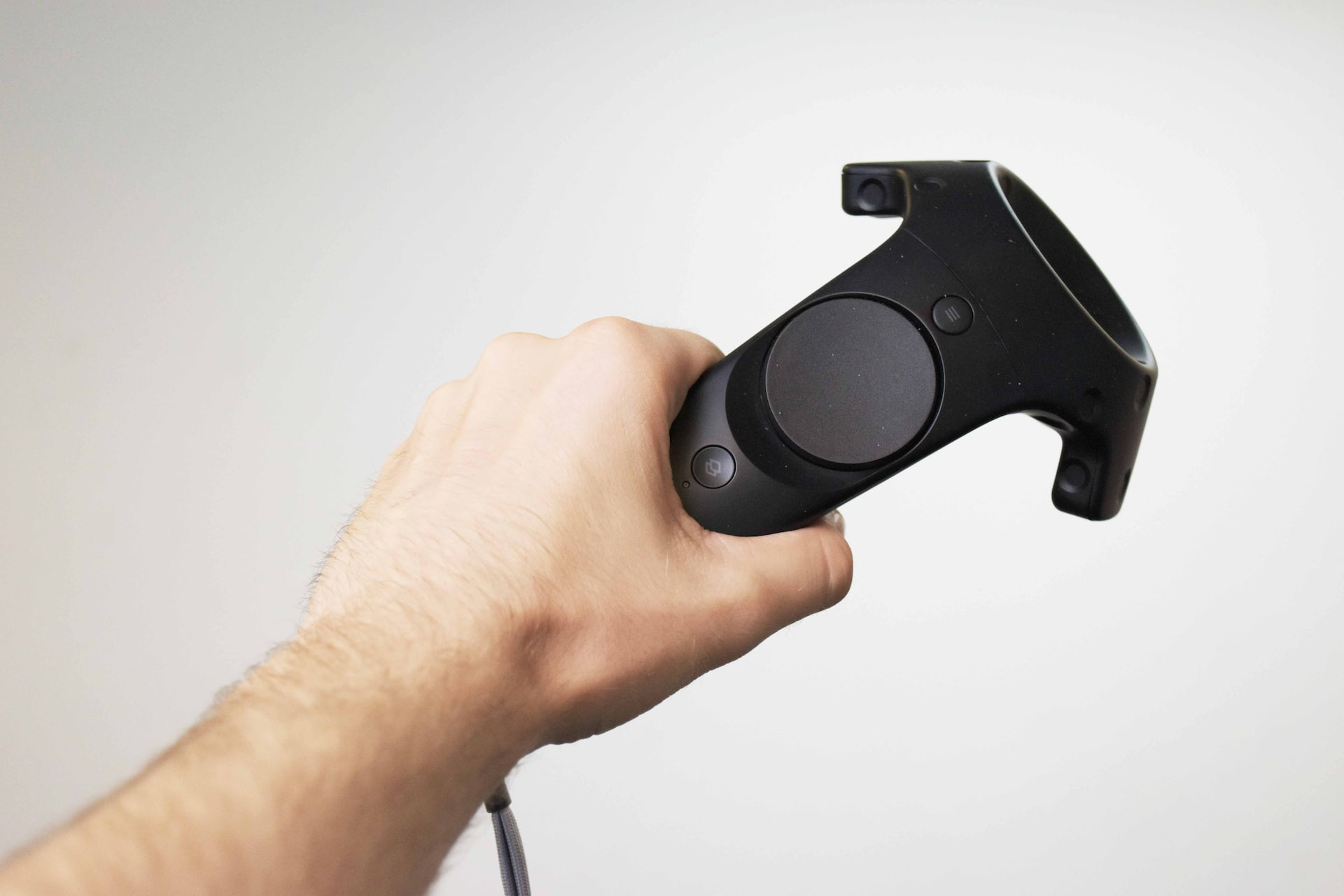
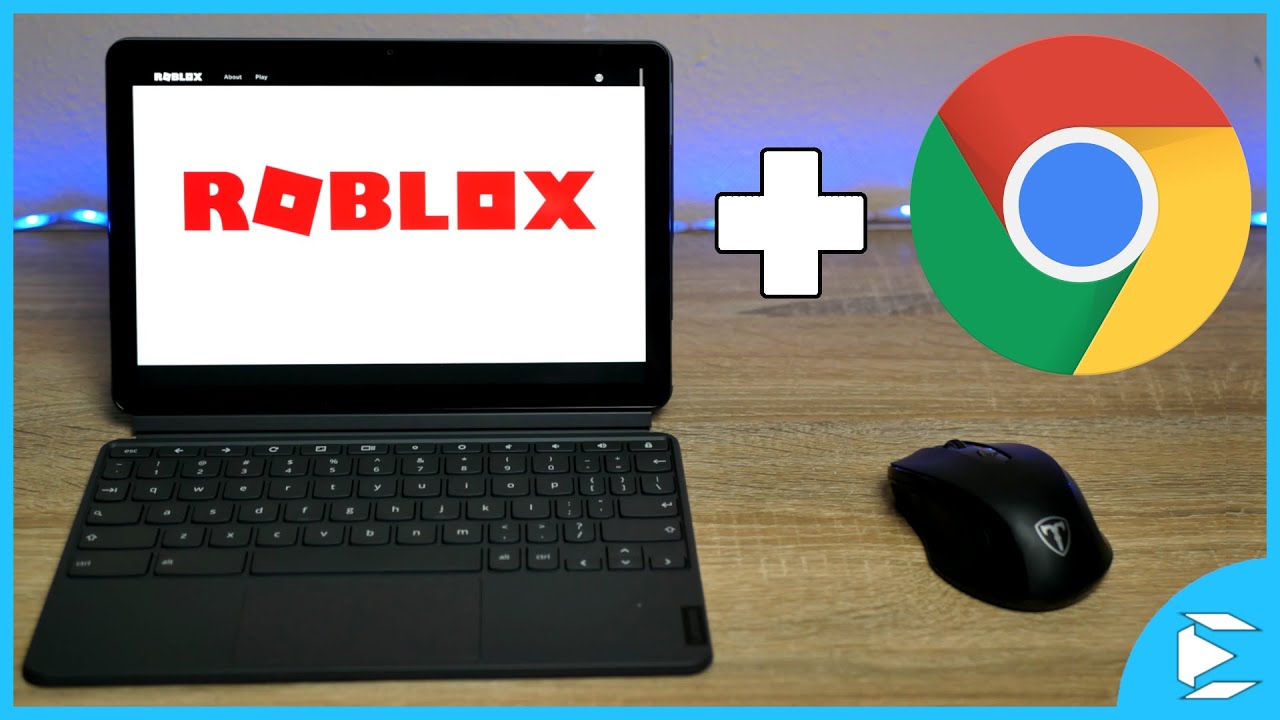
Several recurring themes emerge from the titles. One is installation and system compatibility: you will find step-by-step help for downloading Roblox on Chrome OS, Fire Tablets, and Amazon Kid Tablets, including workarounds for when Google Play is missing. Another theme is hardware and controls, covering how to connect a racing wheel, MIDI keyboard, game controller, or play in VR without a headset. A third theme is account and gift card troubleshooting, such as redeeming Robux cards on tablets or figuring out why a gift card code will not work on the website. A few articles also address safety and warranty questions, like the risks of using cheats, whether sideloading voids a warranty, and how much storage the game needs, helping you make informed choices rather than risky ones.
Beyond the “how-to” core, several pieces take a practical, cautionary angle. For example, the articles on Roblox cheat risks and safety explain the dangers of third-party tools without providing instructions for using them. Similarly, the guide on getting free Robux without surveys or downloads focuses on legitimate earning methods, not exploits. Whether you are trying to set up Roblox on a school Chromebook, add a gift card on a Fire Tablet, or simply reduce lag on an older device, these articles give you clear, safe steps, and tell you what to avoid.