This tag collects practical, hands-on articles about using Windows 10 for everyday hardware, gaming, and media tasks. It is written for home users, students, and hobbyists who want clear, step-by-step guidance without jargon, whether they are setting up a new webcam, connecting a game controller, or trying to get video off a camcorder. If you have a Windows 10 PC and a device you want to make work with it, these articles are for you.
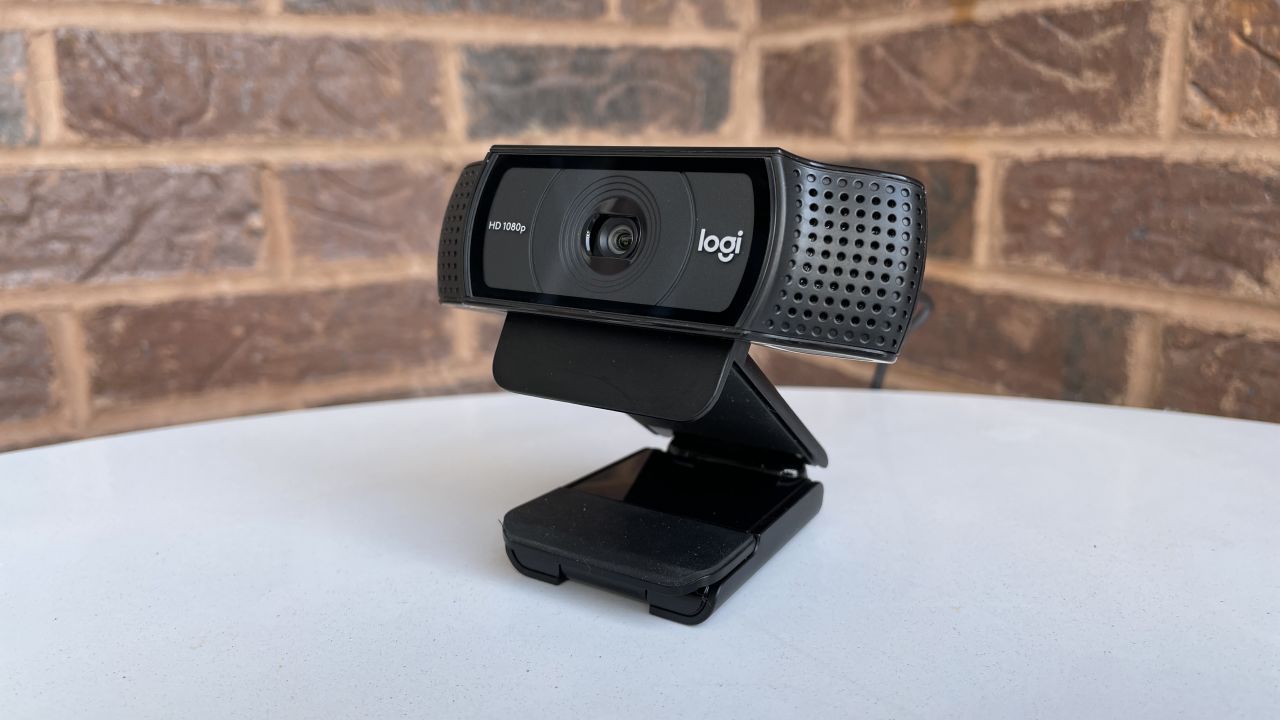
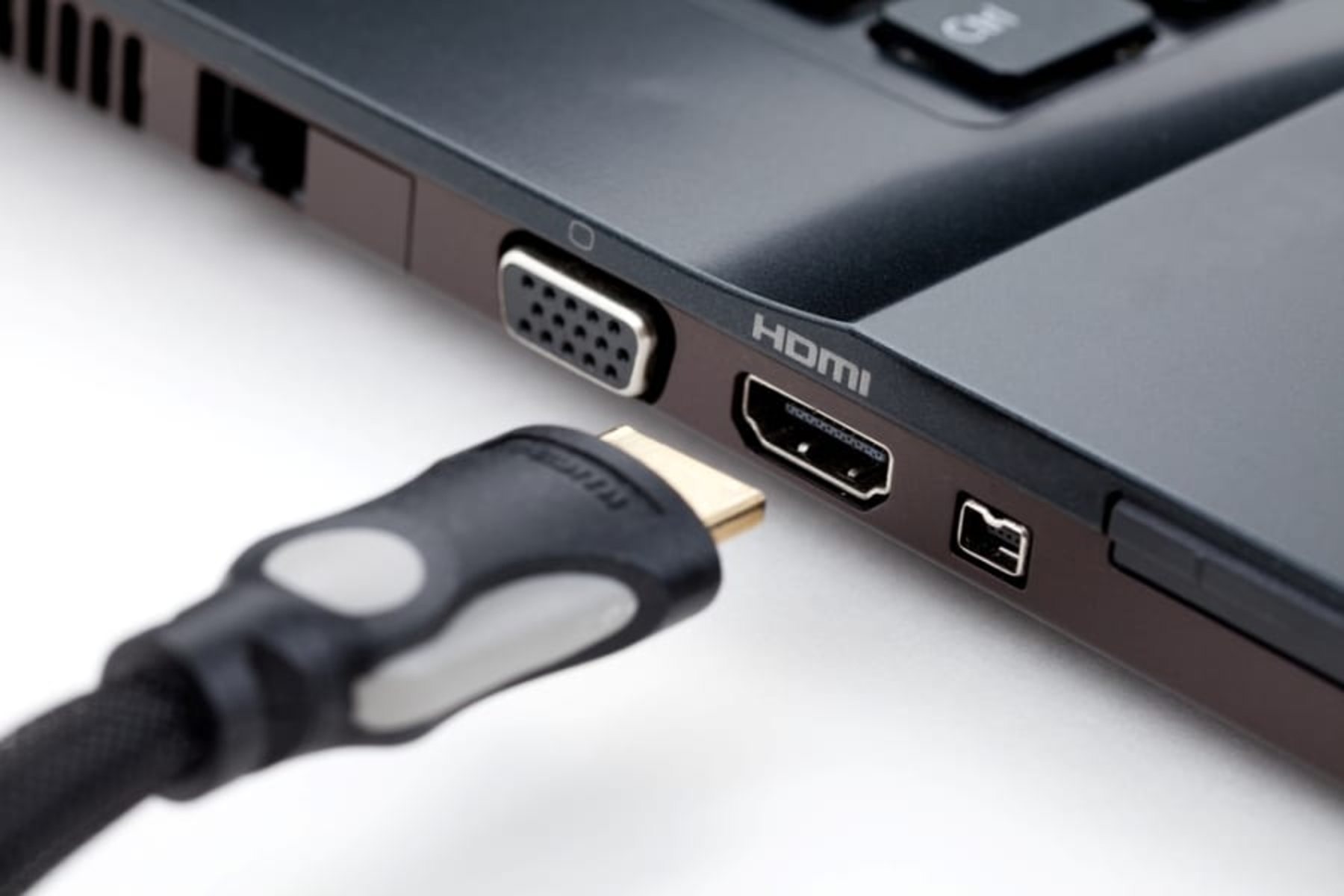
The articles fall into two main themes. First, hardware setup and connectivity: you will find help with switching to an external monitor via HDMI, installing a Logitech C920 webcam, pairing a HoloLens with Visual Studio, and connecting both USB and Bluetooth game controllers. There is also specific guidance for VR users on setting up the Oculus Rift S headset. Second, everyday Windows operations and media transfer: this includes taking screenshots in tablet mode, locating Wacom tablet properties, and moving video from a JVC camcorder or any camcorder to your computer. A few articles also address system requirements, for example, what a laptop needs to run Sims 4, so you can check compatibility before installing.
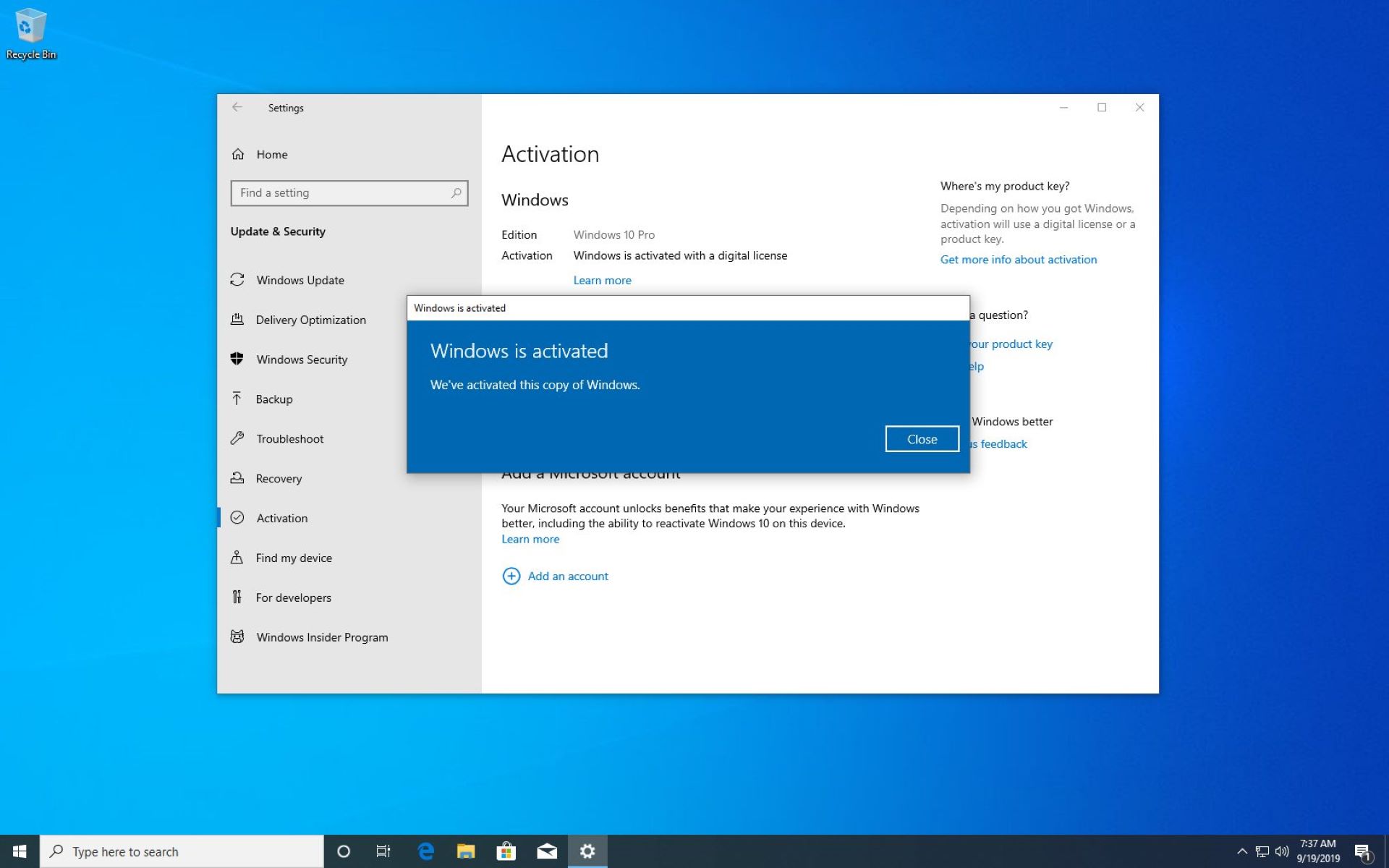
Some topics are covered from a security or legal-alternatives angle rather than as risky shortcuts. For instance, the article on activating Windows 10 focuses on legitimate free options, and the one on getting into Windows 10 without a password explains recovery and account-access methods that respect your own credentials. Similarly, the article about downloading Skyrim for free points to legal sources, not piracy. These pieces help you solve problems safely and within the rules.