This tag collects our guides to capturing what’s on your screen, whether you’re using a dedicated keyboard, a laptop’s built-in keys, or a tablet in a special mode. It’s written for everyday users who just want a quick, reliable way to save a screenshot without digging through system menus or hunting for an obscure key combination. If you’ve ever pressed the Print Screen key and gotten nothing, or worse, the wrong thing, these articles are for you.
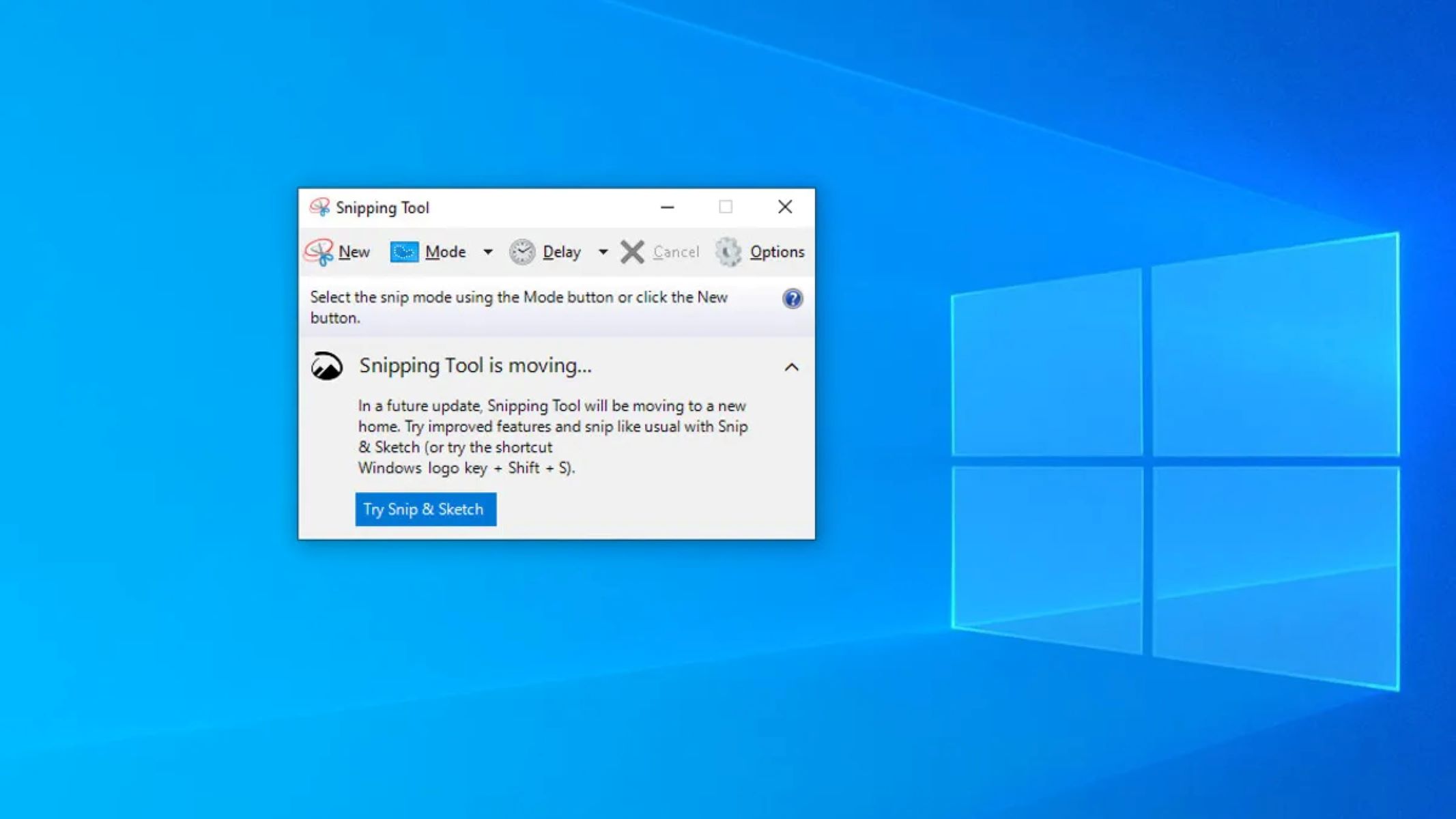
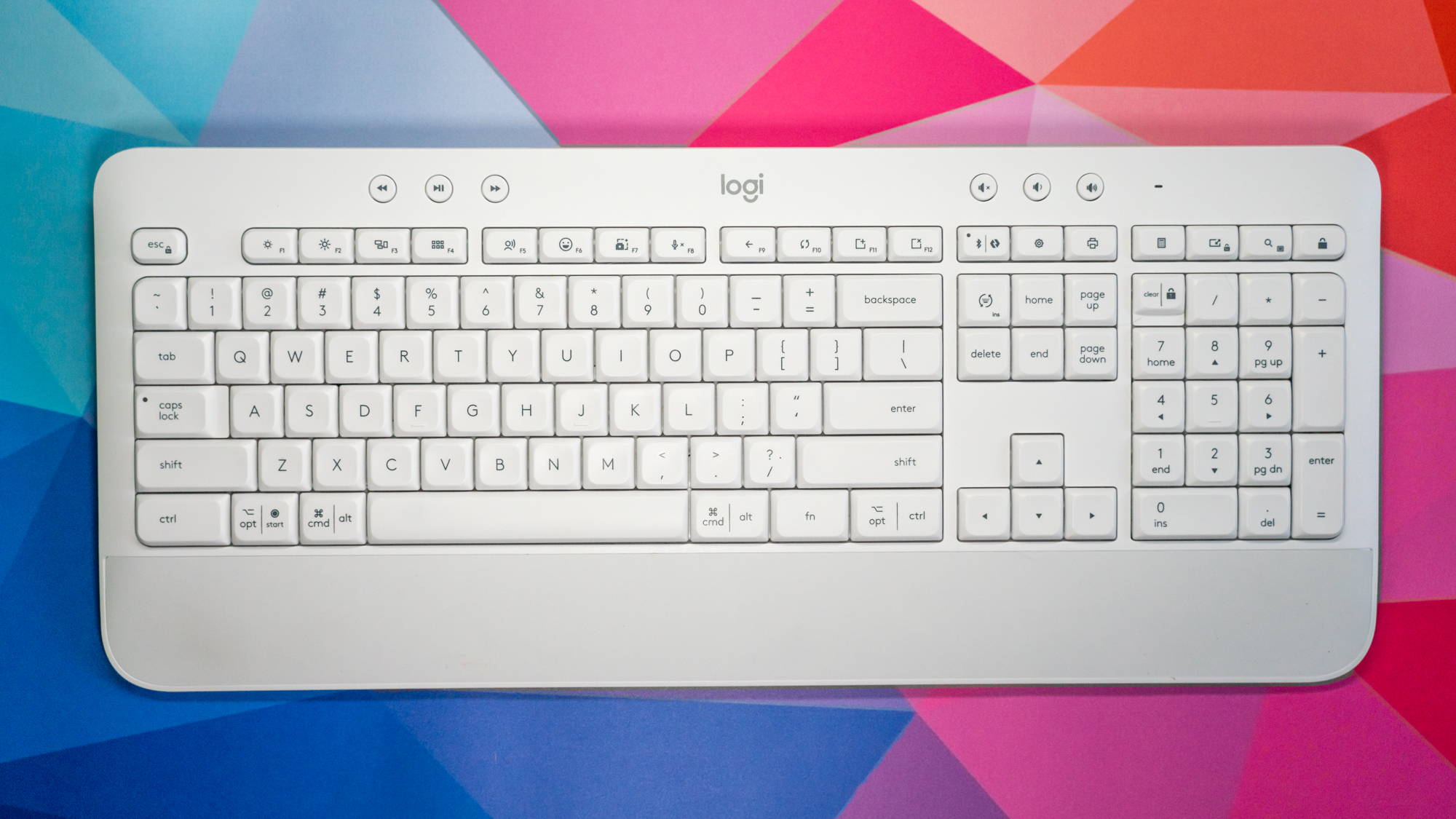
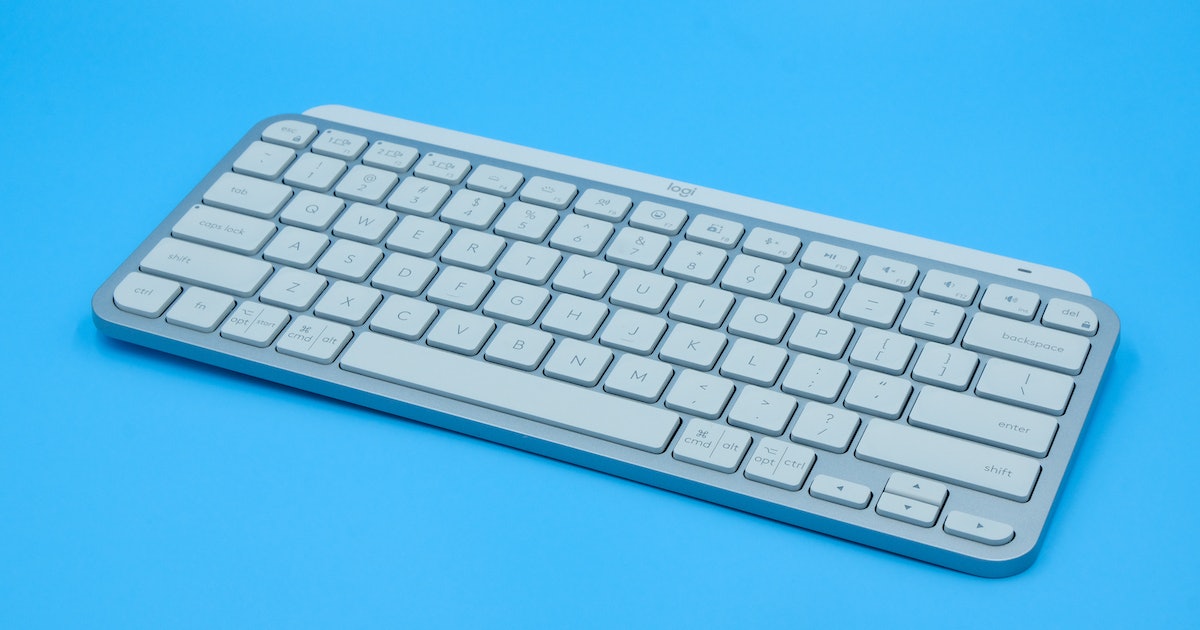
The problems covered here fall into a few clear themes. First, there are hardware-specific walkthroughs for particular devices and brands, such as taking a shot on an Asus TUF gaming laptop, an HP Ultrabook, or an HP ZBook workstation. Second, several pieces focus on keyboard quirks and shortcuts, like how to print screen with a Logitech MX Keys or a wireless Logitech keyboard, or what to do when the Fn key stops working on an HP laptop. Finally, a few articles address interface and mode issues, such as how to snippet on Windows, how to take a screenshot in Windows 10 tablet mode, or why your Print Screen key might open the emoji panel instead of capturing the screen. There’s also a piece on exporting a Google Form with branching logic and images intact, which helps you preserve a clean visual record of a form’s structure.
Beyond the straightforward how-tos, some articles take a security or privacy angle. For example, one explains whether Instagram notifies you when you screenshot in vanish mode, so you can understand the platform’s rules before you act. Another helps you diagnose why your Print Screen key is misbehaving, which is a troubleshooting task, not a workaround. None of these guides encourage bypassing protections or cheating; they simply help you use the screenshot tools you already own, more effectively and safely.