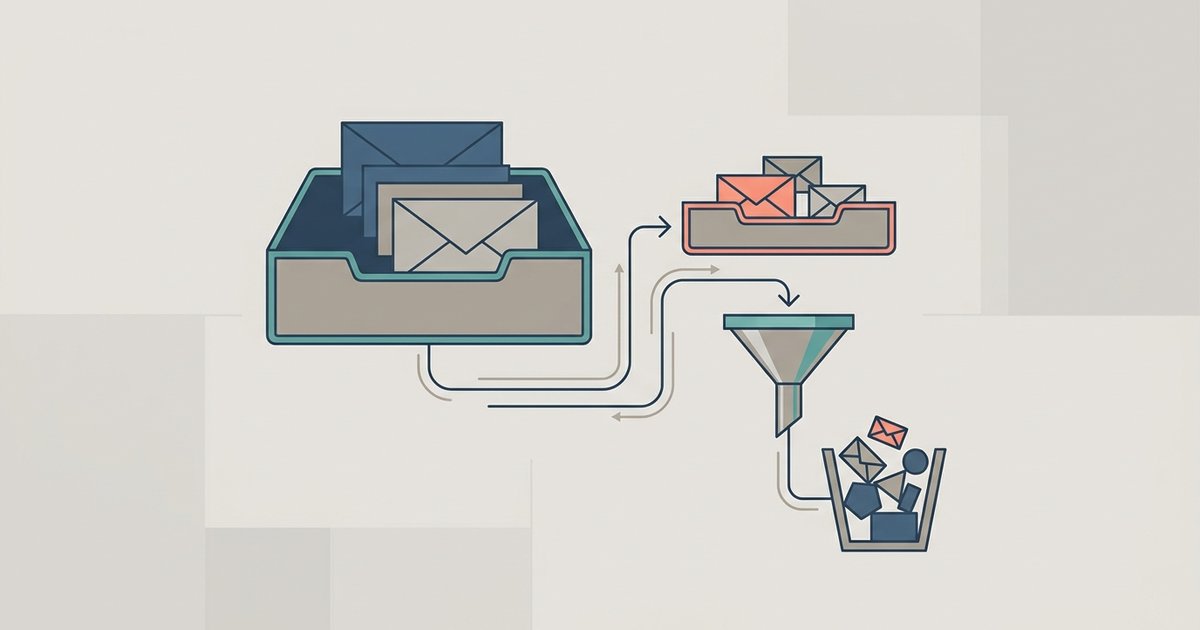
Messages from people you are not connected with on Facebook do not land in your main Chats list. They go to Message requests, which you open in the Messenger app by tapping the Menu icon (three horizontal lines) or your profile photo in the top left and then Message requests. Anything Meta judges to be spam is filtered out of those requests into a separate spam list, which is the part people call filtered messages.
Why a message ends up in requests
Meta's rule is simple: if someone you are not connected with on Facebook sends you a message, you get a message request instead of a normal chat. Your Facebook friends go straight to your Chats list. So do a few other groups Meta treats as already connected:
- People you are dealing with on Marketplace.
- People on Facebook Dating.
- Businesses or Pages you have already connected with, for example by messaging them before or commenting on one of their posts.
Everyone else can only send you a request, and Meta says they cannot call you unless you reply to it. That is why a message from a friend of a friend, a school contact you never added, or a buyer who found you outside Marketplace can sit unseen for months.
Open your message requests on a phone
- Open Messenger and tap your profile photo in the top left.
- Tap Message requests.
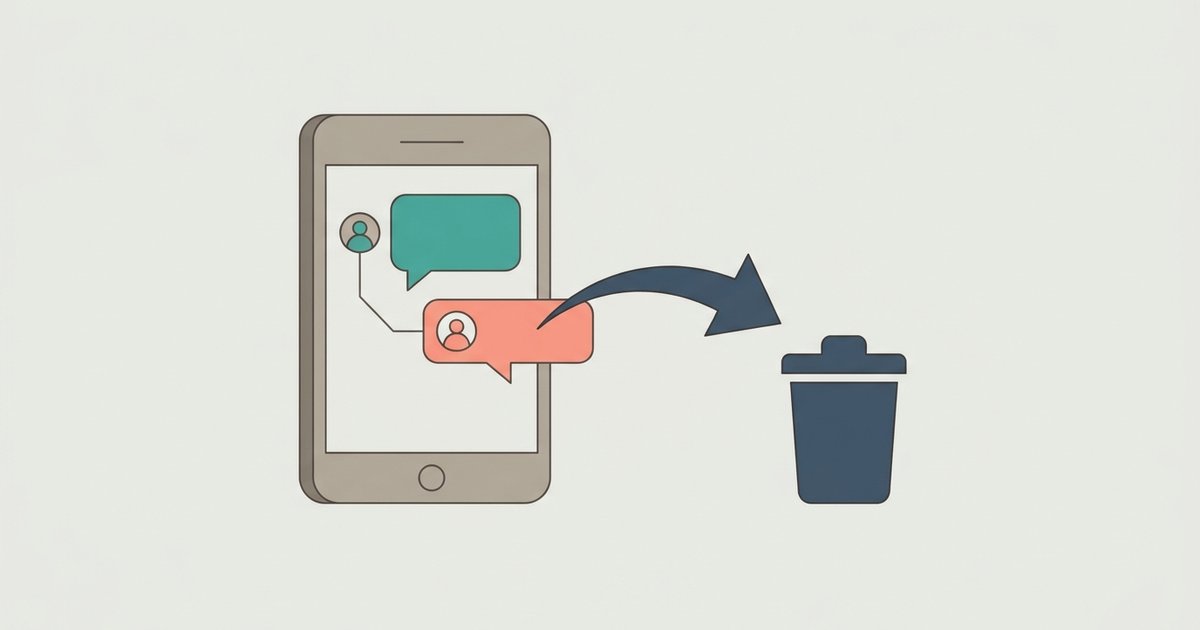
From the list you can open a request and reply, which moves the conversation into your Chats list and connects you with the sender, or you can tap Delete to remove the request or Block to block the person. A group message request offers Delete or Leave group instead.
Messenger's layout shifts between versions. If the profile photo does not open a menu with Message requests in it, look under the main menu or the settings screen for the same entry.
Open message requests on a computer
On facebook.com, click the Messenger icon at the top right, click the Options menu next to Chats, then click Message requests. Click a sender's name to reply, block or delete.
At messenger.com, look for Message requests in the menu beside your chat list; its exact placement varies between versions. The browser is the only desktop option now that the Messenger desktop apps have been discontinued.
Where filtered and spam messages go
Meta says messages it thinks are spam are filtered out of your requests. They are not deleted on arrival; they are held apart from genuine requests so you do not have to wade through them. In the app this usually appears as a separate Spam tab or folder within Message requests.
Two details from Meta's help pages explain why real messages end up there:
- Spam filtering can apply even to people you have allowed to reach your Chats list or your requests. The filter looks at the message, not just the sender's category.
- Meta says this filtering will not affect messages from your Facebook friends. If a friend's message is missing, spam filtering is not the reason.
If you find something genuine in spam, reply to it. Accepting the message request is what moves a conversation into your main list.
Photos and links in requests are held back
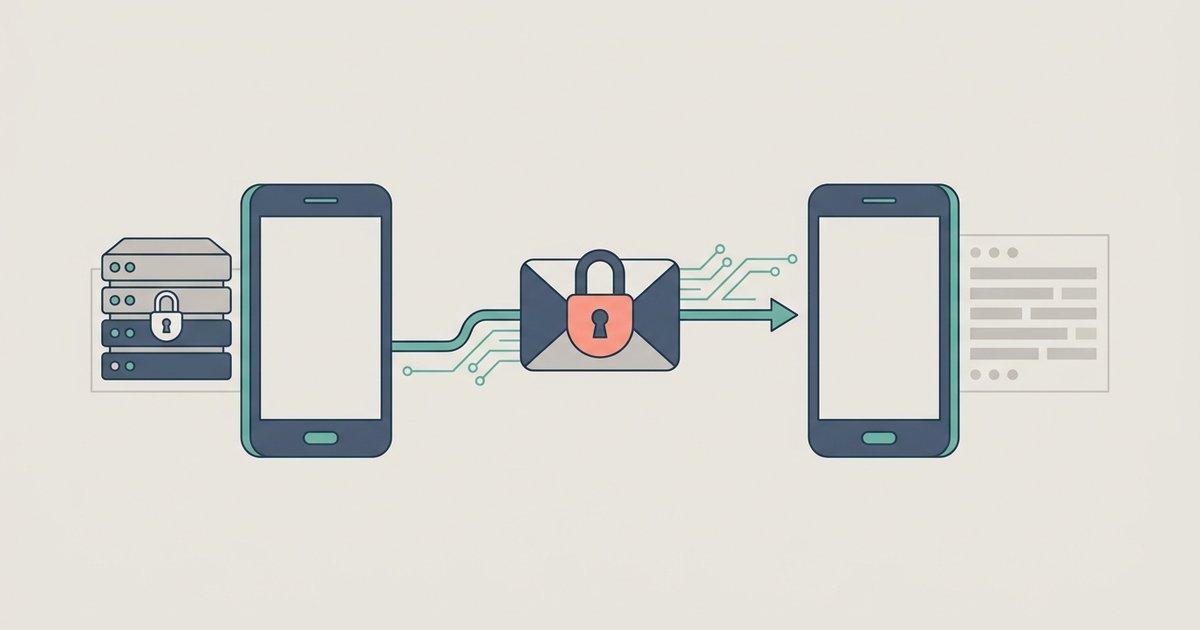
Requests are deliberately limited so that a stranger cannot push content onto your screen. On Facebook, Meta says photos and videos sent in a message request are hidden behind a dark image. Tapping it shows a blurred version, and the media only displays properly if you tap the blurred image or reply. Links in a request cannot be opened unless you reply or copy the link into a browser yourself.
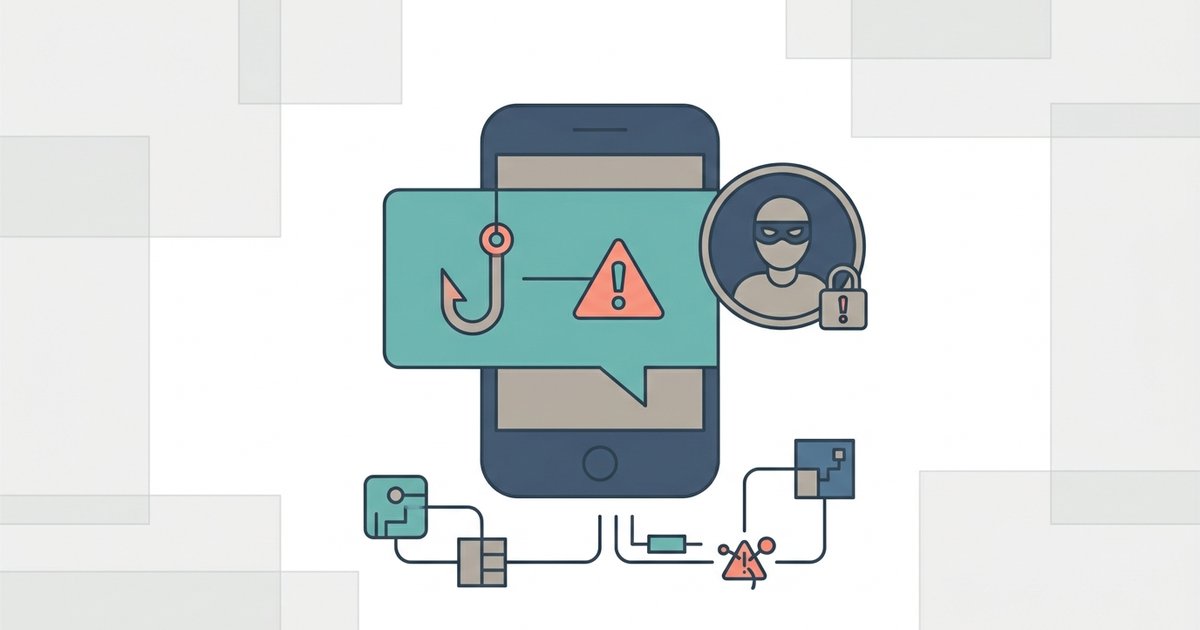
Treat that friction as a warning rather than an obstacle. Unknown senders pushing links are one of the most common routes for scams, and copying a link out of a request to open it bypasses the protection Meta put there.
Control who can send you requests
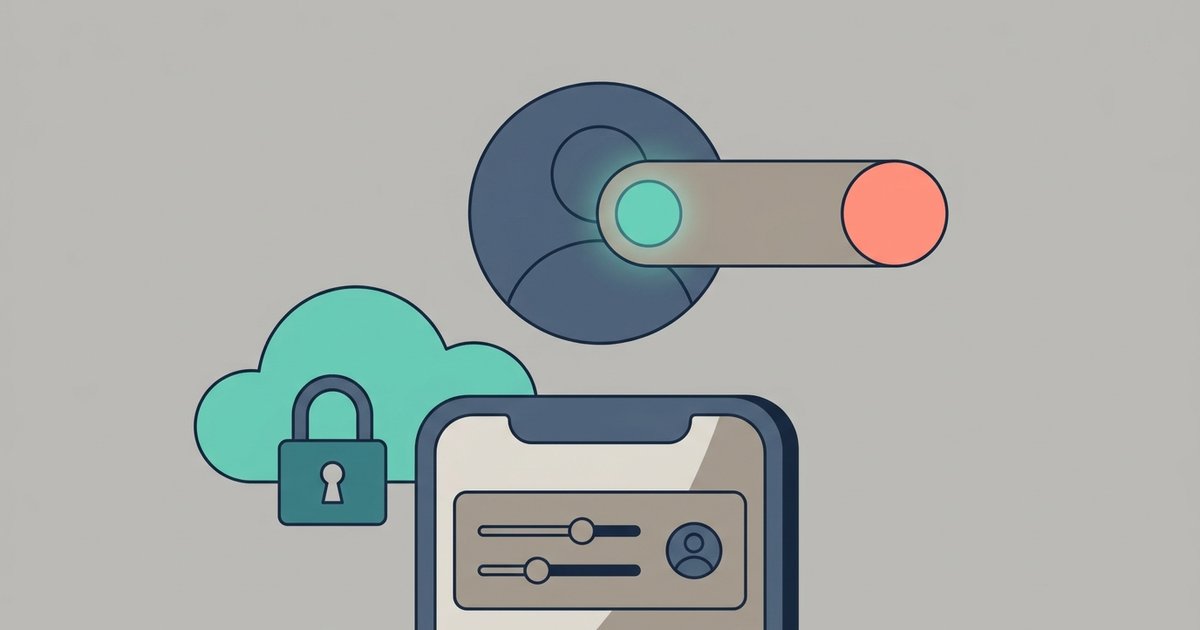
You can decide which groups of people reach your Chats list, which go to requests and which cannot reach you at all. Meta's steps for the app:
- Tap Menu, then Settings, then Privacy & safety, then Message delivery.
- Tap Privacy and safety.
- Tap Message delivery.
- Tap the group you want to control.
- Choose to deliver their messages to your Chats list or to your message requests folder, or tap Don't receive requests to stop them entirely.
The groups Meta lists are:
- Friends of your friends on Facebook.
- People on Facebook who have your phone number in their contacts. Meta points out that they do not need to be your Facebook friend to reach you this way.
- Friends using Messenger without Facebook.
- Everyone else on Facebook and Messenger.
- People replying to your messaging ads, if you run any.
Meta notes that new group chat message requests will not be delivered to your Chats list, and that you see more delivery options once your Facebook account has been added to Accounts Center.
A sensible setup for most people is friends of friends and phone contacts to requests, and everyone else to requests or off. Turning "everyone else" off entirely is the strongest way to cut spam, at the cost of missing genuine first contact from strangers, such as someone returning a lost wallet.
What deleting a request does
Deleting removes the request from your list. Meta says that once you delete a message request you will not be able to see the message again. If you change your mind, you can message the person yourself, and your message goes into their requests.
Deleting does not block. The same person can send another request later. If you do not want to hear from them again, use Block instead of Delete.
Common problems
"Someone says they messaged me and I can't find it." Check Message requests, then the spam list inside it. If you are not Facebook friends, that is almost certainly where it is. If you set their category to Don't receive requests, the message never reached you.
"I replied and now they can call me." That is by design. Replying connects you, which removes the request limits, including the block on calls. If you replied by mistake, block the person.
"A friend's message went to requests." Check whether you are actually still Facebook friends, and whether they are writing from a second profile. Friends can reach your Chats list directly, so a request usually means the sender is not the account you think it is.
Make a habit of checking Message requests and its spam list every few weeks. It takes a minute, it is where Marketplace follow-ups and old contacts tend to get lost, and it is also where you will spot the same scam attempt arriving from several new accounts.
\nRelated reading: Messenger Group Chats: Admin Controls, Muting and Leaving Quietly, How to Delete or Unsend Messages on Messenger, and How to Hide Your Active Status on Messenger.