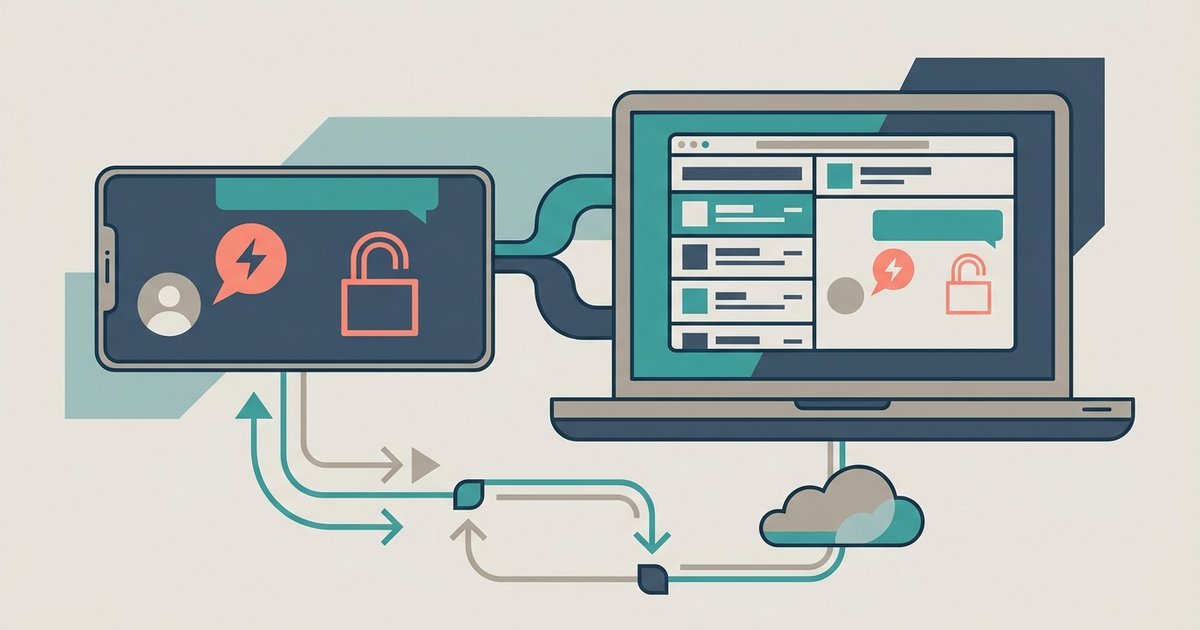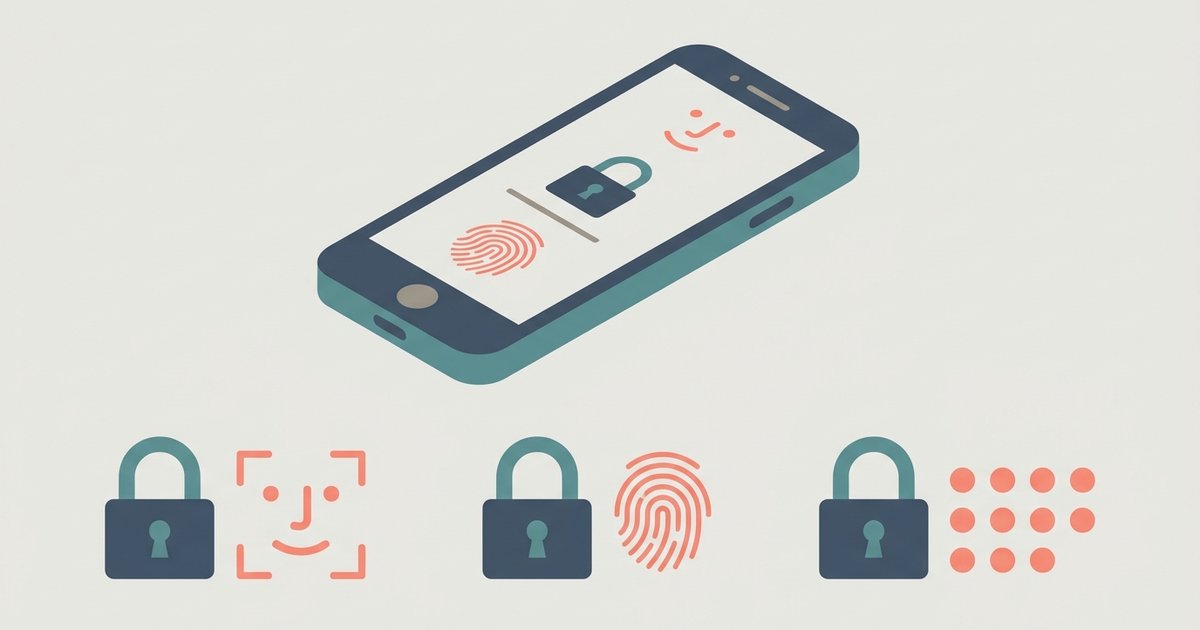
Messenger has a built-in app lock on iPhone and iPad that uses the face or fingerprint ID already set up on your device, with your device passcode as the fallback. Meta's help center documents that feature for iPhone and iPad only, so on Android the practical answer is your phone's own tools rather than a setting inside Messenger. And the PIN people go looking for is a separate feature that protects your chat backup, not the app icon.
Turn on app lock in Messenger on iPhone or iPad
You need a face or fingerprint ID and a passcode set up on the device first, because Messenger borrows the device's authentication rather than running its own. Meta also states that Facebook does not receive information about your face or fingerprint, and that the setting applies only to Messenger.
- Tap Menu, then tap Settings.
- Tap Privacy and safety, then tap App lock.
- Tap the toggle next to Require face ID or Require touch ID to turn it on.
- Select when to lock Messenger after leaving the app, for example one minute after leaving.
That timing choice is the setting that decides whether this is useful. A long delay means someone who picks up your unlocked phone straight after you put it down walks into an open inbox. Choosing the shortest option makes the lock do what you think it does.
What app lock does not do
It does not hide notifications. Meta is explicit that you can still see message notifications and calls from Messenger while the app is locked, and that if you do not want messages appearing in your notifications, you have to turn off previews for Messenger separately in your device settings. A lock with previews on protects the app while broadcasting the contents on your lock screen.
It also does not survive a reinstall. Meta notes that if you delete and then redownload the Messenger app, app lock has to be turned on again. Anyone who reinstalls Messenger to fix a glitch should check the setting afterwards.
Replying from a notification still goes through the lock. Tapping a notification prompts for your fingerprint or face ID before you can reply, though iOS also allows replying to locked notifications directly on the device without providing an ID, which is worth knowing before you assume nothing can be sent from a locked phone.
Locking Messenger on iPhone without Messenger's own setting
iOS has an app-level lock of its own that works on apps you have downloaded, and it is a good backup if Messenger's toggle is missing or misbehaving. On the Home Screen, touch and hold the Messenger icon until the quick actions menu opens, then tap Require Face ID, or Touch ID or Passcode depending on your device. The same menu can hide the app entirely, which moves it into the Hidden folder at the bottom of the App Library.
Using both at once is fine and mildly redundant. The difference is that the iOS lock is enforced by the system and is not cleared by reinstalling the app from your own settings, while Messenger's app lock includes the timing option.
Locking Messenger on Android
Meta's app lock help article is published for iPhone and iPad, not Android, so do not assume the same toggle exists on your phone. Check under Menu, then Settings, then Privacy & safety for the App Lock option; if it is not there due to app version or region differences, use Android's own tools instead.
On Android 15 and later, private space is the closest equivalent and it is stronger than a simple app lock, because it hides the apps inside it as well as locking them. Google's steps are to open Settings, go to Security & privacy, tap Private space under Privacy, authenticate with your screen lock, then tap Set up. You can then use your device screen lock for the private space or choose a new lock, with fingerprint, pattern, PIN or password available.
Two settings make private space actually private. You can set it to lock automatically, with options including every time the device locks or five minutes after screen timeout, and you can turn on the option to hide the private space container in All Apps while it is locked. Install Messenger inside the private space and it disappears from the app list until you unlock it.
Many Android manufacturers also ship their own secure folder or app lock feature in the phone's settings. Those are built by the phone maker rather than by Meta, so the names and locations differ, but they achieve the same thing for Messenger.
Where the PIN actually comes in
Messenger's app lock does not use a PIN you invent for Messenger. It uses your face or fingerprint, and falls back to the device passcode when the ID fails, so the only PIN involved is the one that unlocks your phone.
The Messenger PIN people have heard about is the secure storage PIN, and it does a different job. Secure storage is what lets you restore your end-to-end encrypted chats when you sign in on a new device, and you protect it with a six-digit PIN or a key stored in Google Drive or iCloud. To change it, Meta's route is your profile, then Privacy and safety, then End-to-end encrypted chats, then Secure storage, then Reset PIN, done on a device where secure storage is already on.
Keep the two straight. App lock stops someone reading your messages on your phone. The secure storage PIN stops your chat history being lost when you change phones, and setting it up is the one of the two that cannot be fixed retroactively.
Common failure cases
The App lock option is not there. On iPhone and iPad, check that you have set up Face ID or Touch ID and a passcode on the device first, since the lock has nothing to use without them. On Android, expect to use private space or your phone maker's equivalent instead.
Face ID keeps failing. The lock falls back to your device passcode, so you are not shut out. Repeated failures usually point at the device's own Face ID setup rather than anything in Messenger.
Messages still show on the lock screen. Turn off notification previews for Messenger in your device notification settings. App lock does not touch previews.
The lock vanished after an update or reinstall. Turn it back on. A reinstall clears the setting by design, and a large app update is a common moment for people to reinstall.
You expect it to lock instantly and it does not. Check the timing choice you made when you turned it on.
Pick one lock and make it the real one rather than layering three you half-trust. On an iPhone, Messenger's app lock set to the shortest delay with previews turned off covers the ordinary risk of someone picking up your phone. On Android, a private space that locks every time the screen does is the equivalent, and it has the useful side effect of not advertising that Messenger is installed at all.
\nRelated reading: Facebook Messenger Guide and Messenger Scams and Hacked-Account Messages: How to Spot Them.