Messenger is Meta's messaging app for one to one chats, group chats, voice calls and video calls. It runs as its own app on iPhone, iPad and Android, and in a web browser at messenger.com or facebook.com/messages. It is tied to Facebook accounts, but you do not need an active Facebook profile to use it, and most of what people ask about Messenger comes down to a handful of settings buried in the same place.
This page is the short version of everything we cover about Messenger: how it relates to Facebook, what is encrypted, how to lock it, how to get files out of it, and what happens to messages you delete. Each section below is a summary you can act on, with the detail split out into its own guide.
Messenger is a separate app, not a tab inside Facebook
Messenger has been a standalone app for years, with its own inbox, its own settings menu and its own set of privacy controls. On a phone you install it from the App Store or Google Play. The Messenger desktop app for Mac and Windows is no longer available, so on a computer you use a browser instead: Meta's help center now points computer users to facebook.com/messages, and people without an active Facebook profile to messenger.com.
That split matters more than it sounds. Settings you change in the Facebook app do not always control Messenger, and several Messenger features, including app lock and the encryption controls, live only inside Messenger's own settings menu.
Messenger login and whether you need a Facebook account
You sign in to Messenger with Facebook account credentials, but you do not have to keep a visible Facebook profile. Meta's supported route is a Deactivated Except Messenger Account, usually shortened to DEMA: you create a Facebook account, deactivate the Facebook profile, then keep logging in to Messenger with the same details. Your picture stays visible in chats and people can still find you in Messenger, but you are not searchable on Facebook.
For new sign-ups, a Facebook account is now mandatory to use Messenger; the old standalone option where you signed up with just a phone number and no Facebook account at all has been retired. Meta's help center tells anyone still on a Messenger-only account to convert it to a DEMA to keep access. Our full guide walks through the conversion and what breaks along the way.
Is Messenger encrypted?
Personal chats and calls on Messenger are end-to-end encrypted by default, which means Meta cannot read the content of those messages. That replaced the old opt-in mode called secret conversations, so there is usually nothing to switch on. To confirm a specific chat, open its settings and look for the words "End-to-end encrypted".
Encryption is not total, and Meta says so plainly. Chat customizations such as nicknames, themes and reactions are not end-to-end encrypted, and chats with businesses, accounts using business messaging tools and Marketplace conversations are not covered. Anything you send to Meta AI, or any message you report, is shared with Meta by design. The detailed guide explains what that leaves exposed.
Locking Messenger with Face ID, a fingerprint or a PIN
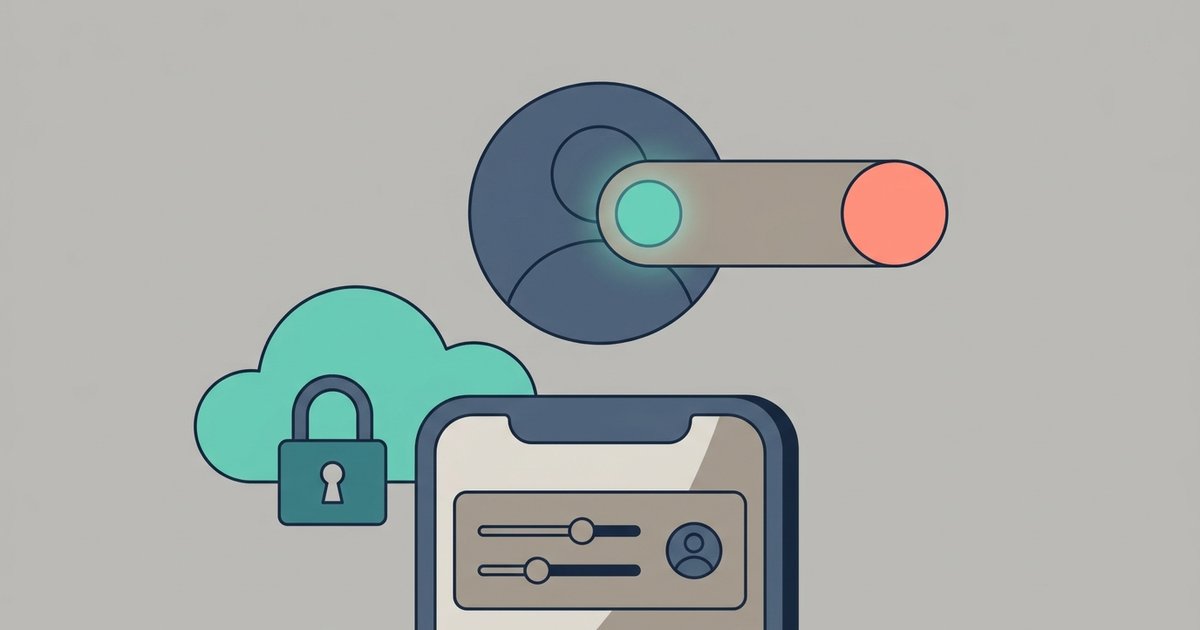
On iPhone and iPad, Messenger has a built-in app lock that uses the face or fingerprint ID already set up on the device, and falls back to your device passcode if the ID fails. You turn it on from Menu, then Settings, then Privacy and safety, then App lock, and you choose how long after leaving the app it should lock. Meta says it does not receive information about your face or fingerprint.
Two things surprise people. Notifications still arrive while the app is locked, so you need to turn off message previews separately if you do not want text on the lock screen, and deleting and reinstalling Messenger clears the setting. Android users have a different path, and the PIN most people mean is a different feature again.
Saving photos and videos from a chat
You can save individual photos and videos you receive to your device, and in end-to-end encrypted chats you can turn on auto-save so incoming photos download automatically. To find everything ever shared in a conversation, open the chat, tap the name at the top and choose View media, files and links. On a computer you work from the same conversation in a browser.
What you cannot save is anything set to disappear. Messenger notifies everyone in an end-to-end encrypted chat if it detects a screenshot or screen recording, and the courtesy rule is worth stating: other people's photos are theirs, so ask before you keep or forward them.
Saving audio files and voice clips
Voice messages and audio files sit in the same place as images, under View media, files and links in the conversation, and where a save option is offered it downloads to your device's normal downloads folder. Not every audio clip exposes a save button, and the option can differ between the phone apps and the browser version.
When there is no save option, the reliable fallback is Meta's export tool. It produces a downloadable copy of your Messenger data, attachments included, which is slower but works on anything still in the chat.
Opening Messenger in a browser
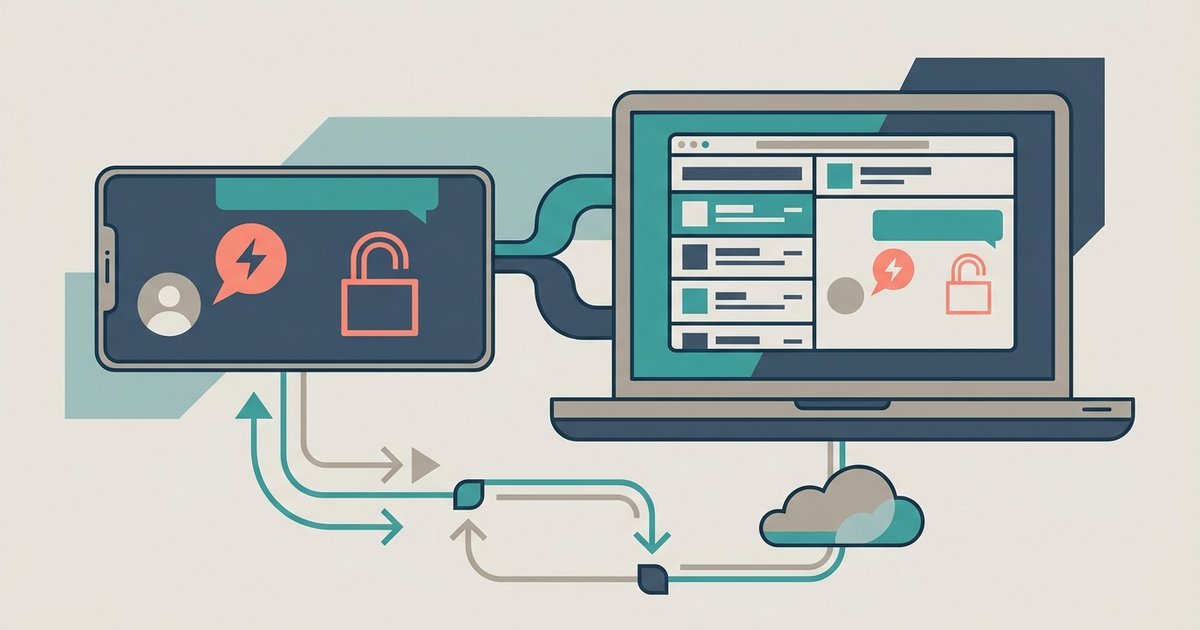
With the desktop app gone, the browser is the desktop version. Sign in at facebook.com/messages if you have an active Facebook profile, or messenger.com if your profile is deactivated, and you get the same inbox as the phone. It is also the answer when the mobile app will not update or keeps crashing.
Signing in to Messenger on a device for the first time, a browser included, means restoring your end-to-end encrypted chats before you can see your full history. That restore depends on secure storage, which is the feature that actually uses a PIN.
Recovering deleted messages
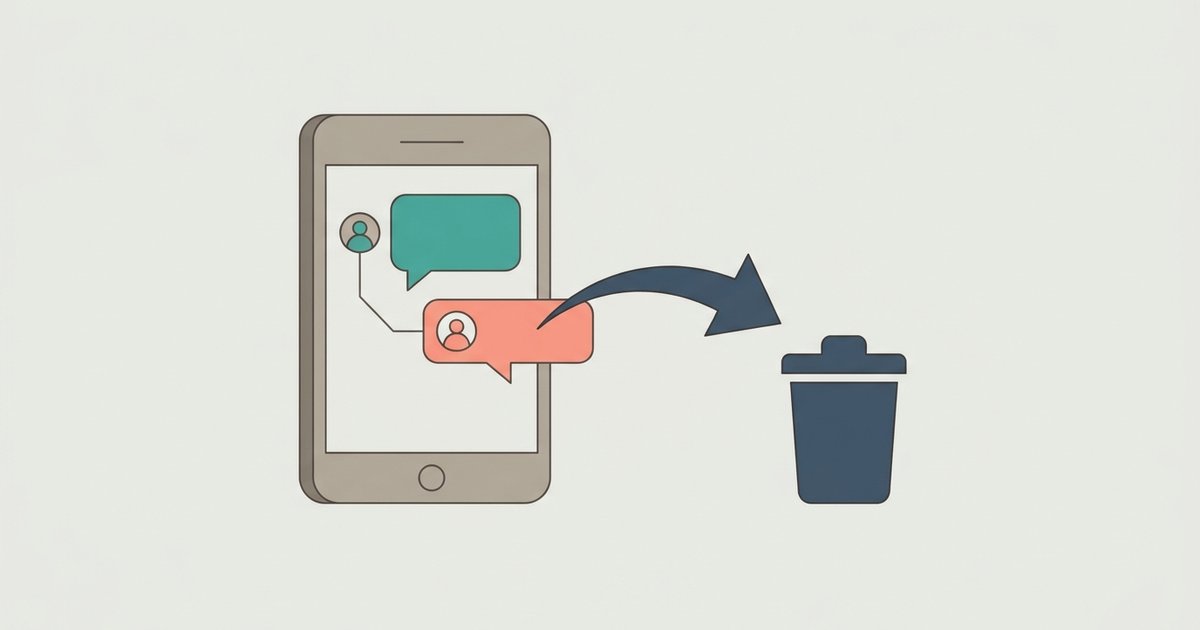
This is the section people most want a trick for, and there is not one. Meta's help center is direct: deleting messages, chats or photos permanently removes them, and you cannot undelete a chat you deleted. The two delete options, Delete for you and Delete for everyone, replaced the older Unsend wording.
What does work is prevention. Archiving a chat hides it from your list while keeping the history, and the chat comes back when the other person messages you again. Beyond that, an export of your information may still contain a copy of a conversation, and messages deleted by the other person will not be in it.
Disappearing messages and screenshot alerts
In an end-to-end encrypted chat you can set a timer so everyone's messages disappear once they have been seen. Anyone in the chat can reset the timer, and an unread message disappears on its own after 14 days. Vanish mode, the older swipe-up version of this, is no longer supported.
Meta is clear that a timer is not containment. Someone can screenshot, forward, copy or photograph a message before it goes, and although you are notified when a screenshot is detected in an encrypted chat, Meta warns it may not catch every screenshot or screen recording.
Unsending a message
Unsend is now called Delete for everyone, and it removes a message you sent from the chat for everyone in it. It cannot undo what has already happened: the other person may have read it or seen it in a notification, and a deleted message can still be reviewed if someone reports the conversation. For a typo or a wrong detail, editing within the first 15 minutes is often the better fix.
Hiding your active status
The green dot and the last active time next to your name are controlled by a setting called Active status, and Messenger and Facebook each have their own switch. To appear offline on Messenger you have to turn it off in both apps, on every device you use. Turning it off also hides everyone else's status from you, and it does nothing to read receipts.
Telling whether someone blocked you
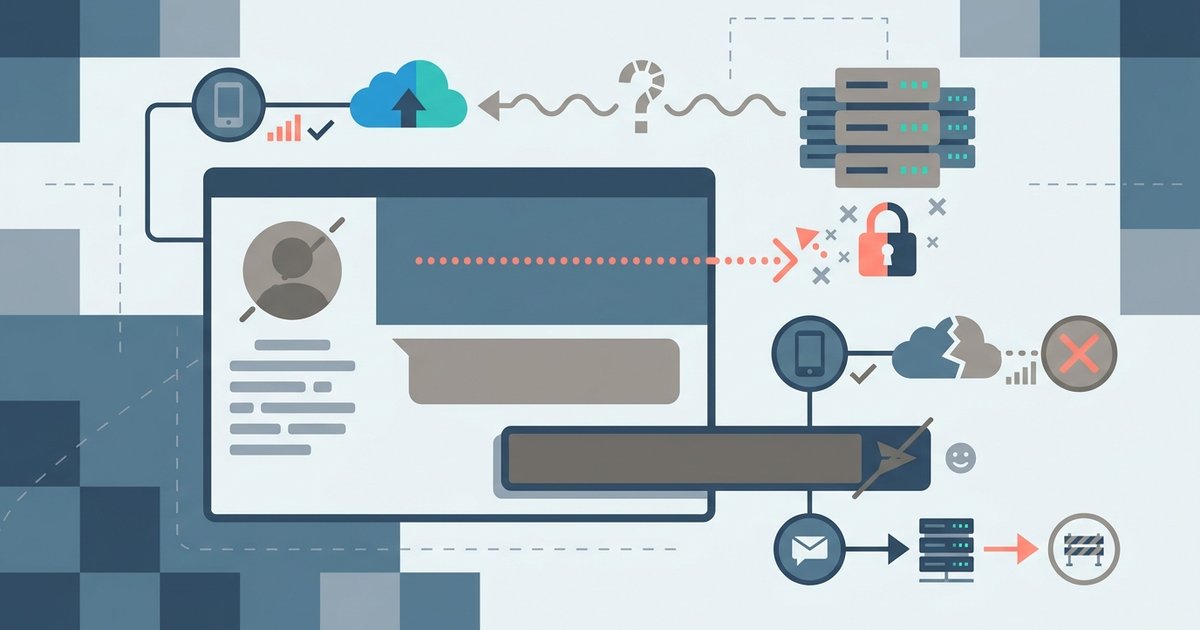
Messenger never notifies anyone that they have been blocked, so the answer comes from reading several signs together. Messages that will not send, a missing active status and a profile you can no longer find all point toward a block, but a deactivated or deleted account can look much the same. Knowing how to tell if someone blocked you comes down to one check: whether mutual friends can still see the profile.
How disappearing messages work
Vanish mode has been retired, and its replacement is a timer on end-to-end encrypted chats that deletes everyone's messages after they have been seen. Anyone in the chat can change or switch off the timer, it stays on until someone does, and it can only be set from the phone and tablet apps. Disappearing messages still leave room for screenshots, copies and reports, so they suit short-lived details rather than secrets.
Group chats, admins and leaving
Every Messenger group chat has admins who approve new members, remove people and control the invite link. Members who want peace have two tools: muting, which nobody sees, and leaving, which posts a notice to the group. Because there is no silent way to leave a group chat, muting it for as long as the app allows is the quiet option.
Message requests and filtered messages
Messages from people you are not connected with on Facebook skip your Chats list and wait in Message requests, and anything Meta treats as spam is filtered out of those into a separate list. That is where most missing messages from strangers, buyers and old contacts turn up. Your message delivery settings decide which groups of people reach your Chats list, which go to requests and which cannot reach you at all.
Spotting scams and hacked-account messages
Scams on Messenger either come from strangers with an offer that needs money or personal details, or from a friend's hacked account asking for something urgent. Both lean on pressure, a link or login request, and a push to pay or move the conversation elsewhere. The reliable defense against Messenger scams is to verify through a second channel, such as a phone call, before you click, pay or share a code.
Where these settings actually live
Almost everything above starts the same way: open Messenger, tap Menu, then Settings, then Privacy and safety. App lock, end-to-end encrypted chats, secure storage and the reporting controls are all in that one screen. Exact wording shifts a little between the iPhone app, the Android app, the browser version and different languages, so read the section names rather than hunting for an exact string.
If you only do one thing after reading this, set up secure storage while you still have access to a device that is signed in. It is the difference between moving to a new phone with your chat history intact and starting from an empty inbox, and unlike most Messenger settings it cannot be fixed after the fact.