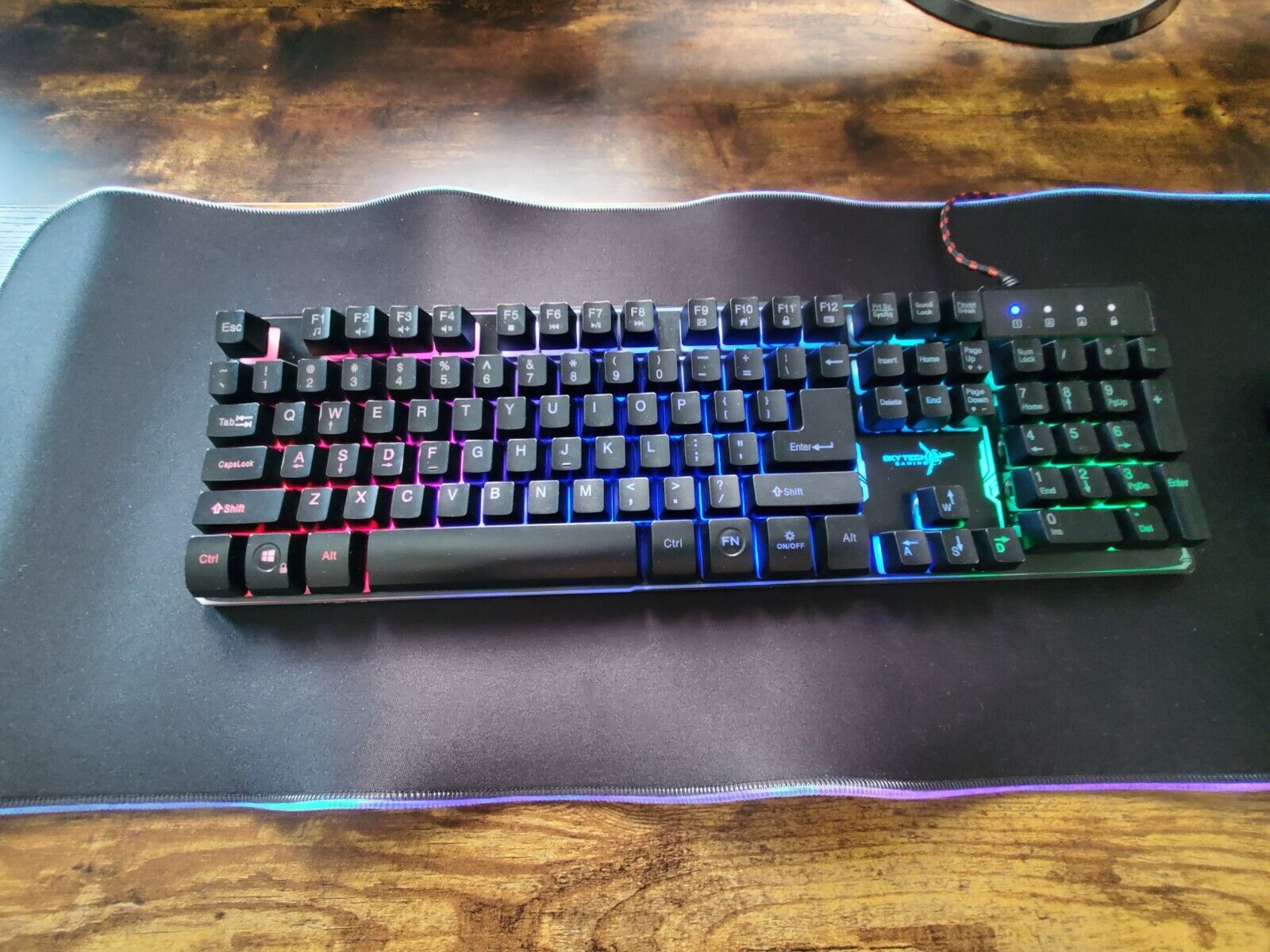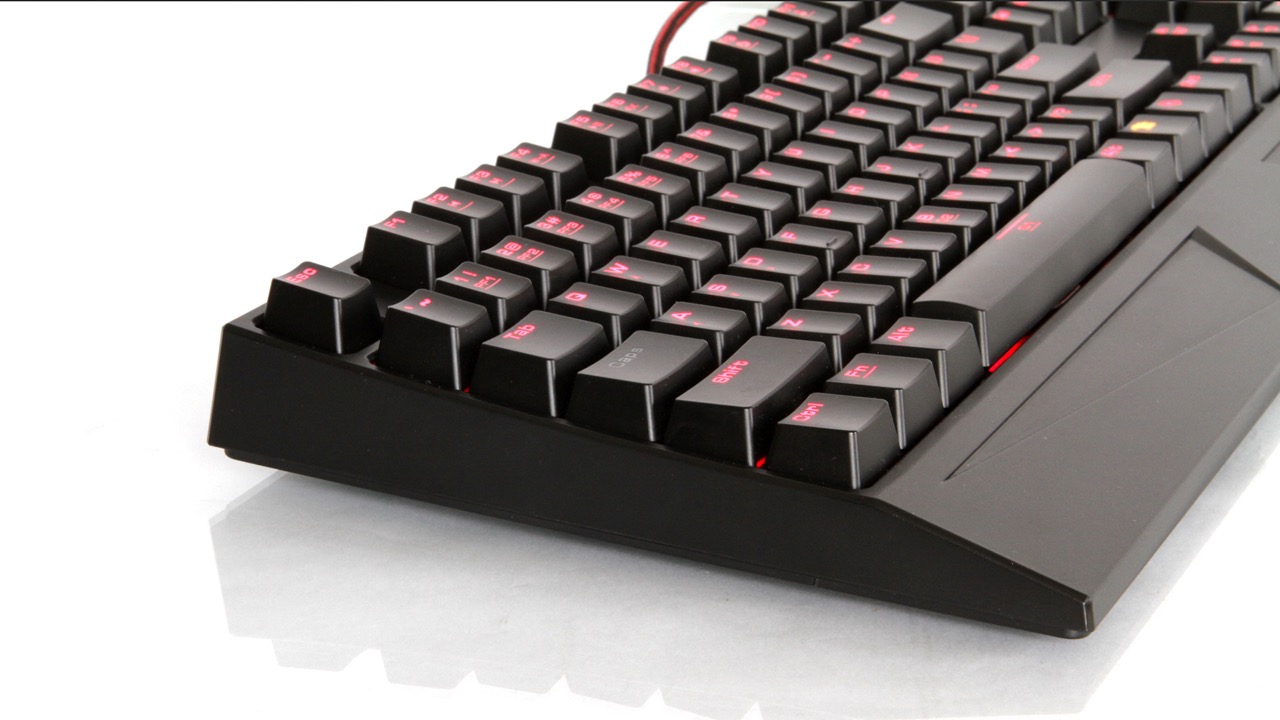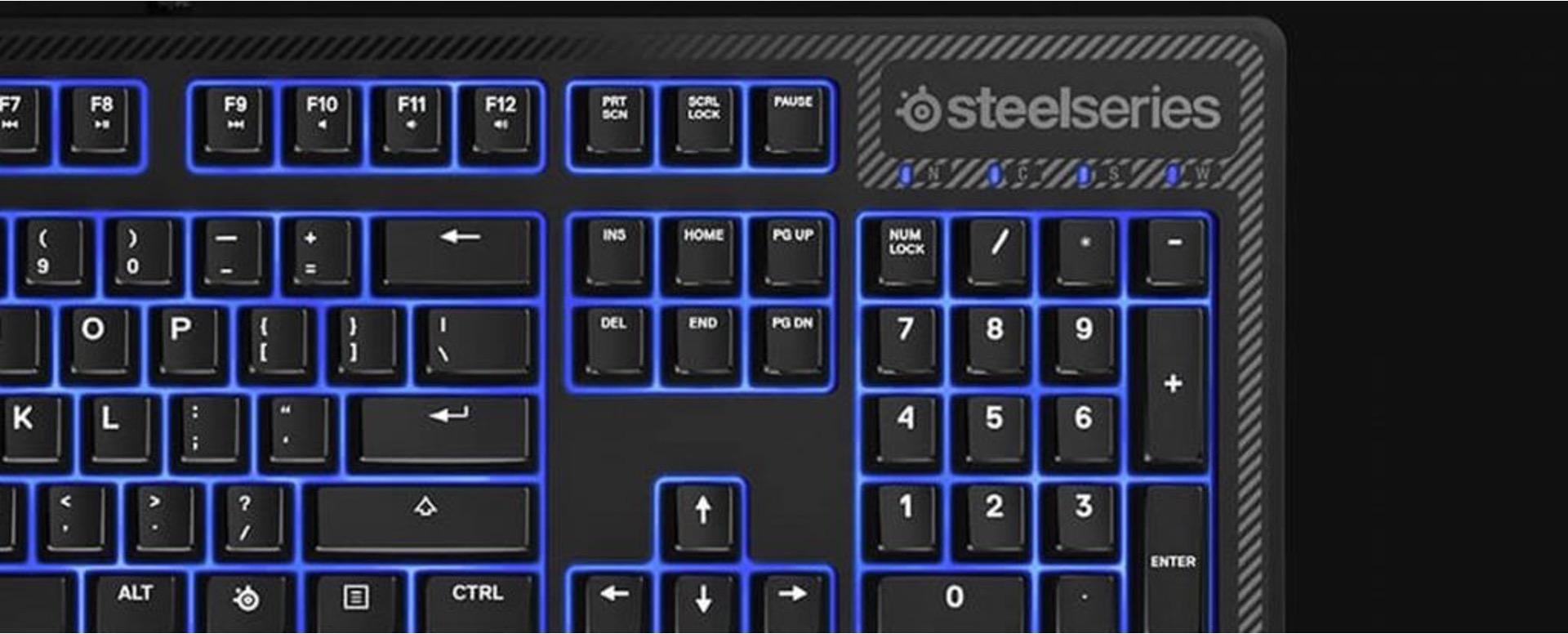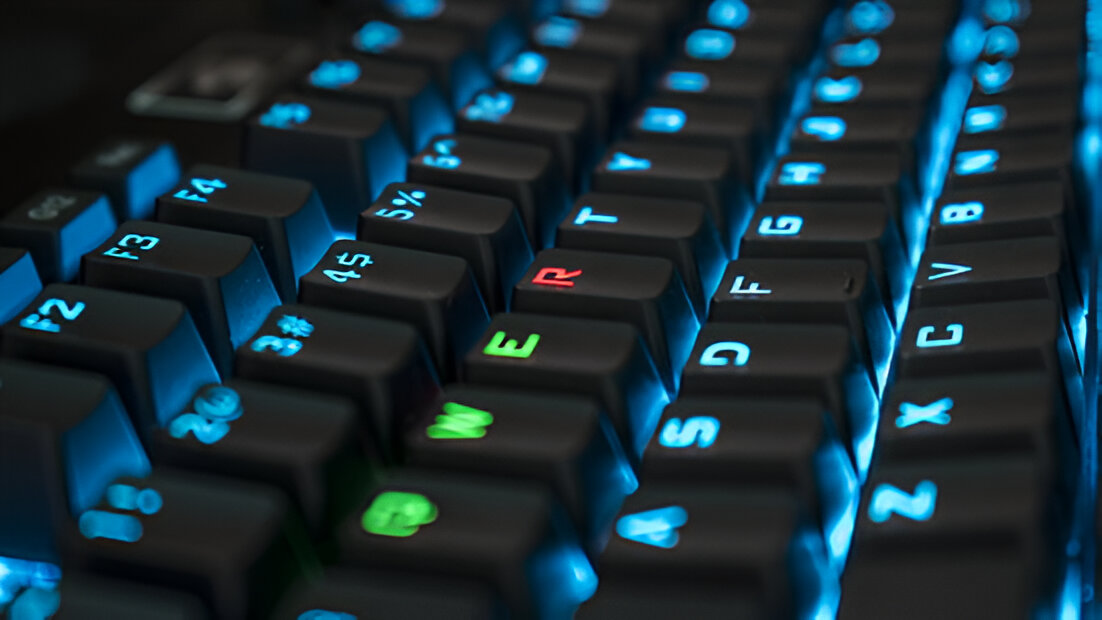
Practical guides for people who want to take control of their gaming or everyday keyboard’s appearance and button behavior. It is written for owners of specific popular brands, Corsair, Logitech, SteelSeries, Asus, Cyberpower, IBuyPower, Skytech, and AULA, who are looking for clear, step-by-step instructions rather than generic advice. Whether you are a beginner who just unboxed a new RGB keyboard or a more experienced user trying to fix a persistent setting, these articles are meant to help you get the result you want without guesswork.
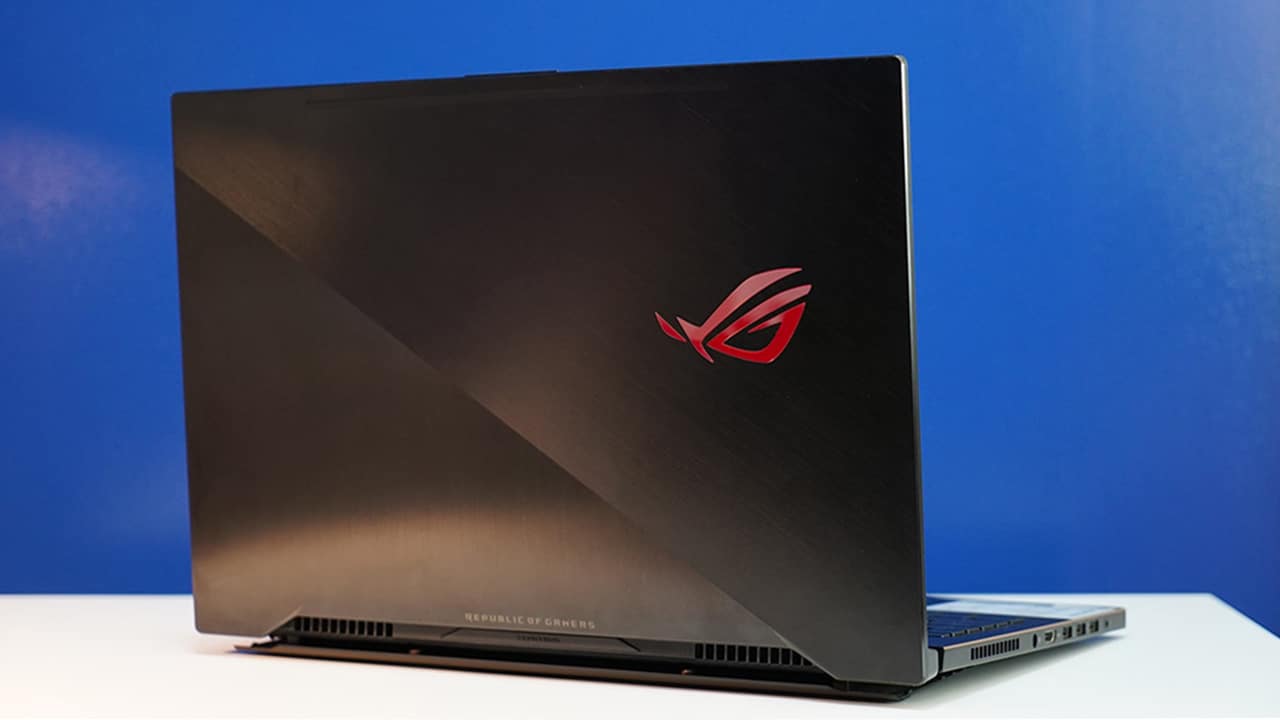
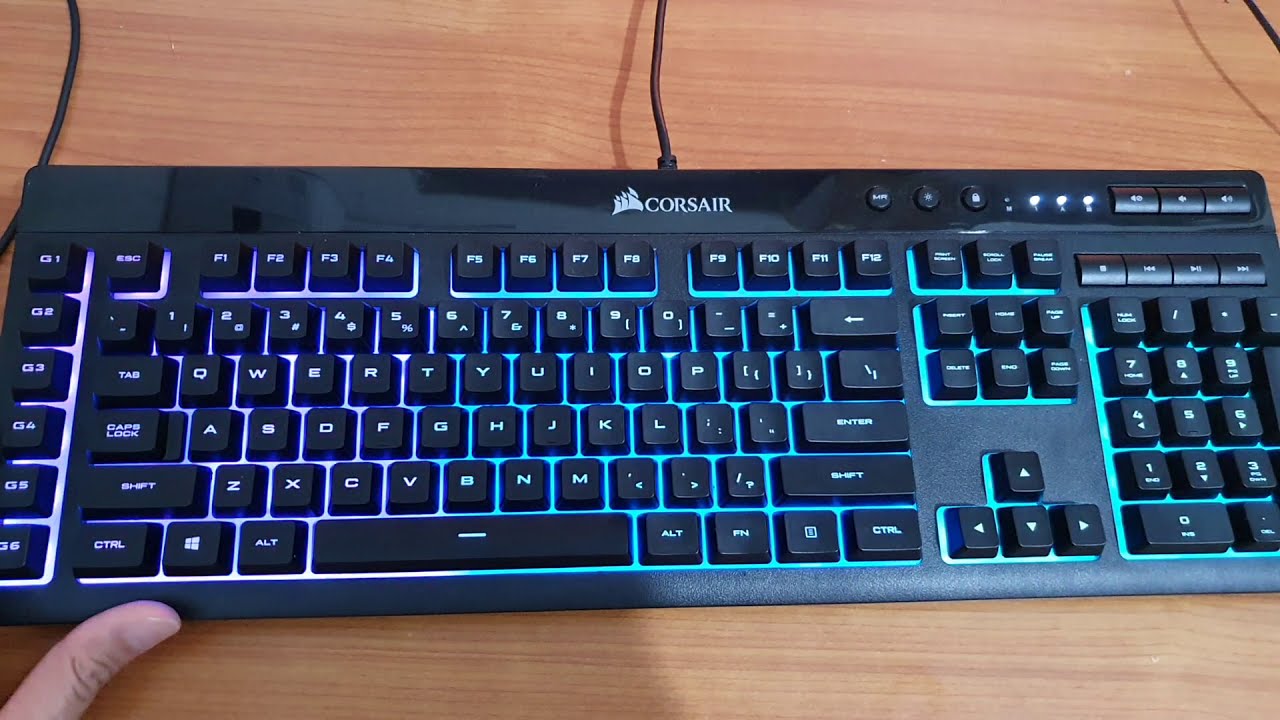
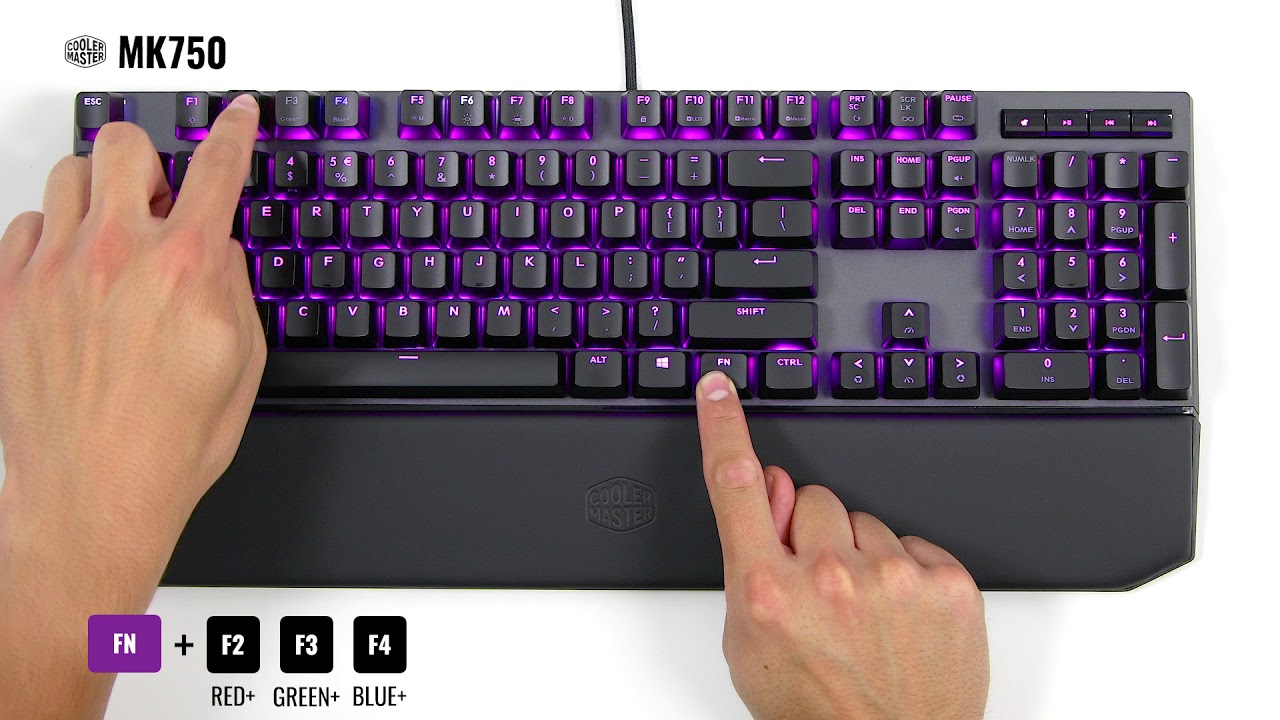
Several articles focus on changing the backlight or key colors, which is a common first step for personalizing a setup. For example, the guides for the Corsair keyboard, Logitech G213, SteelSeries Apex 100, and the Cyberpower PC model walk through the software menus or onboard buttons needed to switch hues, adjust brightness, or apply preset effects. A second group of articles deals with reassigning specific keys, such as the Asus laptop’s M1, M2, and M3 hotkeys, so you can map them to actions that suit your workflow or gaming habits. A third theme is troubleshooting when a customization does not stick, as seen in the AULA F75 guide about color recording not saving, this type of article helps you diagnose why a setting resets and what steps to take to make it persist.
These articles help the reader perform legitimate, supported adjustments using the manufacturer’s own software or built-in functions. They do not cover bypassing protections, modifying firmware in unauthorized ways, or enabling cheat features. Instead, they show you how to use the tools that come with your device to make it look and behave the way you prefer, and how to fix common hiccups along the way.