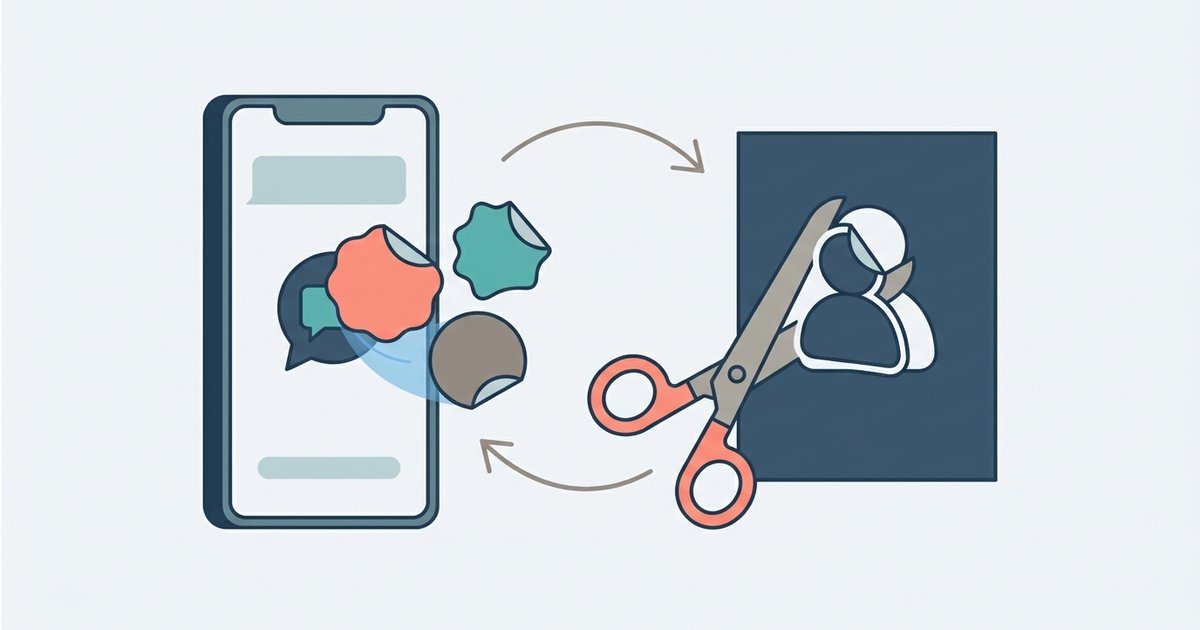
Stickers live behind the sticker icon in every WhatsApp chat, next to the packs you have already downloaded. You can grab more from WhatsApp's own sticker store inside the app, cut a custom sticker out of any photo on your phone, and save your favorites into a named pack. Packaging a pack that other people can install is a bigger job, because a downloadable sticker pack is technically a small app published to the Play Store or App Store.
This covers all three: finding stickers, making your own, and sharing them.
Sending a sticker
Open any individual or group chat, tap the emoji icon, then tap the sticker icon, and tap a sticker to send it. There is no confirmation step, so a mis-tap sends.
WhatsApp also suggests stickers based on emoji. Type a single emoji at the start of a message and matching stickers appear above the keyboard. Tap one to send, or keep typing to dismiss the suggestion. Tapping Show more results pulls in additional stickers from WhatsApp and third-party providers such as GIPHY; when you search that way, only the emoji itself is shared with those providers, and your messages stay end-to-end encrypted.
Finding and downloading sticker packs
The sticker tray shows suggested packs from the WhatsApp Sticker Store underneath the packs you already have. Tap the download icon next to a pack, wait for it to finish, and it appears in your tray.
There is a second source outside the app. In the sticker tray, scroll to the bottom of the All stickers tab and tap Discover sticker apps, which opens sticker packs in the Google Play Store or App Store. These install as separate apps that then feed stickers into WhatsApp. One caveat: stickers downloaded outside WhatsApp may not turn up in search if the creator did not tag them according to WhatsApp's guidelines.
To search, open the sticker tray and search by text or emoji. Results split into My stickers for packs you have downloaded, Text stickers for suggestions matching your search, and More stickers for things available to download.
Managing the packs you have
- Open the sticker tray, tap the Add sticker icon, then tap Your stickers to see everything you have downloaded.
- Go to Your stickers and use the Drag item icon next to a pack to drag it into a different order.
- Go to Your stickers and tap the Delete icon (trash can) to delete a pack.
- Tap and hold any sticker in a chat and choose View sticker pack to see who owns and created it.
- Tap and hold a sticker and choose Add to Favorites to keep it within reach.
If your stickers render as blank squares, WhatsApp attributes that to a corrupted backup rather than a problem with the packs themselves.
Making a sticker from a photo
This is the feature most people are actually looking for, and it runs entirely inside WhatsApp.
- Open a chat, tap the Emoji icon, then tap the Stickers icon.
- Tap Create, then Recents, then See more, then Photos.
- Pick an image from your gallery or take one with the camera.
- On the preview screen, choose one of the preset cutout options.
- Add another sticker or emoji on top, add text, or draw on it freehand.
- Send it, or start over if the cutout went wrong.
Custom sticker creation needs a current version of WhatsApp on Android or iOS. If you do not see the Create option, update the app first.
Generating a sticker with AI
WhatsApp can also generate stickers from a text description. Open a chat, tap the Emoji icon, then the Sticker icon, then tap Create, then Generate with AI, and enter a description. Up to four stickers come back; tap one to send it, or edit the description and try again. You can also tap and hold a generated sticker and choose Edit to add text, emoji or drawing before sending.
Two limits apply. WhatsApp says the feature is available only in limited countries, so it may not appear for you, and sticker descriptions are supported only in English, Indonesian, Portuguese and Spanish. Generated stickers can be reported if a result is inappropriate.
Building your own sticker pack
Saving your creations into a pack is quick. Tap and hold a sticker in the tray, or tap one in a chat, then tap Add to sticker pack. Choose an existing pack or tap New, give it a name, and tap Save. To add more later, open the pack, select the stickers you want and confirm.
If you are importing artwork rather than cutting it out in the app, the file requirements are strict. Static stickers must be 512 by 512 pixels and under 100 KB, and a pack can hold up to 30 of them. Animated stickers must also be 512 by 512, under 500 KB each, and the animation cannot run longer than 10 seconds in total, again with 30 per pack. If you are sourcing animation to work from, a searchable library of animated GIFs is a faster starting point than trying to find loops in your camera roll, and a browser-based GIF maker will trim a clip down to the length and size a pack will accept.
To share a finished pack, open a chat, go to the sticker tray, select the pack and send it.
Designing a pack for other people to install
Publishing a pack that strangers can download is a development task, not a setting. You create the sticker art, package it in an app, and publish that app to the Google Play Store or the App Store; once it is live, people install the app and the stickers appear in their WhatsApp. WhatsApp provides sample apps and a set of APIs, and says the basic version needs minimal coding experience.
The art requirements are specific. Each sticker needs a transparent background, has to be exactly 512 by 512 pixels, and static stickers must be under 100 KB while animated stickers can be up to 500 KB. The pack also needs a tray icon at 96 by 96 pixels and under 50 KB. WhatsApp recommends an 8-pixel white stroke around the outside of each sticker, because stickers render on white, black, colored and patterned backgrounds, plus a 16-pixel margin between the artwork and the edge of the canvas.
One rule sits above all of the technical ones: WhatsApp requires that stickers be legal, authorized and acceptable under its terms. Cutting a celebrity out of a press photo and publishing it as a pack is the fastest way to have the pack pulled.
If you only want a few personal stickers, stay inside the app. The photo cutout tool plus a named pack covers it in under a minute, survives a chat backup, and needs no files, no sizing and no store listing. The 512-pixel specifications only start to matter the moment you want other people to be able to install what you made.
\nRelated reading: WhatsApp Business vs WhatsApp: Which Should You Use? and How to Move WhatsApp From Android to iPhone.