Practical, everyday fixes for the many small frustrations that come with modern televisions and their remotes. It is written for anyone who has just unboxed a new smart TV, lost the original remote, or simply cannot figure out why the input switched by itself. These are not deep repair guides; they are clear, step-by-step solutions for common hiccups that most people encounter at some point.
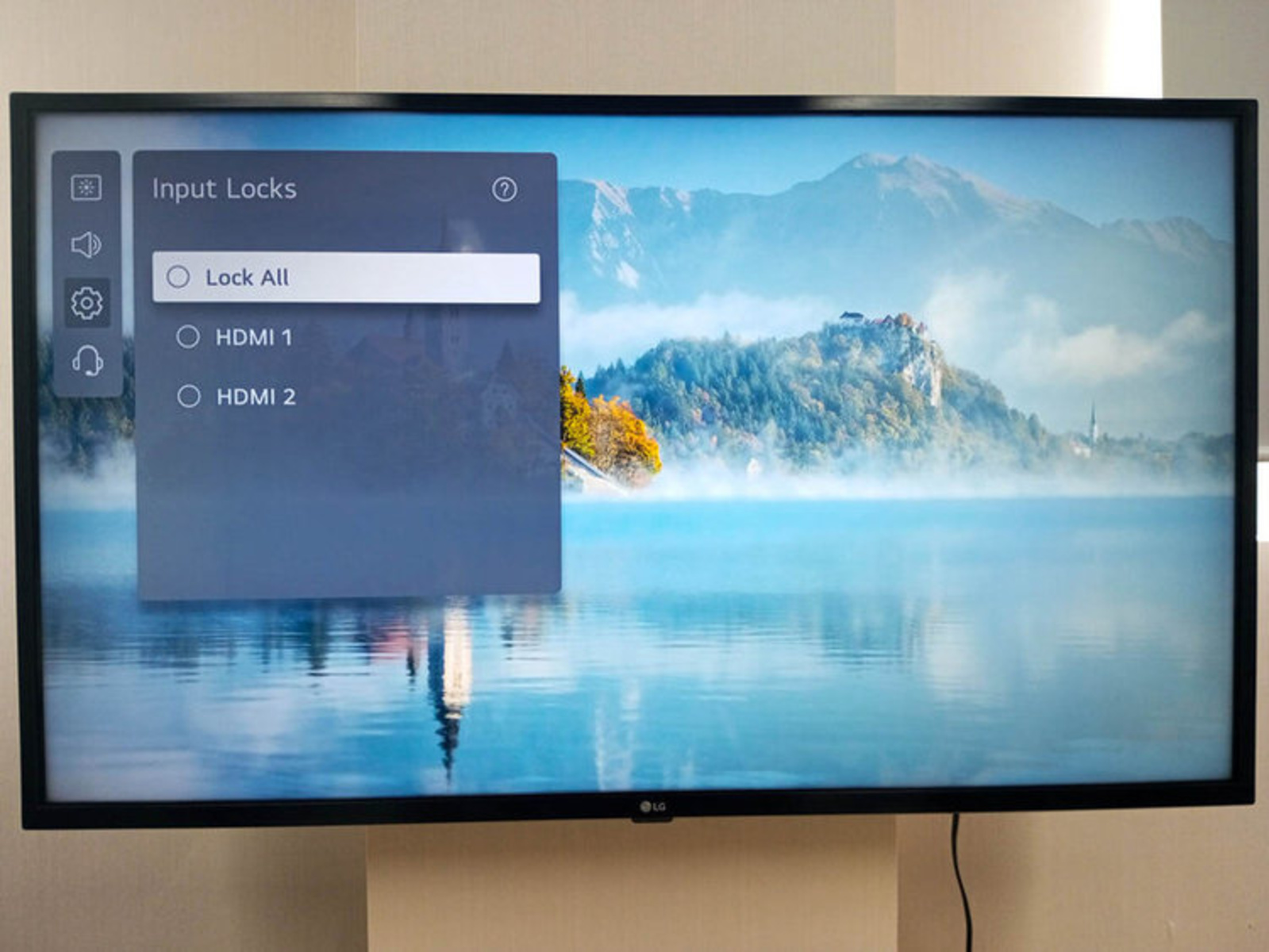
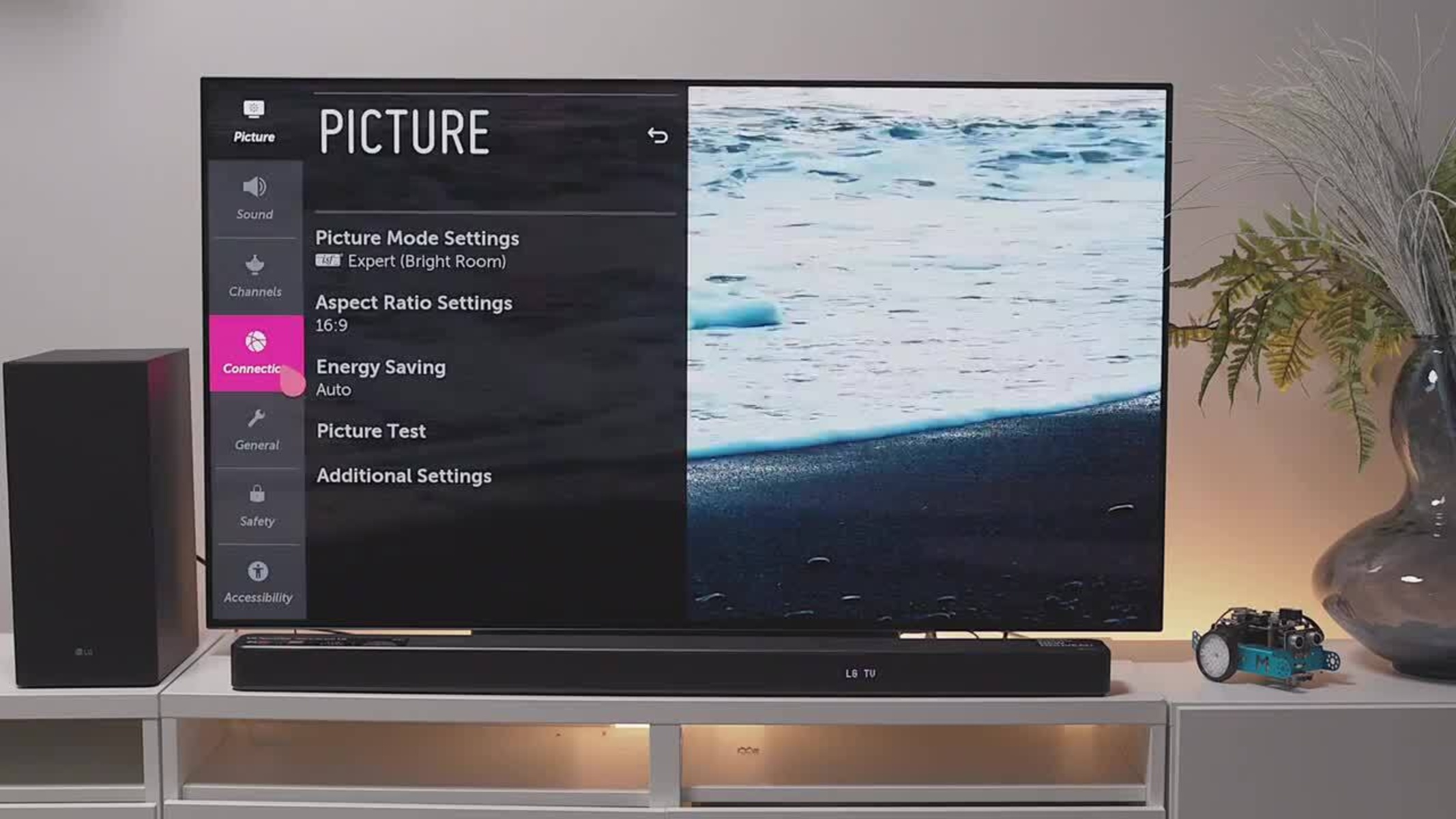
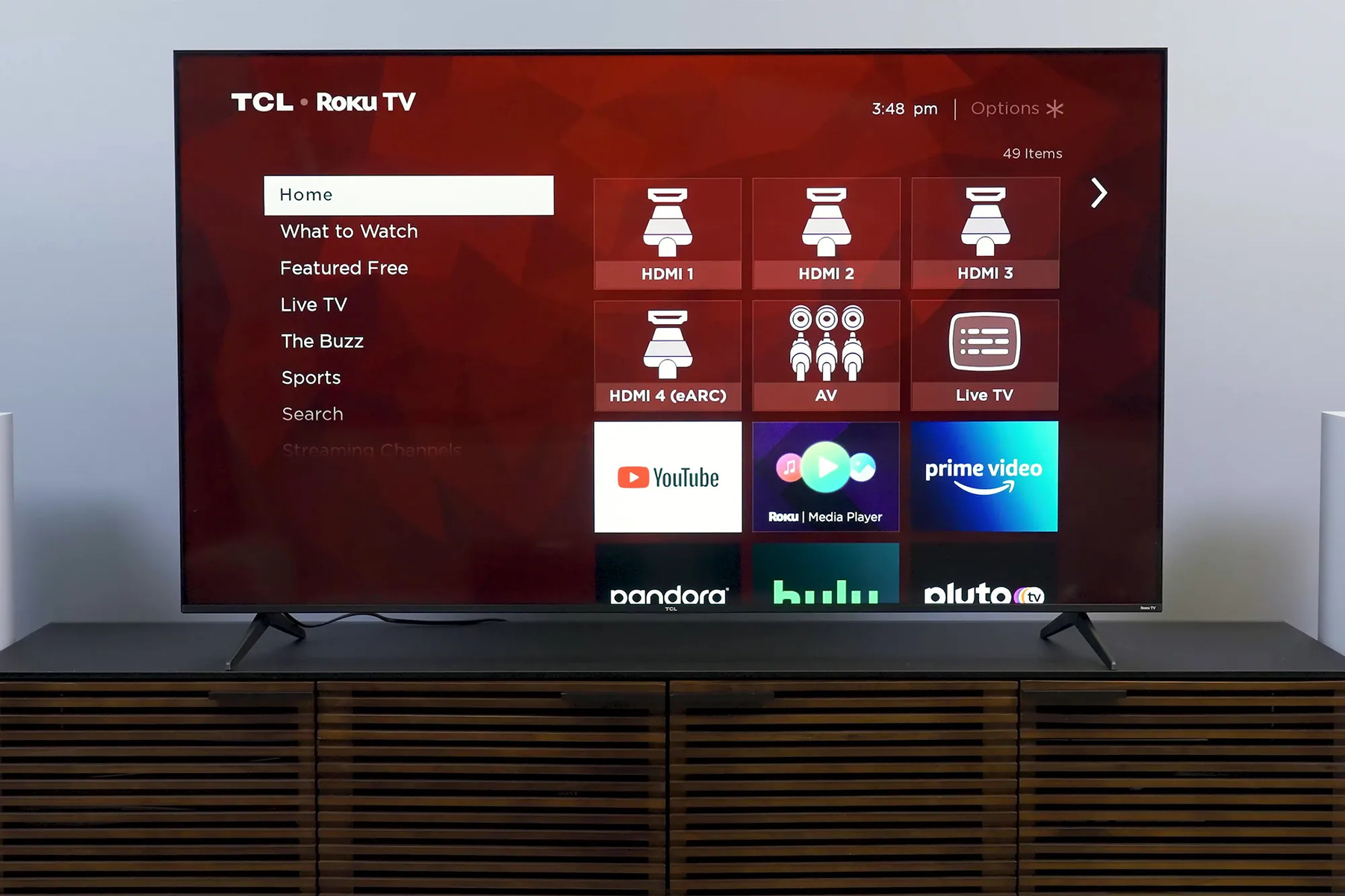
A large portion of the articles is dedicated to navigating inputs and switching between sources. You will find straightforward help for changing to HDMI on LG, Roku, Samsung, Vizio, and Element TVs, including specific situations like hotel LG TVs or when the remote is missing. Another theme is the physical remote and its buttons: where to find the power button on a Philips, the home or menu button on a Samsung, or how to pair an LG remote or unlock a key lock without one. Several pieces also cover accessibility and display settings, such as turning off voice narration on a Samsung, adjusting picture size on Vizio and Hisense models, or disabling captions. Finally, a few articles address connectivity and control beyond the TV itself, like connecting a remote to a Bose soundbar or troubleshooting why a Firestick remote is not pairing or adjusting volume. Throughout, the guidance is practical and legal, focusing on standard settings, button locations, and normal pairing procedures, never on bypassing restrictions or pirating content.