This tag collects articles about Apple’s Safari browser, covering both iOS and macOS versions, as well as a few related topics that touch on other mobile browsers. It is written for everyday users, people who are not necessarily tech-savvy but who want to get more control over their browsing experience, fix common annoyances, or understand how to configure their browser safely. The content is practical and solution-oriented, aimed at anyone who has ever been confused by a setting, a redirect loop, or an unexpected extension.
The articles here solve two main kinds of problems. First, there is a strong focus on customization and interface management: you can learn how to change the Safari start page, manage favorites icons, turn off the privacy report, or add trusted sites. Several pieces also address persistent prompts, such as stopping Google from repeatedly asking you to sign in, or removing DuckDuckGo as a default search engine. Second, a significant group of articles deals with media and content: downloading videos from a website, getting embedded video to play, or fixing sound issues on an iPad. These are framed as legitimate, legal alternatives, for example, saving a video you have permission to keep, or troubleshooting why a page will not load, rather than as instructions for circumventing protections.
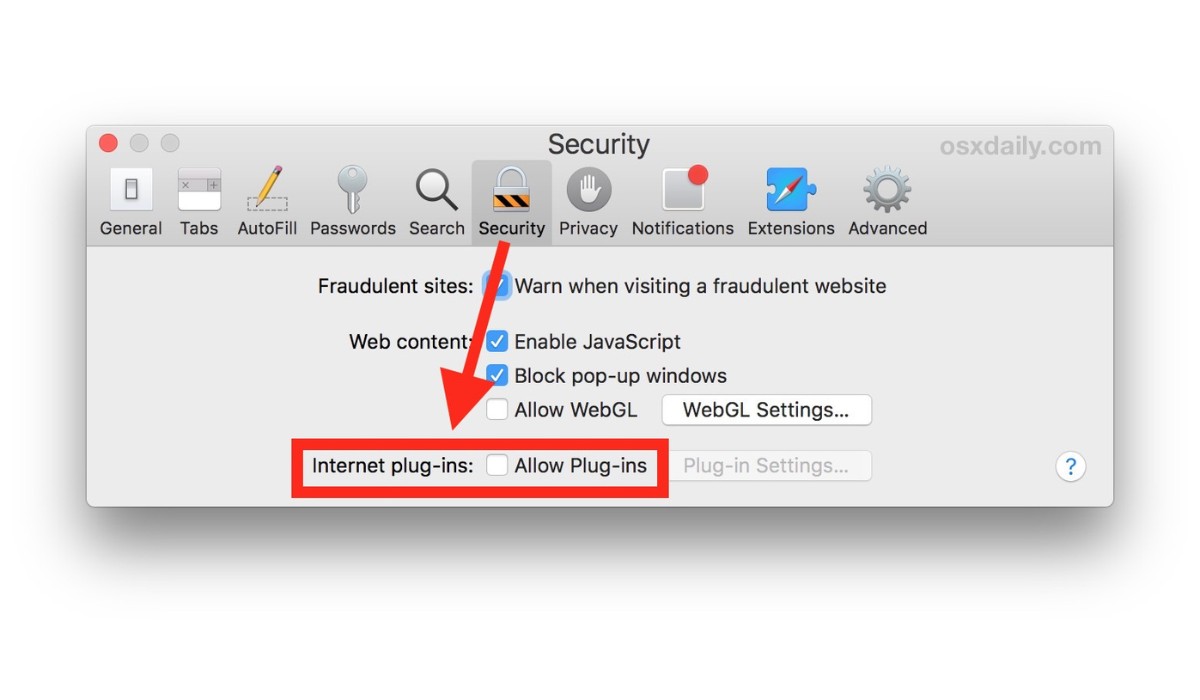
Specific topics include enabling WebGL, turning off Safe Search, changing your location in Safari, and dealing with the “too many redirects” error. There is also practical guidance on finding your browser on a phone, using Safari on Android, and understanding what a browser actually is. The tag does not cover hacking, piracy, or bypassing security measures; instead, it helps you operate Safari more effectively, fix errors, and make informed choices about your privacy and preferences.