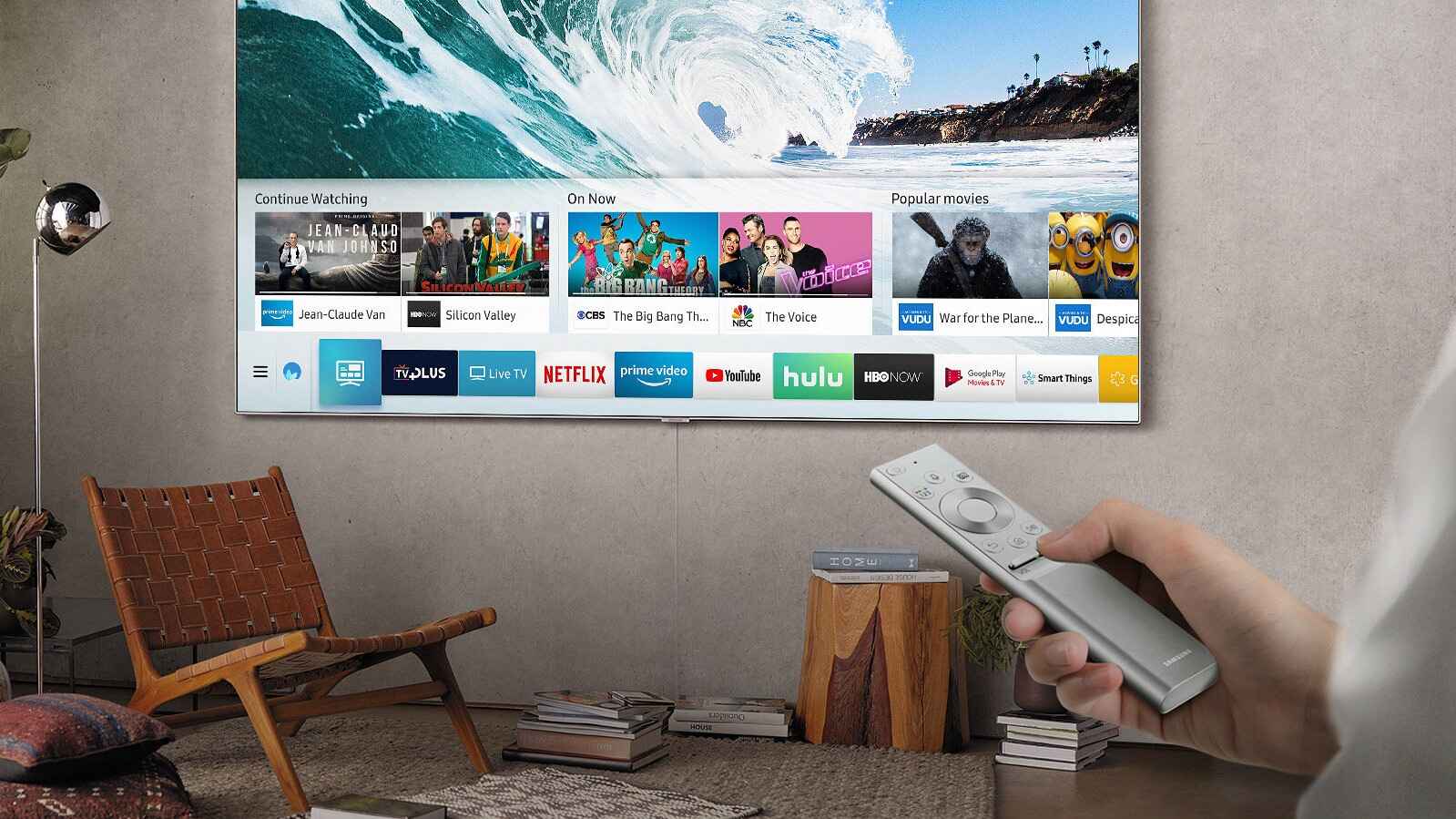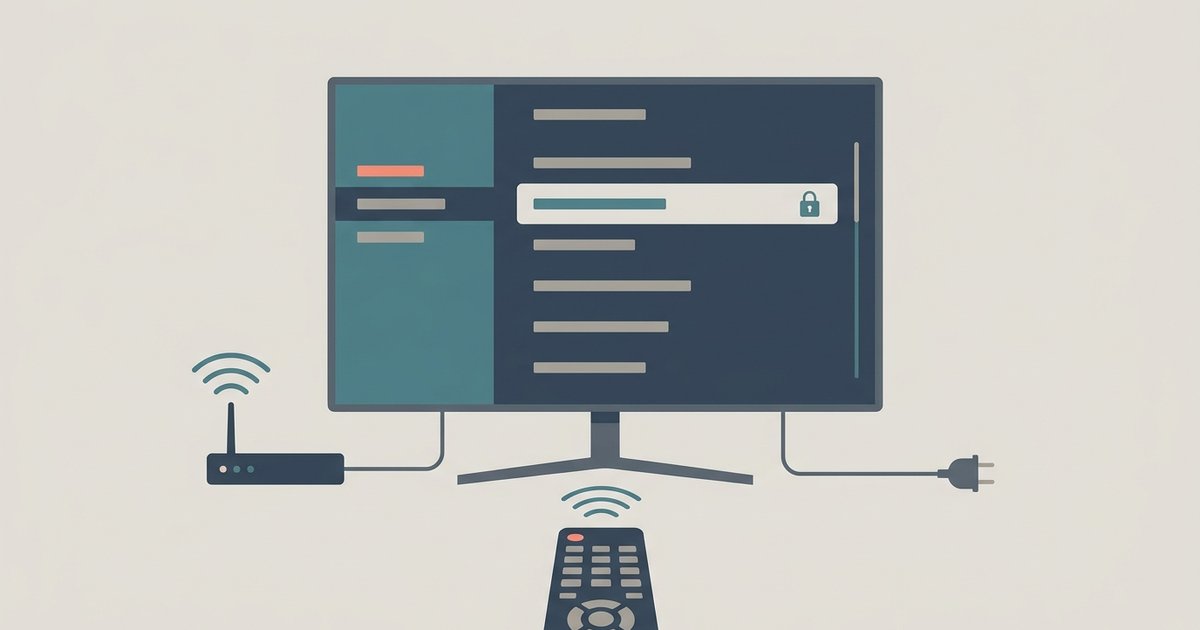
You can use a smart TV without internet by playing personal media files directly from a USB drive, connecting external devices via HDMI, or using a digital antenna for live TV. A smart TV is fully functional offline for these tasks, and the five methods below cover all the ways to get the most from your screen without a web connection.
Play media from USB using smart TV without internet
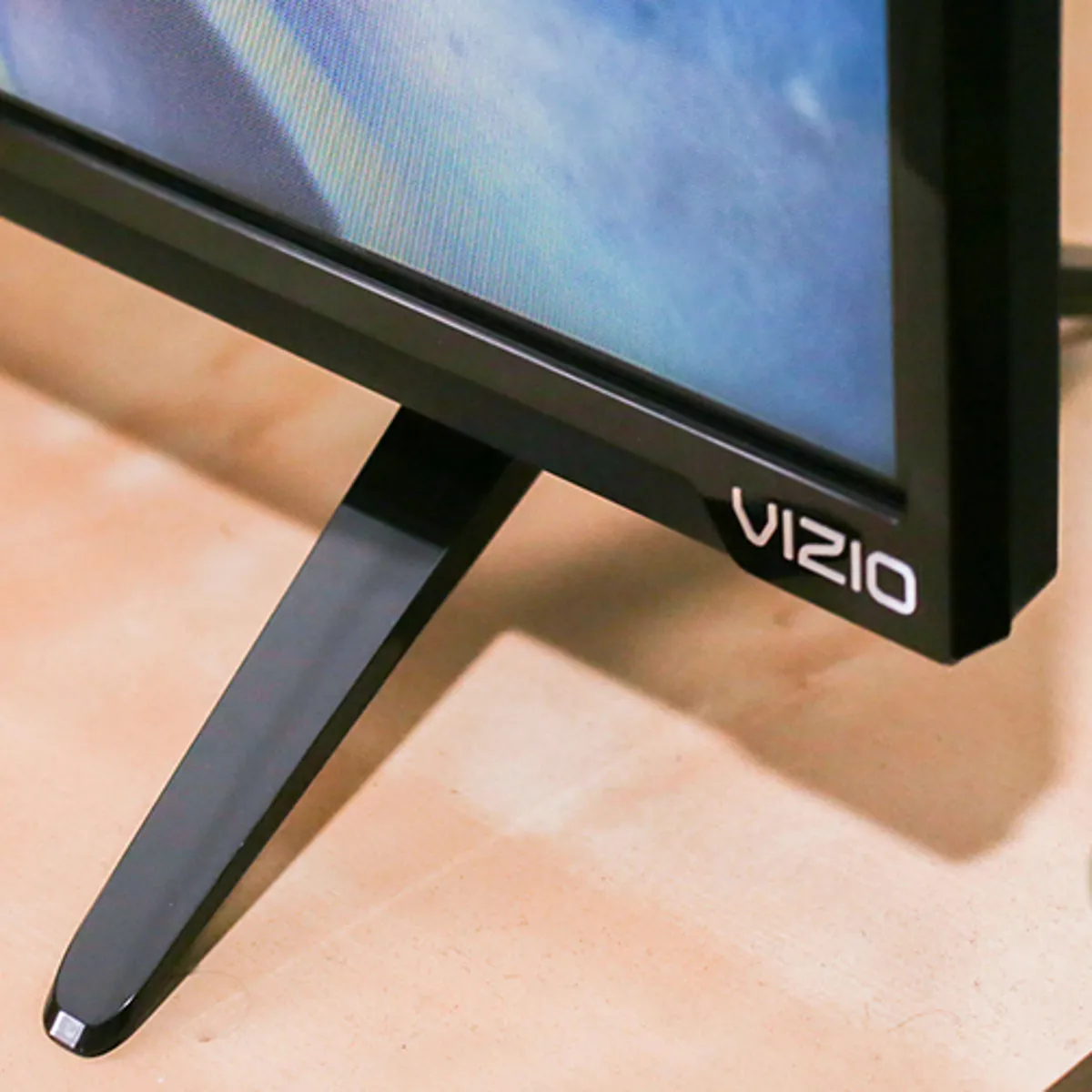
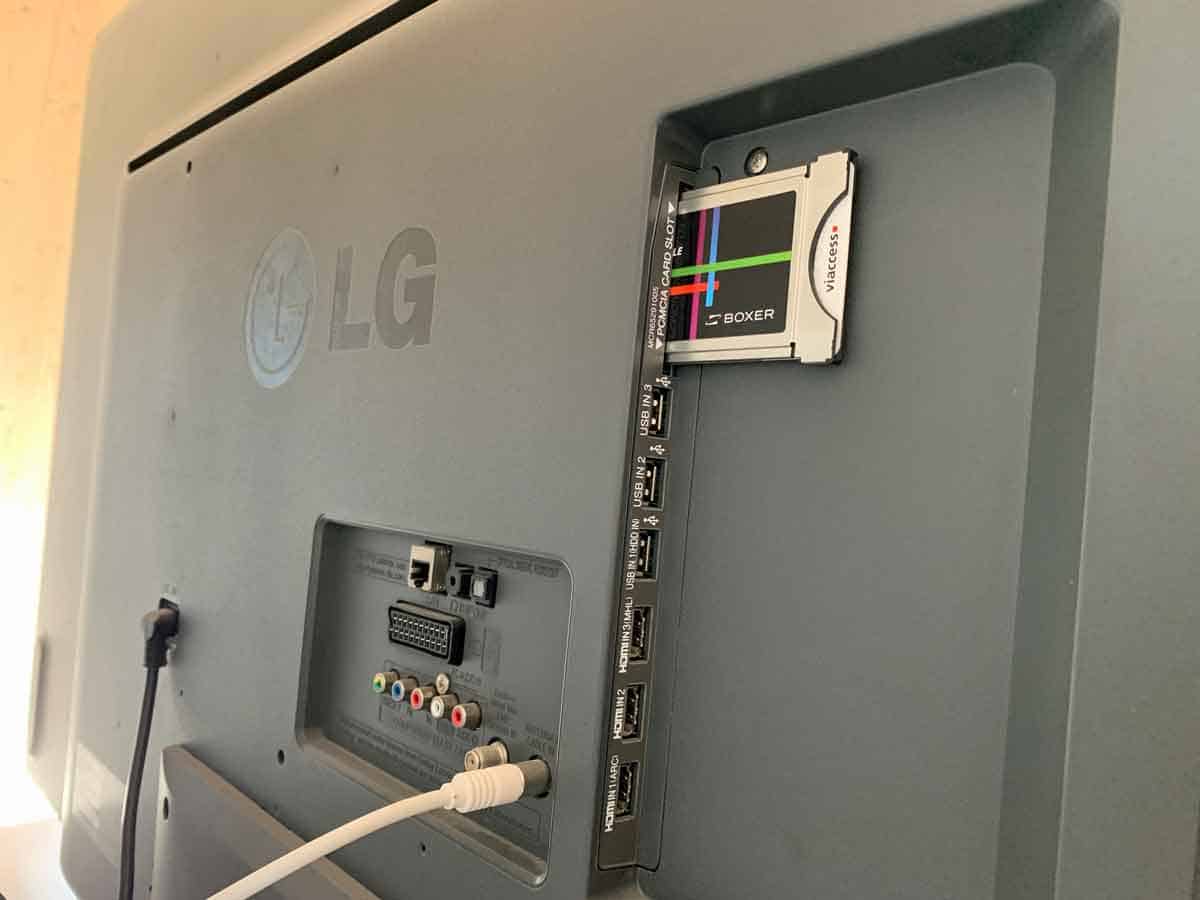
This is the simplest way to enjoy your own movies, music, and photos on a smart TV offline. To tell if my Vizio TV is a smart TV, check for a USB port on the side or back; many smart TVs have one, and it is the key to this method.
- Transfer your media files to a USB flash drive or external hard drive. Compatible formats include MP4, AVI, MKV for video, MP3 for audio, and JPEG for photos.
- Plug the drive into the TV's USB port.
- Press the Source or Input button on your remote control.
- Select the USB device from the input list.
- Use the TV's built-in media player to browse and play your files.
You can organize files into folders by genre or date to make navigation easier. Most smart TVs also support basic playback controls like pause, rewind, and fast-forward when playing from USB.
Connect other devices with an HDMI cable
Using an HDMI cable turns your smart TV into a large monitor for a laptop, game console, or Blu-ray player. This method works for disc playback, gaming, or watching downloaded content from a computer.
- Connect one end of an HDMI cable to your external device and the other end to an HDMI port on the TV.
- Press the Source or Input button on the remote and select the HDMI port you used.
- Use the connected device as usual, its audio and video will play through the TV.
If your external device supports HDMI-CEC, you may be able to control it with the TV remote. This setup requires no internet and delivers full high-definition quality.
Stream media from your smartphone or tablet
Built-in screen mirroring or casting features let you display videos, photos, and apps from a mobile device on the TV screen. For example, a Tizen smart TV includes Smart View, while other brands offer AirPlay or similar options.
- Ensure both the TV and mobile device are on the same Wi-Fi network (no internet is needed, only a local network).
- On the TV, open the screen mirroring or casting feature from the settings or source menu.
- On your phone or tablet, activate the screen mirroring option, look for Smart View, Cast, or Screen Mirroring in quick settings.
- Select your TV from the list of available devices.
- Play a video or open a photo on your mobile device; it will appear on the TV.
This method works for locally stored media as well as content from apps that support casting. Connection quality depends on your Wi-Fi signal strength.
Watch local channels with a digital antenna
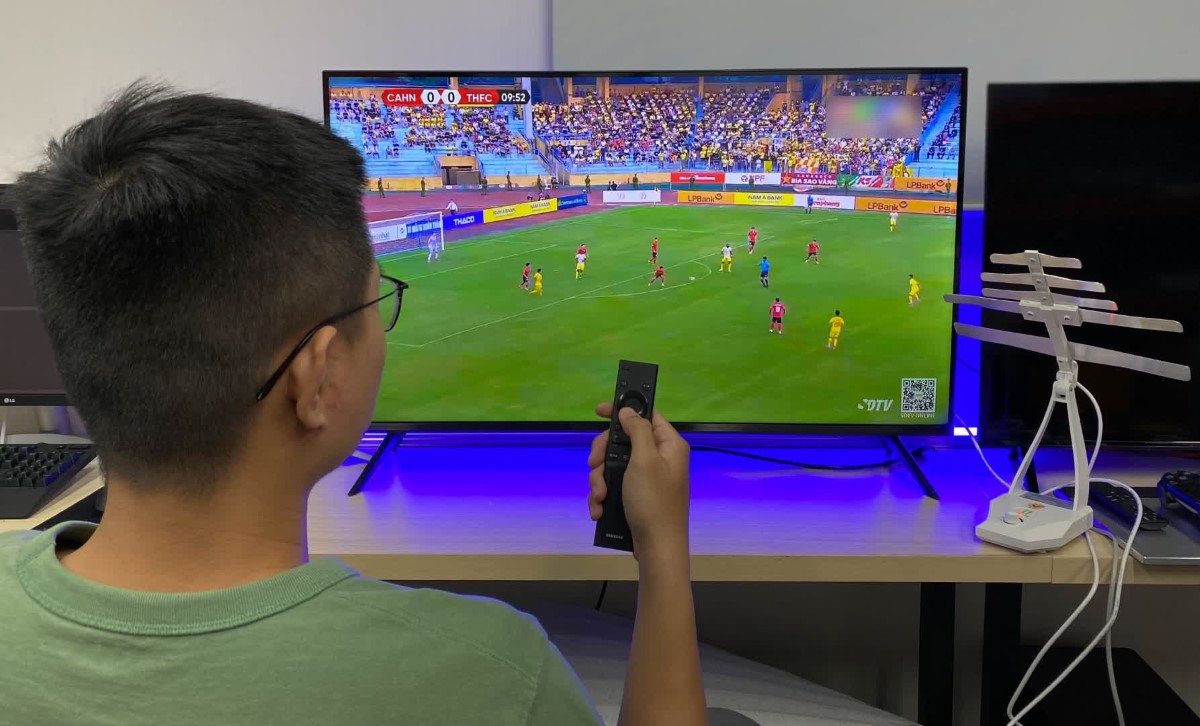
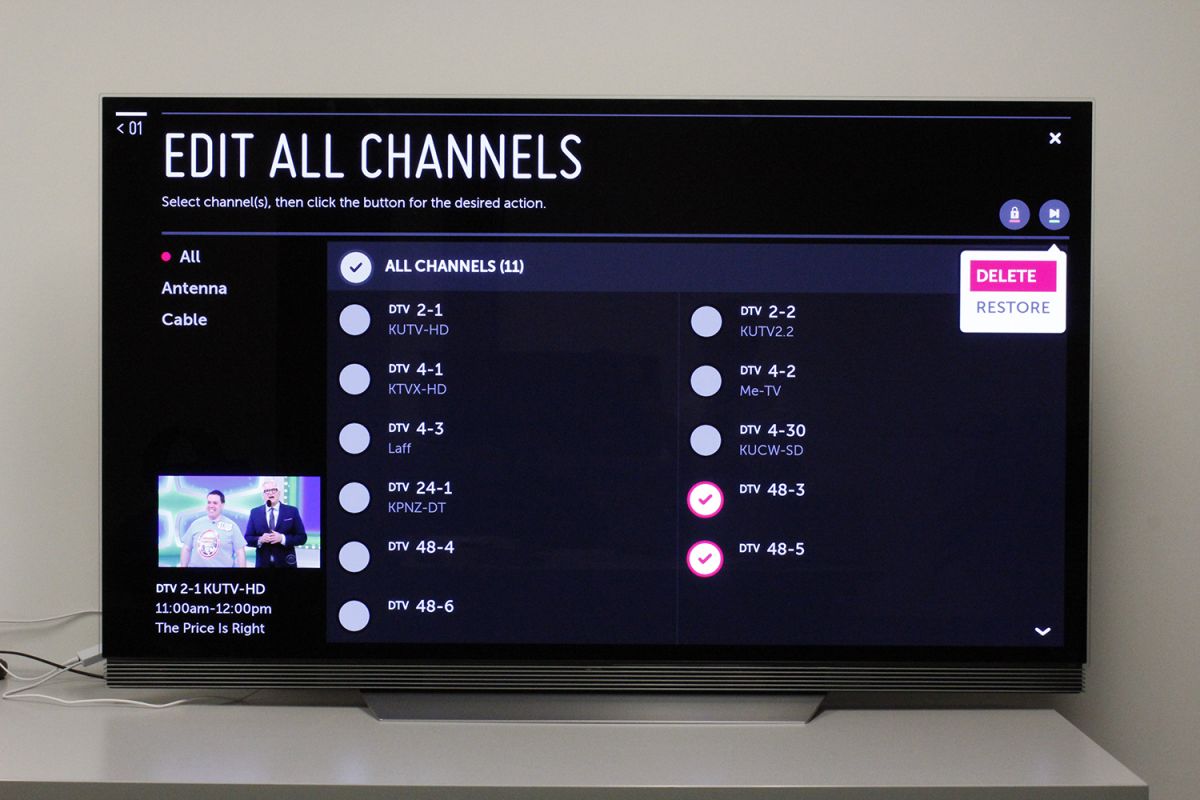
A digital antenna connects to your TV's coaxial port and pulls free over-the-air broadcast signals from local stations. This gives you live news, sports, and network shows without any subscription or internet.
- Connect the antenna cable to the TV's Antenna or RF input port.
- Position the antenna for best reception, near a window or higher up often works well.
- On the TV, go to the settings menu and select Channel Scan or Auto Program.
- Once the scan completes, browse the saved channels using the remote.
Available channels depend on your location and antenna placement. You can combine this method with USB playback or HDMI connections for a full offline setup.
Set up an offline media server at home
For a large personal media library, an offline media server stores your files on a local network device and streams them to the smart TV without internet. This requires a network-attached storage (NAS) device or a computer running media server software like Plex.
- Connect the NAS or computer to your home router via Ethernet.
- Transfer your media files (movies, TV shows, music, photos) to the server's storage.
- Install media server software on the NAS or computer and configure it to index your media folders.
- On the smart TV, open the media player app or enable DLNA (Digital Living Network Alliance) to detect the server.
- Browse your library from the TV and play any file directly.
This method keeps all content within your local network, so no internet is needed for streaming. It also lets you organize files with metadata and create playlists for easy access.